Different people in your business need different levels of access. Here is how user accounts work and how to manage them.
Account Types
Client Accounts
A client account is created automatically when someone completes a booking (signs the contract and pays), books an appointment, or submits a lead form. Clients can log into their portal to view bookings, sign contracts, make payments, fill out questionnaires, and download invoices.
As an admin, you can also create client accounts manually when adding a new booking or proposal.
Staff Accounts
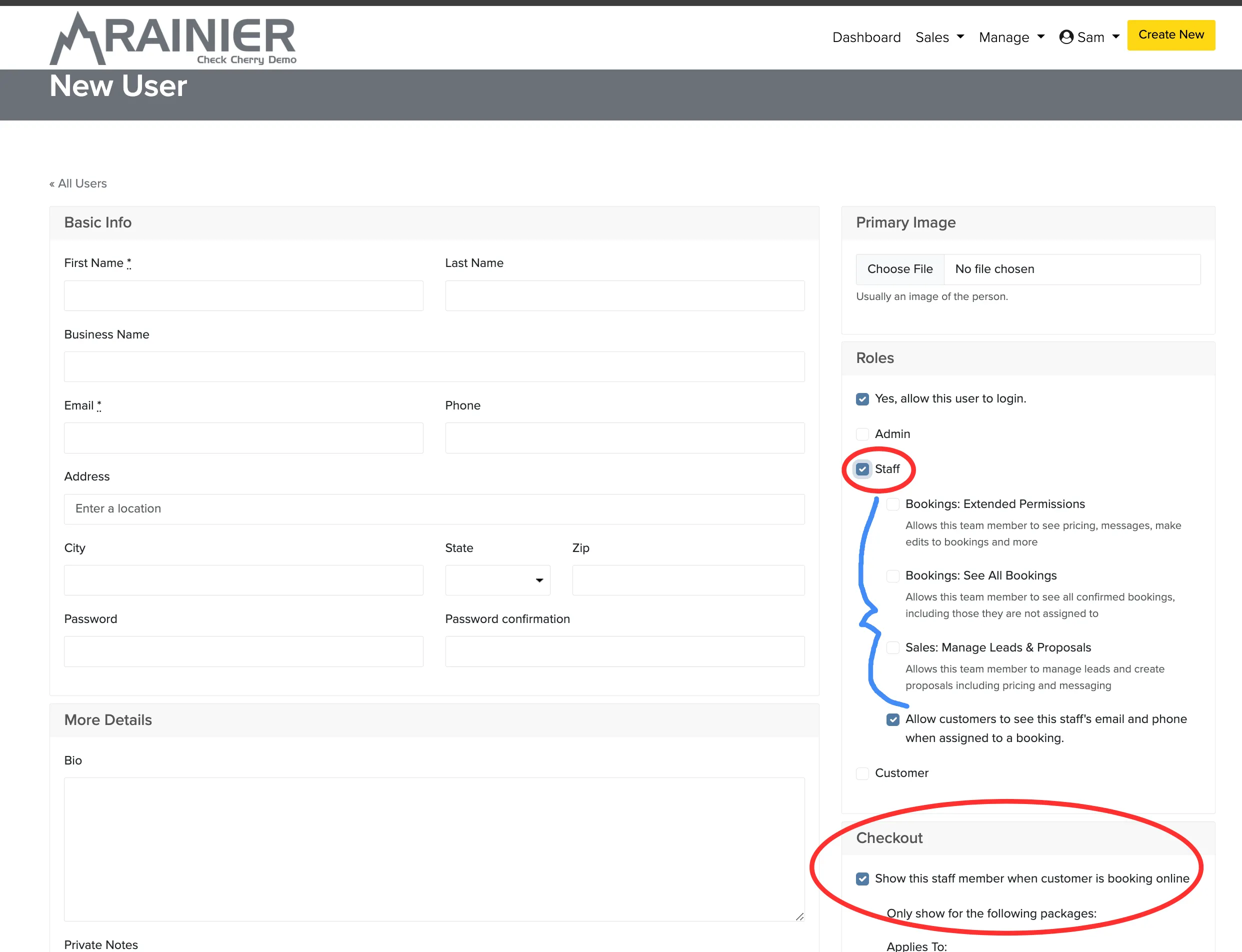
Staff accounts let team members see bookings they're assigned to and access event details. You can expand their access with additional permissions.
- Extended Permissions: See pricing, messages, and make edits to bookings.
- See All Bookings: See all bookings, not just the ones they're assigned to.
- Manage Leads & Proposals: Manage leads and create proposals with pricing and messaging.
Staff can also be made visible to clients during online booking, so clients can request a specific team member.
Admin Accounts
Admin accounts have full access to everything in your Check Cherry account. Every account allows at least two admins. Admins can impersonate any other user to troubleshoot issues or set up their calendar sync.
Contacts
A contact is a reference card attached to a booking or proposal. It holds someone's name, email, and phone number but does not give them login access. Use contacts for secondary people involved in an event, like a wedding planner or a corporate event coordinator.
Managing User Accounts
Creating a Staff or Admin Account
Editing a Client Account
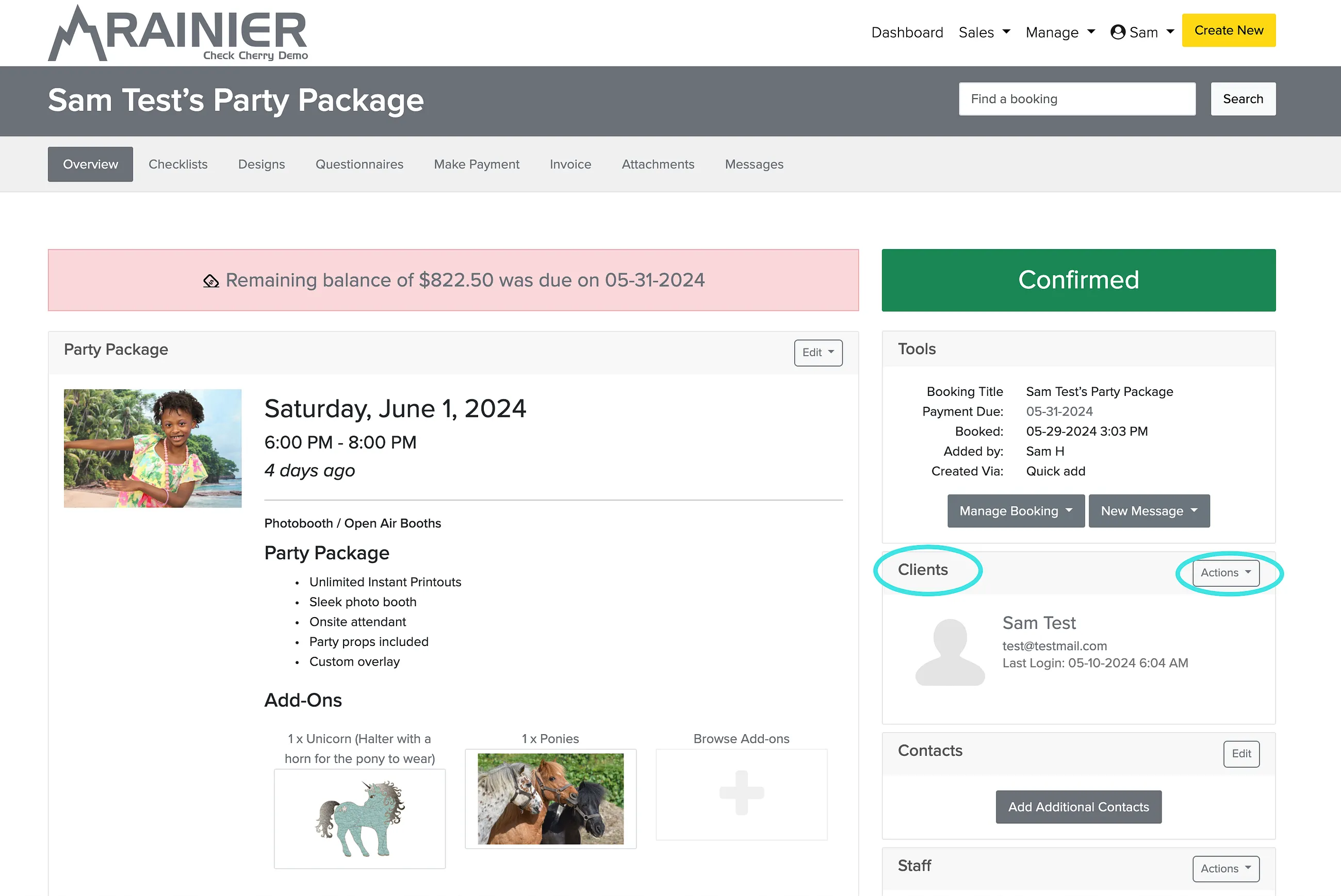
From a booking, the client info shows in the right sidebar. By clicking Edit in the Actions button, you can edit their contact information. There are also a number of other actions you can take using the Actions button.
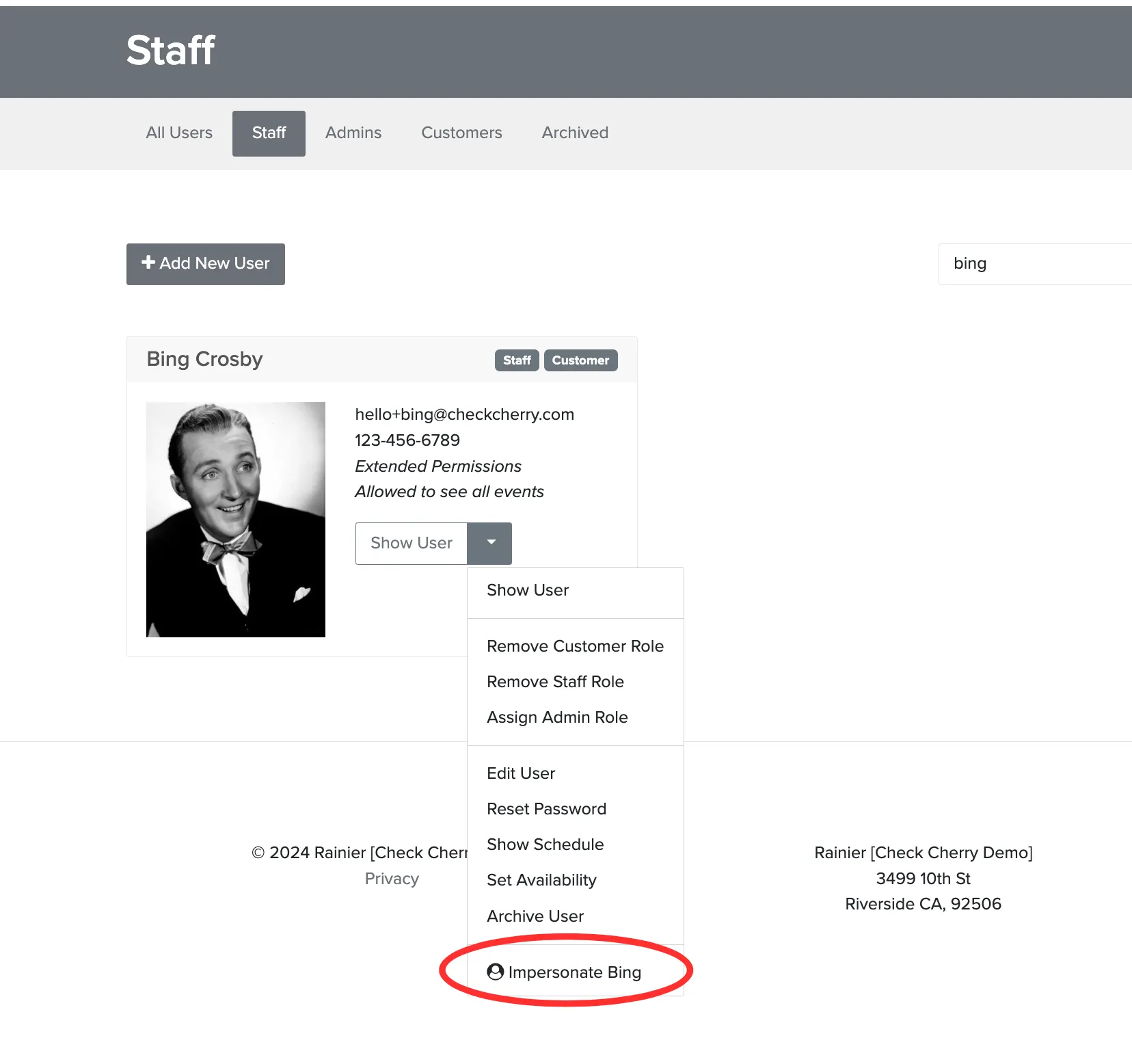
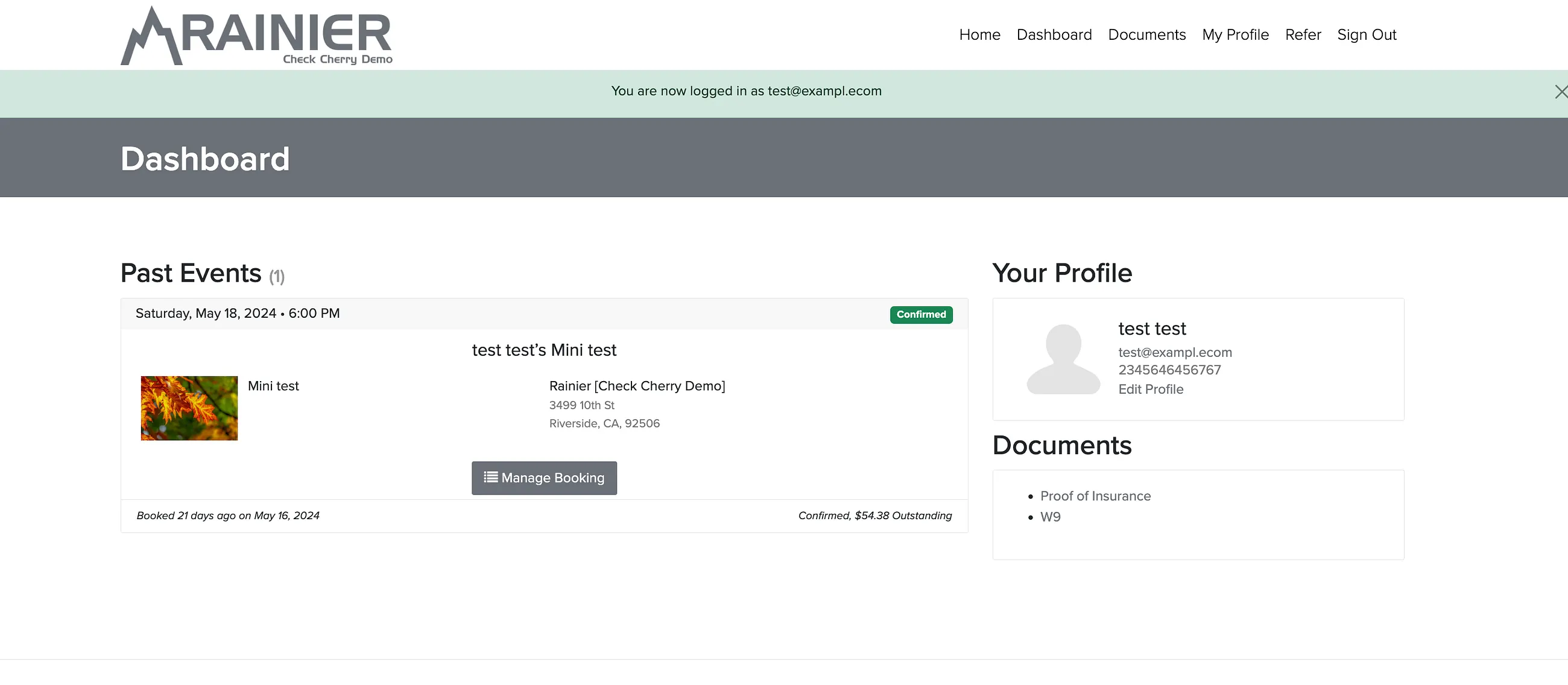
Impersonating a User
Admins can impersonate any user by going to User Accounts, clicking on the user, and clicking Impersonate. This logs you in as that user so you can see what they see or set up their calendar sync.