After a booking is created, you often need to adjust the invoice — adding services, applying discounts, correcting tax rates, or changing the billing address. All invoice changes happen on the booking's Invoice tab as soon as you make the change.
Common Invoice Adjustments
- Client adds extra time or services after booking
- Apply a discount code or negotiate a price reduction
- Correct the tax rate for the event location
- Change who the invoice is addressed to (individual vs. company)
The invoice is automatically created for the person listed as the Client on the booking. To change who receives the invoice, just click the client name on the Invoice tab.
Changing Package Prices
Go to the Invoice tab of the booking.
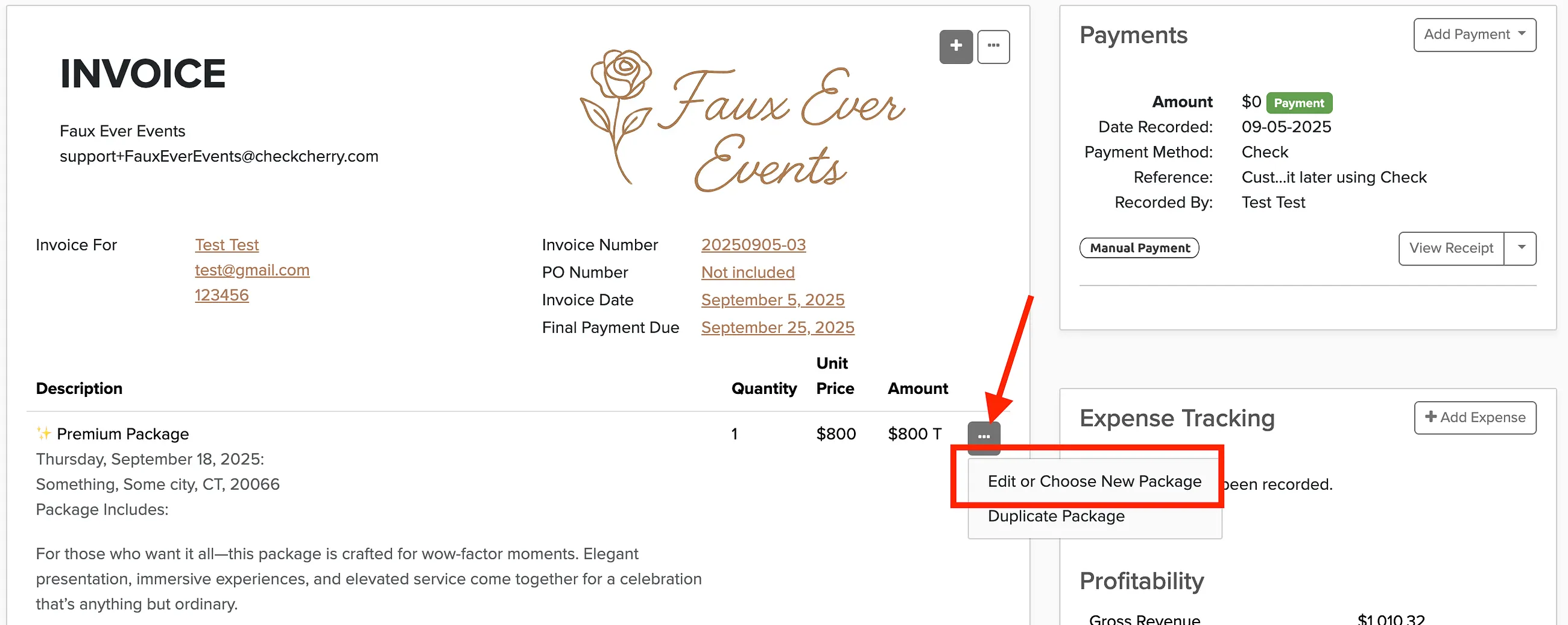
Click the ellipses (...) next to the package total.
Choose Edit or Choose New Package.
Enter the new price in the Override Price field.
Adjusting Tax Rates
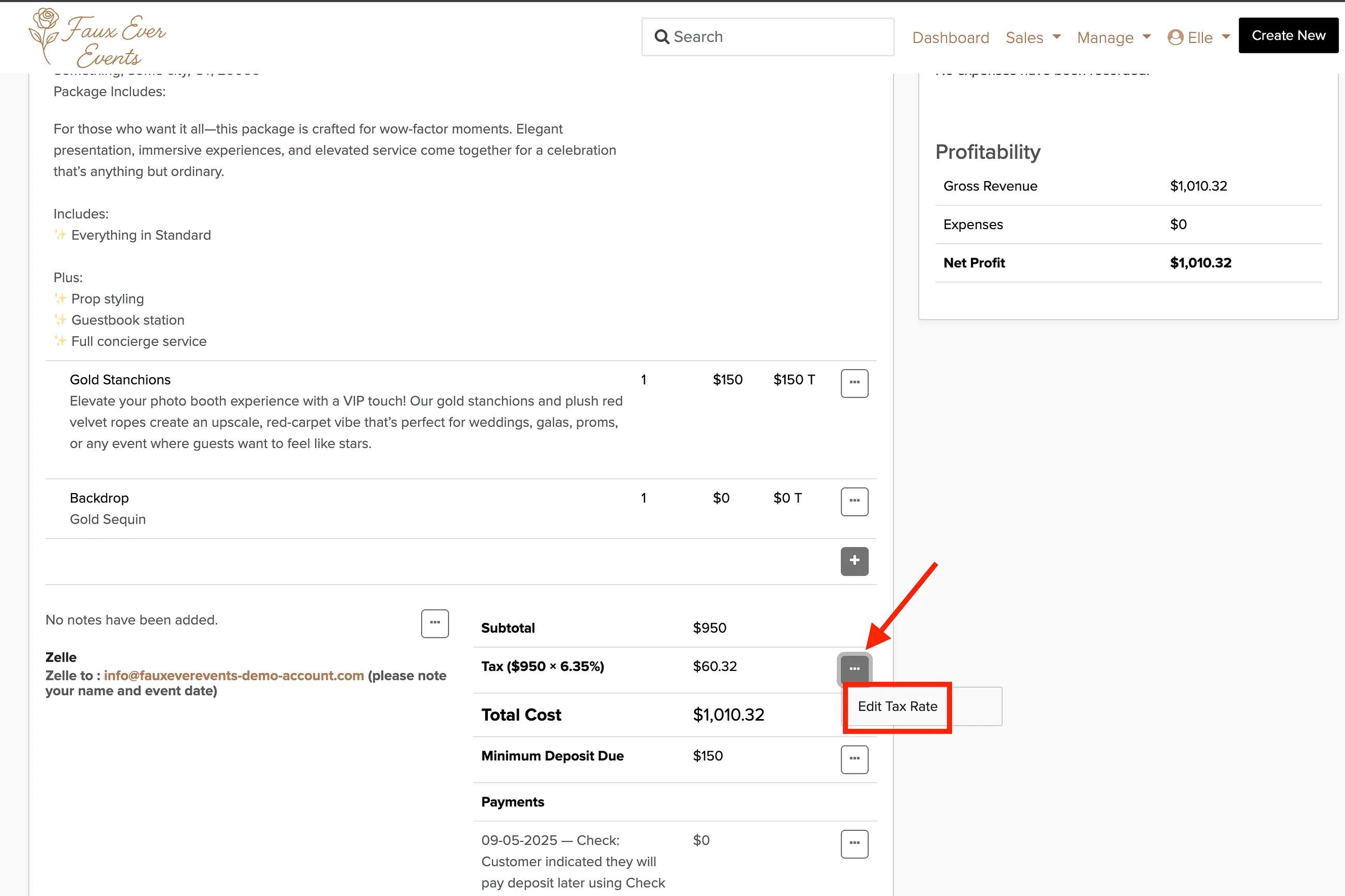
You can edit the tax rate directly on the invoice if the default rate is incorrect for the event location.
Adding Packages or Add-Ons
Go to the Invoice tab of the booking.
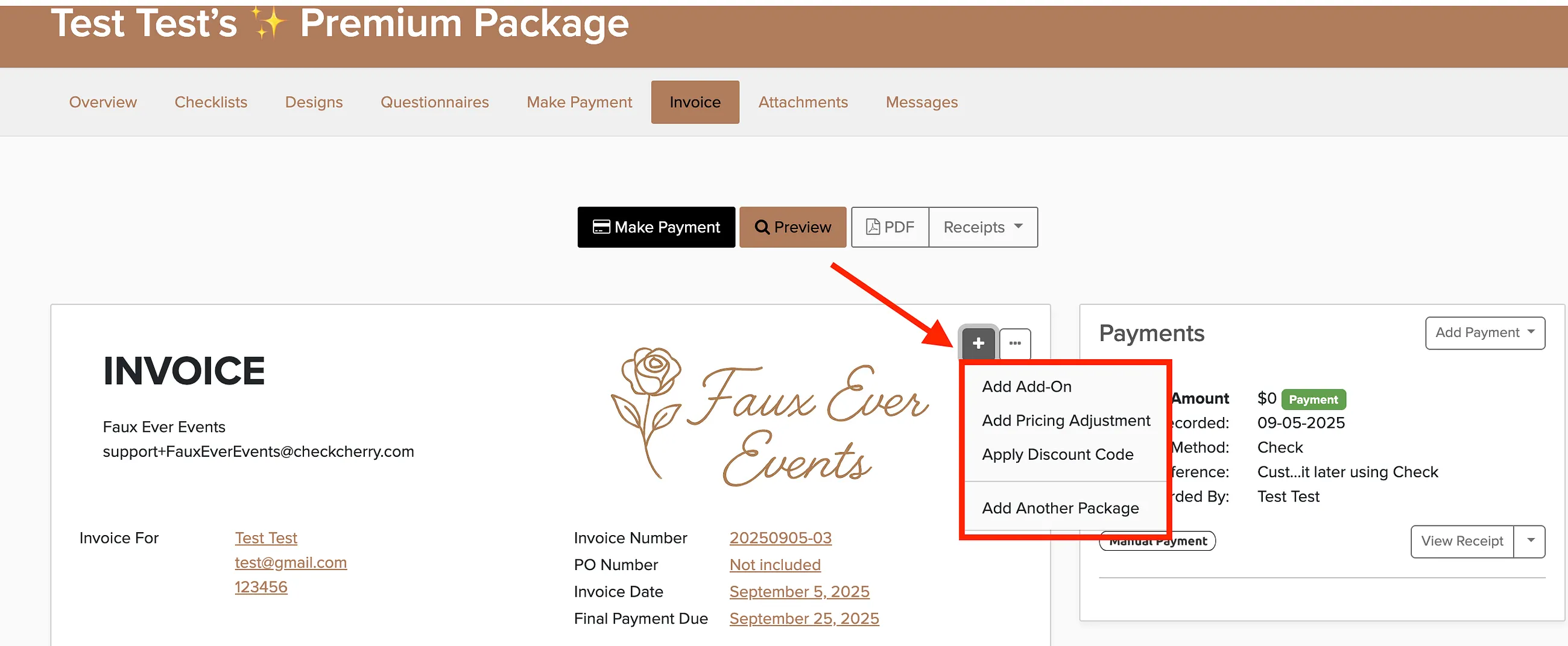
Click the plus sign next to your company logo.
Choose to add another package or add-on.
Applying Discounts and Surcharges
Go to the Invoice tab of the booking.
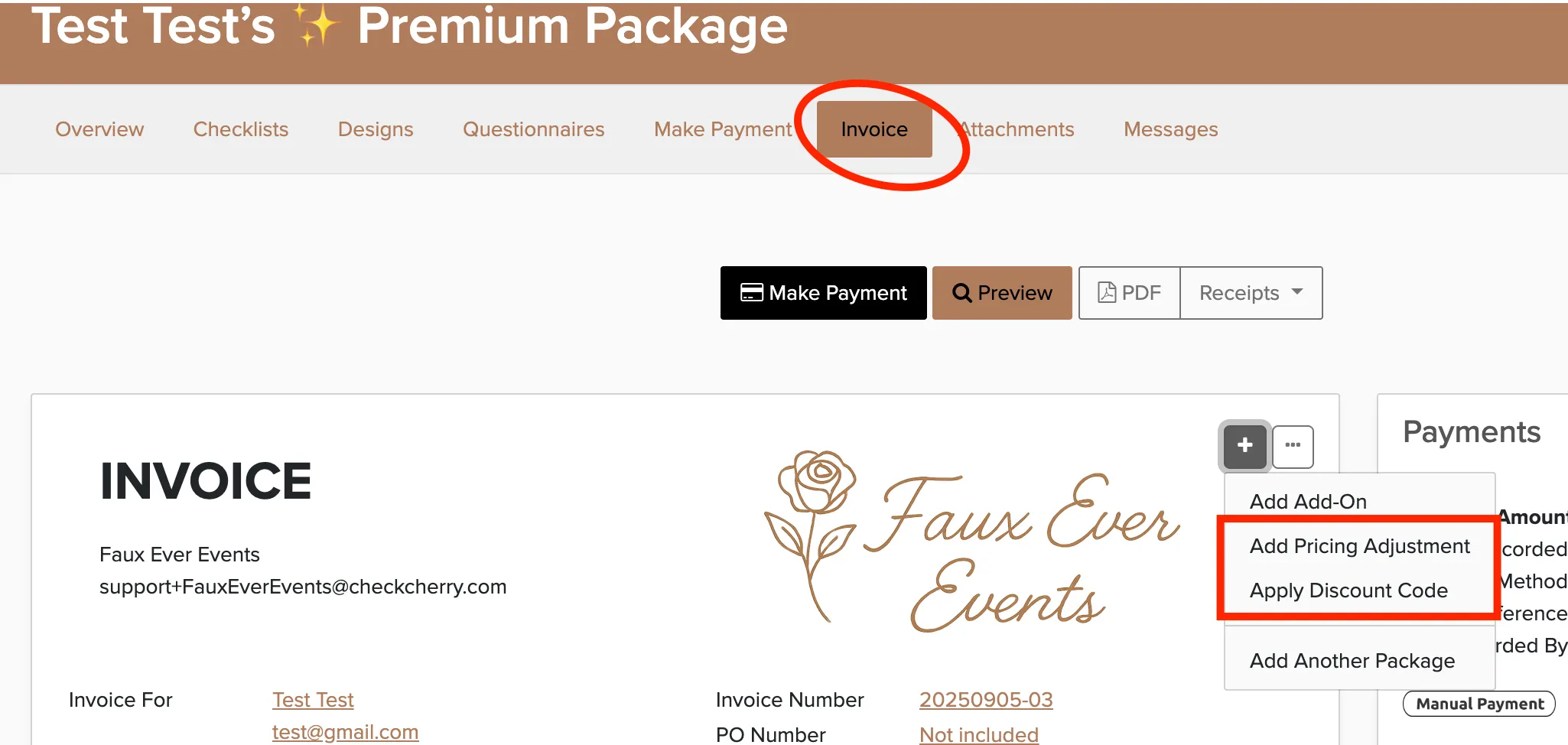
Click the plus sign next to your company logo.
Select Apply Discount Code or Add Pricing Adjustment.
If you collect sales tax, choose whether a pricing adjustment is Taxable. A taxable credit also lowers the tax, so enter the amount before tax. Using an adjustment to clear a balance after a refund or short payment? See Why does my booking show a balance due, and how do I clear it?
Sending Invoices
Once you've made your adjustments, you can send the updated invoice to your client via email or text using the link at the bottom of the invoice page.
Text messaging requires SMS to be set up in your account. Most businesses send invoices by email.