Every proposal and booking in Check Cherry already has an invoice attached to it. You do not need to create an invoice separately: the packages, add-ons, and other adjustments on your bookings already contain everything needed for the invoice.
Start With a Booking or Proposal
If you don't yet have a proposal or booking, start here:
Click Create New in the top right.
Choose Get A Signature (Proposal) or Log Booking (Confirmed).
Fill in the client, date, and package details, then save. Feel free to choose the "Custom/One-Off" option for your package if this does not correspond to any of your existing packages.
Not sure whether to create a proposal or a booking?
Choose Get A Signature (Proposal) when the client has not committed yet. They get a proposal they can review, sign, and pay the deposit. See How do I send a proposal or reserve a date?
Choose Log Booking (Confirmed) when the deal is already done, whether you signed on paper, agreed over the phone, or collected a deposit somewhere else. It goes on your calendar as a confirmed booking right away, with the invoice ready to send.
Choose Get A Signature (Proposal) when the client has not committed yet. They get a proposal they can review, sign, and pay the deposit. See How do I send a proposal or reserve a date?
Choose Log Booking (Confirmed) when the deal is already done, whether you signed on paper, agreed over the phone, or collected a deposit somewhere else. It goes on your calendar as a confirmed booking right away, with the invoice ready to send.
If you have already have a booking use the global search bar at the top to find it quickly.
Method 1: Share the Invoice Link
Open the booking or proposal.
Click the Invoice tab.
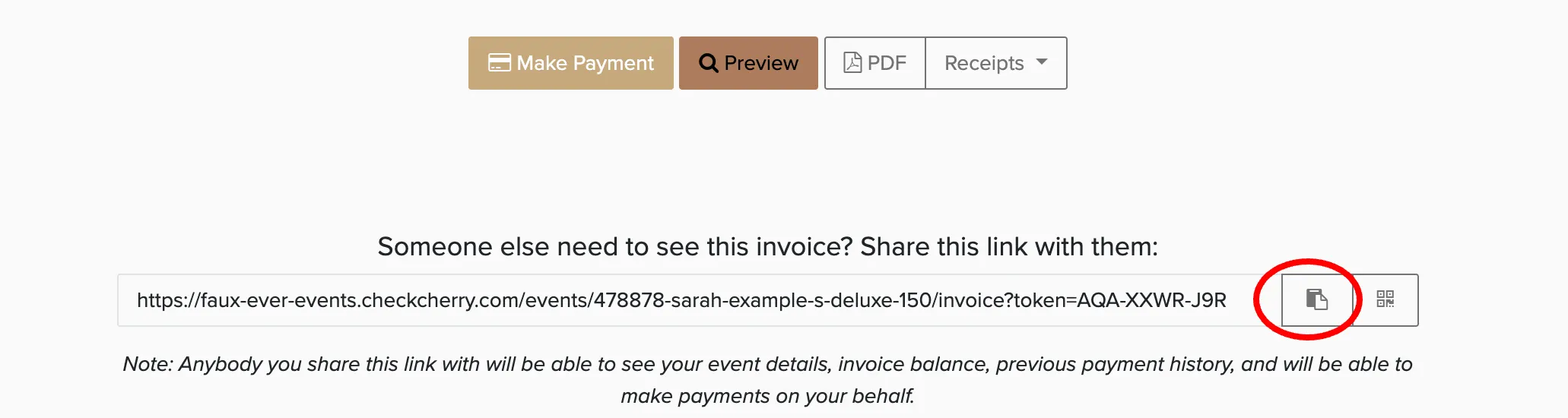
Scroll to the bottom and copy the share link.
Send the link to the client. They can view the invoice and make a payment without logging in.
Method 2: Send It by Email
Open the booking.
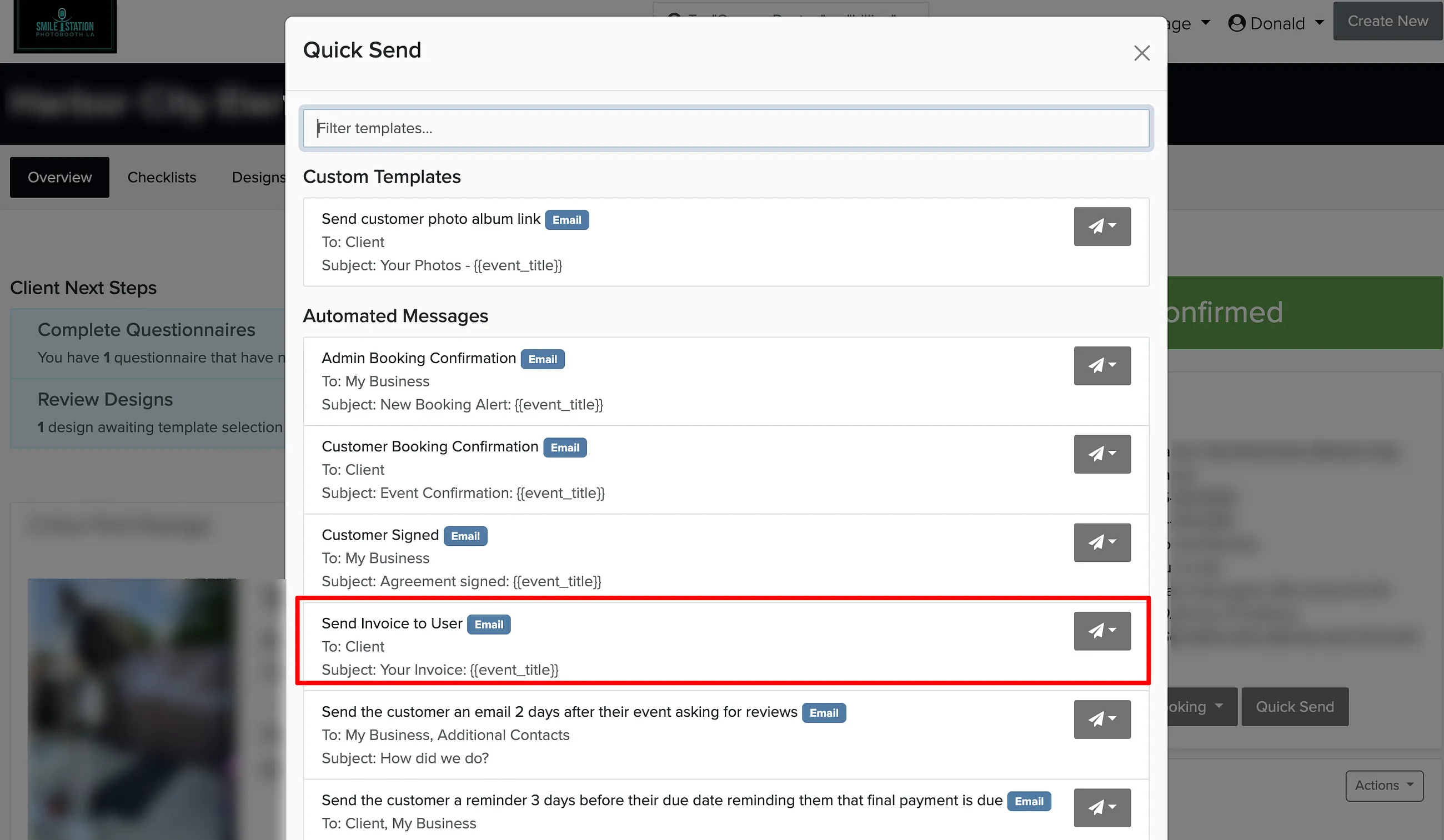
Click Quick Send and choose an invoice or payment reminder template.
Send.