Revenue only tells half the story. When you track expenses alongside your bookings, you can see your actual profit per event, spot which packages are worth your time, and identify where your money is going each month. It also makes tax season easier when everything is already categorized.
How to add an expense
Sales → Expenses
Go to Expenses and click New Expense.
Select whether the expense is for Staff or a Vendor, then type their name.
Enter the amount and date of the expense.
Select a category from the dropdown, or create your own category.
If the expense is tied to a specific booking, type the booking title in the Booking field.
Enter a reference (what the expense is for) and an optional longer description.
Upload any receipts or files to attach to the expense.
Click Save.
Customize your expense categories
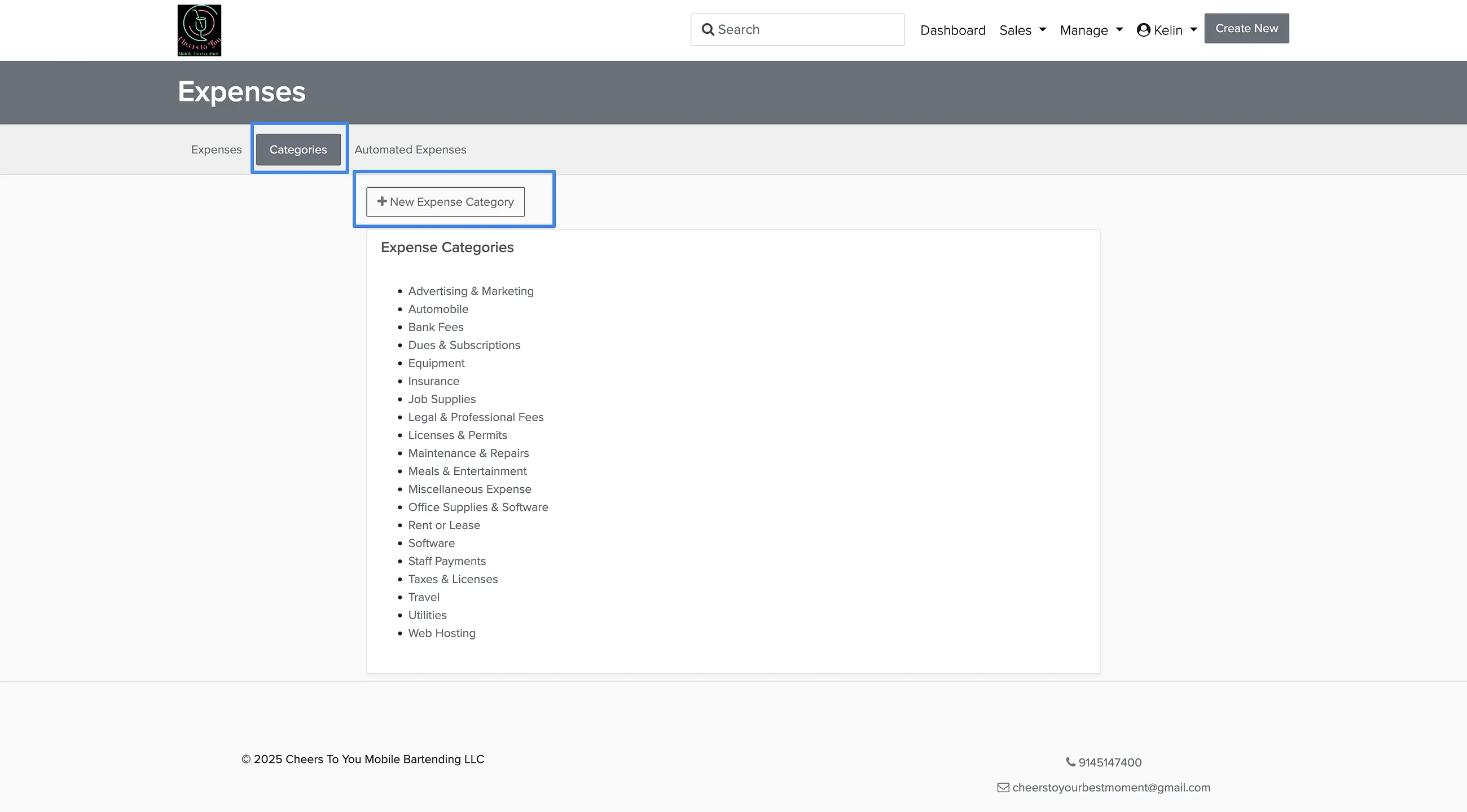
Your account comes with common business expense categories pre-loaded. You can add more categories, delete ones you don't need, or create subcategories within each category for more detailed tracking.
Sales → Expenses → Categories tab
Go to the Categories tab and click New Expense Category.
Enter the category name and choose whether it's a main category or subcategory.
Click Save.
Set up recurring expenses
For costs that repeat on a predictable schedule — like music licensing fees, equipment rentals, or per-booking expenses — you can create recurring expenses that are logged automatically.
Sales → Expenses → Automated Expenses tab
Go to the Automated Expenses tab and click New Automated Expense.
Choose when the expense should recur: on each booking, monthly, or yearly.
For booking-based expenses, select which date triggers the expense: the event date or the date the booking was confirmed.
Use the Applies to selector to choose which packages this expense applies to.
Enter the payee details (vendor or staff), reference, amount, and category.
Click Save.
How to record a credit
Credits work like negative expenses — use them for refunds, reimbursements, or any time you need to offset a previous expense.
Sales → Expenses
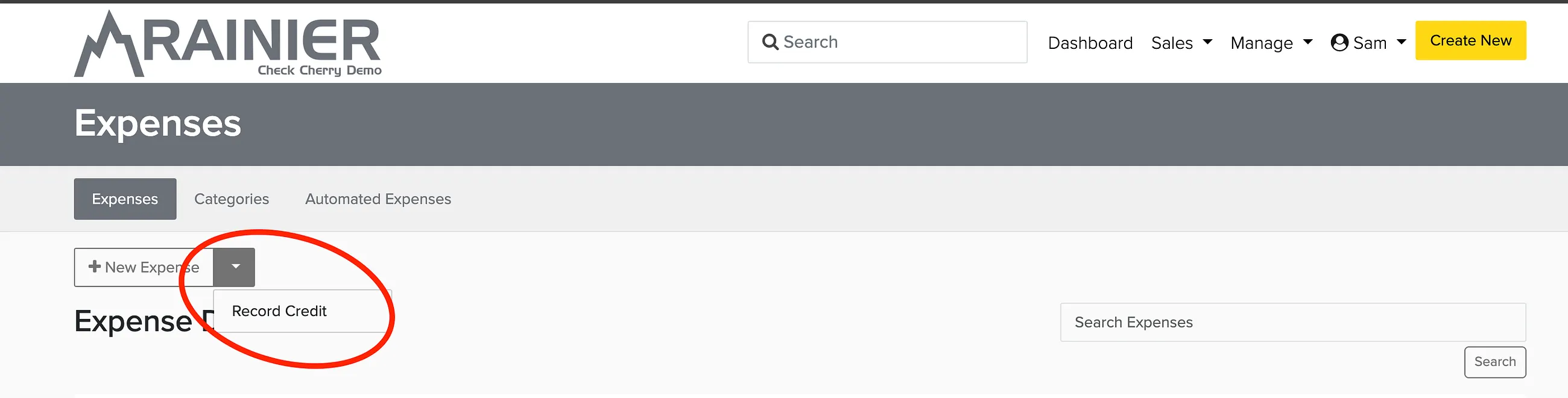
Go to Expenses, click the down arrow next to New Expense, and select Record Credit.
Fill in the same information as a regular expense, but enter the amount as a negative number.
Click Save.
Track expenses on individual bookings
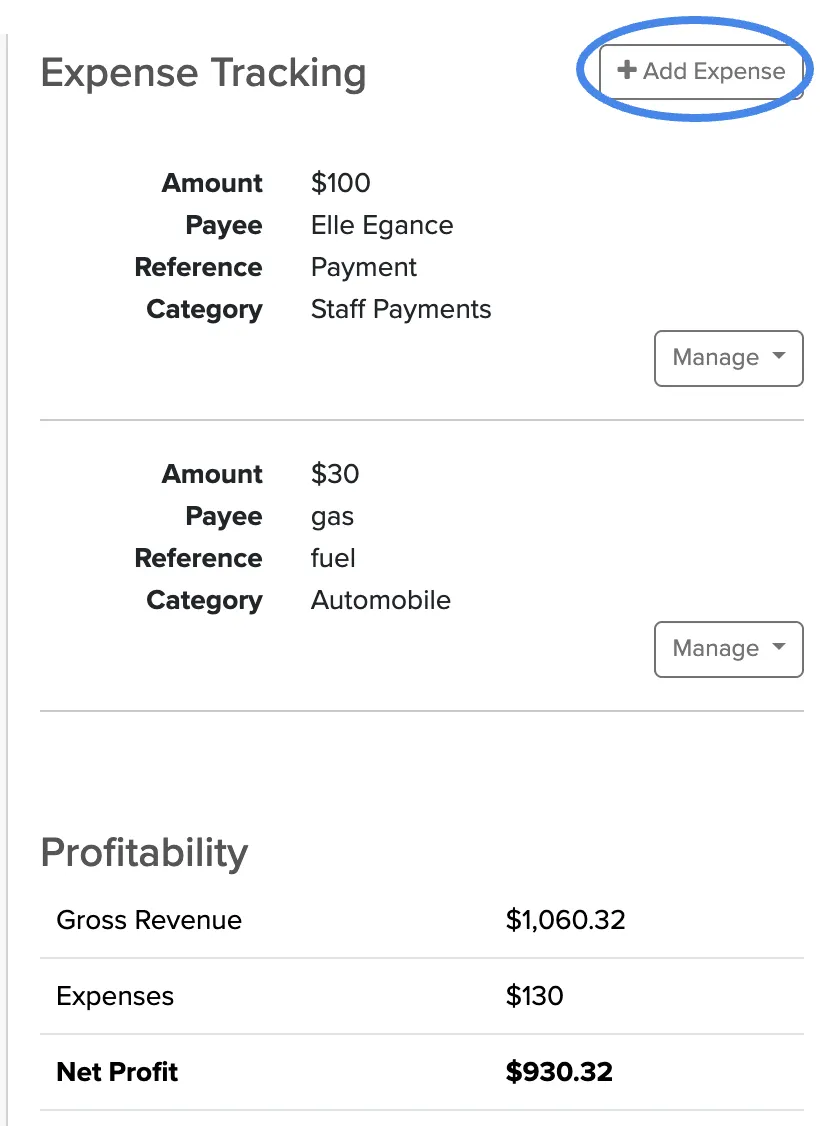
Each booking has a Profitability section in the lower right corner that shows your revenue minus expenses for that event. You can add expenses directly from there without leaving the booking page.
Get in the habit of logging expenses right after each event while costs are fresh in your memory. Linking every expense to a booking gives you the most accurate profitability picture.
Run expense reports
The Expense Report gives you a detailed breakdown of all your expenses across any date range. You can customize which columns to show, filter by category or payee, and download the results as a spreadsheet for tax prep or further analysis.
Sales → Reporting
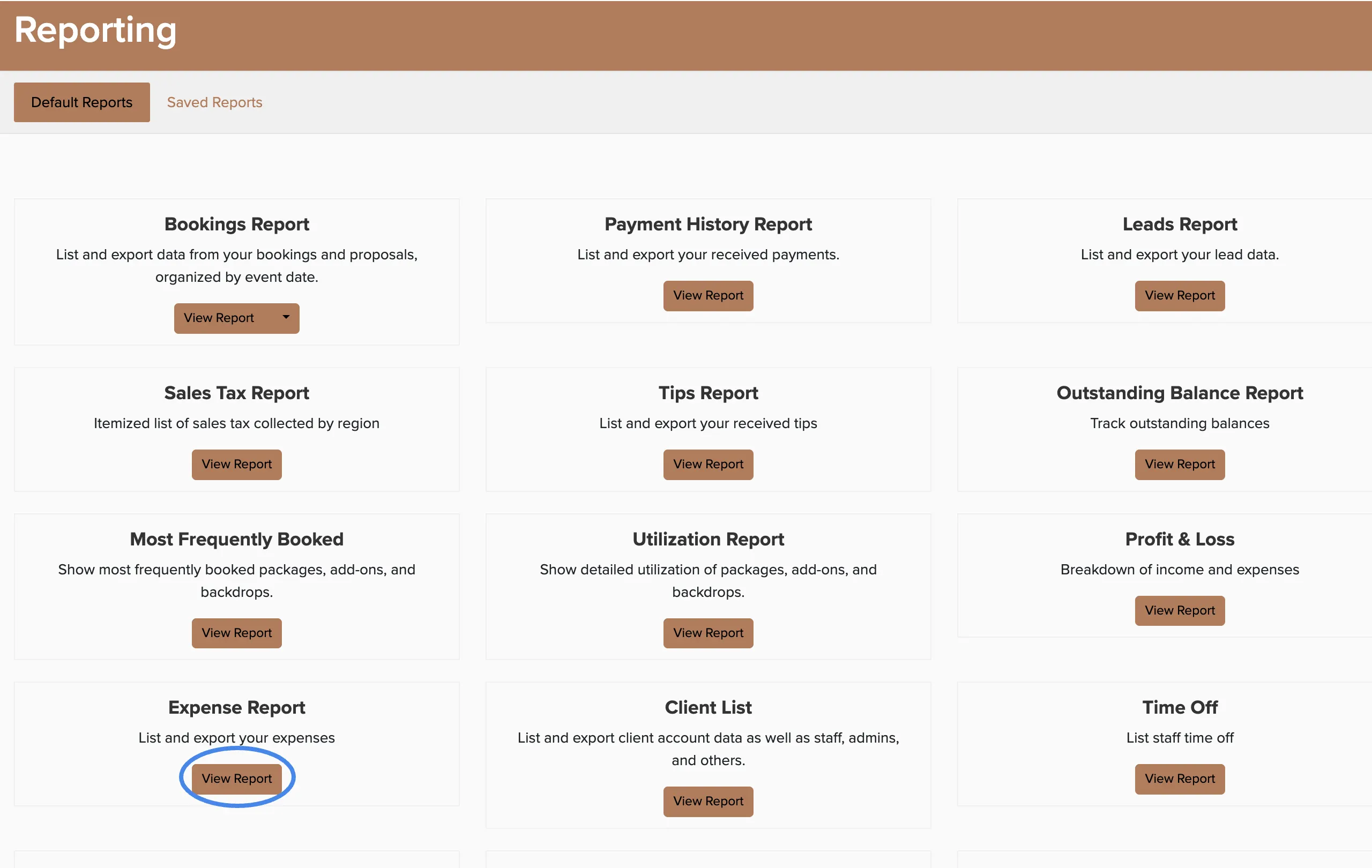
Go to Reporting and choose Expense Report.
Set your date range and use Filters to narrow results by category, payee, or other criteria.
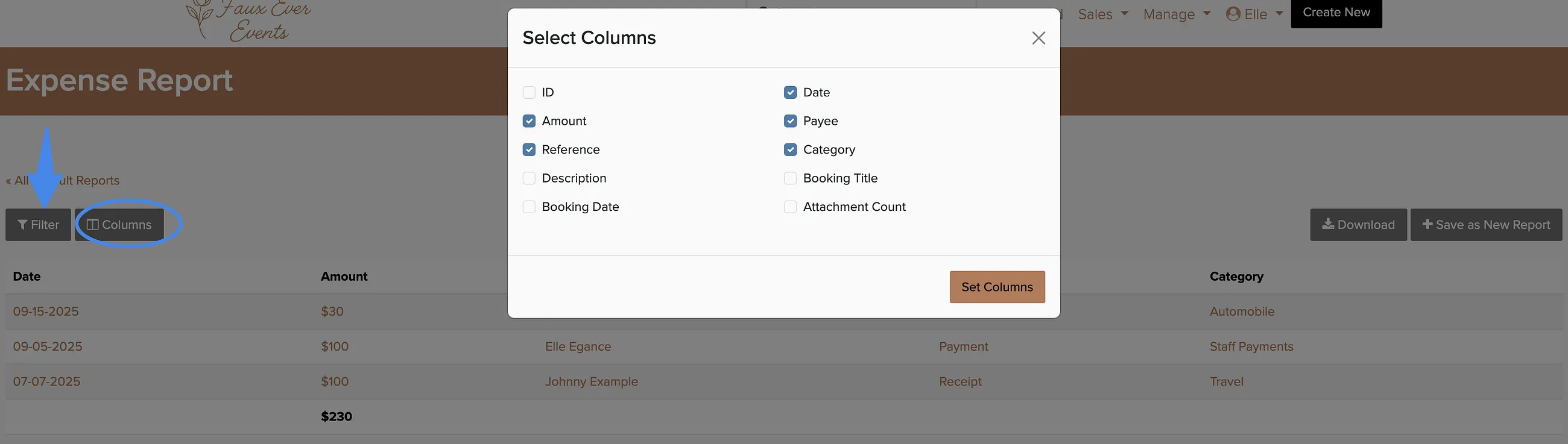
Click Columns to choose which information to include in the report.
Click Download to export as a spreadsheet.
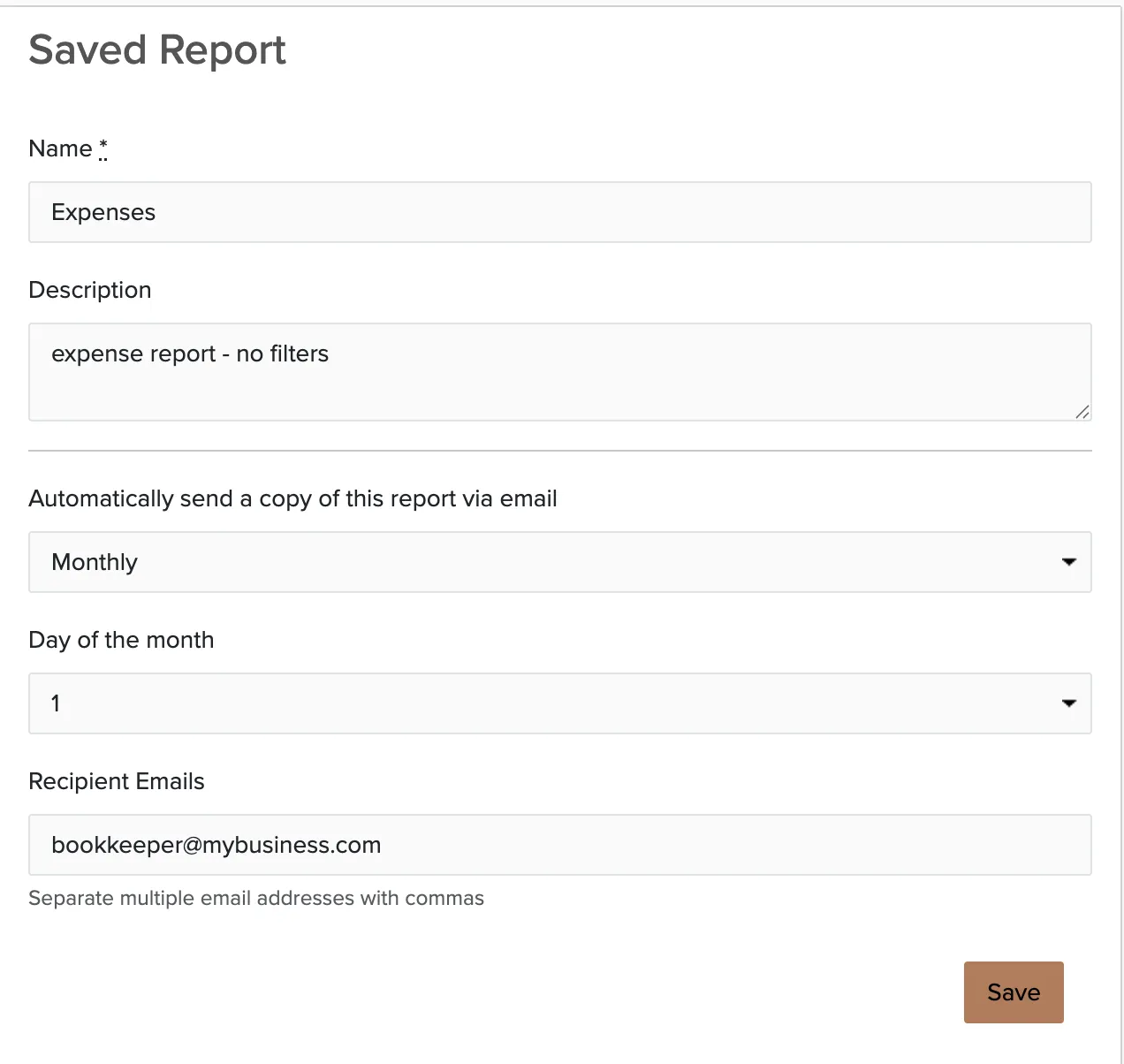
You can save report configurations to rerun them later with one click. Saved reports can also be scheduled to automatically email to you or your team on a regular basis.
Was this article helpful?
Thanks for your feedback!
Sorry to hear that. Want to chat with our support team?