Clients expect a confirmation when they schedule a meeting with you, and a reminder before it happens. Check Cherry handles this with automated appointment emails.
Default Appointment Messages
The most commonly used appointment message templates are already enabled when you set up your account. These include confirmation emails when someone books and reminder emails before the appointment.
Customizing Appointment Notifications
Manage → Automated Messages
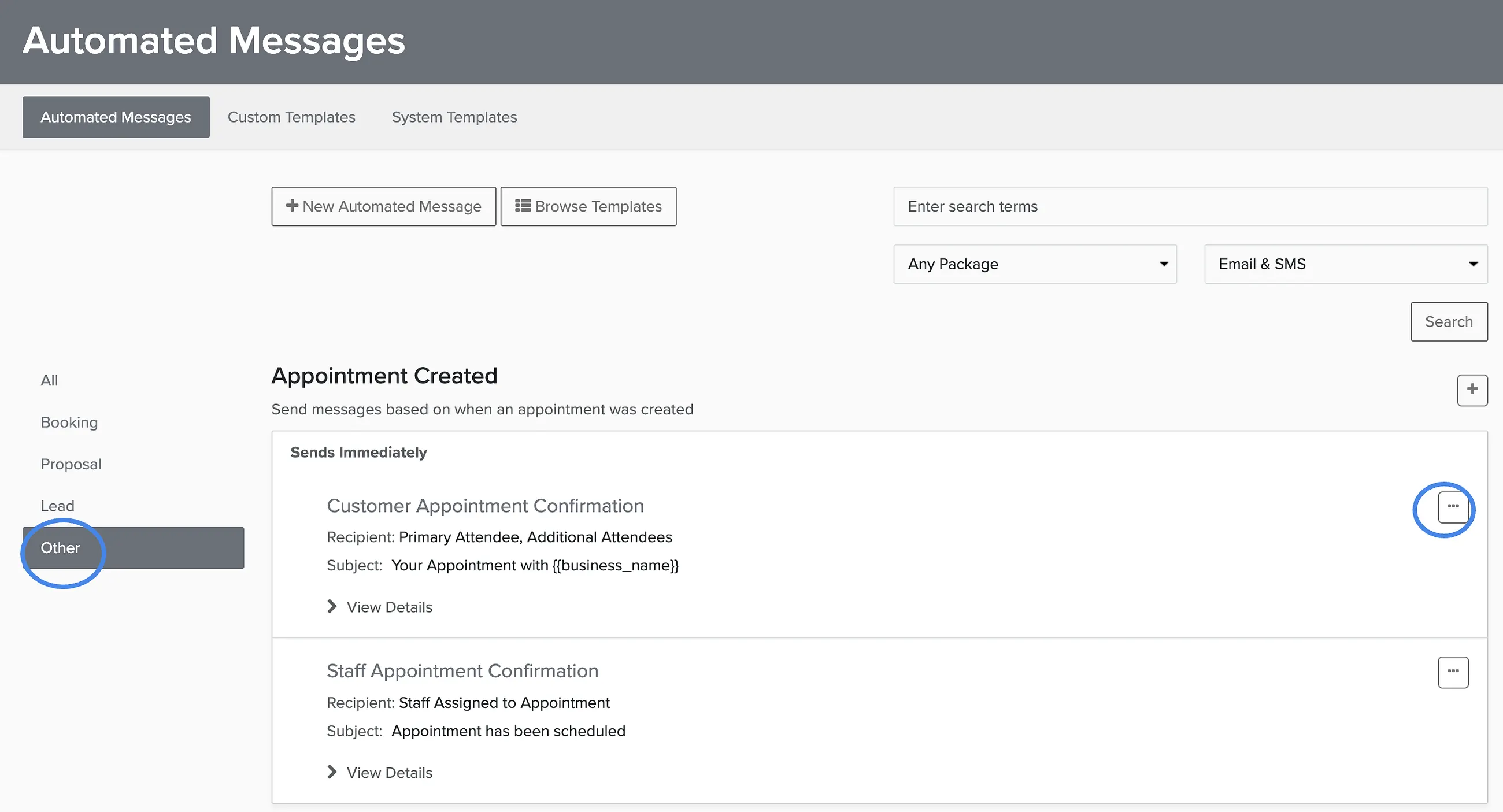
Go to Automated Messages.
Click the Other tab on the left to see appointment templates.
Click Edit on any template to customize the content.
Adding More Appointment Templates
Many additional message templates are available but not enabled by default. You might want follow-up emails, cancellation notices, or reschedule confirmations.
From Automated Messages, click New Message.
Select the appointment template you want to add.
Edit the content if needed.
Click Save to activate it.
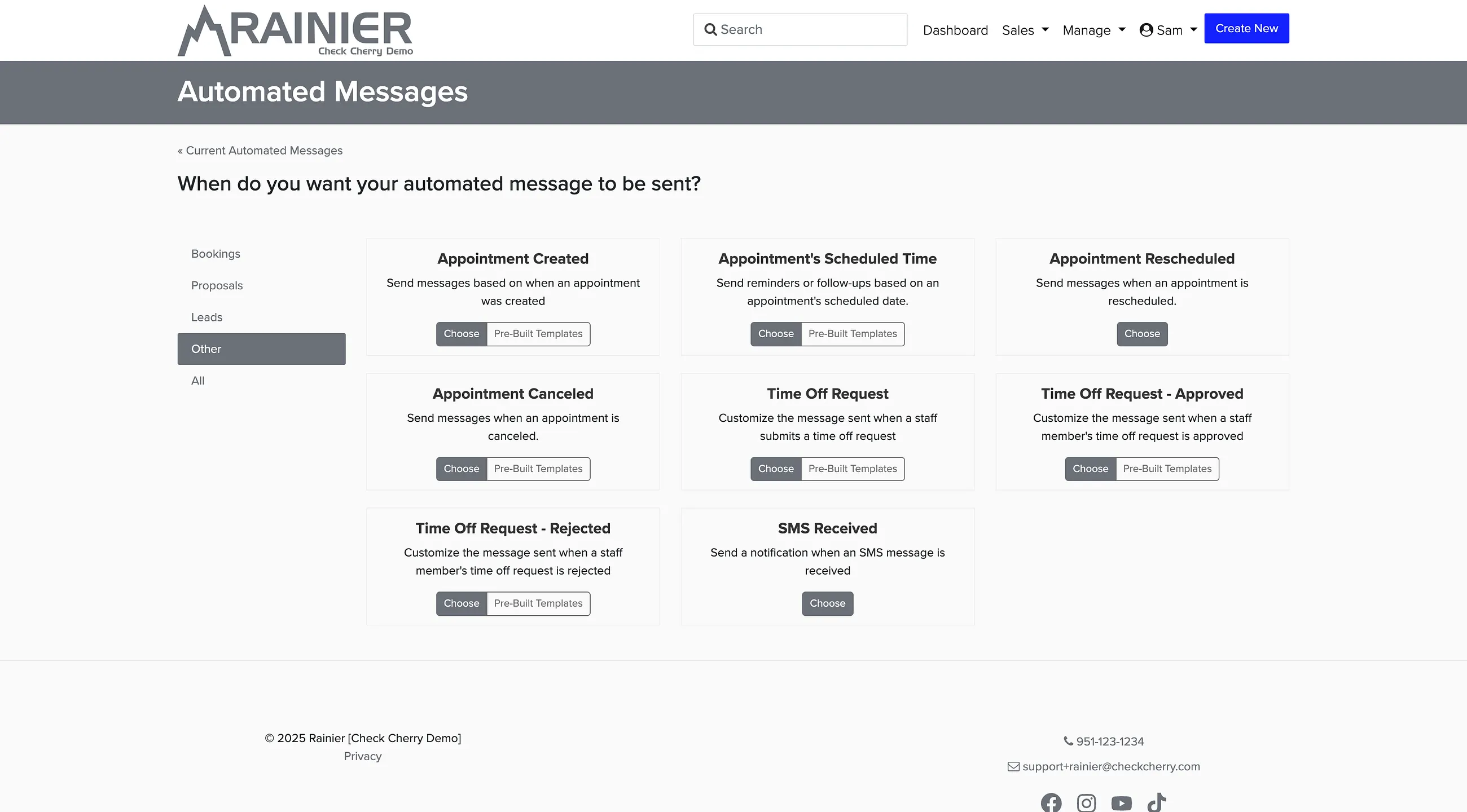
To enable any disabled template, just open it and click Save. The template will appear in your active list under the Other tab.