If you offer multiple backdrops, organizing them into categories makes it easier for clients to browse and choose. Categories also let you set different pricing tiers. For example, "Standard" backdrops included in the base price and "Premium" backdrops at an extra charge.
Creating a New Category
Editing Category Settings
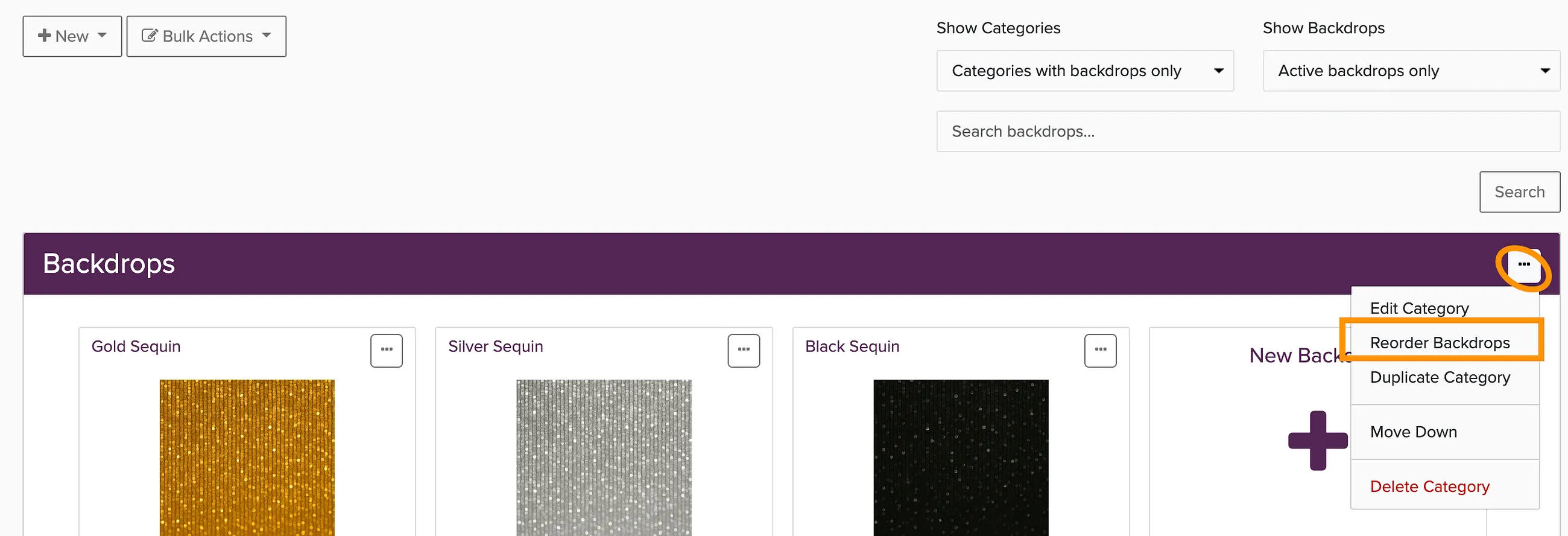
To edit an existing category, click the menu button in the upper right corner of the category title bar.
You can change the category name and sub-header, plus set default settings that apply to all backdrops in the category:
- Default price for backdrops in this category
- Whether backdrops are taxable
- Lead time requirements (how many days notice clients need to give)
- Whether to display these backdrops in your Backdrop Gallery Widget
- Which packages can access backdrops from this category
Changing the Order Categories Appear In
Categories appear in the order you set, both in your admin and on the client booking page. Put the category most clients should choose from first.
That same menu is also where you duplicate a category.
Changing the Order Backdrops Appear In
Backdrops are ordered within their category, so you set the order one category at a time. Lead with your strongest sellers. Most clients pick from the first row or two they see, so the order you choose does real work.