Photo booth clients want to choose their backdrop before the event. Setting up your backdrop collection in Check Cherry lets them browse options during booking and makes your life easier on event day.
Adding and organizing backdrops
Start by adding your backdrops and organizing them into categories. Each backdrop can have its own pricing, description, and availability rules. Categories help keep things organized — think "Standard," "Premium," or "Seasonal."
Individual backdrop settings
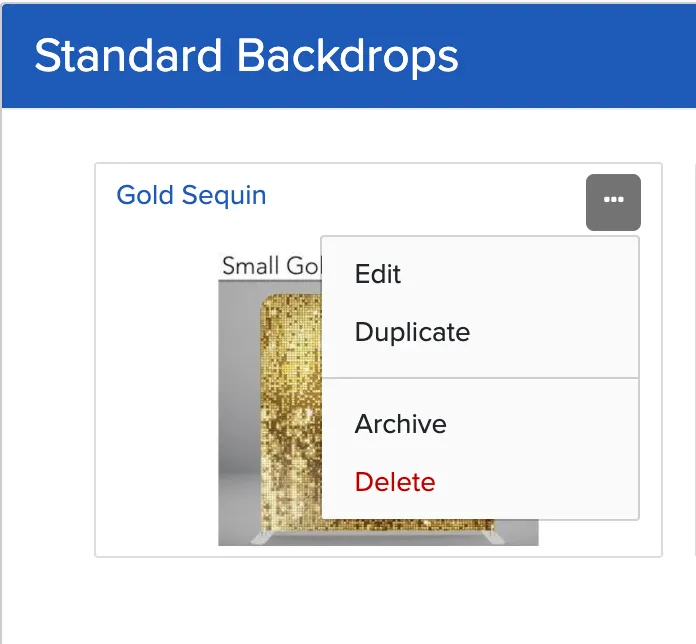
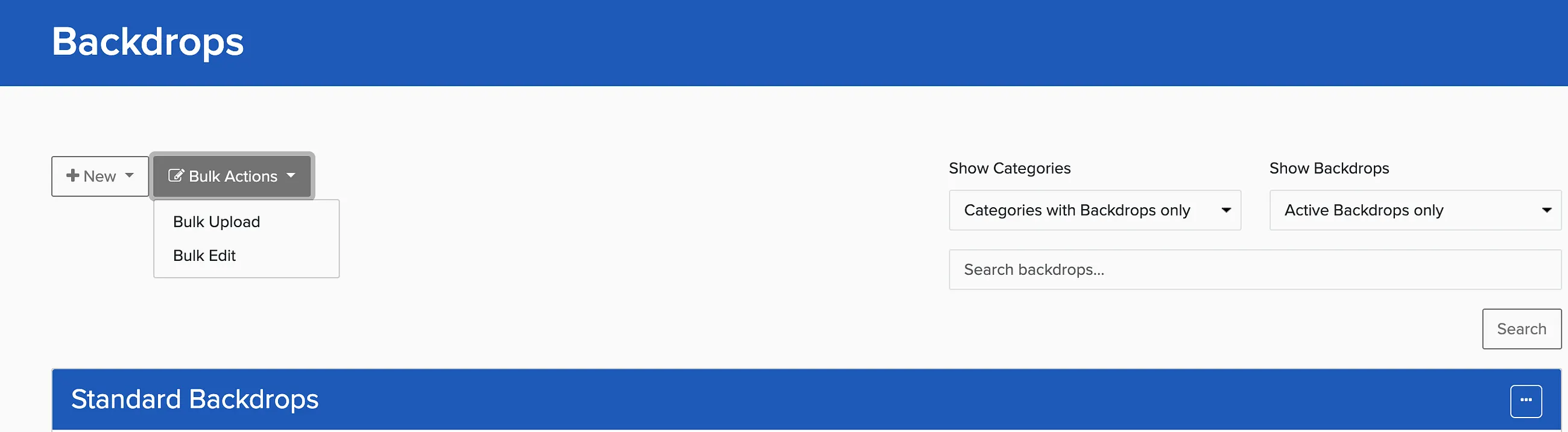
Click the menu button on any backdrop in your backdrop manager to edit its settings:
- Name and description
- Category and pricing
- Which packages can see this backdrop
- Whether it's included free with certain packages
- Lead time requirements
- Package visibility
- Gallery visibility
Bulk editing backdrops
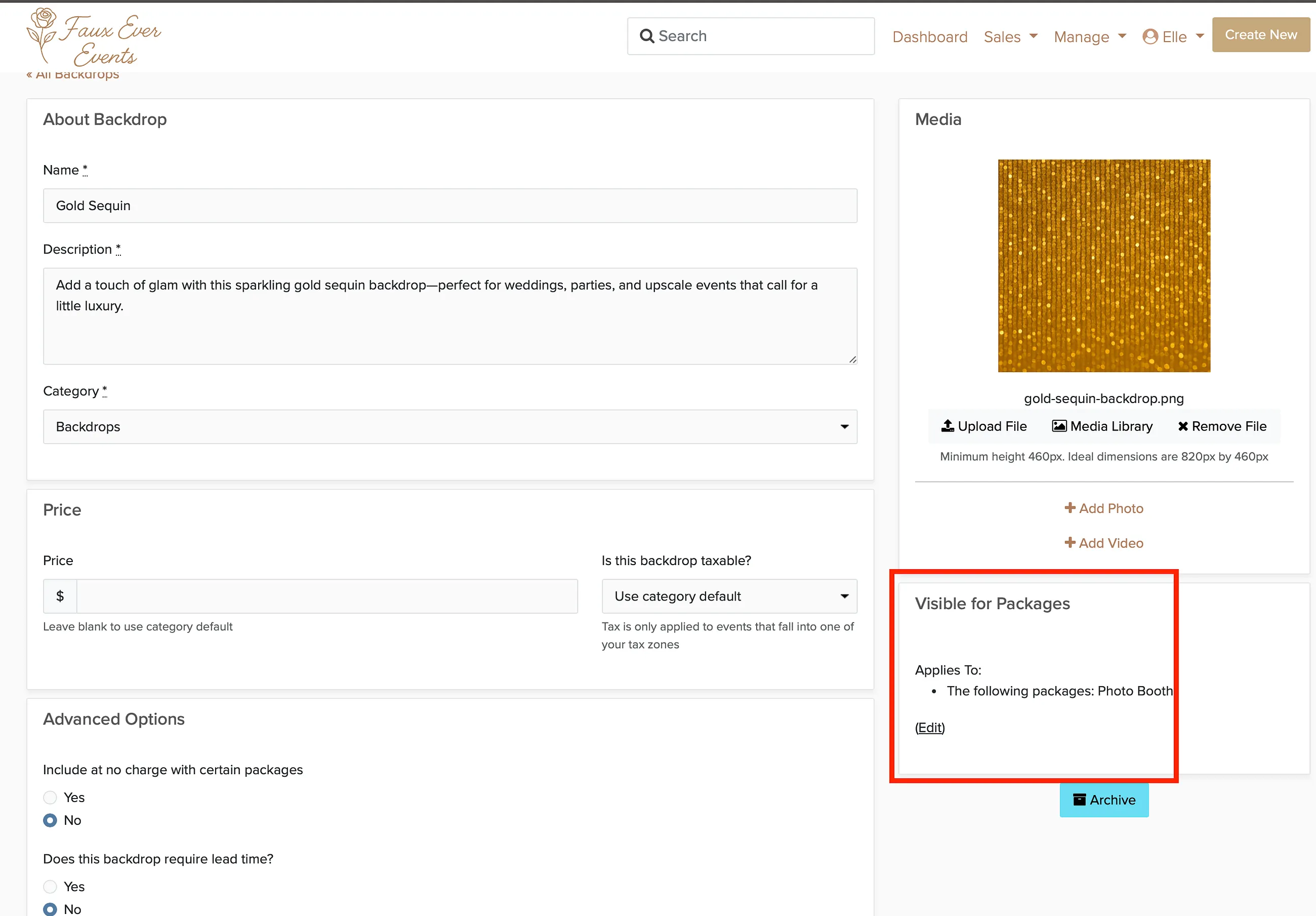
If you have dozens of backdrops, bulk editing saves time. You can update pricing, move backdrops to different categories, or change visibility settings for multiple backdrops at once.
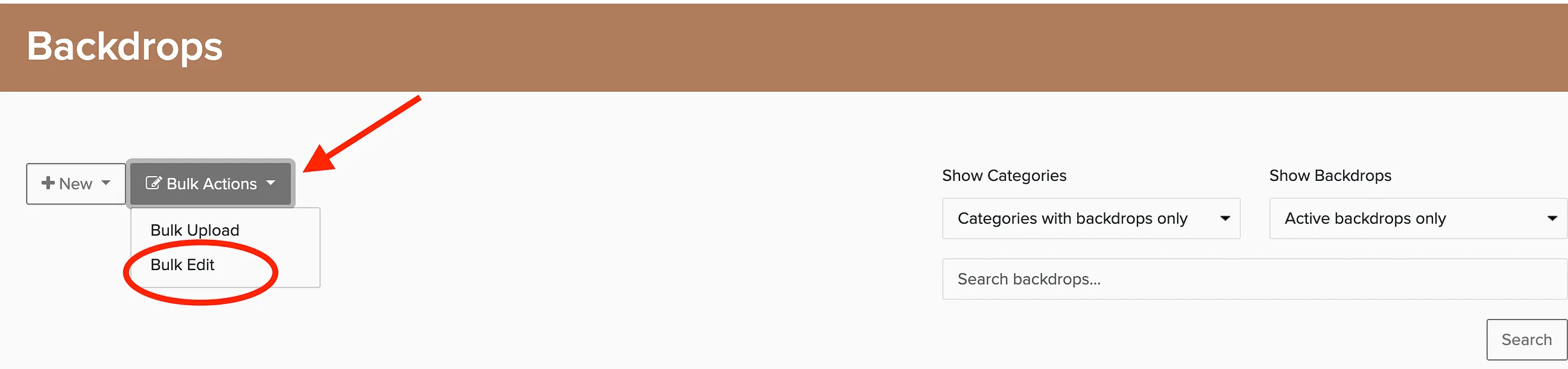
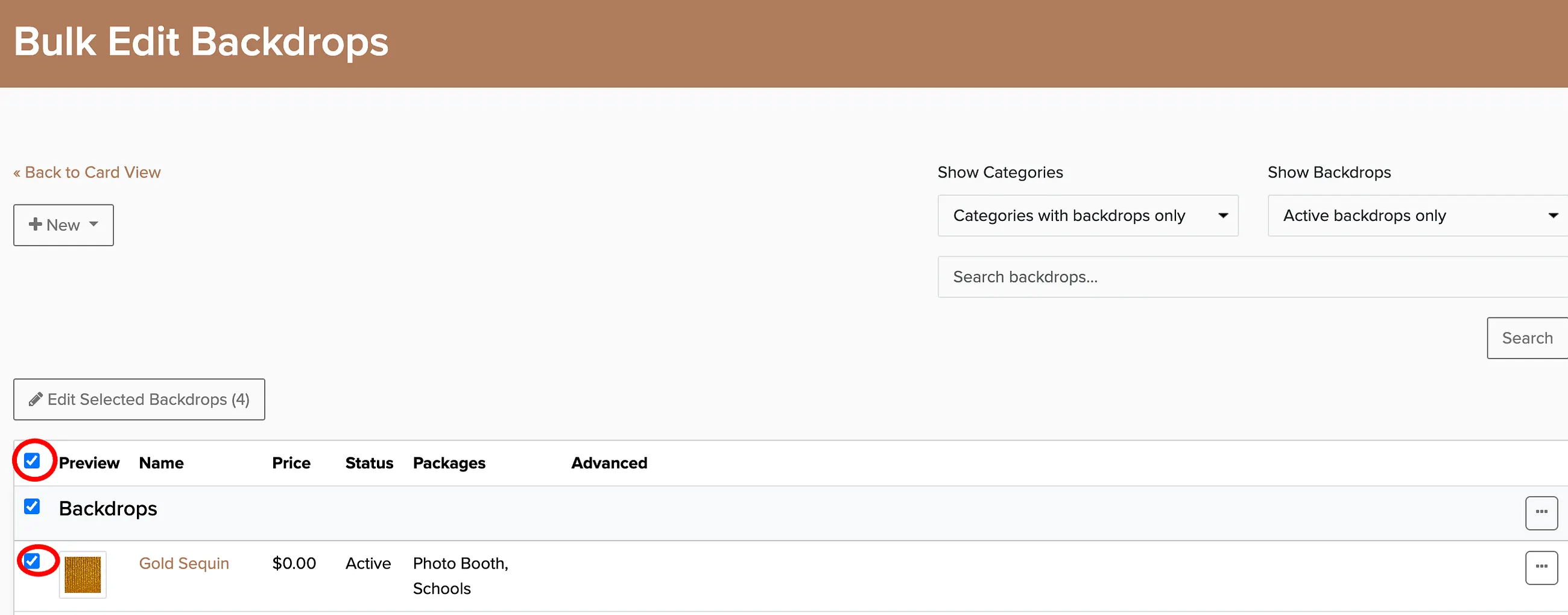
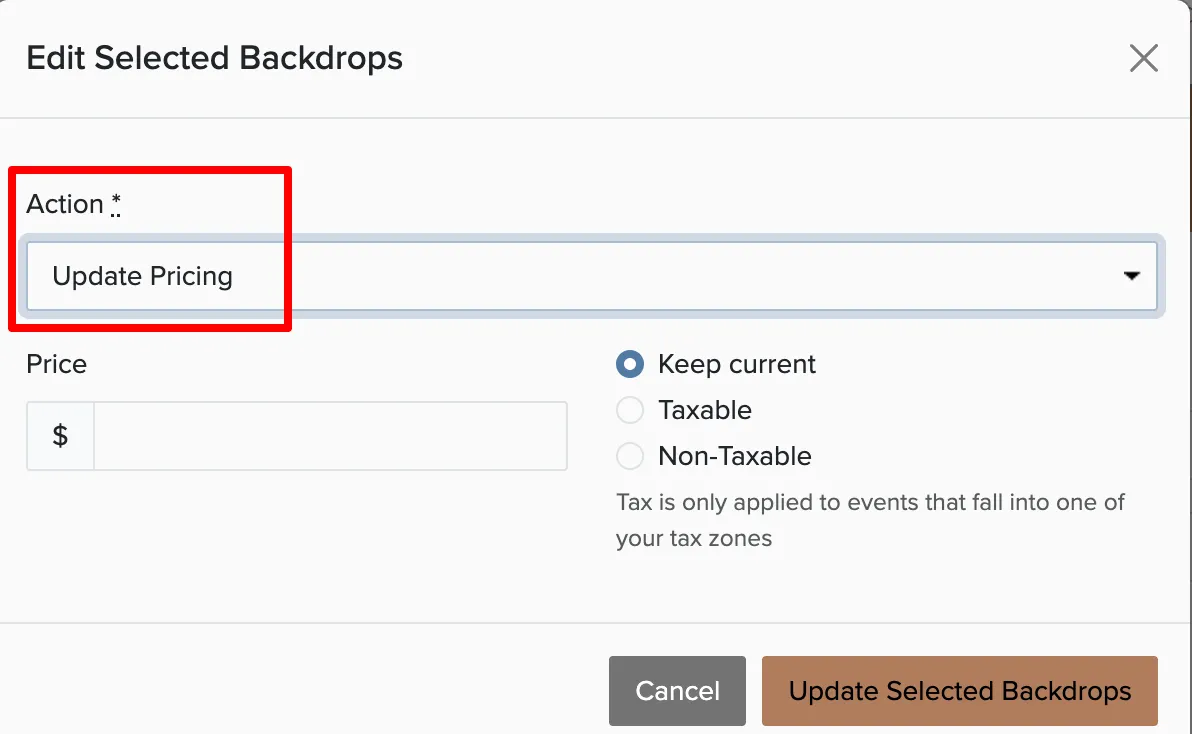
Available bulk actions include updating pricing, moving to categories, setting package associations, managing free inclusions, lead time requirements, and gallery visibility.
Managing double-sided backdrops
Double-sided backdrops are popular, but you need to make sure both sides don't get booked on the same day. Check Cherry's availability rules handle this automatically.
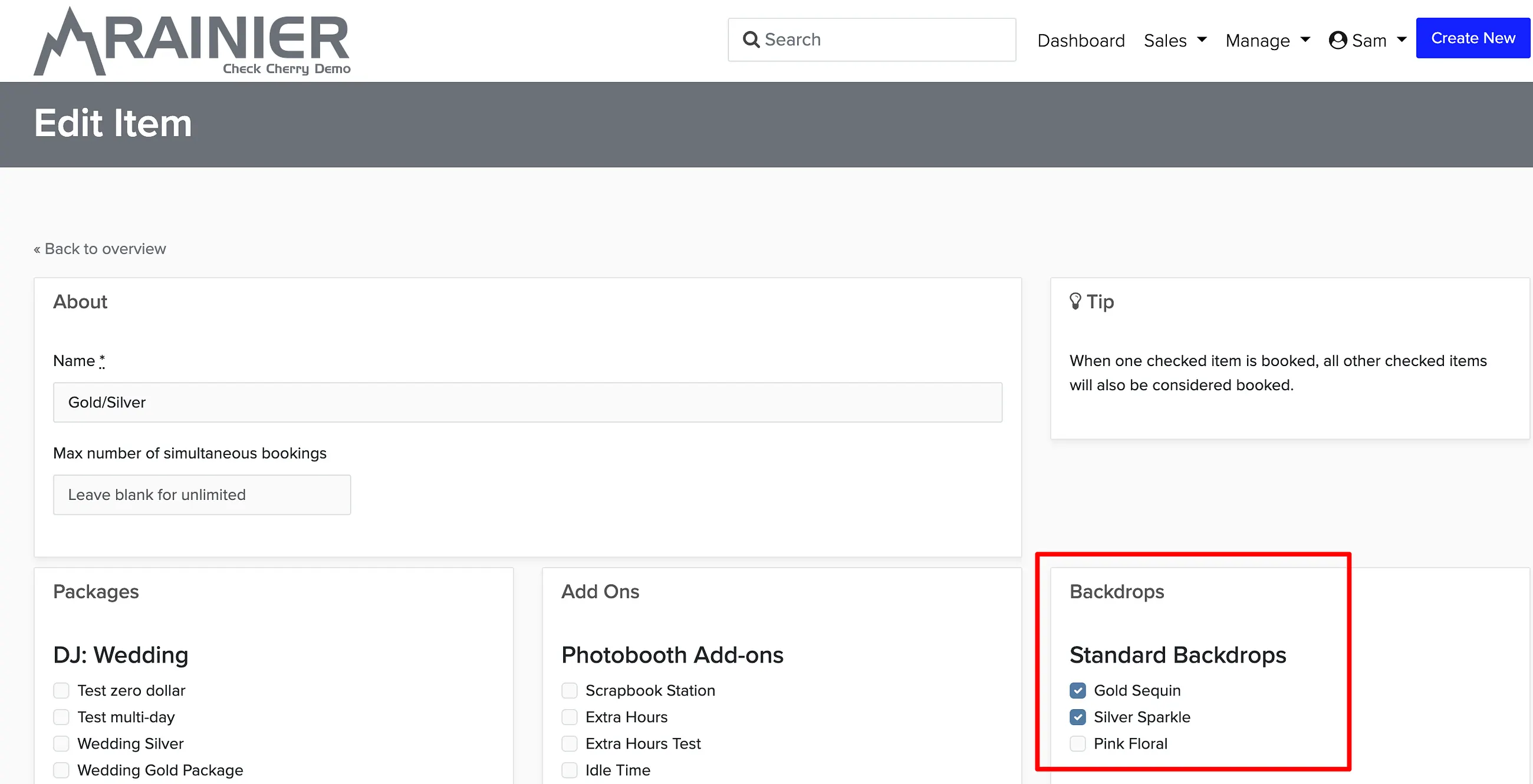
Now if someone books the pink side for Saturday, the gold side won't be available that day either.
Category visibility settings
Each backdrop category has default visibility settings that determine which packages can see backdrops in that category. Individual backdrop settings can override these defaults.
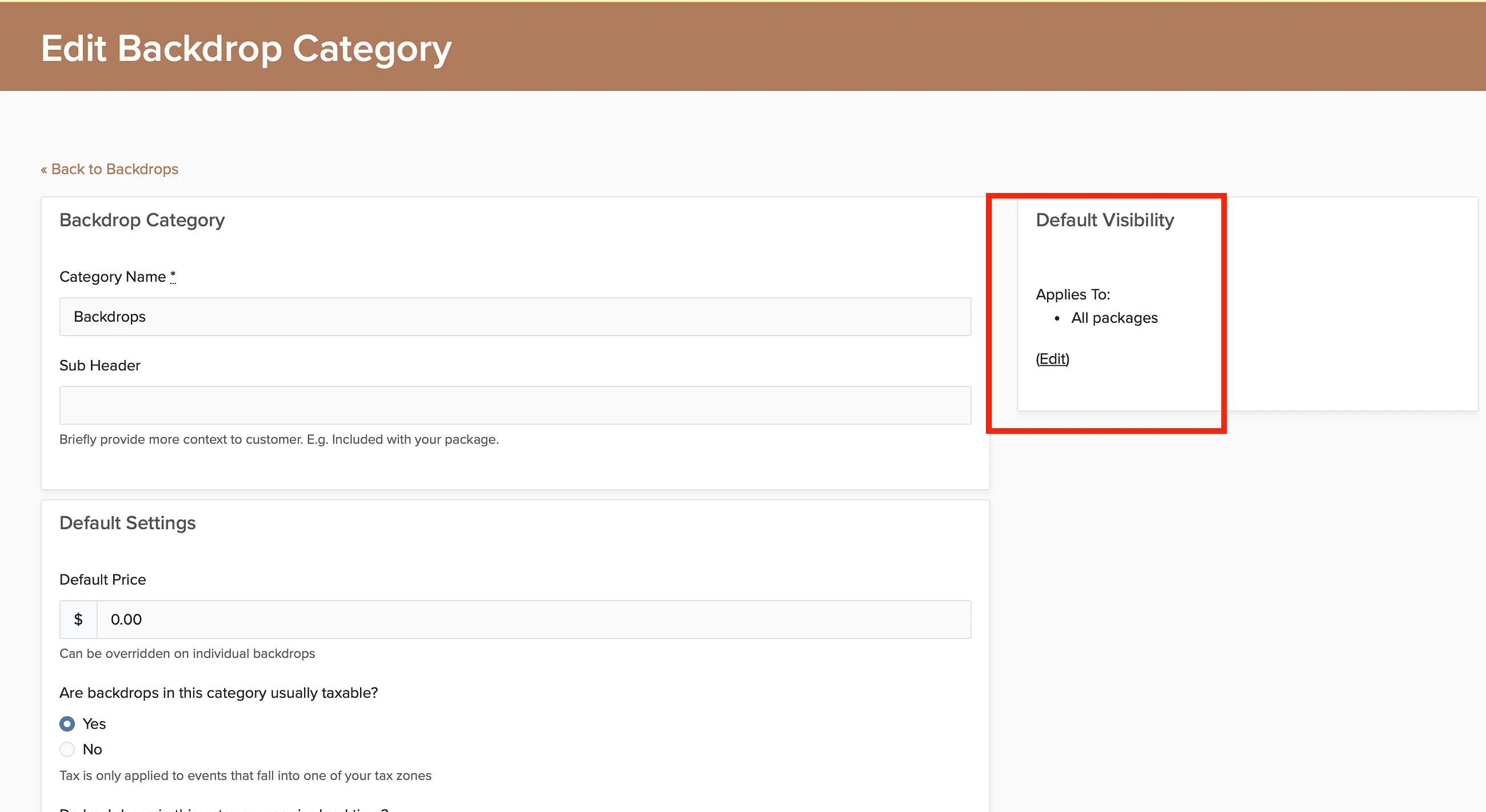
For example, if your "Premium" category is visible to all packages, but you set a specific backdrop to "Basic Package Only," it will only show up for Basic Package bookings.
Assigning backdrops to packages
You can control which backdrops appear for each package, and whether they're included free or cost extra. This is handled in the individual backdrop settings under "Visible for Packages."
Duplicating backdrops
Need to create similar backdrops quickly? Click the menu button on a backdrop, then choose duplicate.