A repeat client books again six months later. Instead of re-entering their card details, you charge the one they saved last time. Saved payment methods make future payments effortless for both of you.
Setting Up Saved Payment Methods
First, you need Check Cherry Payments enabled to offer saved payment methods. U.S. customers can use Check Cherry Payments, which accepts major credit cards, Apple Pay, Google Pay, ACH Direct Debit, and Klarna.
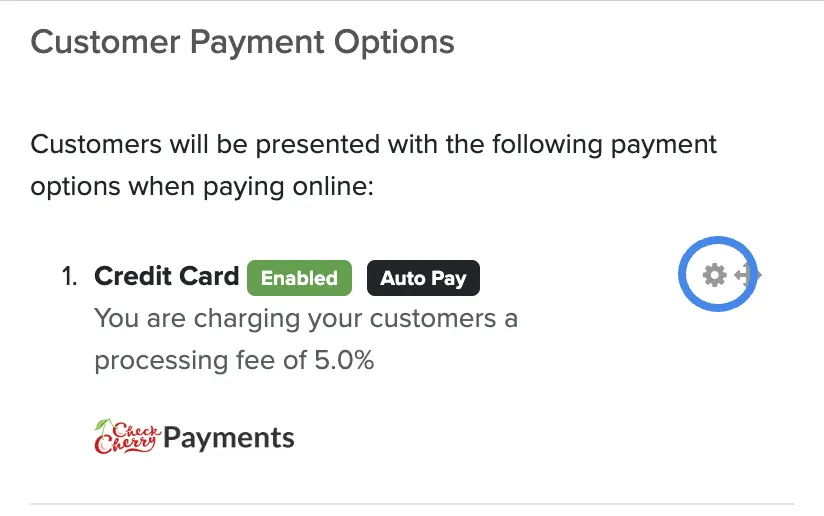
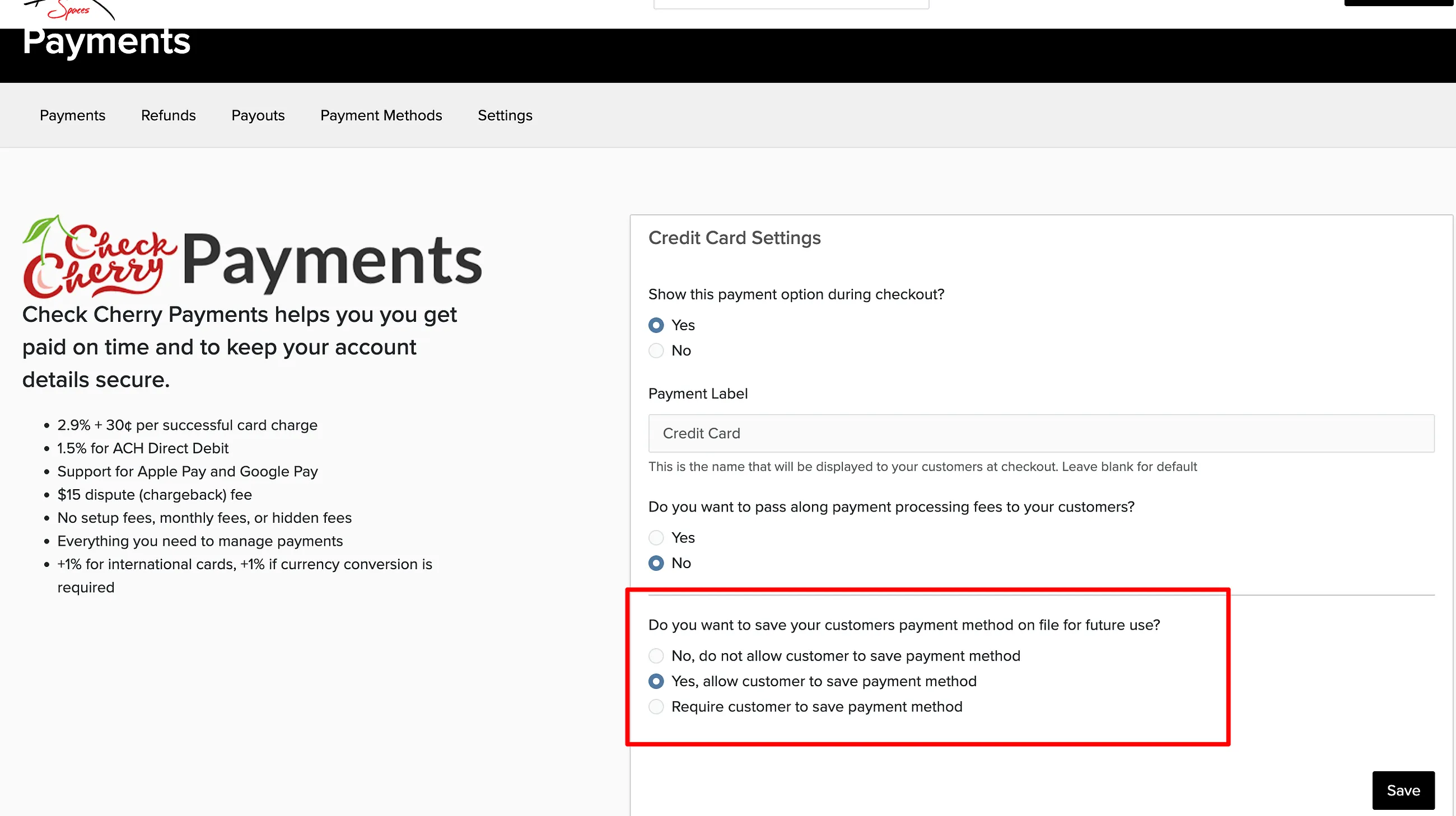
In the credit card settings, choose your preference for saving customer cards. There are three options:
- No, do not allow customer to save payment method — Clients cannot save their card info
- Yes, allow customer to save payment method — Clients see an optional checkbox to save their card
- Require customer to save payment method — Clients must save their payment info (useful for auto-pay on payment plans)
How Clients Save Their Payment Info
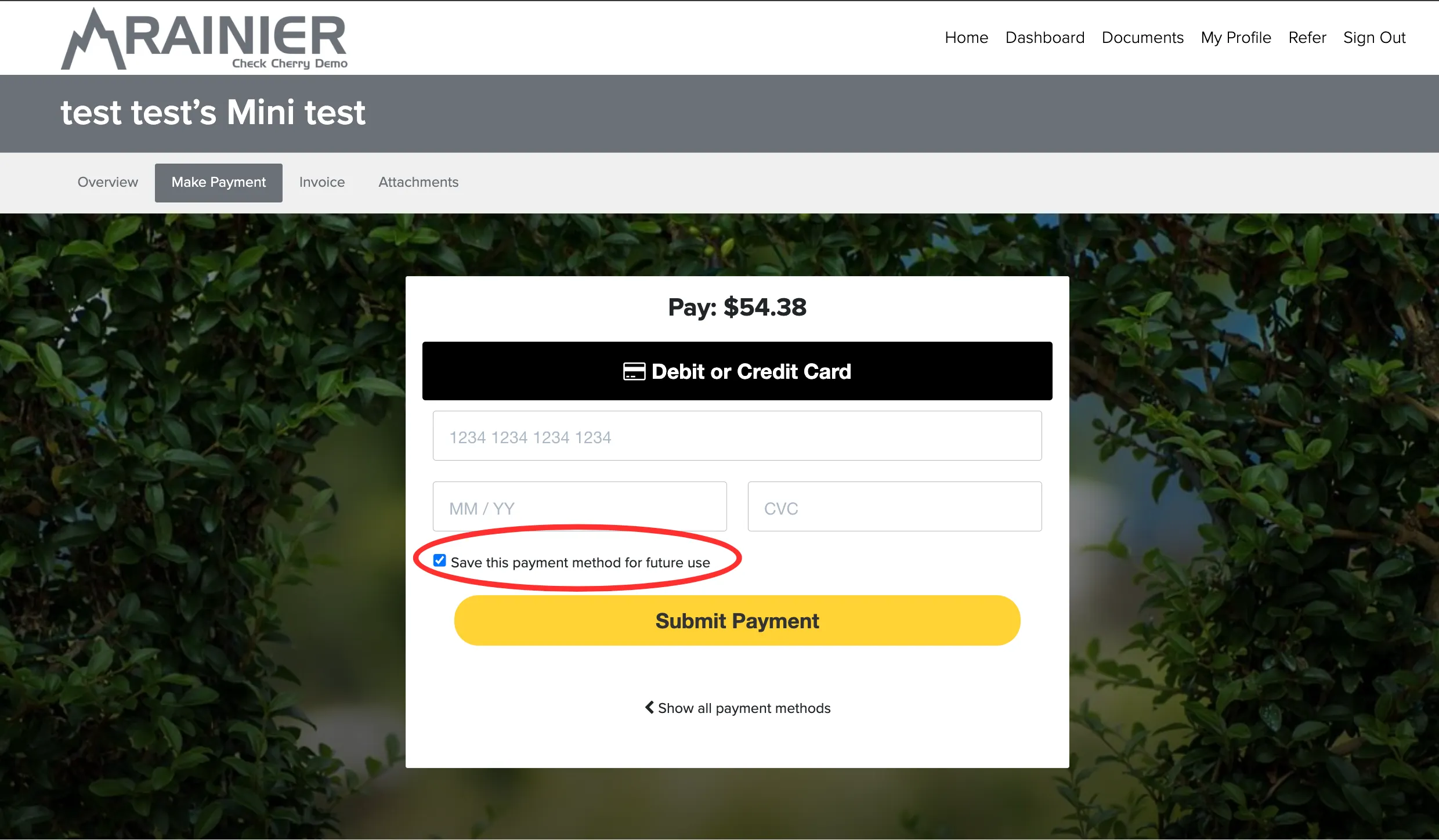
When a client pays online during booking, they see a checkbox to save their payment info for future use. If you allow saving, this checkbox is checked by default but they can uncheck it if they prefer not to save their card.
Charging a Saved Payment Method
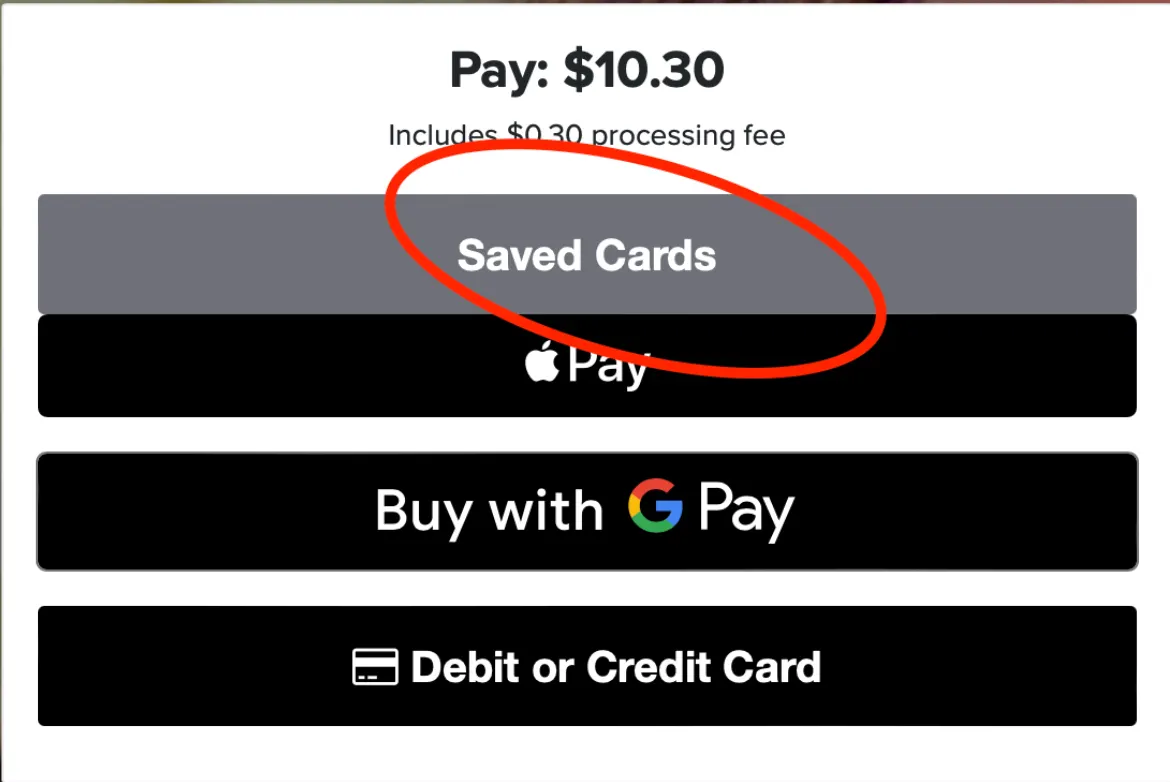
You can use a client's saved payment method on future bookings, but it's your responsibility to get the client's consent before charging their saved card.
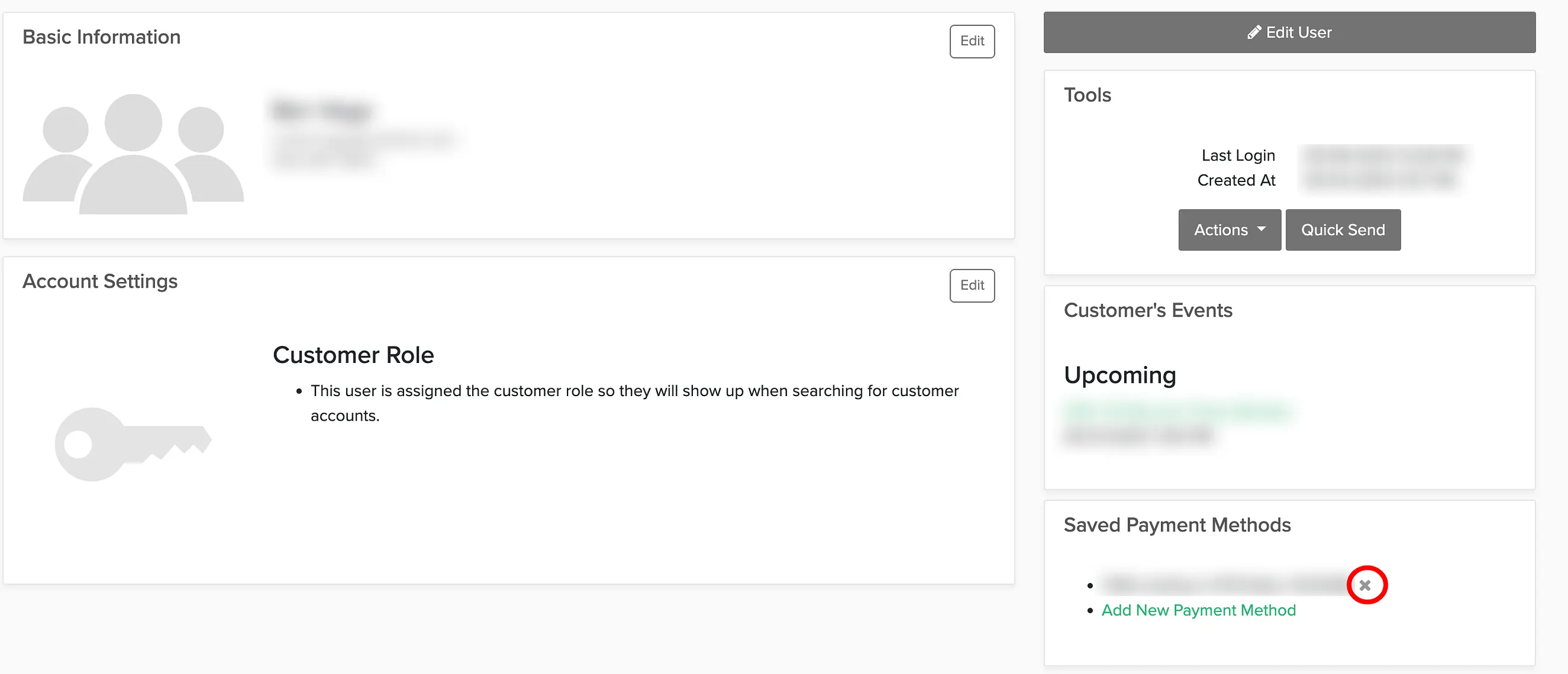
Removing a Saved Payment Method