Your emails should look like they come from your business, not a generic template. A custom email signature adds your logo, contact info, and social links to every email automatically.
Creating Your Signature
Manage → Business Settings
Go to Business Settings.
Click Edit Brand on the brand you want to add a signature to.
Scroll to the bottom to find the Email Signature section.
Add your customized signature — you can include images, links, and formatting.
Click Save.
Send yourself a test email to see how your signature looks before using it in client communications.
Adding It to Automated Emails
To include your custom signature in automated emails, you'll add a signature token to your email templates.
Manage → Automated Messages
Go to Automated Messages.
Click Edit on the template you want to add the signature to.
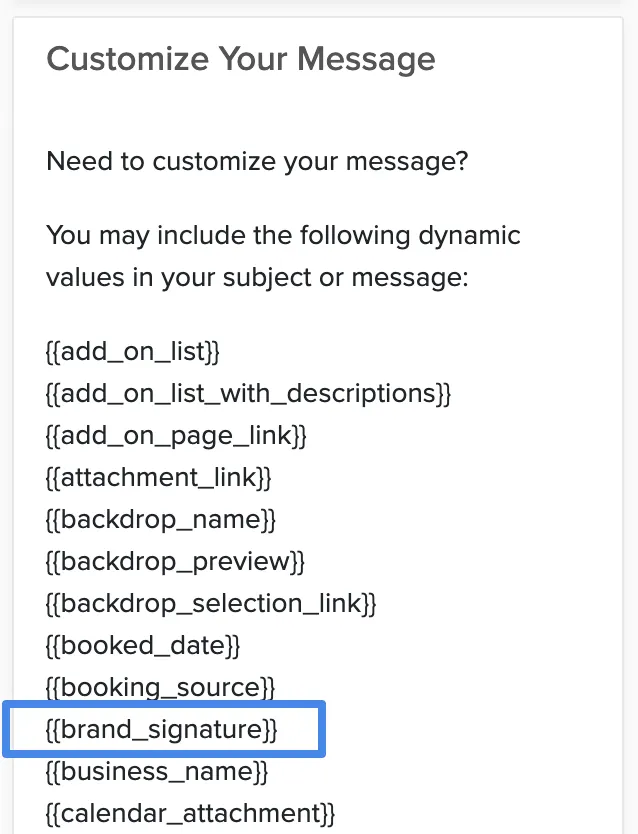
Copy this token:
{{brand_signature}}Paste the token into the email body where you want your signature to appear.
Click Save.
The signature token works in all automated email templates — proposals, payment reminders, booking confirmations, and more.