Message templates save you time on common responses. Instead of typing the same follow-up or event details again, you write it once and reuse it. Templates fill in booking-specific details like client names, event dates, and package information for you.
A custom template never sends on its own. It waits until you choose it from the Template dropdown or Quick Send. If you want a message to go out automatically, create an automated message instead. See the difference between automated messages, custom templates, and system templates.
Creating a template
Template settings
Email or text
Under What to do, choose email or text message. Text templates need a connected SMS integration and use the shorter text message body.
Conditions
Conditions limit where the template is offered. A template that only makes sense for one package, brand, or booking status will only appear on records that match. Leave conditions empty to make the template available everywhere.
Recipients and replies
Set who receives the message and where replies go. Most templates go to the client with replies to you, but a template can also target assigned staff or a venue contact.
Dynamic values
Dynamic values fill in booking-specific information like client names, event dates, package names, and pricing. Copy a value from the panel on the right and paste it into your subject or message. When you send the message, Check Cherry replaces it with the real details.
Tags
Tags group templates so they are easy to find once you have more than a handful. Tag by purpose, like follow-up or day-of, rather than by client.
Using your template
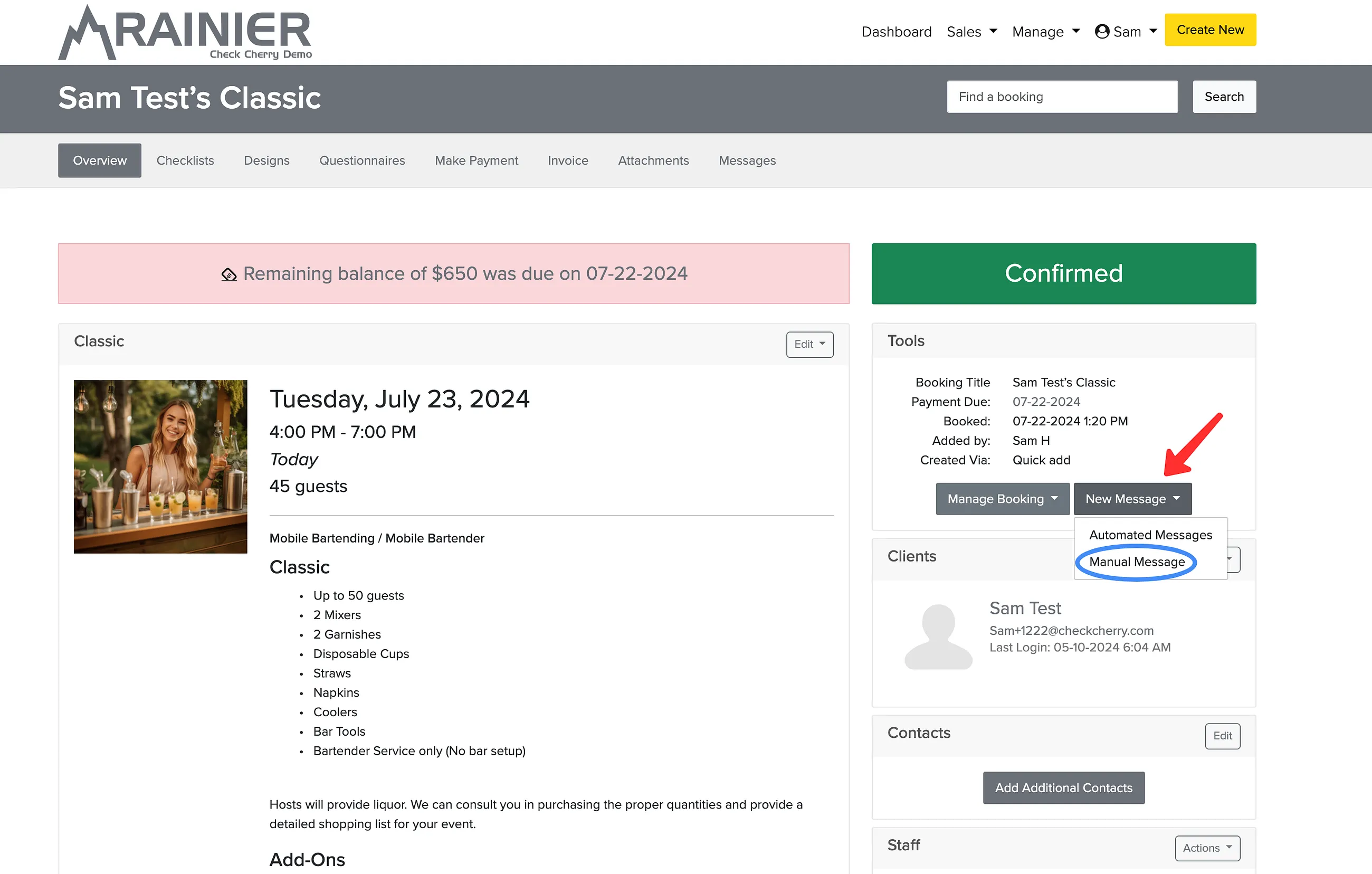
From any booking, proposal, lead, or appointment, click New Email or New Text Message and choose the template from the Template dropdown. The same dropdown appears when you reply to a message. The template loads with every dynamic value filled in, and you can edit it before sending. For one-click sending without opening the composer, use Quick Send on the same record. See How do I send a message from a booking?.