The Package Manager is where your entire service catalog lives. Setting it up well means clients can browse, compare, and book without needing to call you.
Package Structure
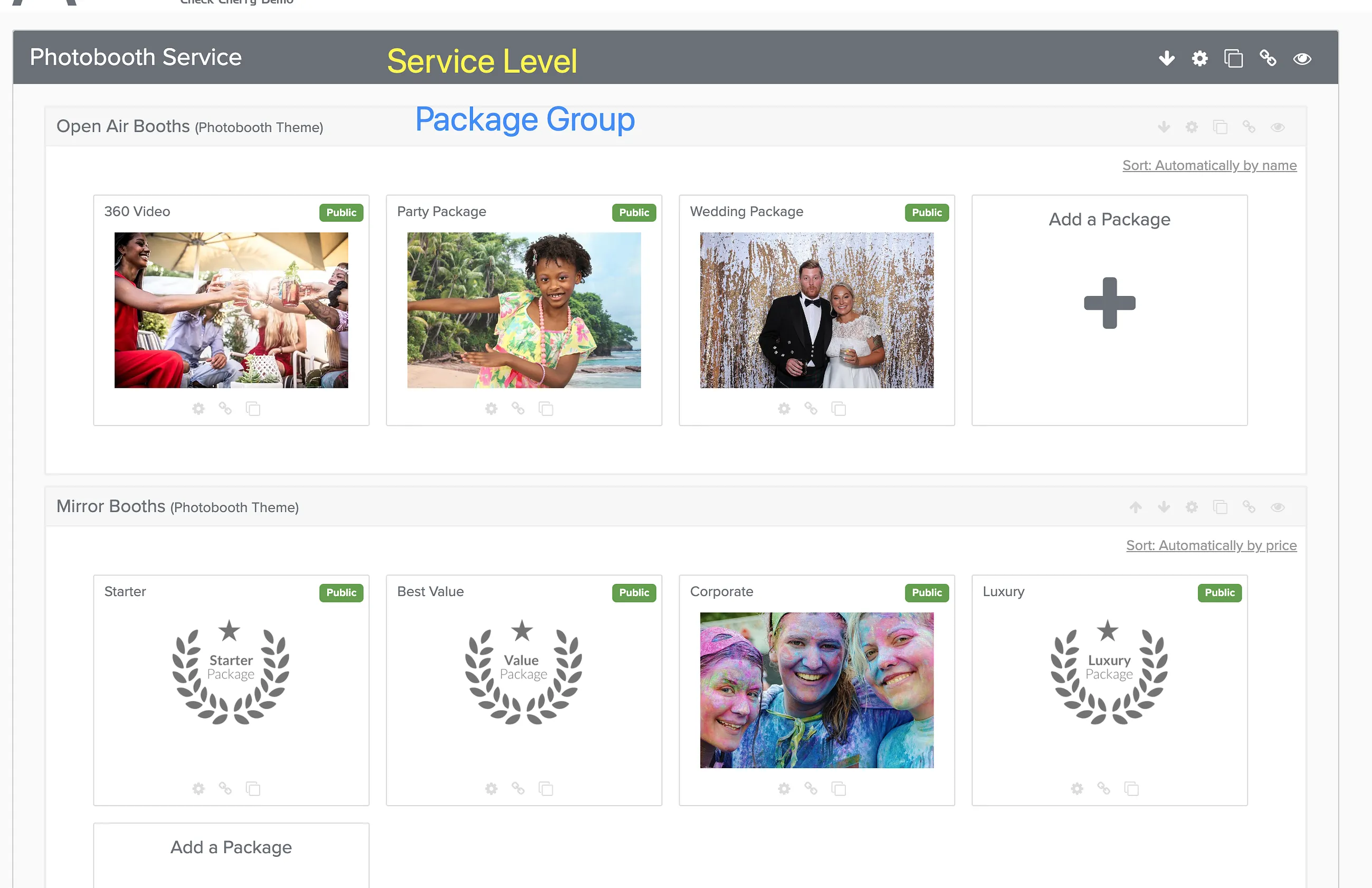
Packages are organized in three levels:
- Services: The top level. If you offer different types of work, each one is a service (e.g. "Photo Booth," "Bartending").
- Package Groups: Categories within a service (e.g. "Standard," "Premium").
- Packages: The individual offerings clients choose from, each with its own pricing.
How Clients See Your Packages
The client journey through your packages depends on how many services and package groups you have. Here's what they see at each step:
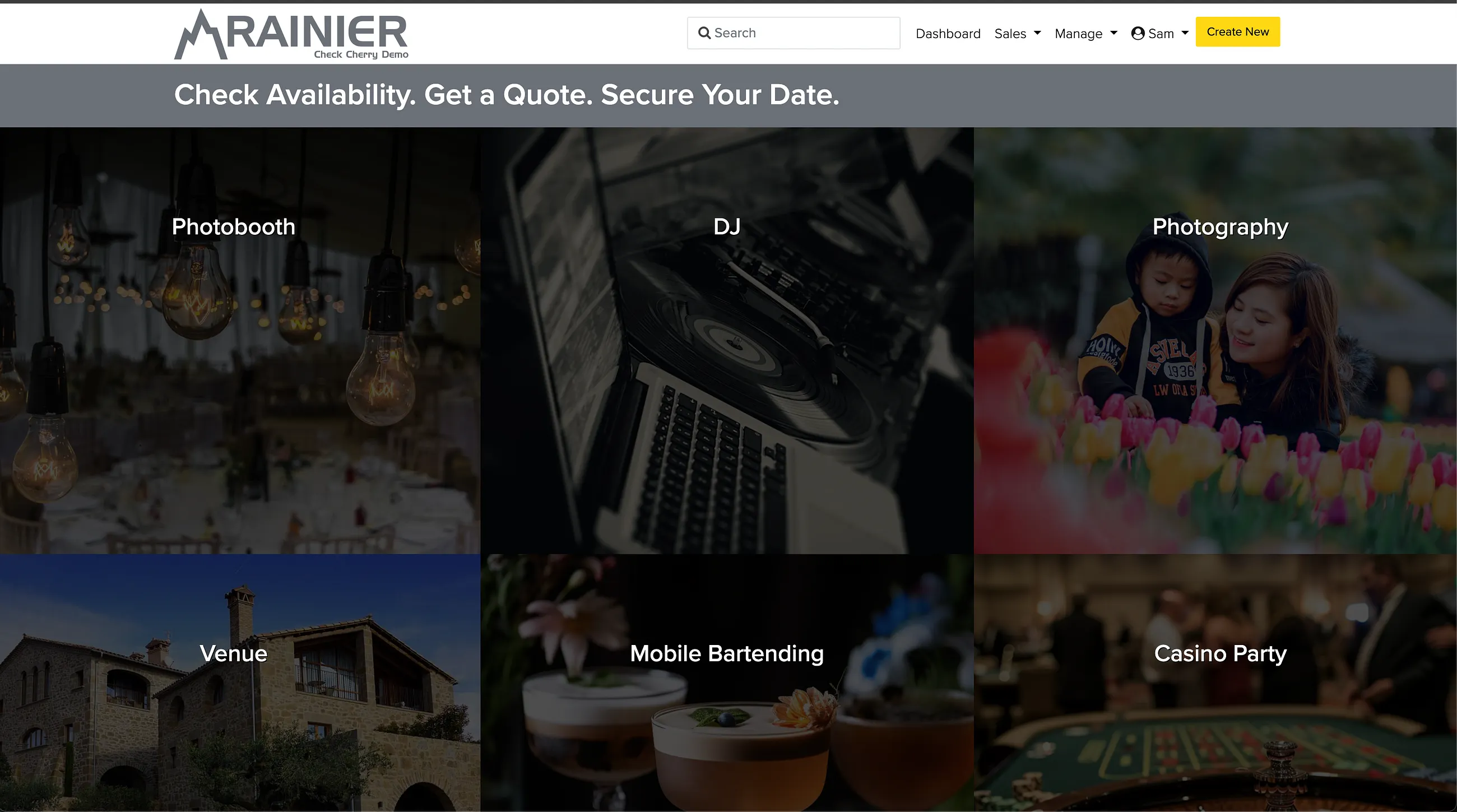
Services Page
If you offer multiple services (like "DJ Services" and "Photo Booth"), clients start here. Each service appears as a tile with its image, name, and description. This page only shows if you have more than one service.
Package Groups Page
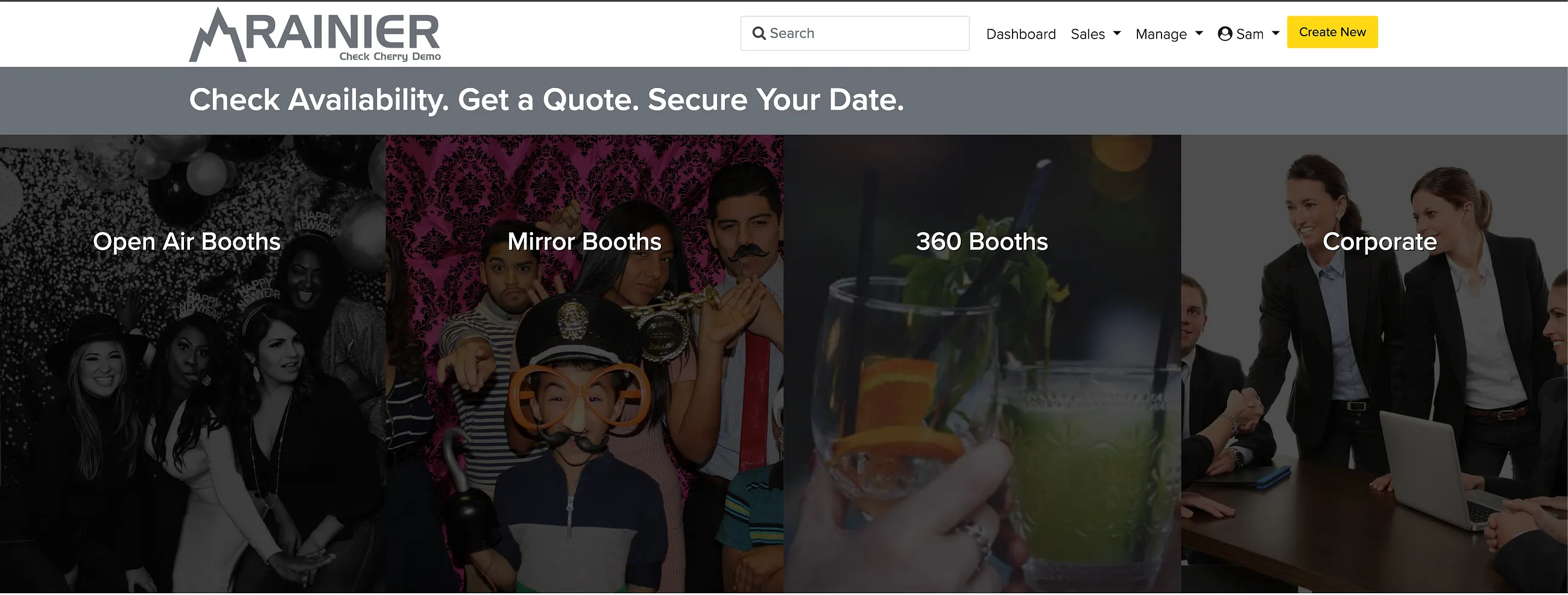
After selecting a service (or if you only have one service), clients see your package groups as tiles. Each tile shows the group name, description, and starting price. This helps clients understand your different tiers — like "Standard" vs "Premium" packages.
Individual Packages Page
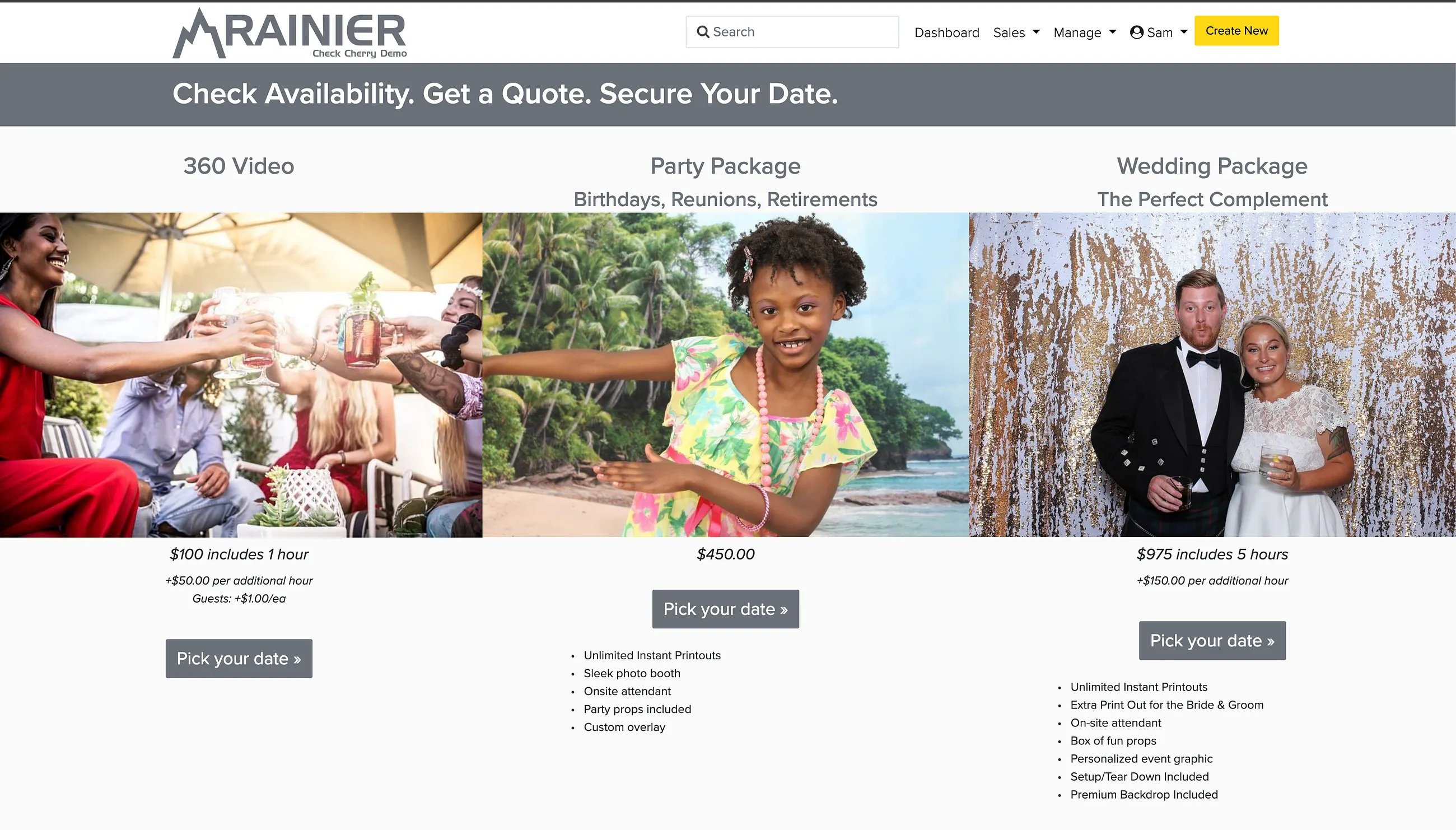
This is where clients see your actual packages side by side. Each package shows its name, price, description, and key features. The layout makes it easy to compare options. Clients click "Book Now" on their chosen package to continue to scheduling and checkout.
Scheduling Formats
Each package uses one of three scheduling formats:
- Date & Time: Client picks a start time. Duration is based on your package settings. Best for hourly services.
- Date Only: Client just picks the date. Best for full-day services.
- Appointment Slots: You define available time slots and clients choose one. Best for mini sessions or consultations.
Creating a Package
Package Visibility
- Public: Visible on your online booking page.
- Private: Only you can add it to bookings manually. Useful for custom or invite-only services.
- Archived: Hidden everywhere. Use for packages you no longer offer.