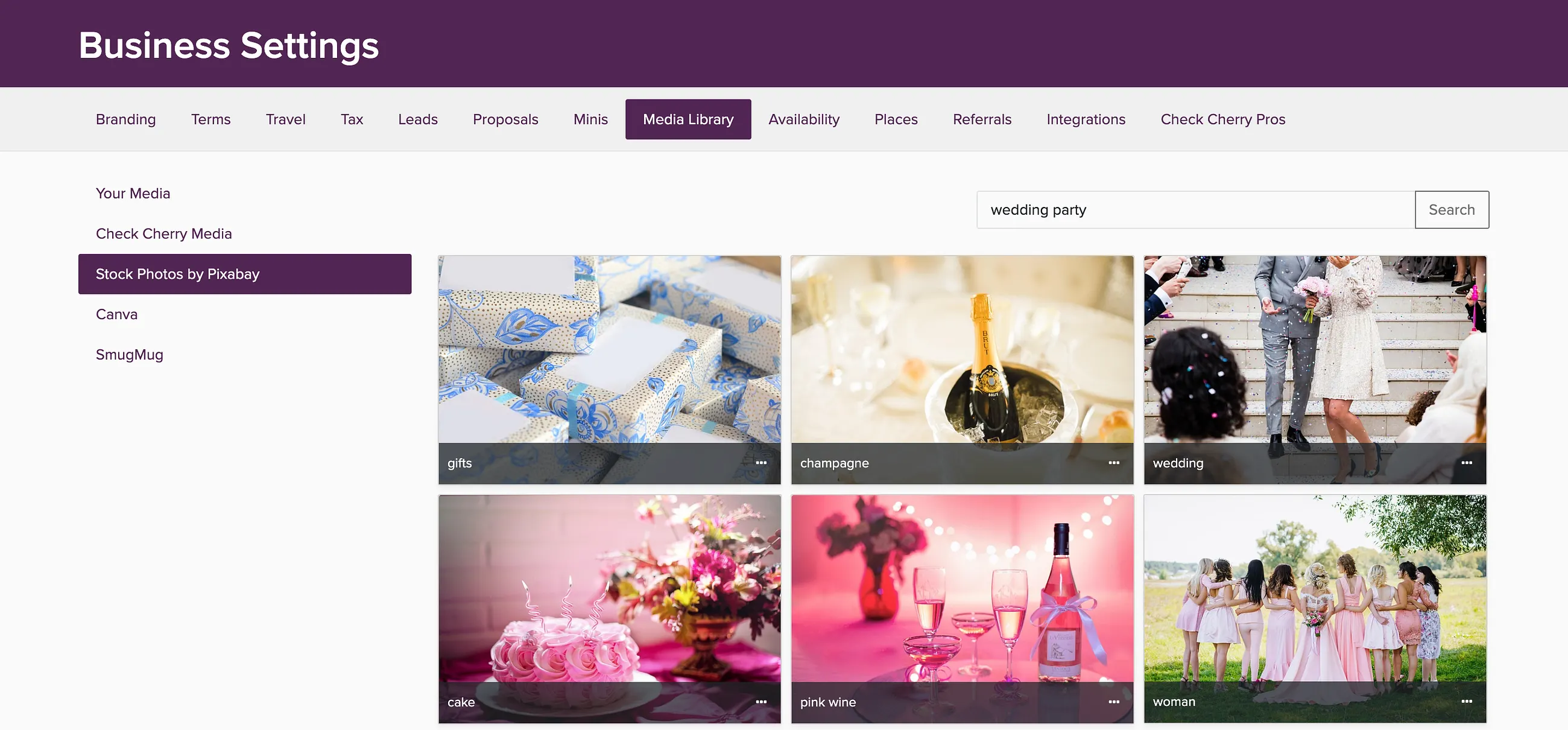
Package images help clients visualize your services during online booking and appear on proposals. You can add images at three levels: services (what clients see first), package groups (categories), and individual packages.
Adding Images to Packages
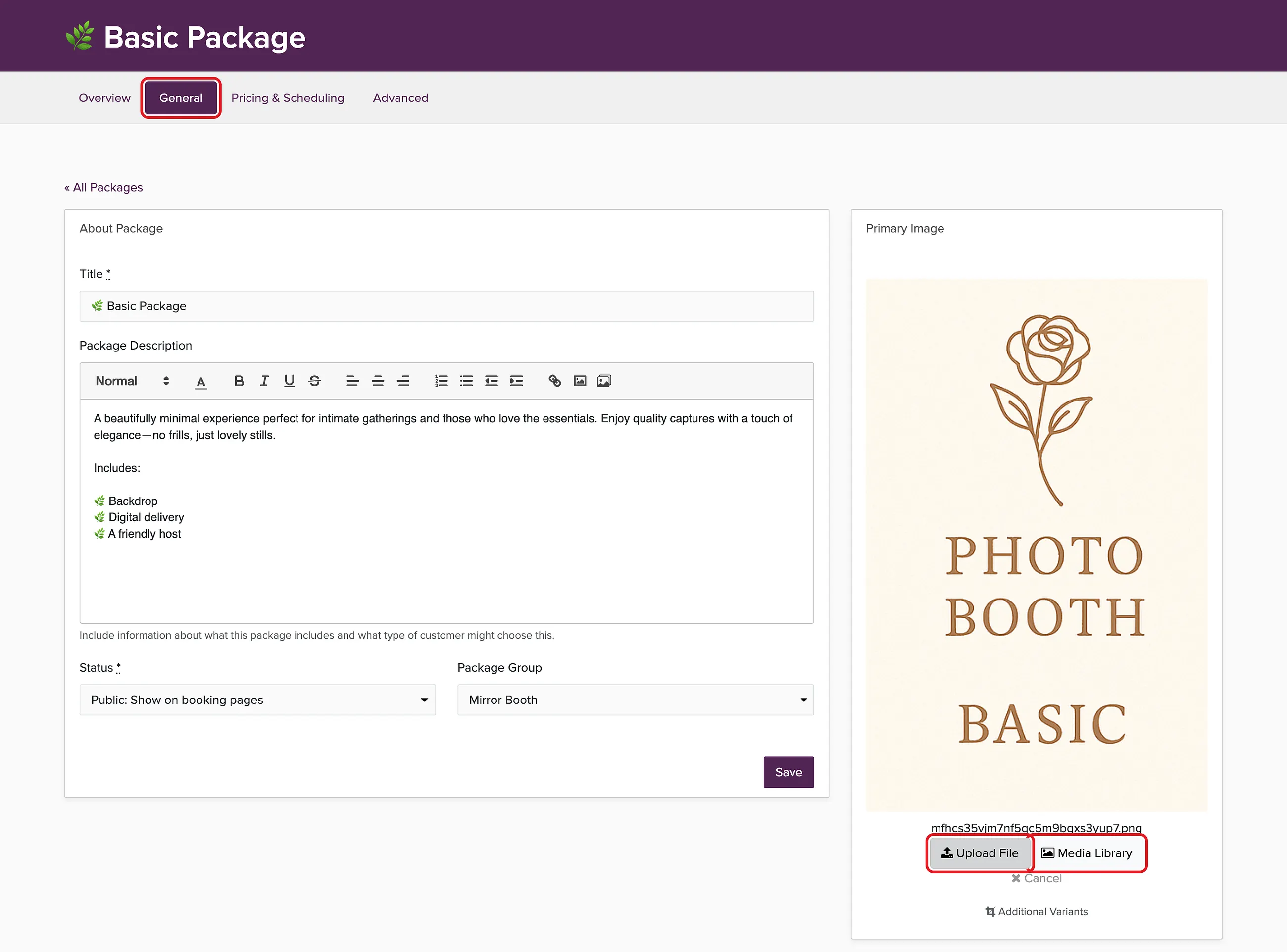
Service Images
The service image is what clients see first when they visit your booking page. If you have multiple services, clients choose between them before seeing package groups. If you only have one service, they go directly to your package groups.
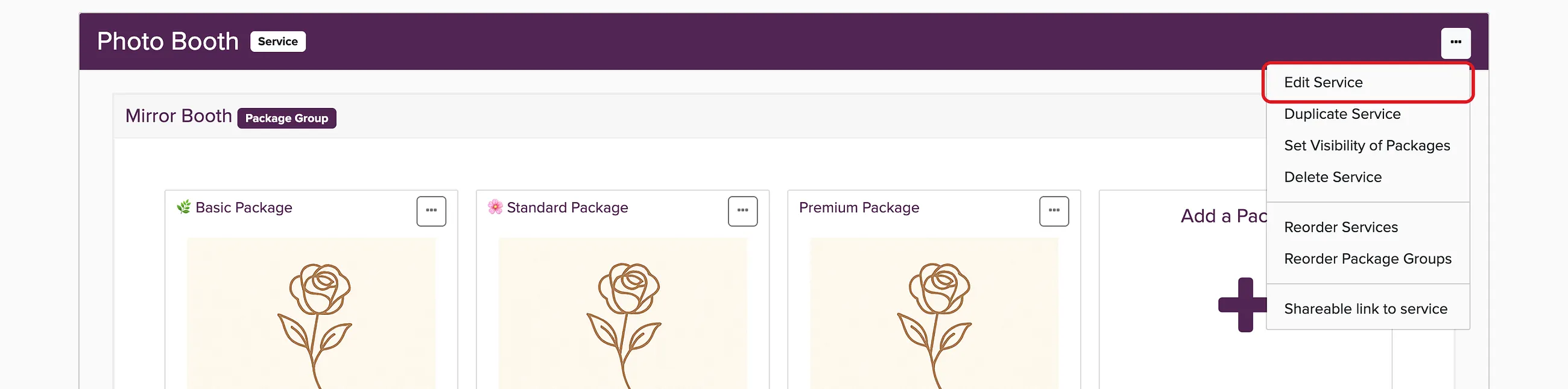
To change a service image, click the ... menu on the service and choose Edit Service:
Under Primary Image, click Upload File or Media Library:
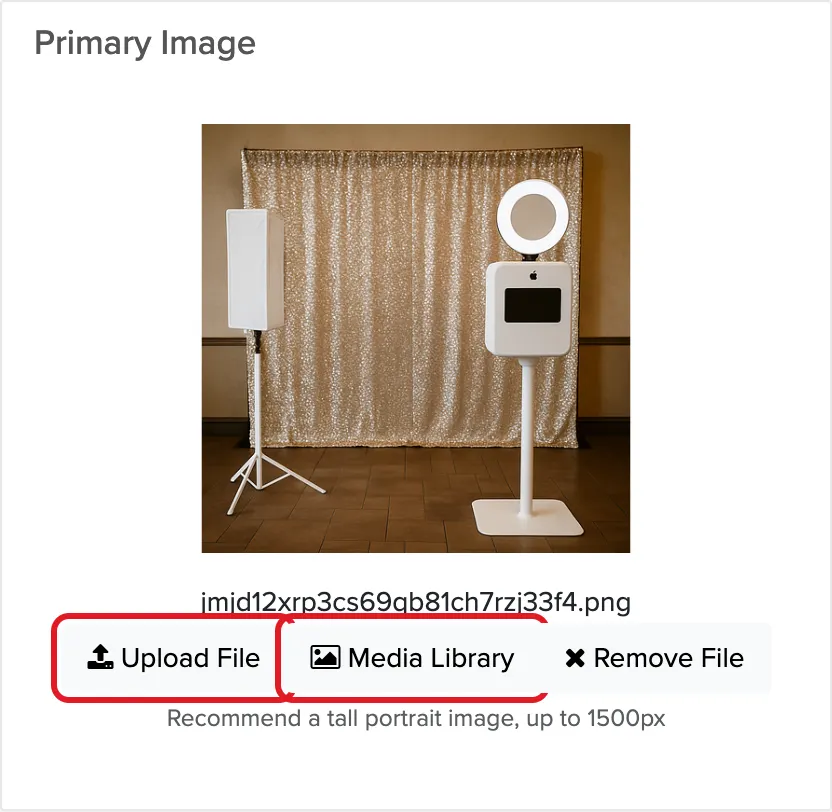
Package Group Images
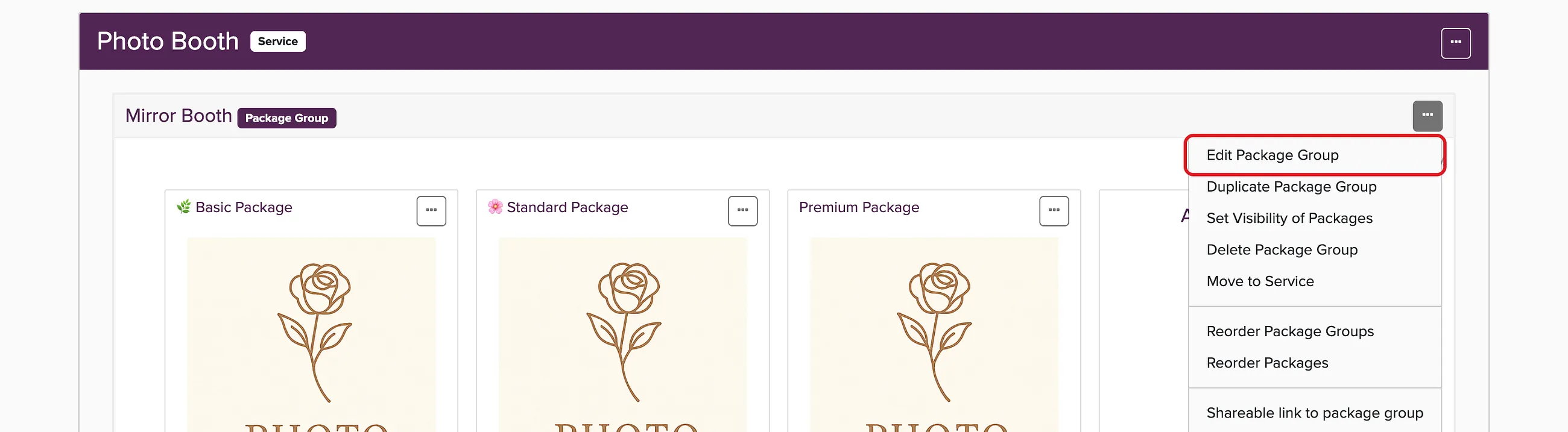
Package group images help clients navigate between different categories of packages (like "Wedding Packages" vs "Corporate Events"). Click the ... menu on the package group, choose Edit Package Group, and upload an image under Primary Image:
Media Library
Every Check Cherry account includes a Media Library. Store your own images under Your Media for reuse across packages, or pull from Check Cherry Media, Pixabay stock photos, Canva, and SmugMug. Manage it under Manage > Business Settings > Media Library.