Package groups organize your packages into categories like "Standard" and "Premium" within each service. Each group has its own settings that control how it appears during online booking.
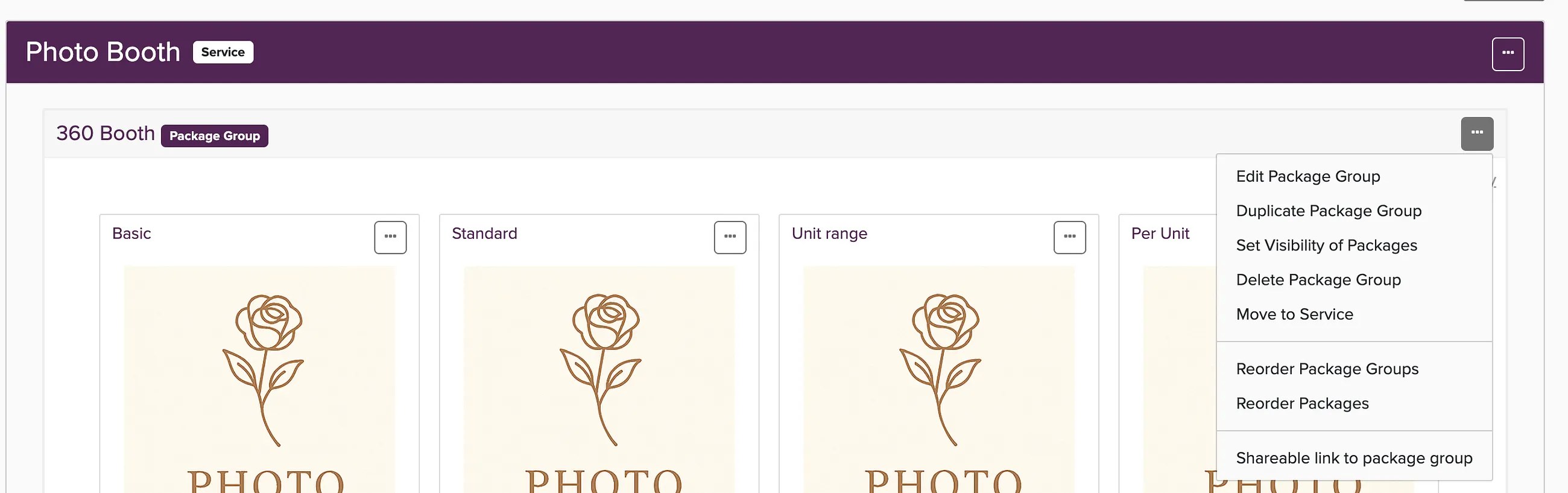
Name and Service
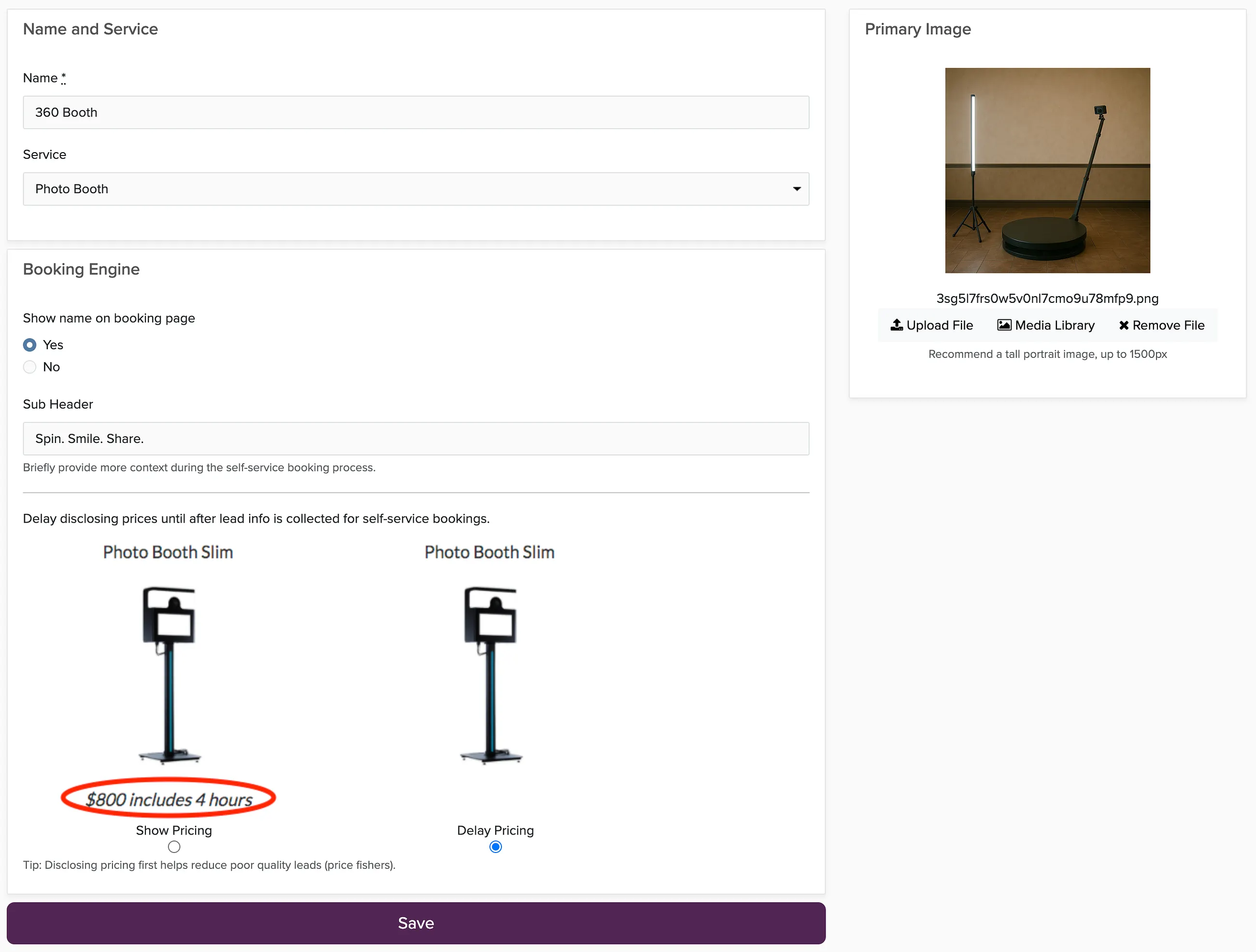
- Name: The group name that clients see during online booking
- Service: Which service this package group belongs to
Booking Engine
Show name on booking page: Choose whether clients see the package group name during online booking.
Sub Header: Add a short line of text below the group name to give clients more context.
Pricing: Control when clients see your prices during online booking:
- Show Pricing: Prices appear with each package from the start
- Delay Pricing: Prices stay hidden until the client enters their contact information
Primary Image
This image represents the package group during online booking. Upload a new image or pick one from your media library. Use a tall portrait image, up to 1500px.
Colors and Styling
The look of online booking is set with Booking Presets, not on the package group. Each preset controls colors, images, and style, and applies to the packages you choose.