Automated messages are emails (or SMS texts with Twilio) that Check Cherry sends on your behalf when certain conditions are met. Set them up once, and they fire automatically — saving you hours every week.
Why Automate Your Messages?
Consistent follow-up is what turns inquiries into bookings. Automated messages make sure every client gets the right message at the right time, whether you're free or in the middle of an event.
Once your automations are running, the time you used to spend on repetitive emails — confirmations, reminders, follow-ups — is handled for you. That's time back in your week.
What Can Automated Messages Do?
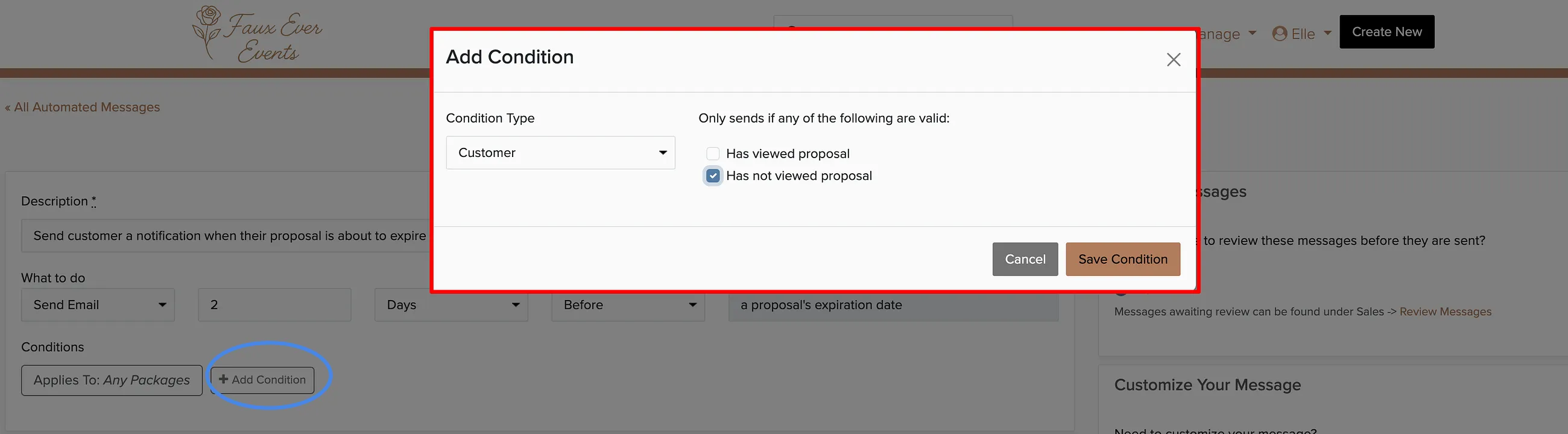
- Smart triggers — Send when specific conditions are met (event confirmed, payment received, lead submitted). Set multiple conditions that must ALL apply.
- Flexible timing — Send before or after key dates: event date, payment due date, or any custom timeframe.
- Rich content — Include formatted text, images, attachments, and dynamic fields that auto-insert client names, dates, payment links, and more.
- Email or SMS — Send via email by default, or via SMS text if you have a Twilio account connected.
Setting Up an Automation
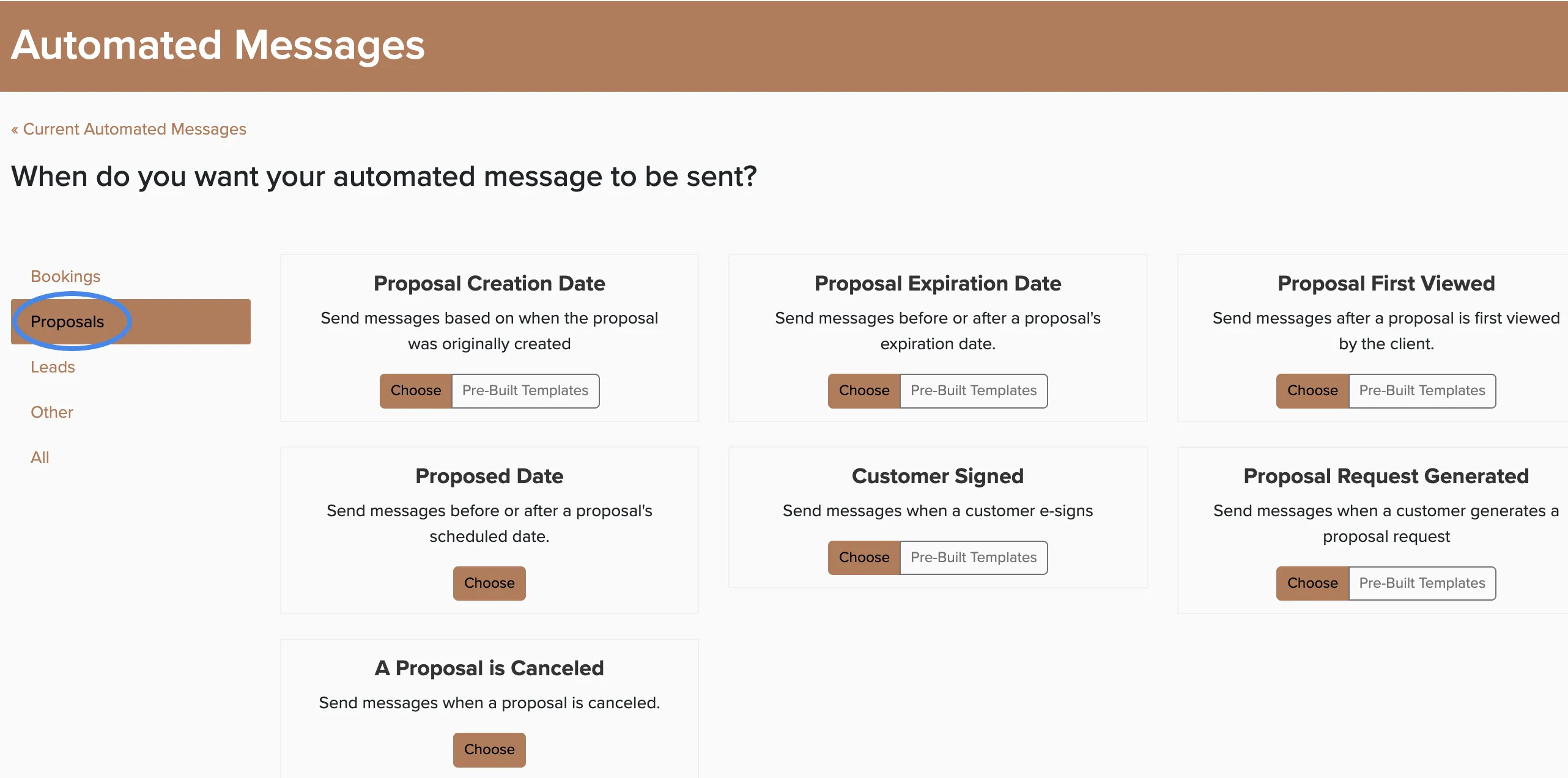
Go to Manage → Automated Messages.
Click New Automation.
Choose a trigger type — Event, Lead, Appointment, or Payment.
Browse templates or build from scratch.
Set the timing (e.g. "14 days before event" or "immediately after booking").
Write your message using merge fields to personalize it.
Click Save & Activate.
Recommended Message Sequence
Here's a proven sequence that most successful event professionals use:
- Instant lead response — Send immediately when a lead comes in. Acknowledge their inquiry and let them know you'll follow up.
- Booking confirmation — Send immediately when an event is confirmed. Include what to expect next.
- Planning questionnaire — Send 3-4 weeks before the event. Collect song requests, timelines, special requirements.
- Payment reminder — Send 2 weeks before if there's an outstanding balance.
- Day-of details — Send 3 days before with arrival time, load-in info, parking.
- Thank you + review request — Send 1-2 days after the event while the experience is fresh.
Space your automations so clients don't feel overwhelmed. One email per week leading up to the event is plenty. You can always add more later — start with the essentials and build from there.
Review Before Sending
If you'd rather review messages before they go out, enable the Review Queue. Automated messages will appear under Sales → Messages for you to edit, approve, or delete before they reach the client.
The review queue is especially useful when you're first setting up automations. Turn it on, let a few messages queue up, review them to make sure they look right, then turn it off once you're confident.