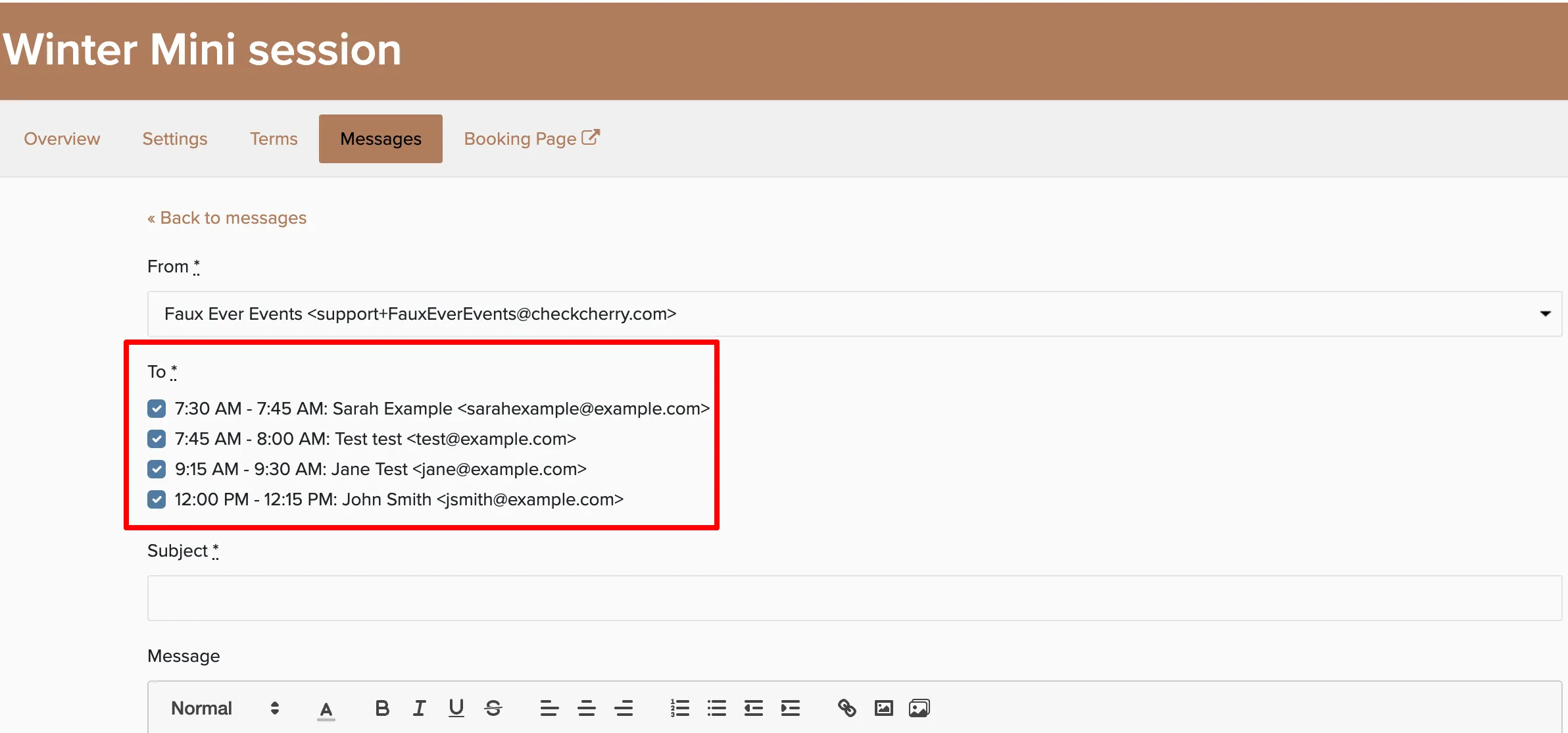
When you have a session with multiple clients booked across different time slots, you don't need to message each one individually. Send one message from the session and everyone gets it — whether it's weather updates, parking instructions, or last-minute changes.
Session messages save time when you need to communicate with everyone at once. Each client still sees the message in their individual booking record too.
How to Send a Session Message
Open the session.
Go to the Messages tab.
Compose your message or choose a template.
Click Send.

Where Messages Appear
Your message appears in two places:
- The session's Messages tab (where you sent it)
- Each individual booking's Messages tab
This way, if you need to reference the message later or a client asks about it, you can find it both at the session level and on their specific booking.