Entering bookings into QuickBooks manually after they're already in Check Cherry is double work. The QuickBooks integration syncs your data automatically and keeps your accounting up to date.
Setting Up the Connection
What Gets Synced
Payments Only
If you only sync payments, QuickBooks receives:
- Payment amounts (credit card, ACH, PayPal, manual, etc.)
- Refunds
- Credit card processing fees
Bookings and Payments (Recommended)
This is the default option and creates a complete record in QuickBooks:
- Creates an invoice in QuickBooks for each booking
- Booking total with line items
- Payment records
- Refunds
- Credit card processing fees
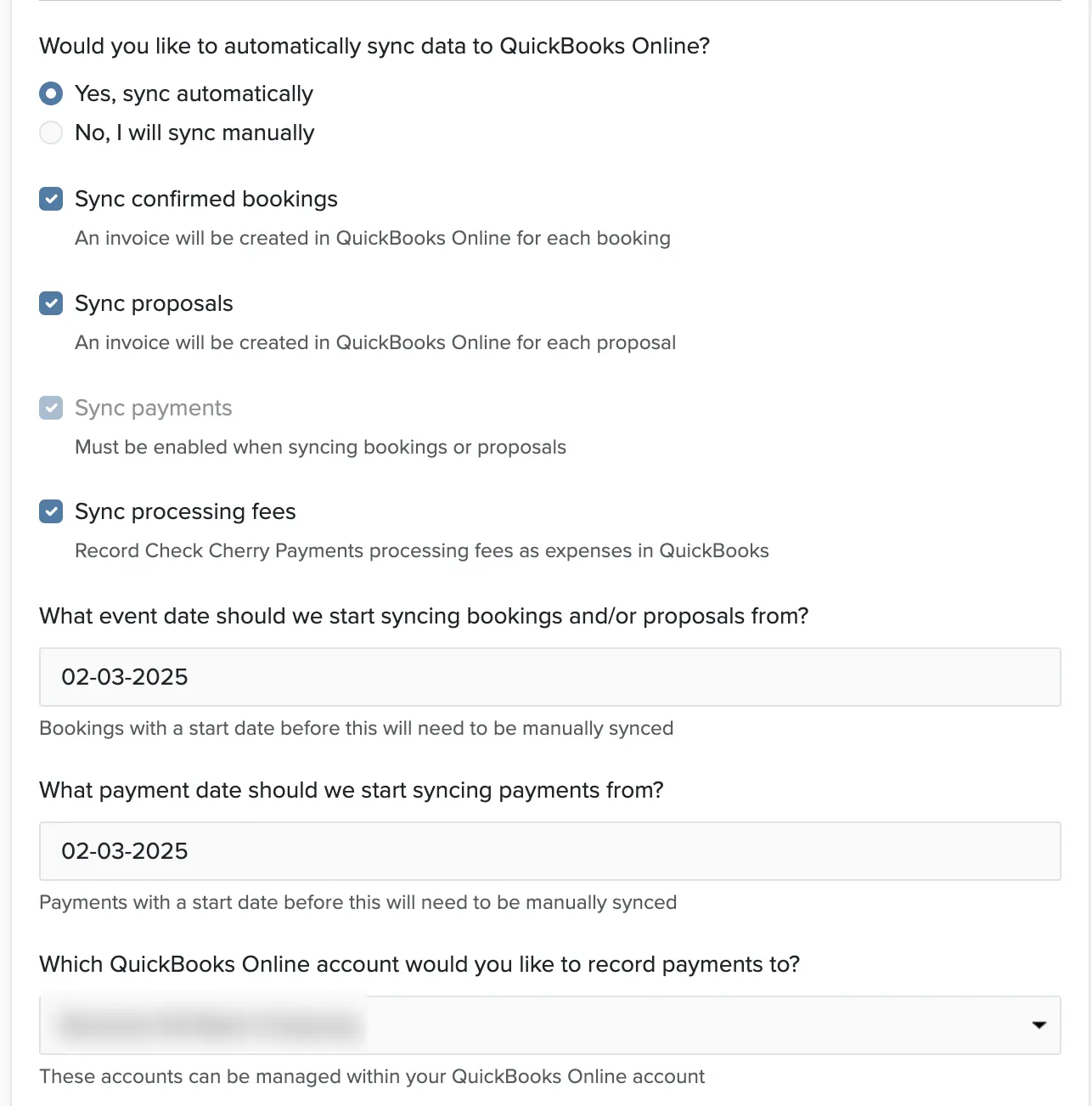
QuickBooks Account Settings
By default, synced payments go to "Undeposited Funds" in QuickBooks, but you can change this to any account during setup. Most businesses keep the default since it matches how QuickBooks typically handles deposits.
Manual Sync
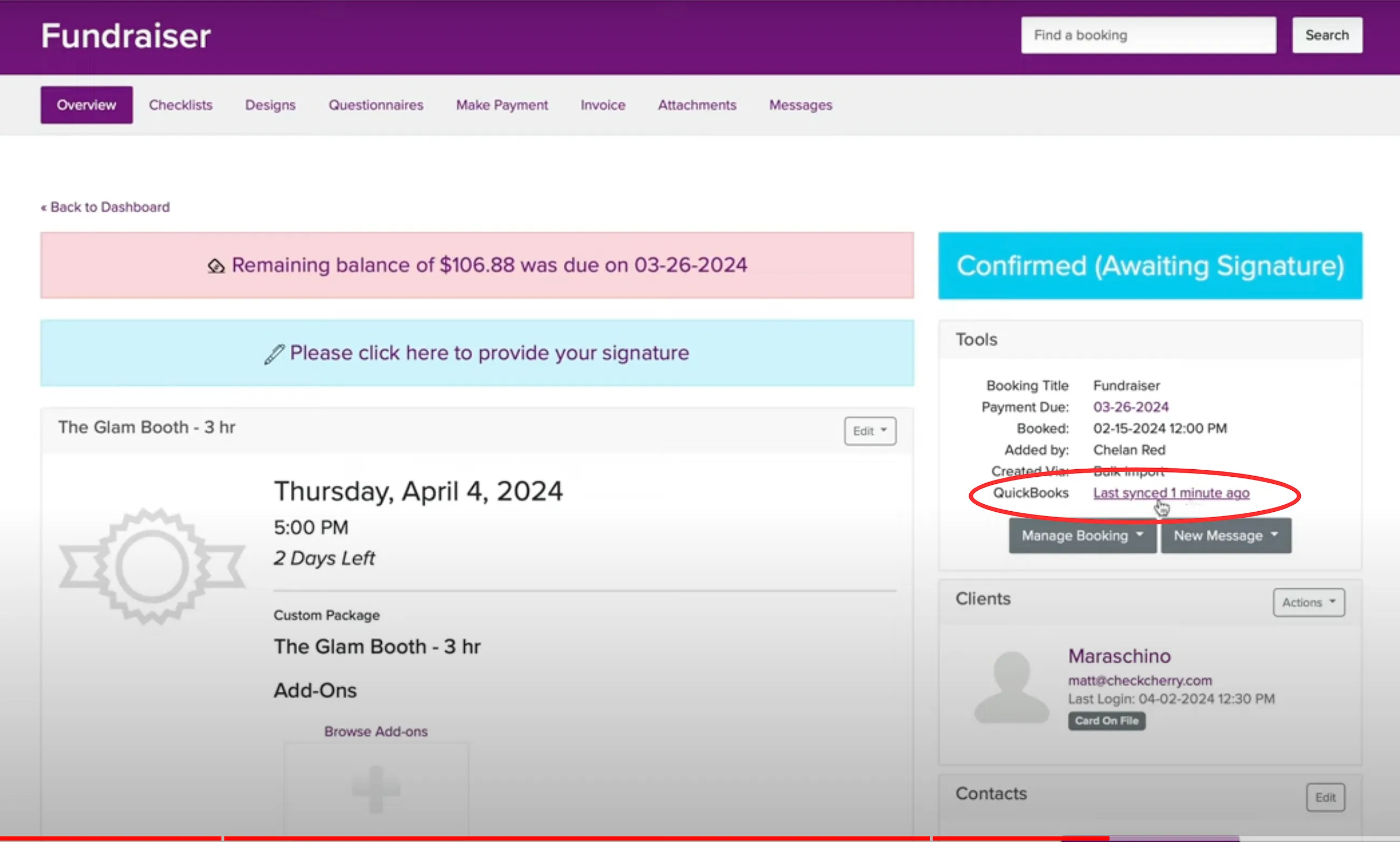
After the initial setup, each booking shows when it was last synced with QuickBooks. Click the sync link on any booking to force an immediate manual sync.
Setting Up Sales Tax
You need to enable sales tax in QuickBooks Online separately for tax amounts to sync properly. See Intuit's guide to setting up sales tax.