If you offer consultations, Check Cherry can automatically generate a Zoom or Google Meet link the moment a client books an appointment — no manual scheduling, no link-sharing back and forth. The meeting link goes straight into the confirmation, and both you and the client have everything you need without any extra steps.
Connecting Zoom or Google Meet
Start by connecting your video account in Appointment Scheduling settings. You only need to do this once.
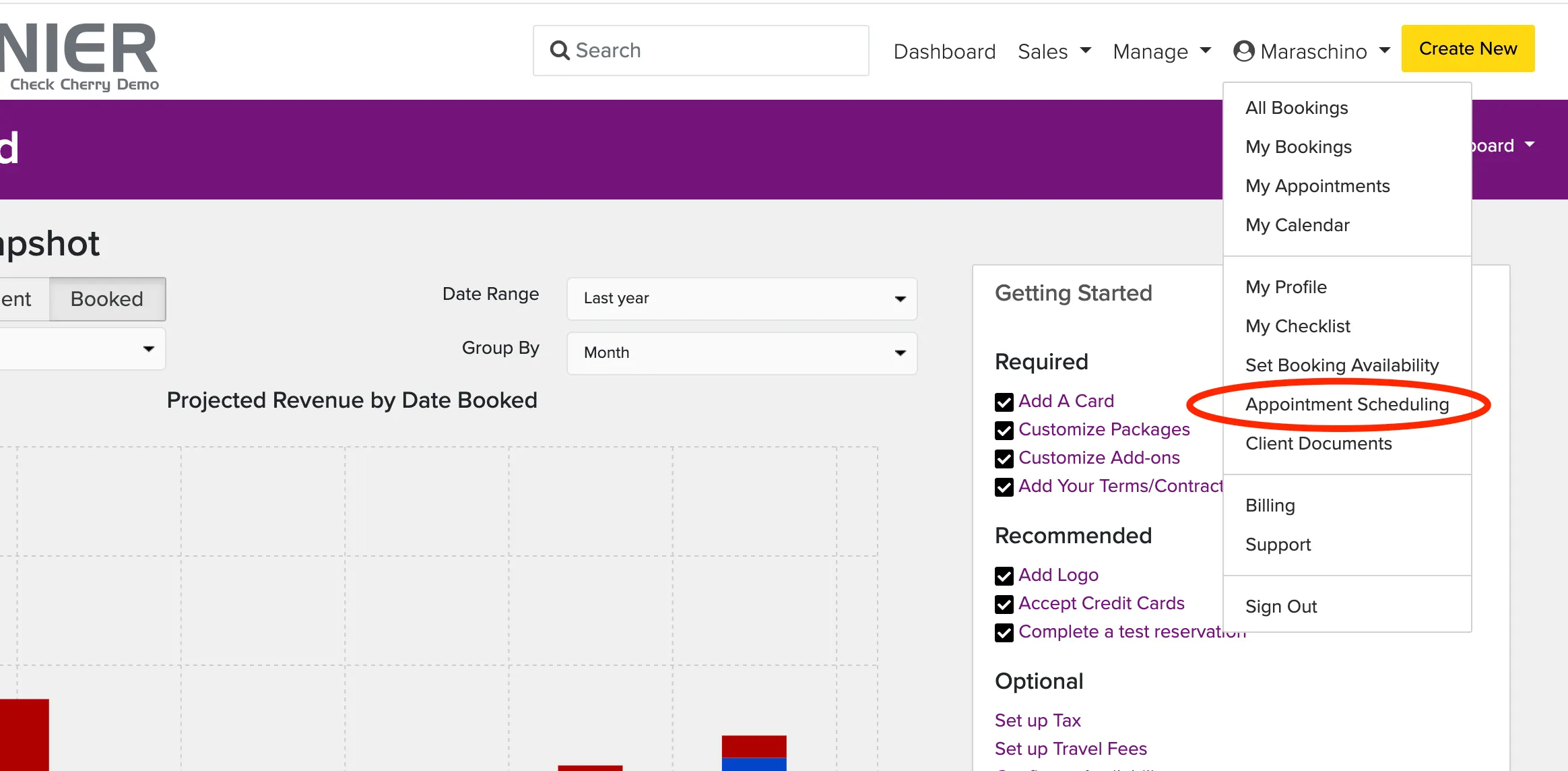
Click your name in the upper right and select Appointment Scheduling.
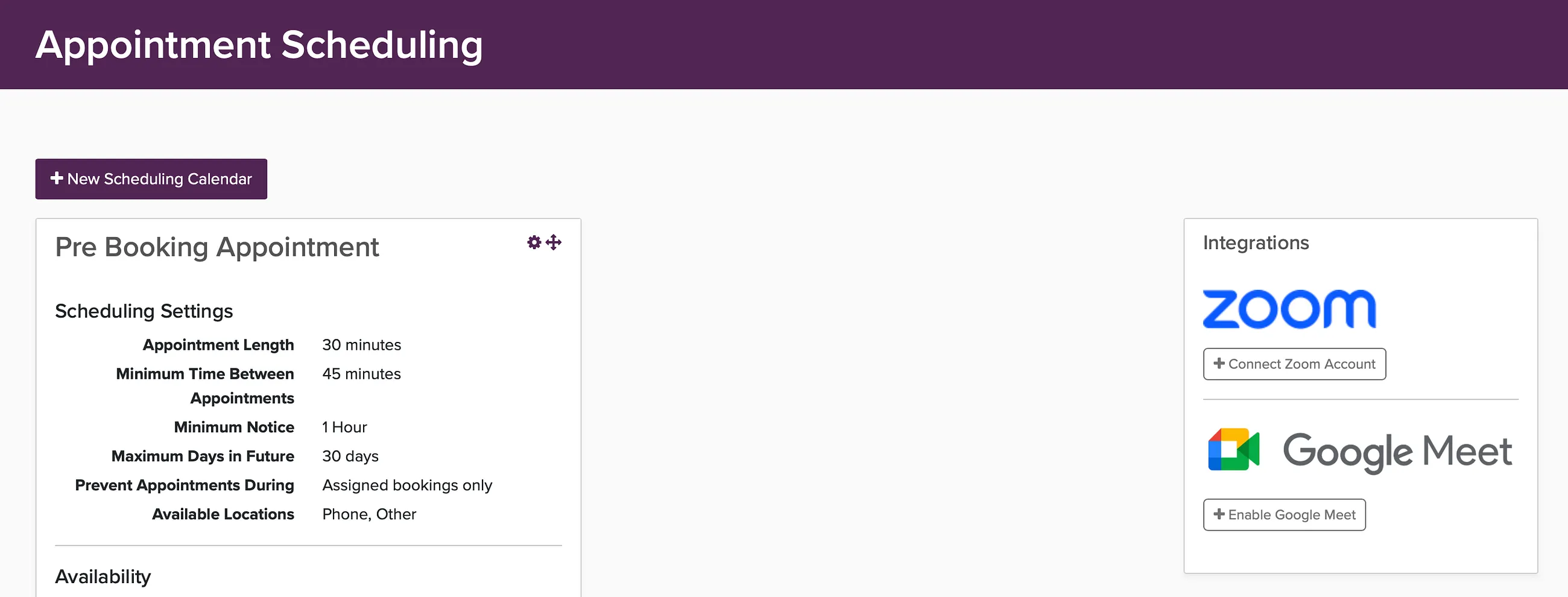
Click Connect Zoom or Google Meet.
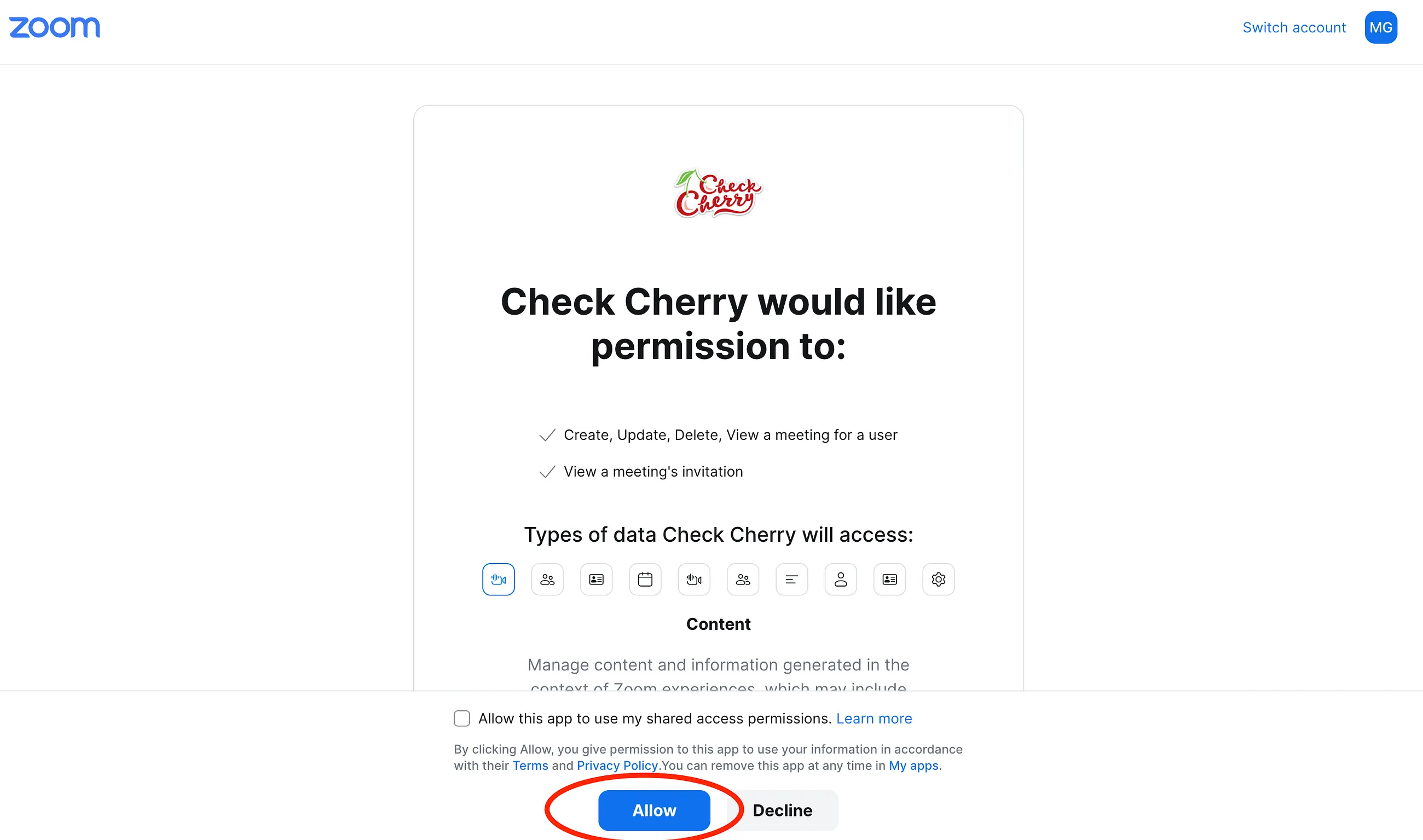
Sign in with your Zoom or Google account and grant the requested permissions.
Enabling video meetings for appointments
Once your account is connected, tell Check Cherry where appointments should take place. This is what activates automatic link generation.
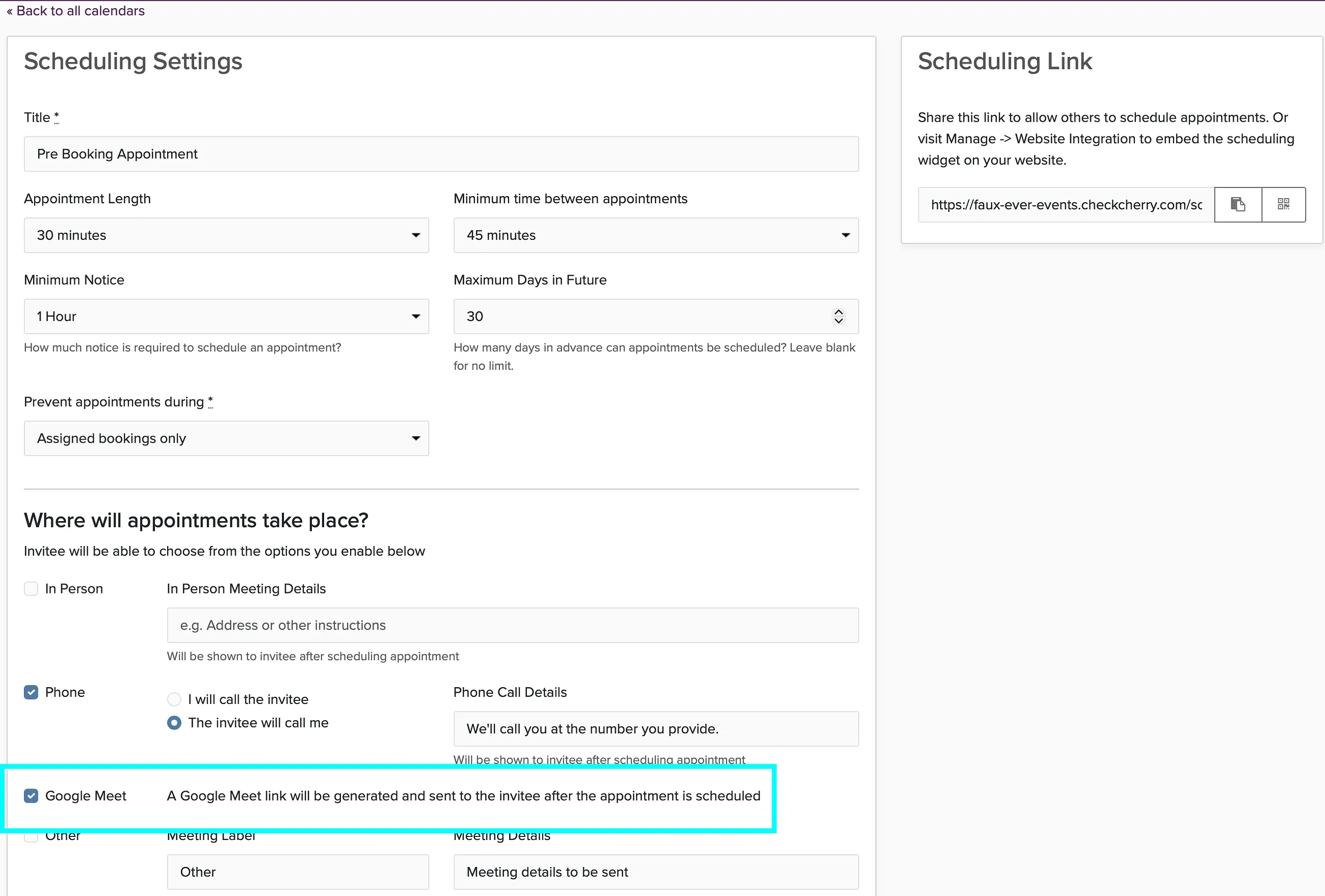
In Appointment Scheduling, find the Where will appointments take place? setting.
Select Zoom or Google Meet.
Save your settings.
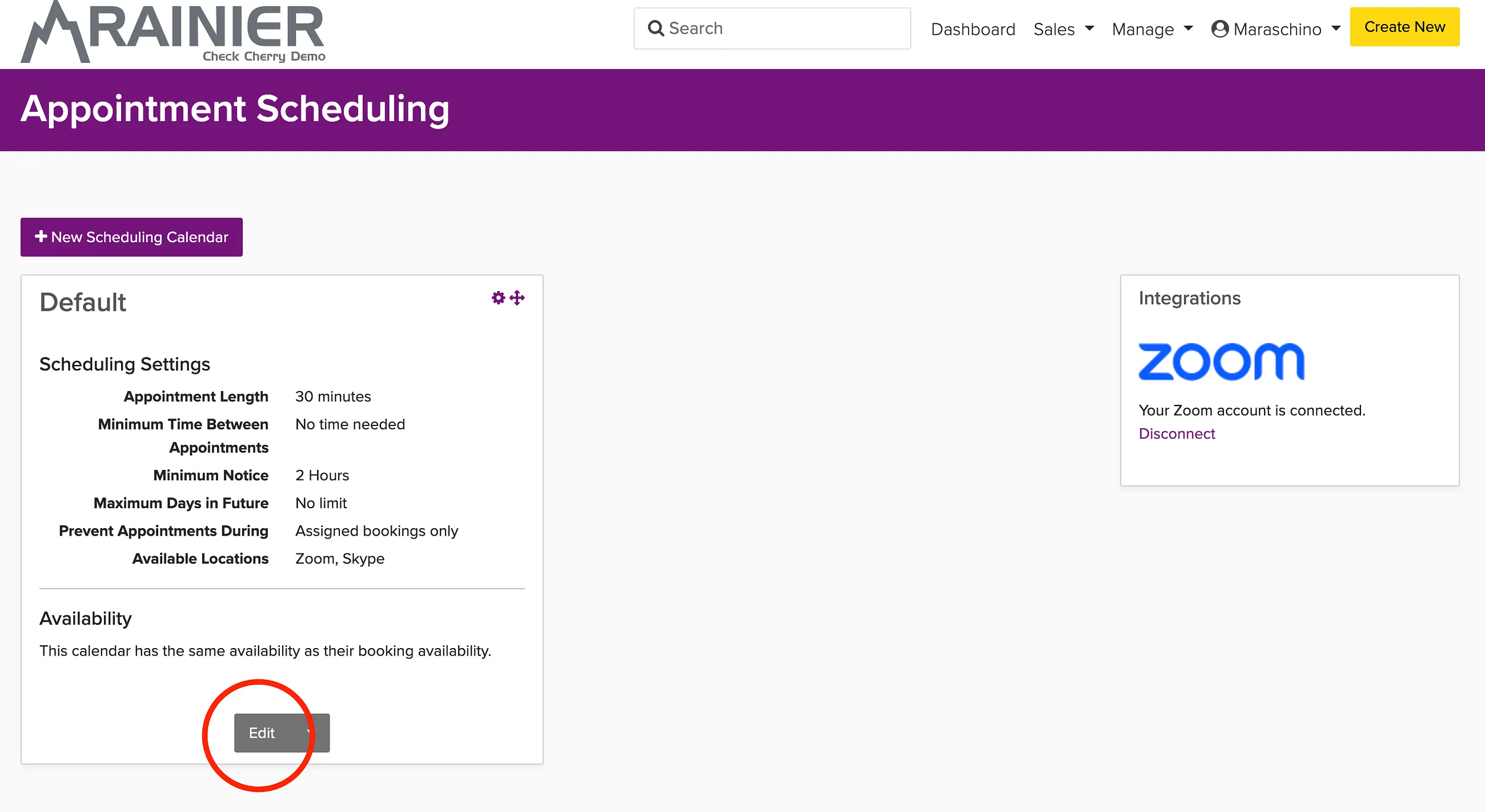
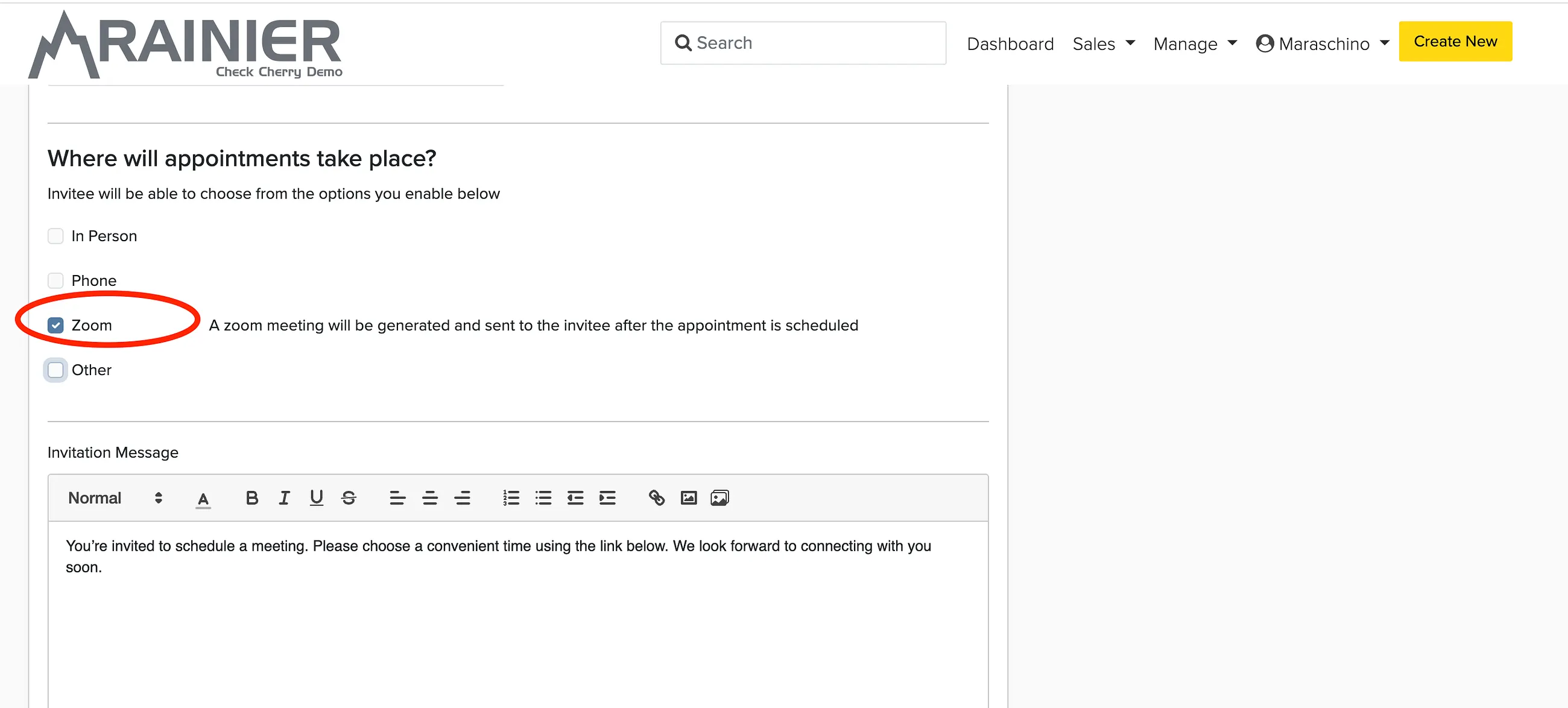
From this point on, every new appointment booking will automatically include a unique meeting link in the confirmation sent to you and your client.
Disconnecting
To disconnect, go to Appointment Scheduling and click Disconnect next to the provider logo. Meeting links on existing appointments are not affected — those links will continue to work.