Integrate Twilio with your Check Cherry account to send and receive SMS messages to and from your customers. Automate your leads, follow ups, payment reminders and more via text and track the messages in the lead or booking record in Check Cherry.
To enable your Twilio integration with your Check Cherry account, start in Check Cherry by clicking on Manage --> Business Settings --> Integrations. Find the Twilio integration and click the Enable button.
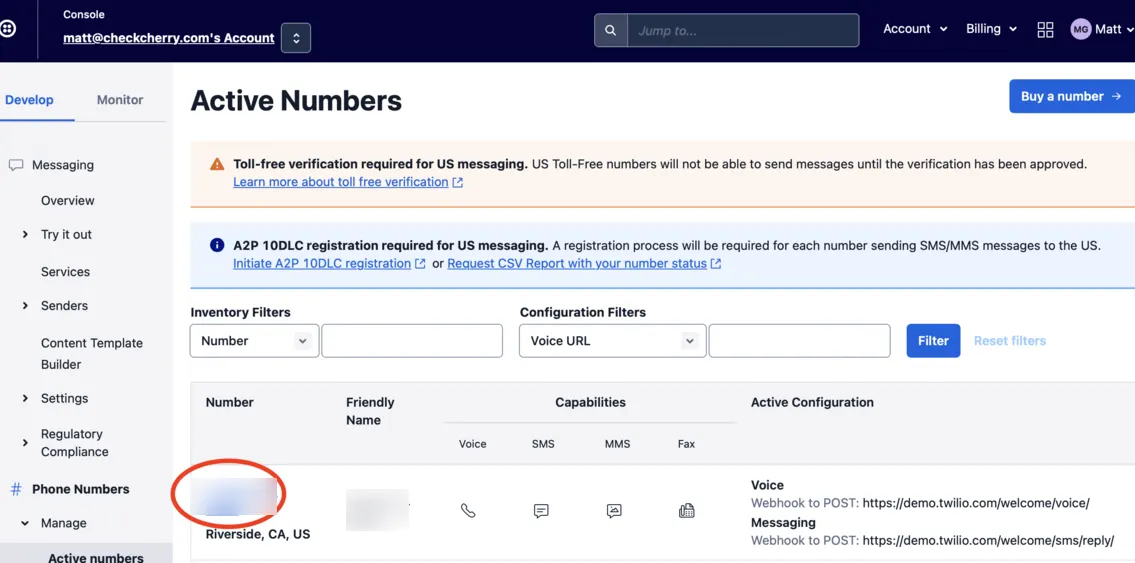
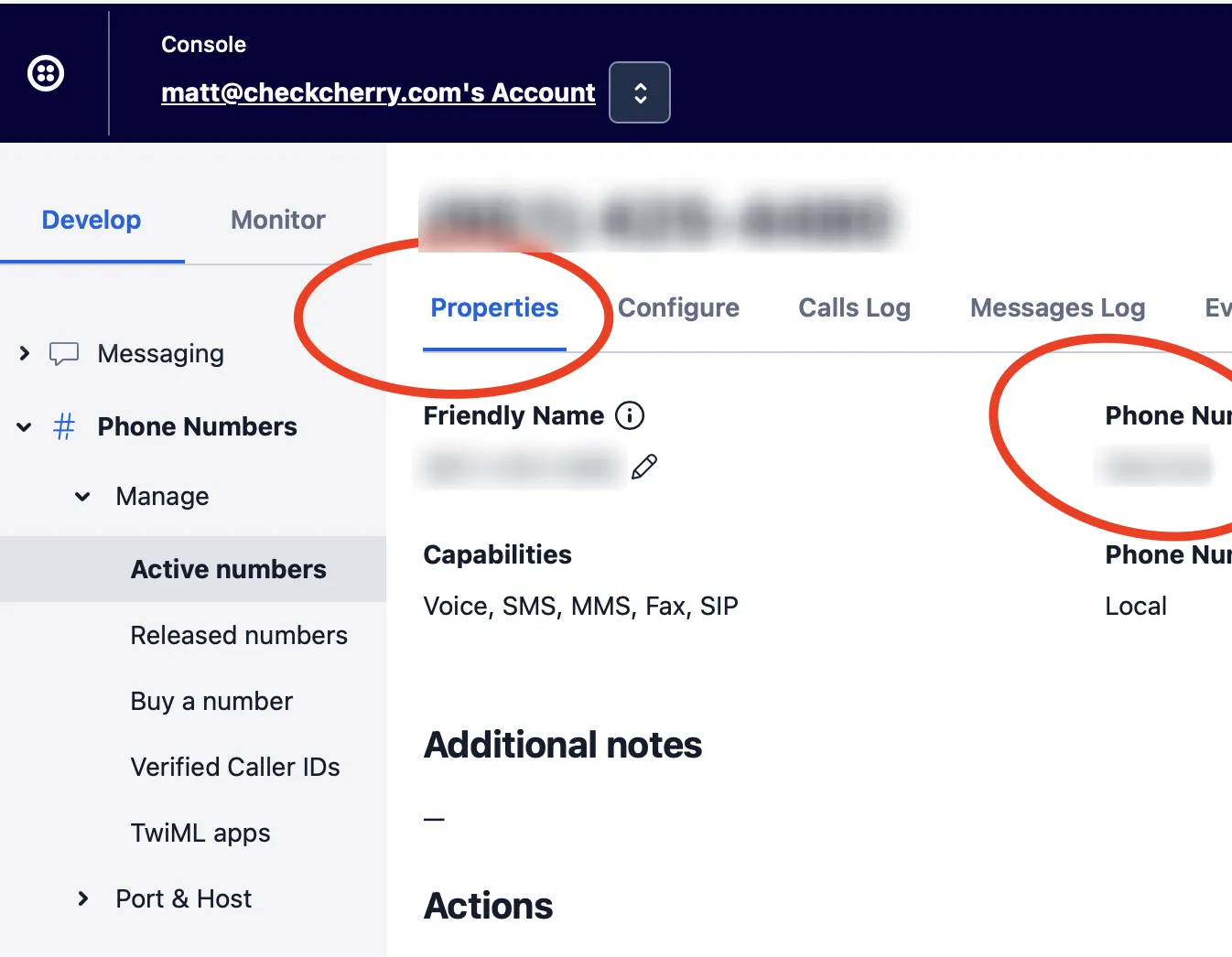
If you are asked for your "Phone Number SID", go to your Twilio account, expand the Phone Numbers menu in the left sidebar, and select Manage --> Active Numbers.
My text messages are showing as Undelivered
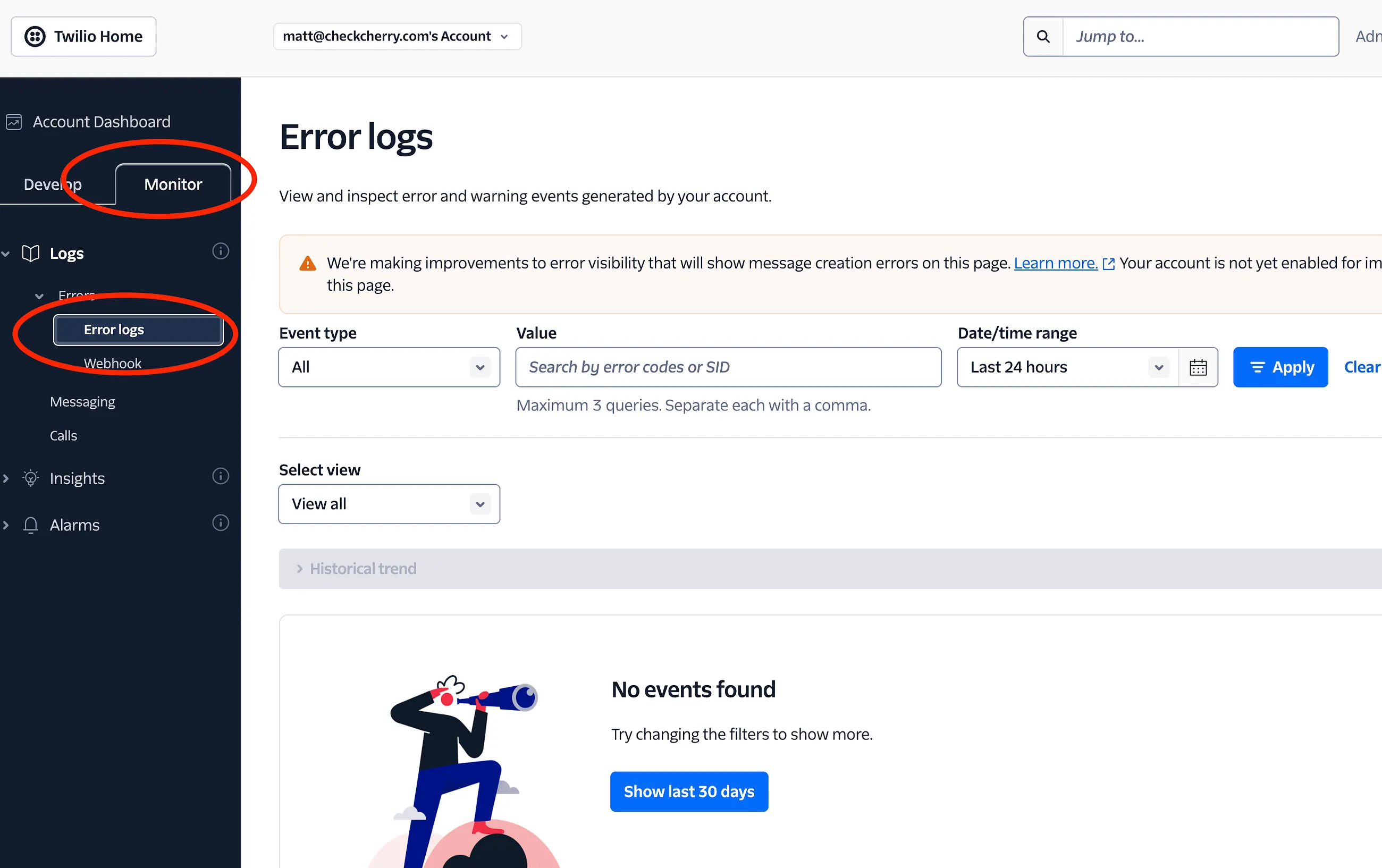
If you are getting an undelivered error on your text messages through Check Cherry, check your Twilio account to see what the cause of the error may be. From your account dashboard, click on the Monitor tab, then look for the Error logs below:
Do I need to register for A2P 10DLC?
Yes, if you send SMS or MMS to U.S. phone numbers using long code numbers, you need to register for A2P 10DLC.
How do I register for A2P 10DLC?
Registration is done through the Twilio Console. If you're an ISV, you can also use our registration APIs to register yourself and your customers. You can register through your Twilio account: https://help.twilio.com/articles/1260801864489-How-do-I-register-to-use-A2P-10DLC-messaging
Helpful tips to keep in mind when setting up your account:
You need to set up webhooks in order to receive sms replies
If you would like Check Cherry to log incoming messages and notify you upon receipt, you must configure a "Messaging Webhook" on your phone number. To do that, enter the following settings:
- Under "A Message Comes In", choose "Webhook"
- For the URL enter
https://yourcompanyurl.checkcherry.com/webhooks/twilio/message_received - Make sure
HTTP POSTis selected
What if I still need help?
You can reach out to Twilio's AI powered help chat using this link: Twilio Help Desk.
You may also find their Quick Start Guide useful.
Twilio also has a library of helpful documents that may help you find what you need.
https://www.twilio.com/docs#communications
I'm getting an error code in Twilio
Twilio error codes are listed here. Search for the code you're getting and click Learn More to discover what the error means and how to resolve it.