If you work with a team, you may want to allow your staff to request or claim bookings themselves. Check Cherry can list open packages for your staff to pick up, either claiming them outright or requesting them for your approval.
Claiming and requesting
Both are set per service. With Allow staff to claim bookings, a staff member can simply assign themselves. With Allow staff to request bookings, they ask and you decide who gets it. Claiming is quicker when you trust your staff to sort it out; requesting keeps the final say with you.
Opening a service
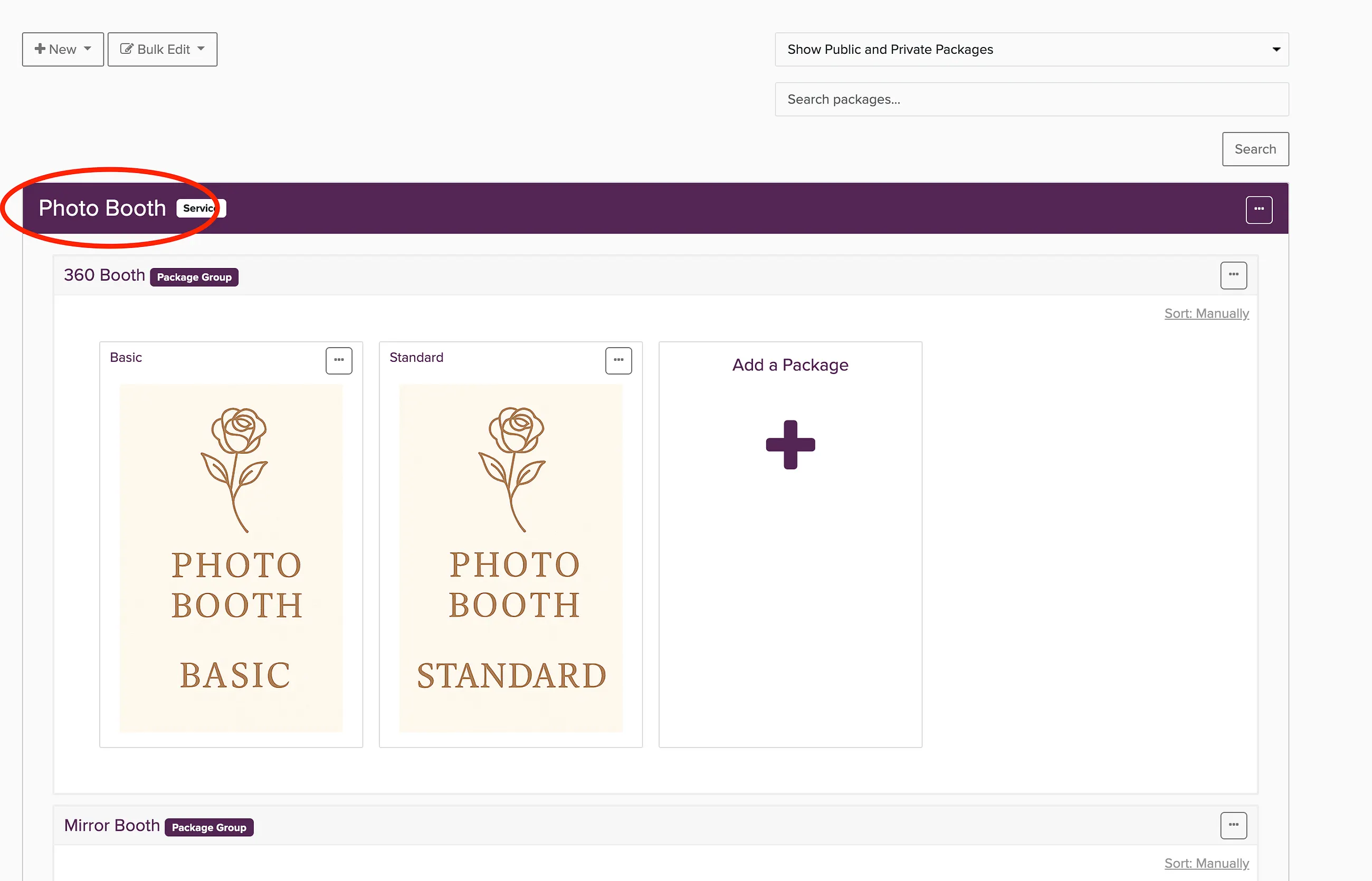
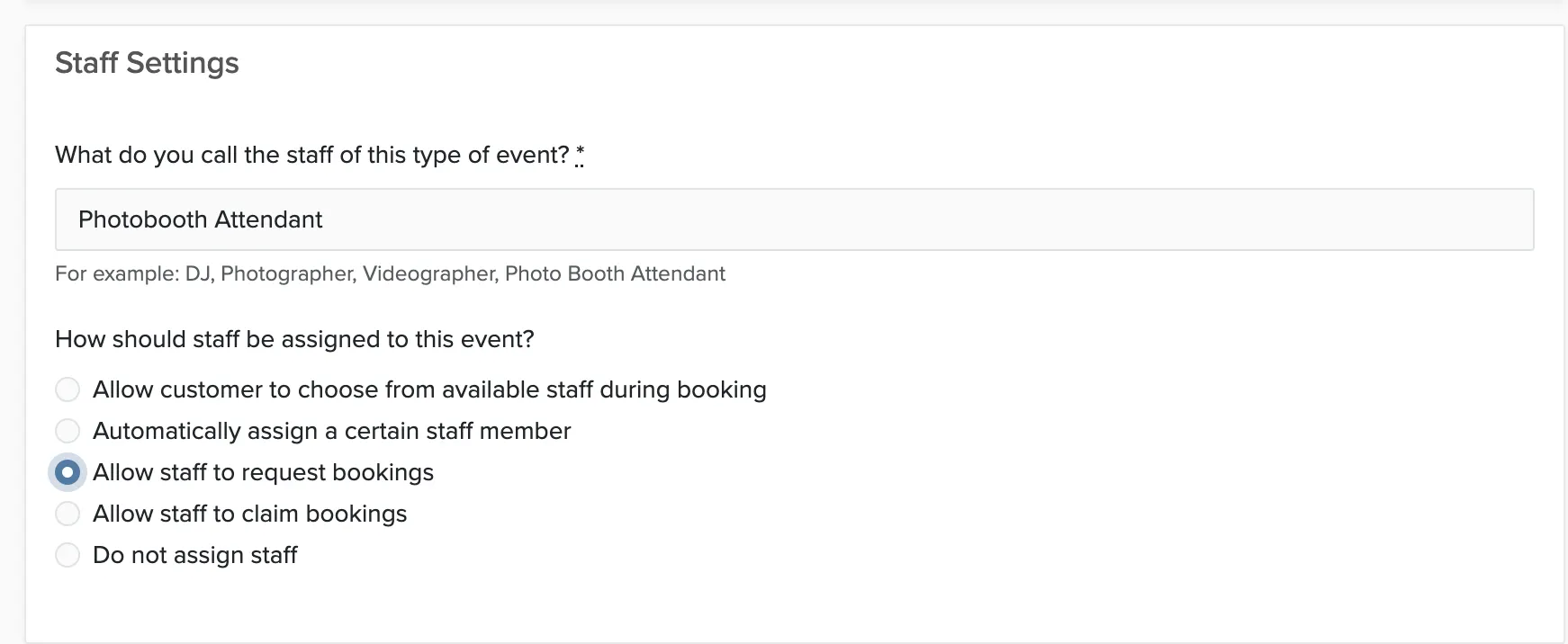
Only staff with an active Check Cherry account and the right permissions can claim or request. If someone is missing, check that they have been invited under User Accounts.
What staff see
Open packages appear for staff under Unassigned Bookings,. Each card shows the date, the package, the venue, and a badge for how many of the needed spots are filled. A package stays on the list until it is full, so a two-person package does not disappear the moment the first person takes it.
The card also tells a staff member where they stand: already assigned, fully staffed, their own request awaiting review, or how many other people have requested it. The button reads Claim Booking or Request Booking depending on the service, and claiming stops once the package has everyone it needs.
Approving requests
Requests are grouped by package, so you can see who wants the reception separately from who wants the ceremony. Approve assigns the person to that package. Reject turns them down.
You are allowed to approve past the required count. If the package is already full, Check Cherry warns you, but allows you to add the extra staff member anyway. You can also approve and reject from the booking's own Staff page, where assigned staff and pending requests share a single roster.