The client signed and paid the deposit, but the final balance is just sitting there. Payment reminders follow up for you automatically so you don't have to send the awkward "hey, you still owe me" email.
Setting Up a Reminder
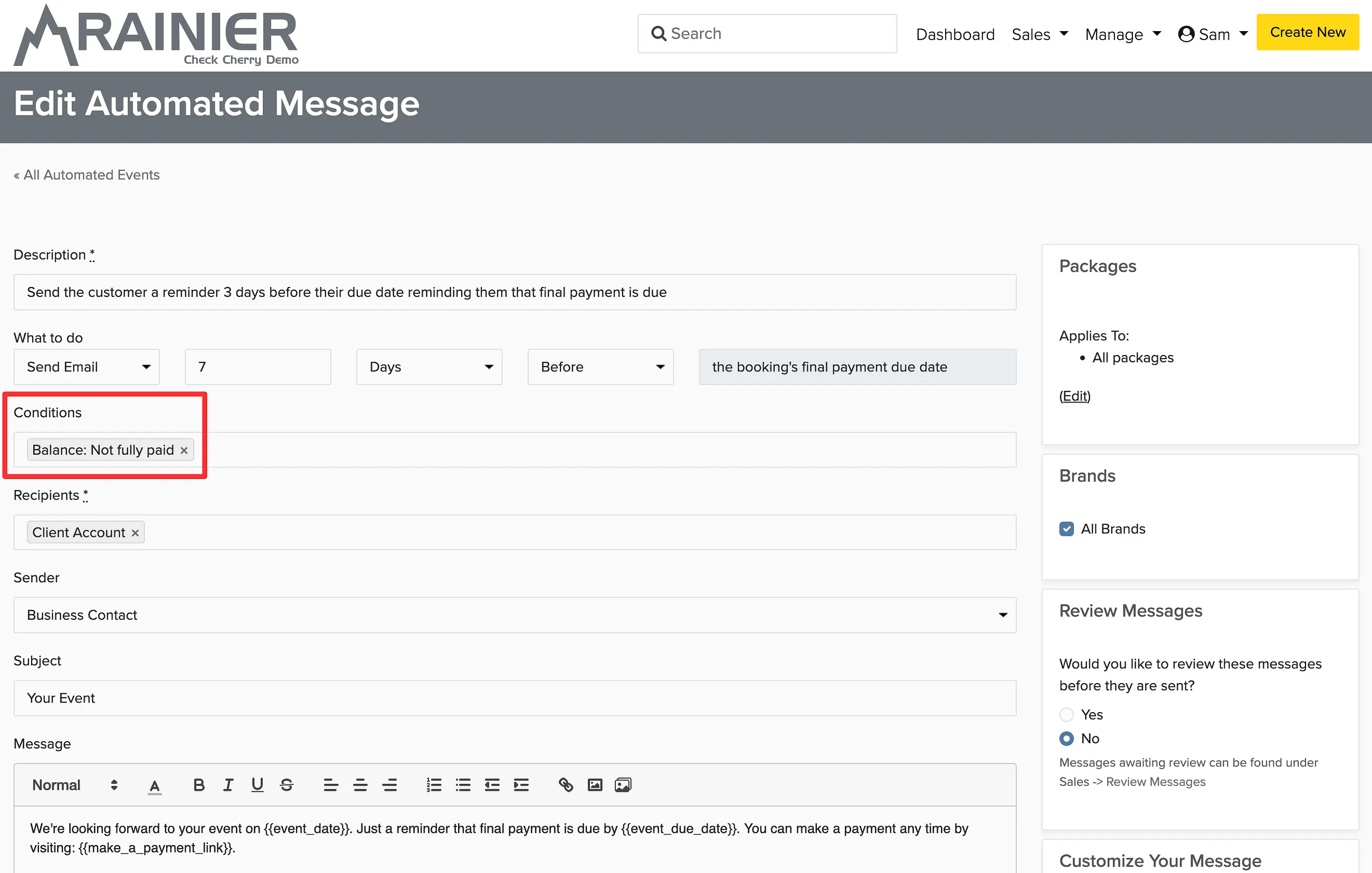
How Most Businesses Set This Up
Most businesses set up 2-3 reminders that escalate gently:
- A friendly reminder when the balance becomes due. Something like "Just a heads up, your remaining balance is due."
- A follow-up a few days later if it's still unpaid. A little more direct.
- A final reminder closer to the event. "Your event is next week and we still have an outstanding balance."
You don't need to write these from scratch. Check Cherry includes pre-built templates you can customize. The tone is up to you, but keeping it friendly and matter-of-fact works well. Nobody likes feeling chased.
Timing
You can schedule reminders relative to the event date (e.g. 14 days before) or relative to the payment due date (e.g. 3 days after the balance is due). Messages go out at approximately 11 AM in your account's time zone.
Conditions
You can add conditions to control when a reminder fires. For example, only send reminders for bookings over a certain amount, or only for specific packages.