Need to update the price on 10 packages at once, or change the deposit amount across all your services? Bulk edit lets you make changes to multiple packages without opening each one individually.
Manage → Packages
Go to Packages.
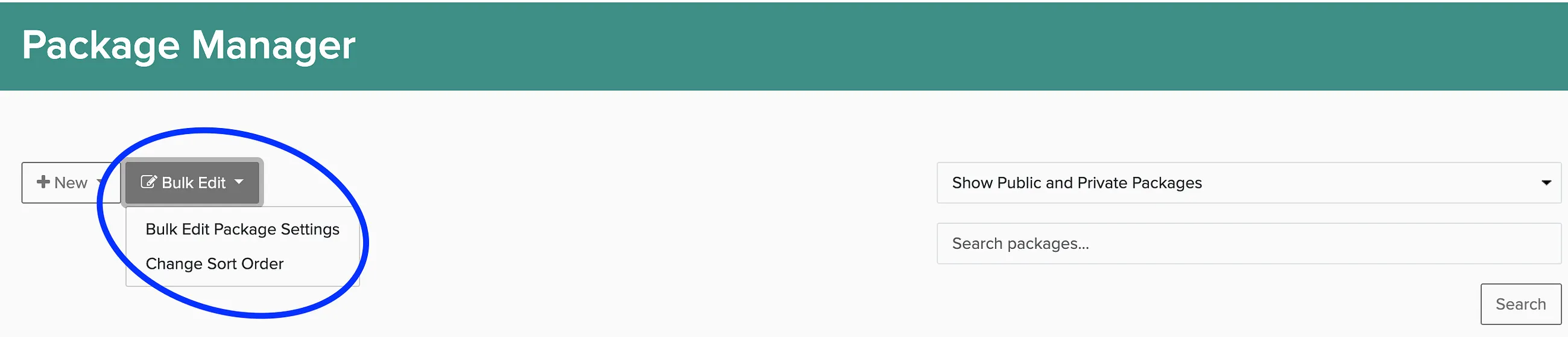
Click Bulk Edit, then select the packages to be edited.
Click Bulk Edit Package Settings.
Choose your action from the dropdown and apply the changes.
Available bulk edit actions
Update Status
- Public — Show on booking pages
- Private — Available for booking, but not listed to the public
- Disabled — Unavailable for booking
Move to Group
Change which package group the selected packages belong to.
Update Pricing
- Set starting rate
- Make taxable (yes/no)
- Charge for extra hours
Update Deposit
- No deposit required
- Flat rate
- Percentage of total
Update Availability
- Yes
- Yes, with limited hours
- No
Advanced Settings
Bulk edit also includes these advanced options:
- Show title on booking page — Keep current, yes, or no
- Online Booking Mode — Keep current, allow online booking, request for proposal, or display lead form
- Requires additional lead time — Keep current, yes (enter number of days), or no
- Uses Backdrops — Allow skipping backdrop selection (keep current, yes, or no)