Raising prices for the new season? Bulk edit lets you update pricing, deposits, or visibility settings across multiple packages at once — much faster than editing each one individually.
Manage → Packages
Go to Packages.
Click Bulk Edit
Select Bulk Edit Packages
Select the packages you want to change using the checkboxes.
Click Edit Selected Packages
In the Actions box, choose the selected action.
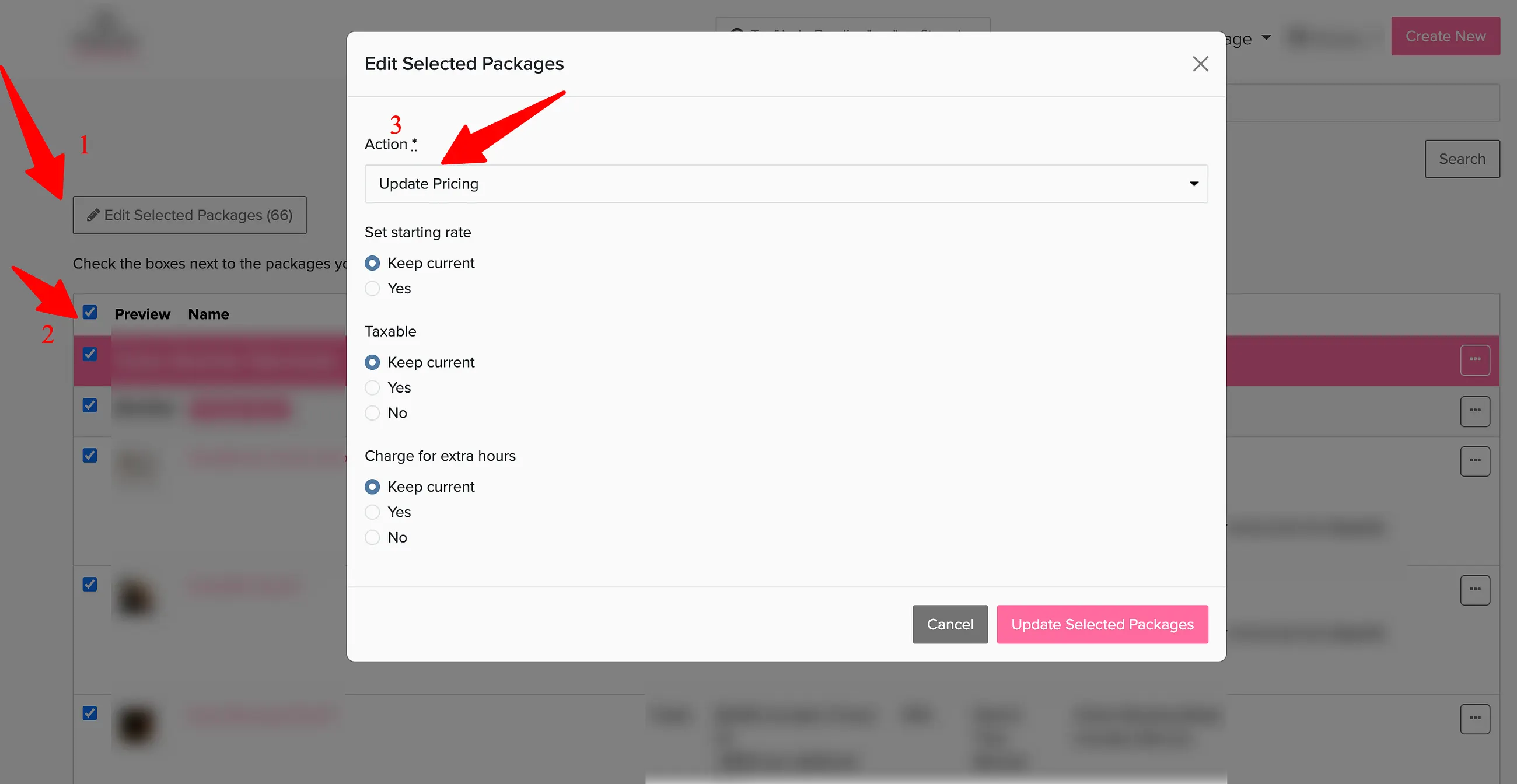
What you can bulk edit
Status
Control where packages appear:
- Public — Show on booking pages
- Private — Available for booking, but not listed to the public
- Disabled — Unavailable for booking
- Move to Group — Organize packages into categories
Pricing
- Set starting rate
- Set taxable (Yes/No)
- Charge for extra hours
Deposit
- No deposit required
- Flat rate
- Percentage of total
Scheduling Mode
Scheduling Type:
- Date & Time
- Date Only
Calendar Mode:
- Minimal
- Automatic Slots
- Predefined Slots
Availability
- Yes
- Yes, with limited hours (enter days/hours)
- No
Advanced Settings
Show title on booking page: Keep current (Yes/No)
Online Booking Mode:
- Keep current
- Allow Online Booking
- Request for Proposal
- Display Lead Form (select which lead form)
Requires additional lead time: Keep current (Yes/No) or set lead time in days
Uses Backdrops: Keep current (Yes/No) or Yes — allow customer to skip
You can also delete packages in bulk from this screen.
Most people bulk edit at the start of a new season to update pricing across all packages. It's also useful when reorganizing your package structure or changing deposit requirements.