Zapier connects Check Cherry to thousands of other apps without code. For example, you can add new leads to your email list, log payments in a spreadsheet, or post new bookings to Slack.
Already know Zapier? Connect your account in four steps.
How a Zap works
A Zap has one trigger and one or more actions. The trigger is what happens. The actions are what Zapier does in response.
Check Cherry can play either part. It can start a Zap, or a Zap can create records in it.
| Check Cherry is the | Example |
|---|---|
| Trigger | A new lead comes in to Check Cherry, and Zapier adds them to Mailchimp. |
| Action | Someone fills out a Facebook lead ad, and Zapier creates a lead in Check Cherry. |
One trigger can run several actions. A new booking can post to Slack, add a row to a spreadsheet, and create a task in the same Zap.
Zapier also has searches, which look up an existing record instead of creating one. Use them to avoid duplicates or to pull in details the trigger didn't include.
Connect your account
Triggers
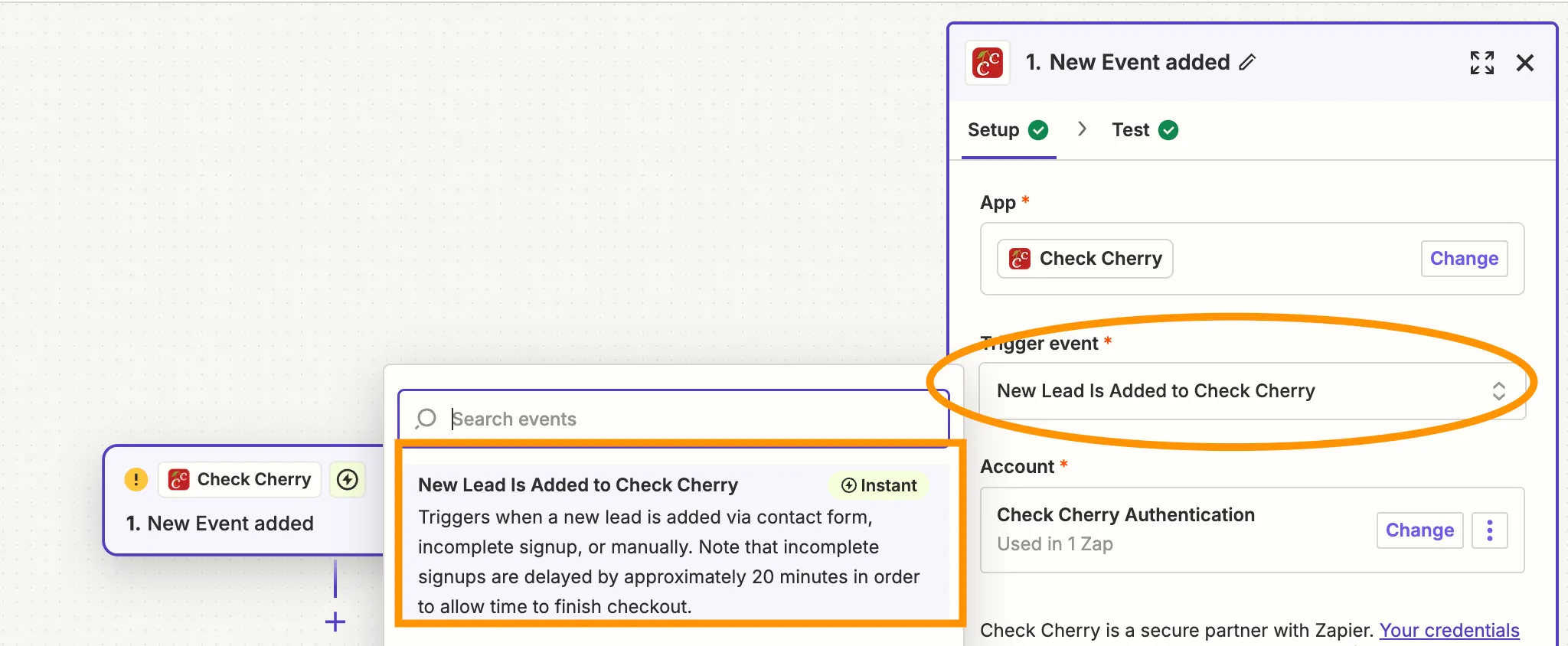
Check Cherry has twelve triggers. All of them are instant: Check Cherry sends the data to Zapier when it happens, instead of Zapier checking on a schedule.
Leads and users
| Trigger | When it fires |
|---|---|
| New Lead Is Added to Check Cherry | Someone submits a contact form, leaves a booking unfinished, or you add a lead by hand. |
| New User Is Added to Check Cherry | A client or staff account is created, whether you add it by hand, send an invitation, or it comes from a new booking or accepted proposal. |
Bookings and proposals
| Trigger | When it fires |
|---|---|
| New Event Is Added to Check Cherry | A booking is confirmed, whether the client books online, accepts a proposal, or you enter it by hand. |
| Event Is Updated in Check Cherry | Any change to an existing booking. |
| Event Is Marked as Complete by Check Cherry | A booking is marked complete after the event. |
| New Proposal Is Added to Check Cherry | A proposal is created, online or by hand. |
Payments
| Trigger | When it fires |
|---|---|
| New Payment Is Recorded in Check Cherry | A client pays, puts down a deposit, or an admin records a payment manually. The payload includes the amount, method, client, and the booking it applies to. |
Staffing
| Trigger | When it fires |
|---|---|
| Staff Is Assigned to a Booking in Check Cherry | A team member is assigned to work an existing booking. |
Appointments and checklists
| Trigger | When it fires |
|---|---|
| New Appointment | A sales call, consultation, or planning meeting is booked. |
| Appointment Is Updated | An existing appointment is changed. |
| New Checklist Item Is Created | A checklist item is added to a booking or lead. |
| Checklist Item Is Updated | A checklist item changes, including being checked off. |
Actions
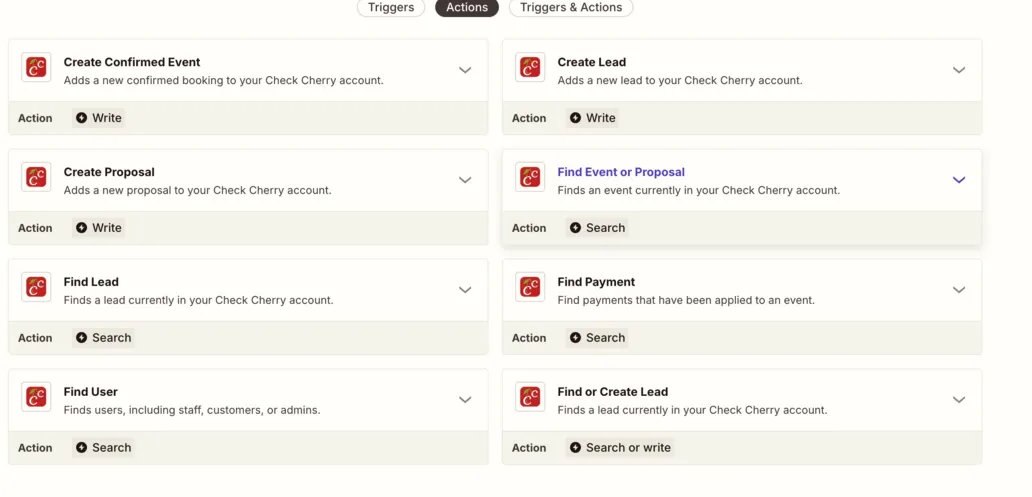
Actions go the other way. Something happens in another app, and Zapier creates or looks up a record in Check Cherry.
Create records
| Action | What it does |
|---|---|
| Create Lead | Adds a lead with contact info, event details, and budget. |
| Create Proposal | Adds a proposal with customer data, package selection, and pricing. |
| Create Confirmed Event | Adds a confirmed booking with customer details, pricing, venue, and event specifics. |
Find records
| Action | What it does |
|---|---|
| Check Availability | Confirms whether a date and time is open, optionally for a specific package or add-on. |
| Find Lead | Searches by ID, email, origin, or type. |
| Find Event or Proposal | Searches by ID, status, date range, or free text. |
| Find Payment | Searches by date range or booking. |
| Find User | Searches by role or free text. |
| Find Appointment | Searches by date range or free text. |
| Find Checklist Item | Searches by filter, text, or record type. |
| Find or Create Lead | Looks for a matching lead and creates one only if there isn't one already. |
Popular automations
| Goal | Trigger | Action |
|---|---|---|
| Add new leads to your email list or CRM | New Lead Is Added | Create or update a contact in Mailchimp, ActiveCampaign, HubSpot, or Flodesk. |
| Bring in leads from Facebook or your website | Facebook Lead Ads, Wufoo, WordPress, or your form tool | Find or Create Lead in Check Cherry. |
| Log every payment | New Payment Is Recorded | Add a row in Google Sheets, or create a sales receipt in QuickBooks Online. |
| Tell your team about new bookings | New Event Is Added | Post a message in Slack. |
| Ask for a review after the event | Event Is Marked as Complete | Send an email or trigger your review platform. |
| Share staff assignments | Staff Is Assigned to a Booking | Post to Slack, or add the shift to a shared calendar. |
Zapier leads are tagged
Leads created by a Zap get an origin of Zapier. You can use that to send them their own automated message:
New lead triggers have a short delay
The New Lead trigger fires about a minute after the lead is created. For leads from an unfinished booking, it waits about twenty minutes. If the client comes back and books in that time, you get a booking instead of a lead.
Troubleshooting
Turn on enhanced logging from the Integrations page, run the Zap again, and check the request logs to see exactly what Check Cherry sent or received. Logging turns itself off after a week. For more, see troubleshooting Zapier issues.
Video walkthrough
For a longer look, watch our Zapier webinar.