Your sales calendar is the central view of everything happening in your business — bookings, proposals, appointments, and time off all in one place. Use it to see your schedule at a glance and add new items quickly.
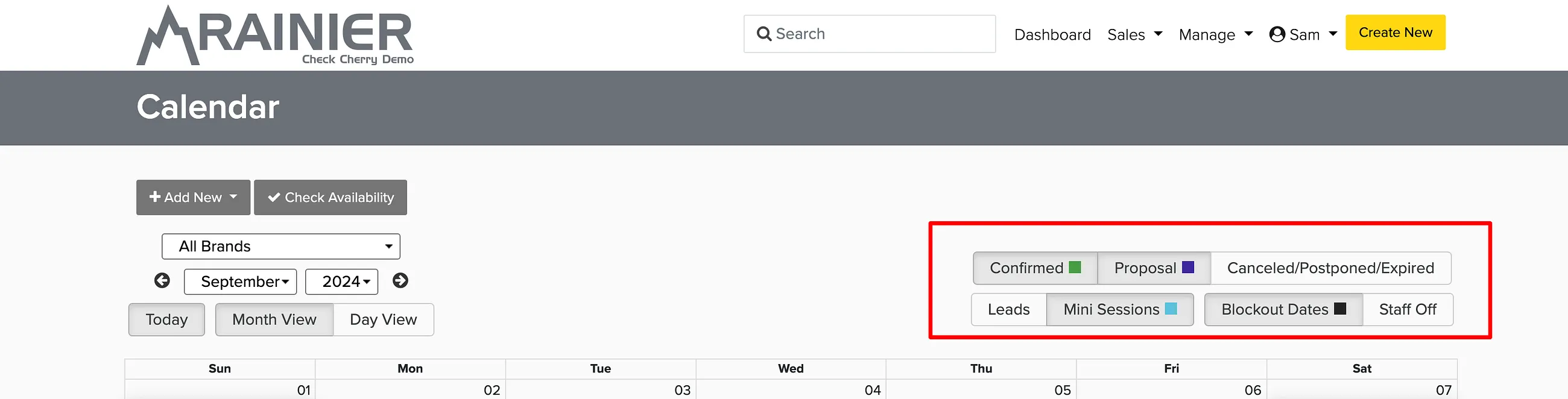
What You Can View and Filter
The calendar shows your bookings, proposals, appointments, and blockout dates. Use the filters in the upper right to choose which items to display — helpful when you want to focus on just bookings or just see what's still pending.
Adding New Items
Click Add New in the upper left to create:
- New Proposal
- New Booking
- Multistep Booking (test your booking engine as a client would)
- Appointment
- Blockout Date(s)
- Staff Time Off
The Check Availability button lets you quickly see if a specific date is open for a particular package, add-on, backdrop, or staff member without creating anything — useful when a client calls asking about availability.
Syncing with Your Personal Calendar
Click Subscribe to Calendar at the bottom right of the calendar to sync your Check Cherry events with your personal calendar.
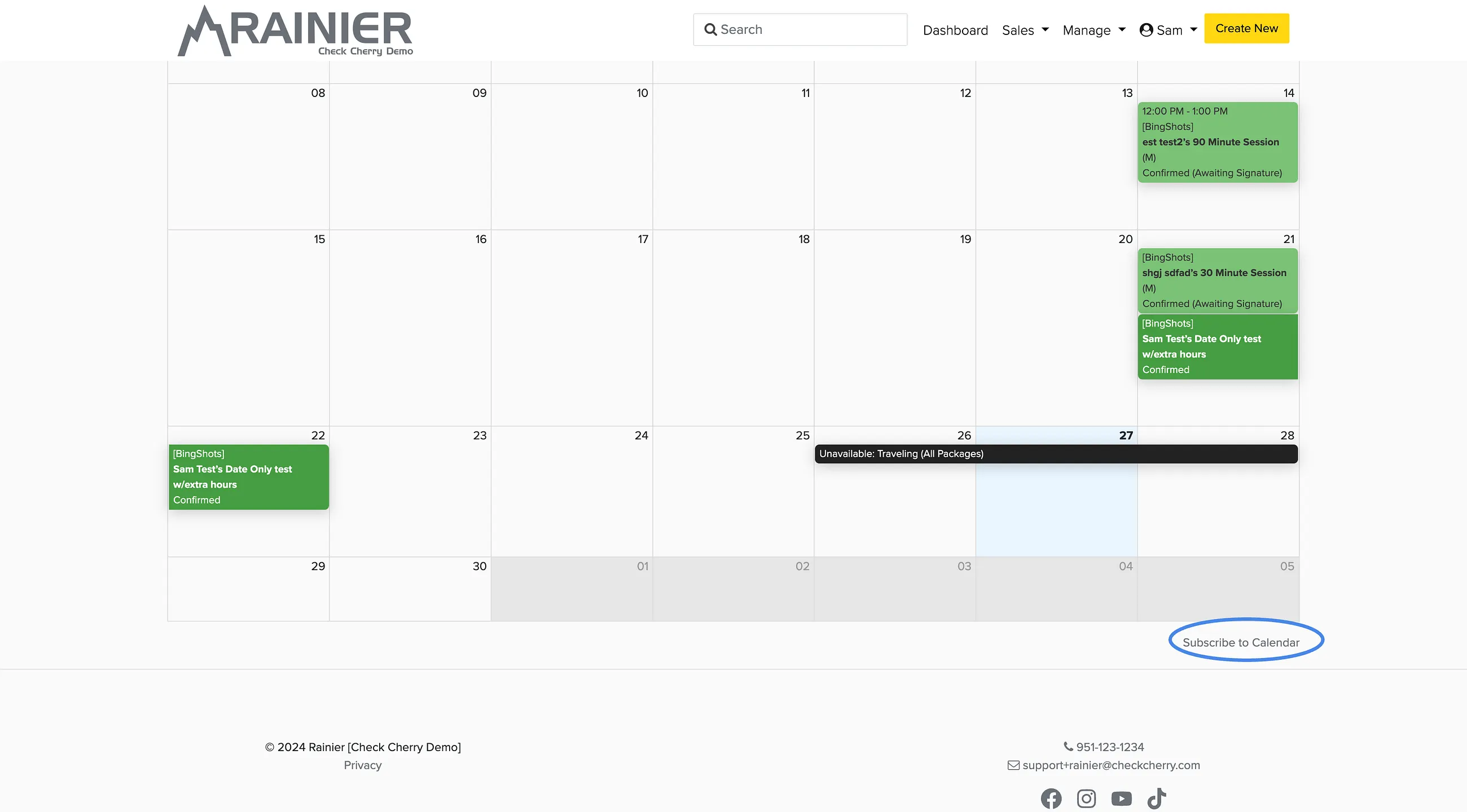
You can connect Google Calendar for two-way sync, or choose which items to include and subscribe to any calendar app that supports ICS, including:
- iOS (iPhone and iPad)
- Outlook
- Apple Calendar on Mac
- Any other calendar app that supports ICS subscriptions