Calendar sync keeps your Check Cherry bookings visible on the calendar you already use every day — Google Calendar, Apple Calendar, Outlook, or any app that supports ICS feeds. When it's working, you never have to check two places.
Two Sync Methods
Check Cherry supports two different sync methods, each with different capabilities:
| Feature | Google Calendar Sync | ICS Subscription |
|---|---|---|
| Two-way sync | ✓ | One-way (read only) |
| Real-time updates | ✓ | Delayed (varies by app) |
| Confirmed bookings & appointments | ✓ (on by default) | ✓ |
| Proposals, leads, blockout dates & time off | ✓ (optional) | ✓ (optional) |
| Works with | Google Calendar | Any calendar app |
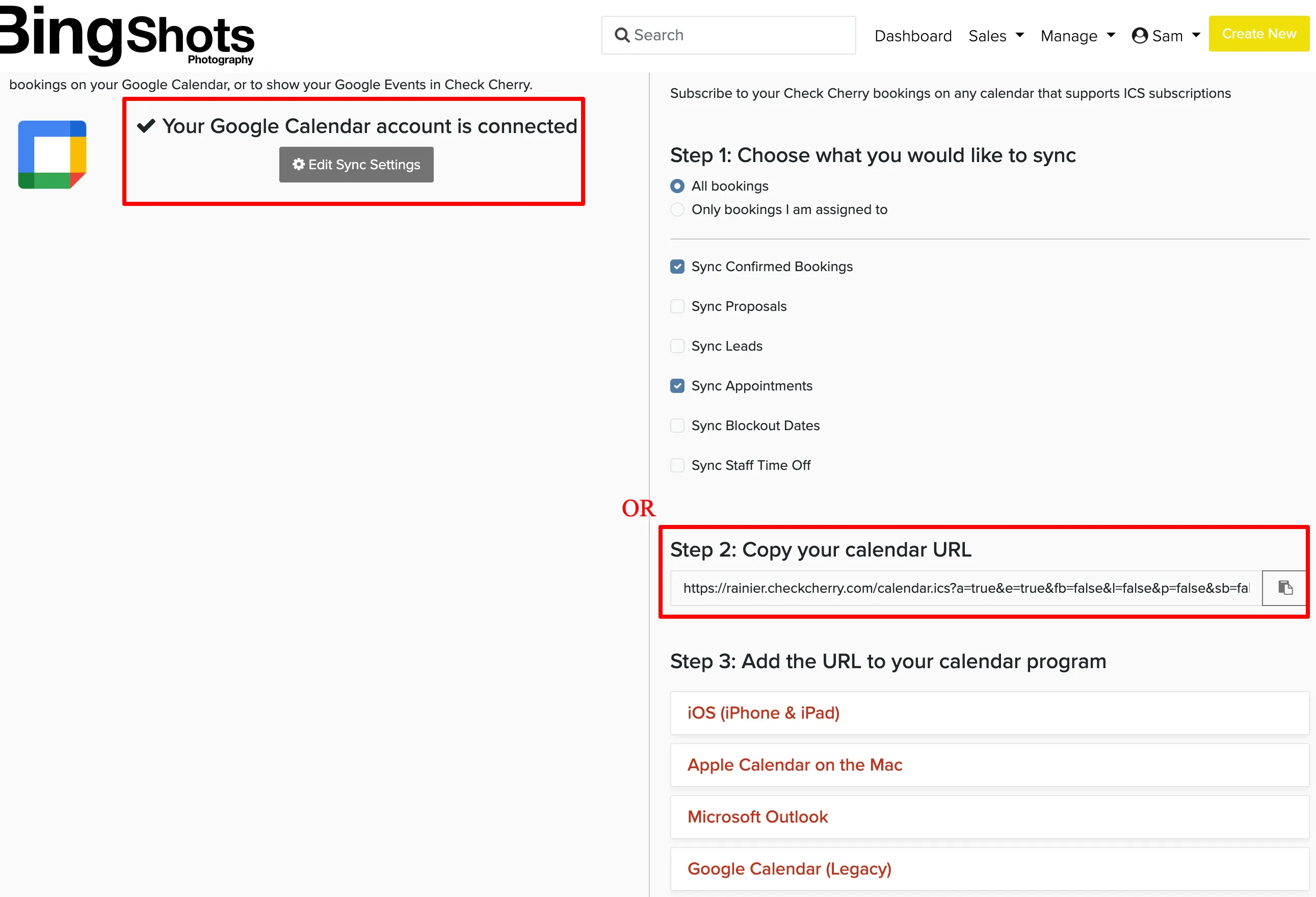
Setting Up Google Calendar Sync
Setting Up ICS Subscription
ICS works with Apple Calendar, Outlook, and any app that supports calendar subscriptions. Copy the ICS feed URL from your calendar settings and add it as a subscribed calendar in your app.
Common Issues
Google asks me to reconnect
Google periodically revokes app permissions as a security measure. If this happens, you'll get an email from Check Cherry asking you to reconnect. Just go to Sales → Calendar and click Reconnect.
I don't see my bookings on my calendar
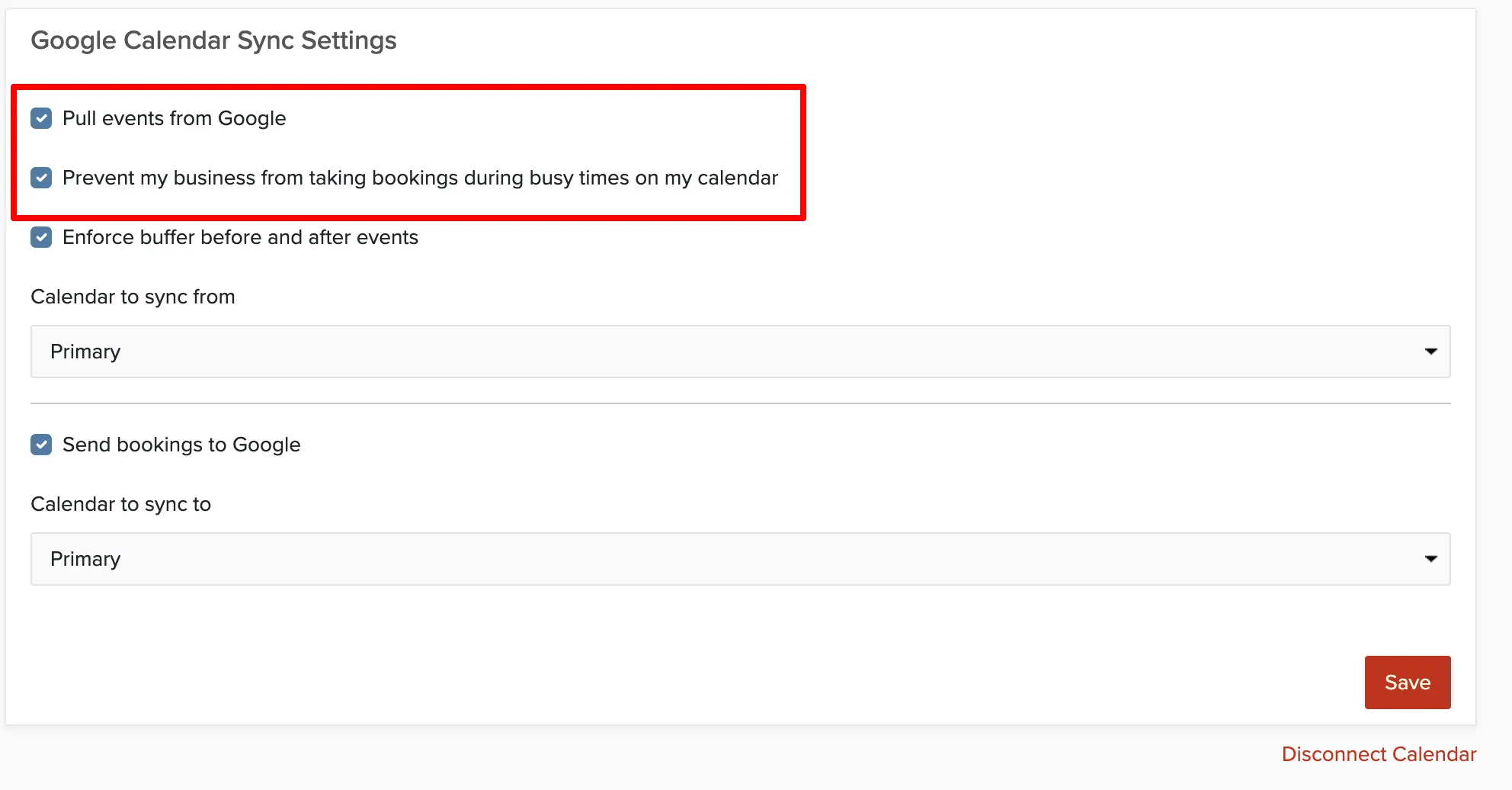
- Confirm what you're syncing — by default Google sync sends confirmed bookings and appointments. To see proposals, leads, blockout dates, or staff time off, open your Google connection settings and click More sync options to turn them on.
- Check that you connected the right Google Calendar.
- For ICS subscriptions, your calendar app may take 15-60 minutes to refresh. Try manually refreshing the subscription.
- If you're a staff member, make sure you set up your personal sync (name → My Calendar), not the admin sync.
Events show up twice
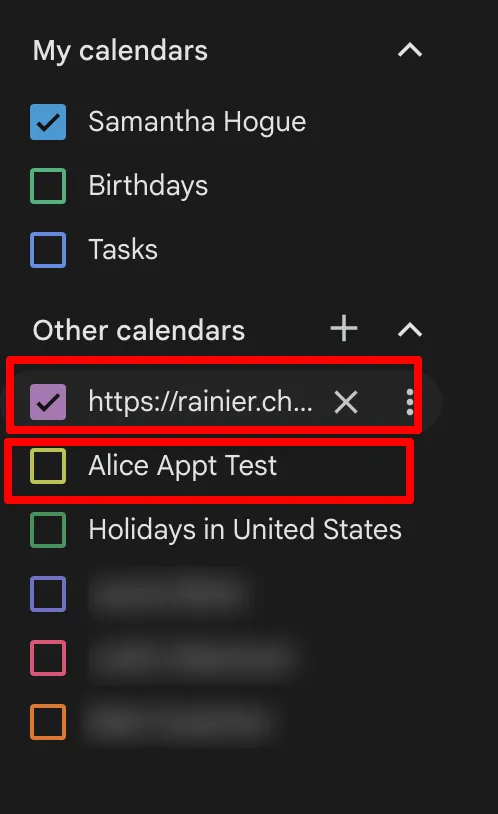
This usually happens when you have both Google API sync and an ICS subscription pointing to the same calendar. Use one method per calendar — Google API for your main calendar, ICS for a secondary calendar if needed.