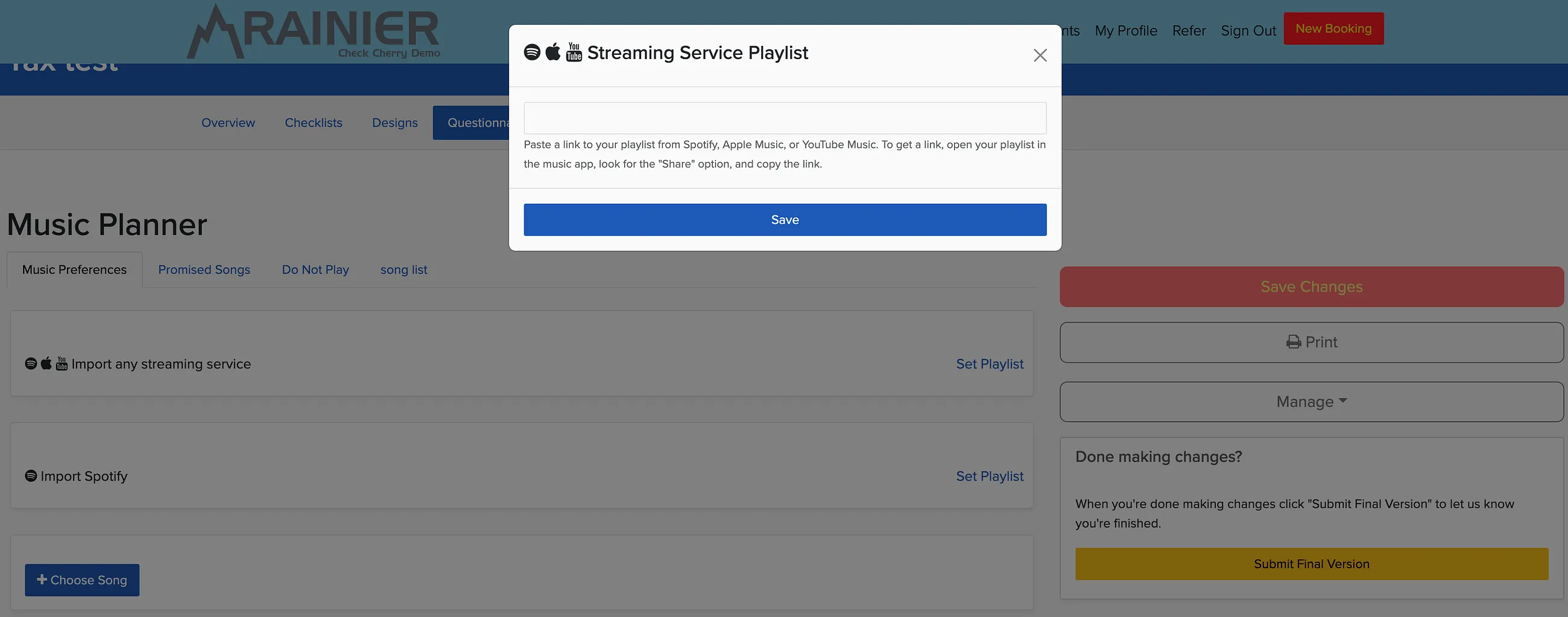
Music preferences are one of the most important details for DJs and event planners — and one of the hardest to collect well. Instead of endless email chains with song lists or vague "play some hip hop" instructions, you can add a Spotify playlist field to your questionnaire. Clients paste their playlist link directly, giving you exactly what they want to hear.
Why Use Spotify Playlists
Most clients already use Spotify and know how to create playlists. When they share a playlist link with you, you get the exact songs, not just artist names or rough descriptions. It's also easier for them than typing out a long list of songs in a text field.
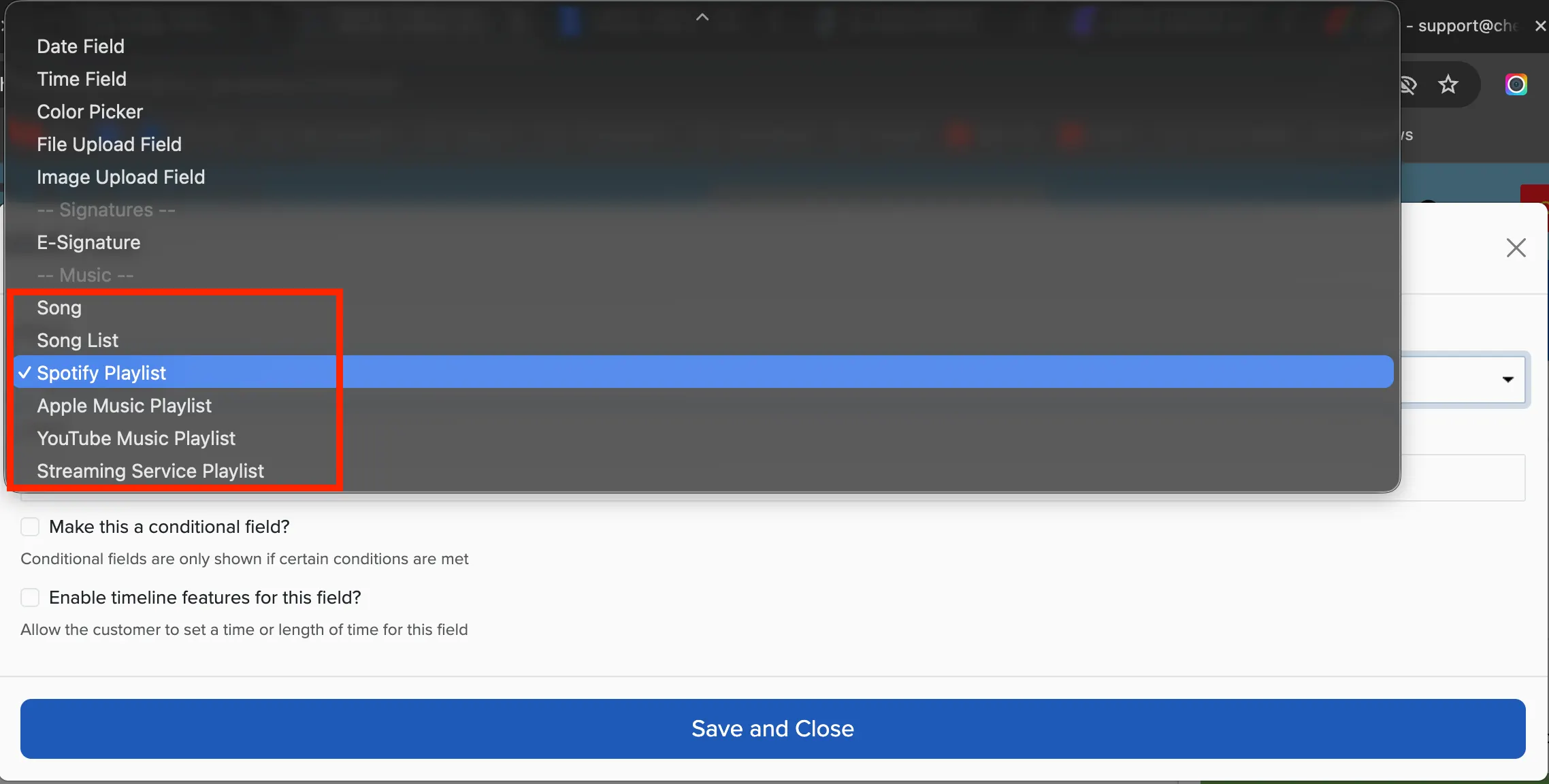
Adding a Spotify Playlist Field
When clients fill out the questionnaire, they'll see a field where they can paste their Spotify playlist link. The playlist will be accessible to you when you view their responses.