A lead is someone who has shown interest in your services but hasn't booked yet. They might have filled out a contact form on your website, started booking online and didn't finish, or called you about an upcoming event. Tracking leads ensures no inquiry slips through the cracks.
How Leads Enter Check Cherry
There are three ways leads get into your account:
- Lead forms — When someone fills out a Check Cherry contact form on your website
- Incomplete bookings — When someone starts booking online but doesn't complete the process
- Manual entry — Click Create New in the upper right, then select Lead
Finding Your Leads
By default, only active leads that haven't been converted are shown. Use the filters in the left sidebar to display archived, converted, or spam leads.
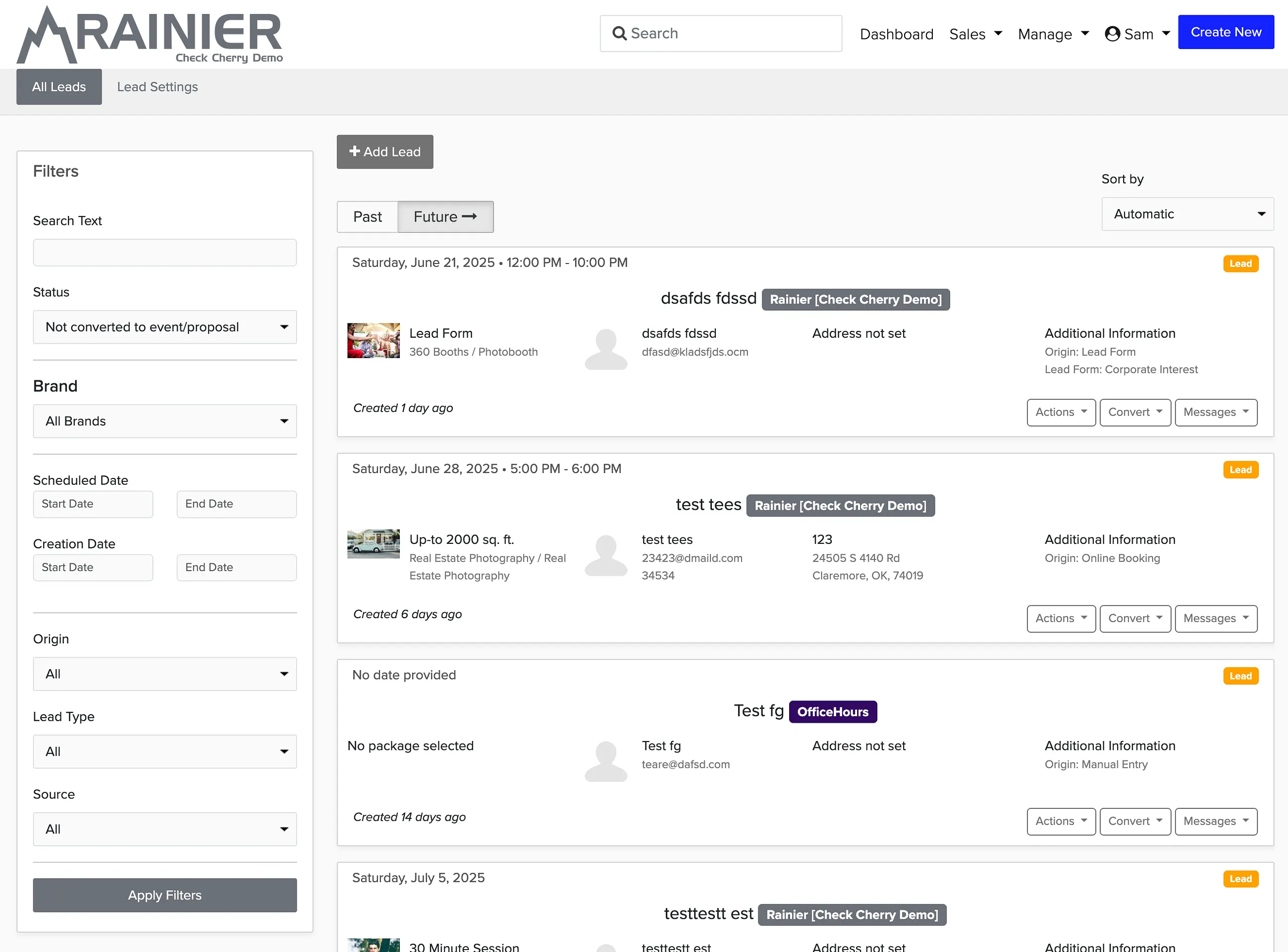
Each lead card displays key information:
- Brand the lead belongs to
- Event date(s)
- Client name
- Package(s) selected
- Venue address (if provided)
- Booking source (online booking, lead form, manual entry)
- Date created
Converting Leads
The Convert button lets you turn a lead into a proposal or booking:
- Convert to Proposal (date open) — Send a quote without reserving the date
- Convert to Proposal (date reserved) — Send a quote and hold the date
- Convert to Booking (confirmed) — Skip the proposal and create a confirmed booking directly
Lead Actions
The Actions button on each lead provides options to:
- Edit lead details
- Flag as spam
- Disable automated messages
- Archive or delete the lead
- Add internal notes
- Create an appointment
- Set custom status
- Generate a 'continue booking' link to send to incomplete bookings
Messaging Leads
The Messages button gives you access to:
- Send a new automated message template
- Send a custom manual message
- View message history for the lead
Lead Details Page
Click on a lead card to see the full details page, which includes:
- Complete contact information
- Package details (if they selected one)
- Venue information
- Your internal notes
- Creation date and time
- Lead origin and specific form used
- IP address
- Estimated booking total
- Availability conflicts
- Other bookings on the same date
Automated Follow-Up
Your account comes with automated message templates for leads. By scheduling a series of messages, you can create a drip campaign that follows up automatically.