A lead form is a contact form you put on your website. When someone fills it out, their information lands in Check Cherry as a lead, ready for you to follow up, send a proposal, or trigger automated messages.
Creating a Lead Form
The designer has three tabs: Fields, Design, and Settings. A live preview sits beside them. Use the Desktop and Phone toggle to check both.
Adding and Arranging Fields
On the Fields tab, click Add to form to choose from:
- Built-in Fields: name, email, phone, event date, venue, and more
- Custom fields: your own questions. To make a new one, click Create a custom field at the bottom of the window. See extra questions for details.
- Layout: section headings, text blocks, and step breaks
Drag fields to reorder them. Click a field to change its label, help text, whether it's required, and its Width on larger screens. Set two fields to 50% to put them side by side. On phones, fields always stack.
Multi-Step Forms
Add a Step break to split a form into pages. Give each step a title. Customers must complete each step's required fields before they can click Next, and their answers are kept if they go back.
On the Design tab, choose a Progress style (bar, numbered, or none) and set the text for the Next and Back buttons.
Styling Your Form
The Design tab controls how the form looks on your website. Start with a style preset, then adjust colors, font, corners, spacing, button alignment, and max width. The form uses your brand color by default.
For anything the controls don't cover, add your own Custom CSS.
Form Settings
The Settings tab covers the form name, the submit button text, which services and packages to offer, whether to require a CAPTCHA, and whether to show the form on your Check Cherry contact page.
Under After someone submits, choose what happens next:
- Save and Display Message Below: show a confirmation message on the page
- Save and Redirect to Booking Page: send them to your online booking page while interest is high
- Save and Redirect to URL: send them to any page, such as a thank-you or testimonials page
Embedding on Your Website
Click Embed in the designer, or on the form's preview page, to get a link or the code for your website. See embedding a lead form for step-by-step instructions and Compatibility Mode.
Sharing Forms via QR Code
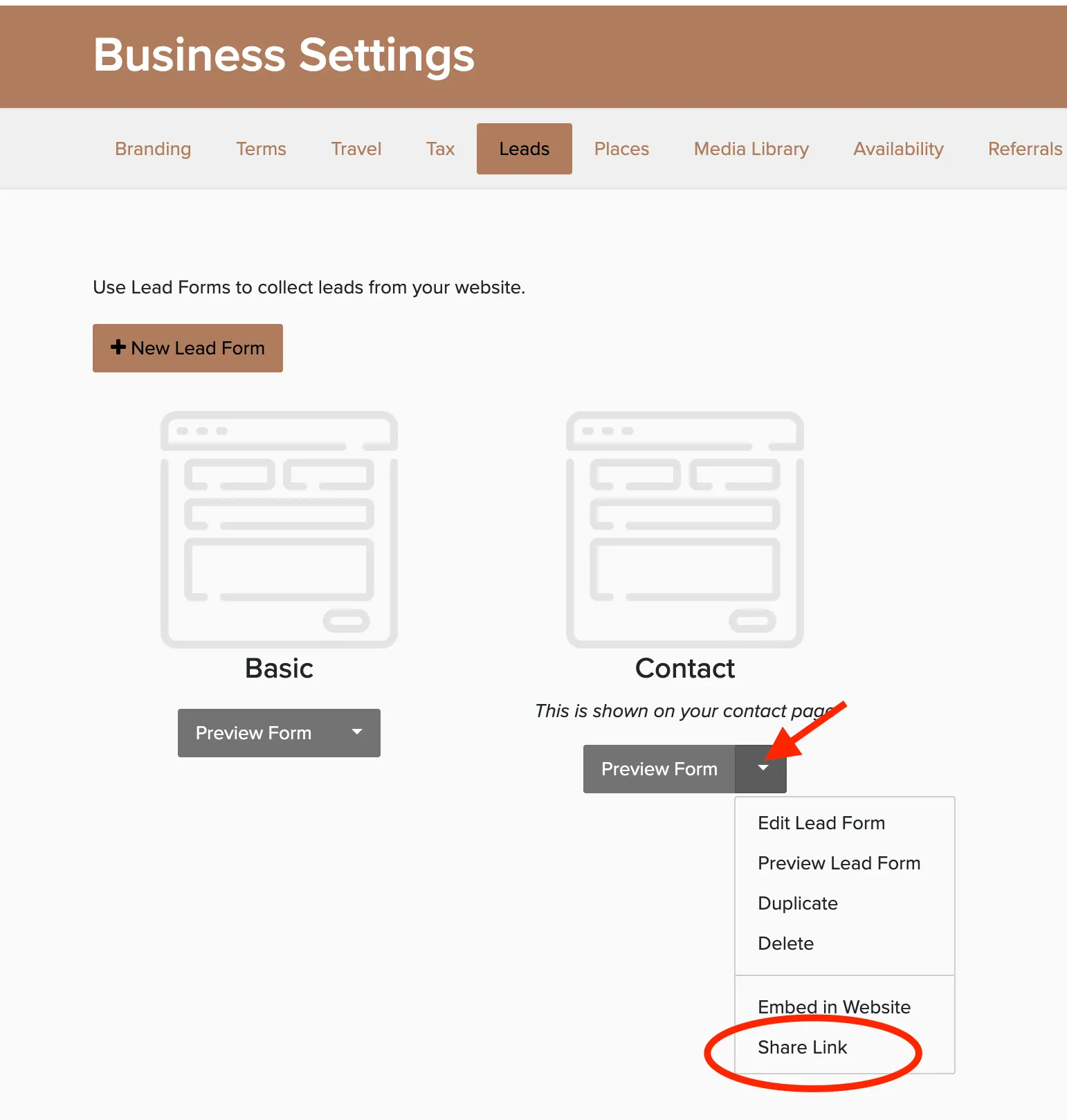
To share a form by link or QR code, click the down arrow next to Preview Form and select Share Link:
What Happens After a Submission
The lead appears instantly under Sales → Leads. If you have automated messages set up for leads, the first response goes out right away, so your inquiry gets a reply even while you're at an event.
Editing Forms After Publishing
Click the down arrow next to Preview Form and select Edit Lead Form. Changes go live on your website as soon as you save. You don't need to re-embed.
Forms Created Before September 2026
Older forms are labeled Classic on your lead forms page. To move one to the designer, edit it and click Upgrade this form. Leads, automations, and your embed code carry over.
You can switch back to the classic editor at any time. Changes made in the classic editor don't carry over to the designer.