Your logo and brand colors show up everywhere clients interact with your business — booking page, proposals, contracts, invoices, and emails. Setting them up takes just a few minutes and makes everything look professional and cohesive.
Adding Your Logo and Colors
Manage → Business Settings → Branding
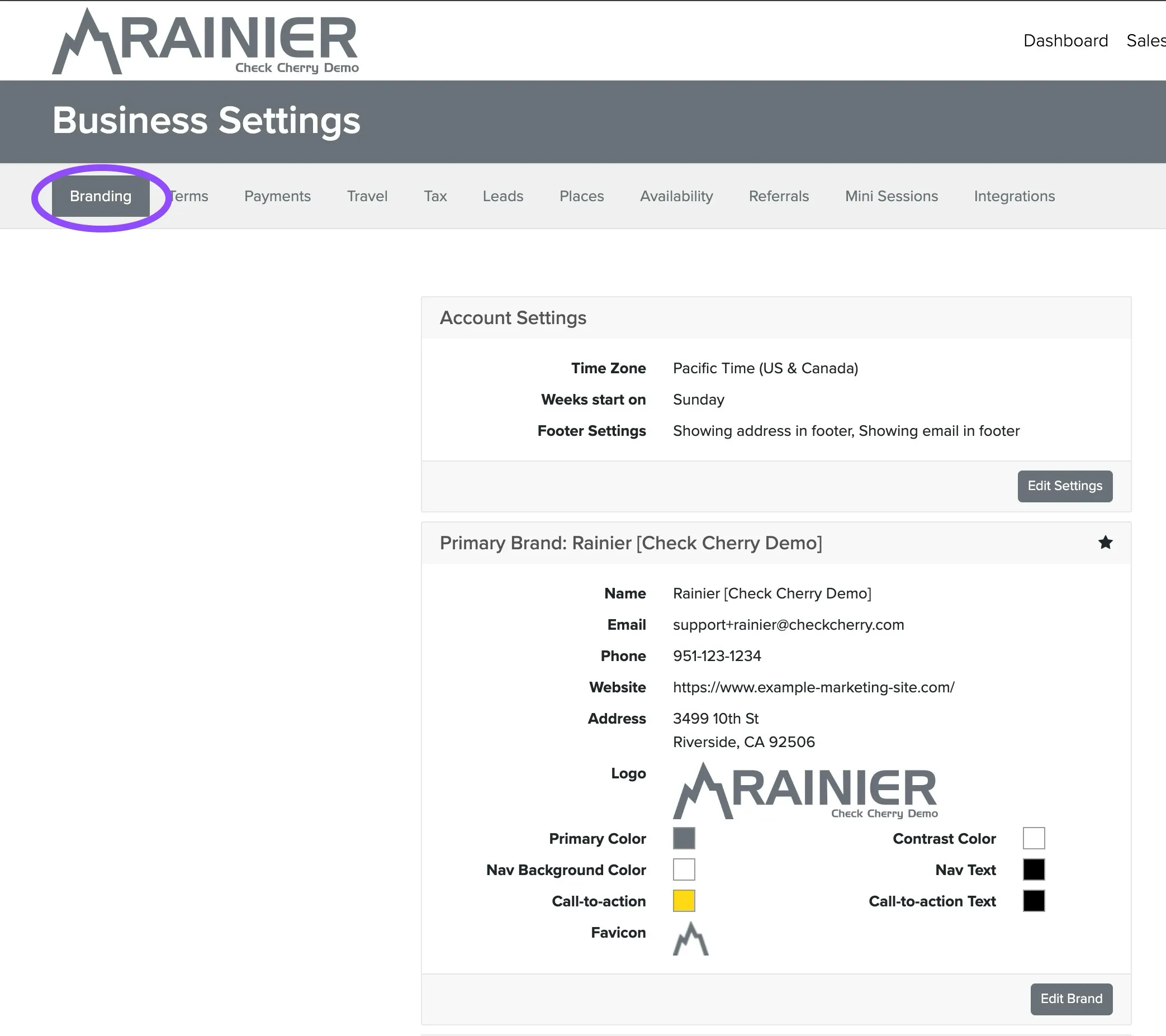
Go to Business Settings and click the Branding tab.
Upload your logo (recommended size: 660 x 120 pixels).
Set your primary color, navigation colors, and call-to-action button colors.
Add your website, address, and contact information.
Save your changes.
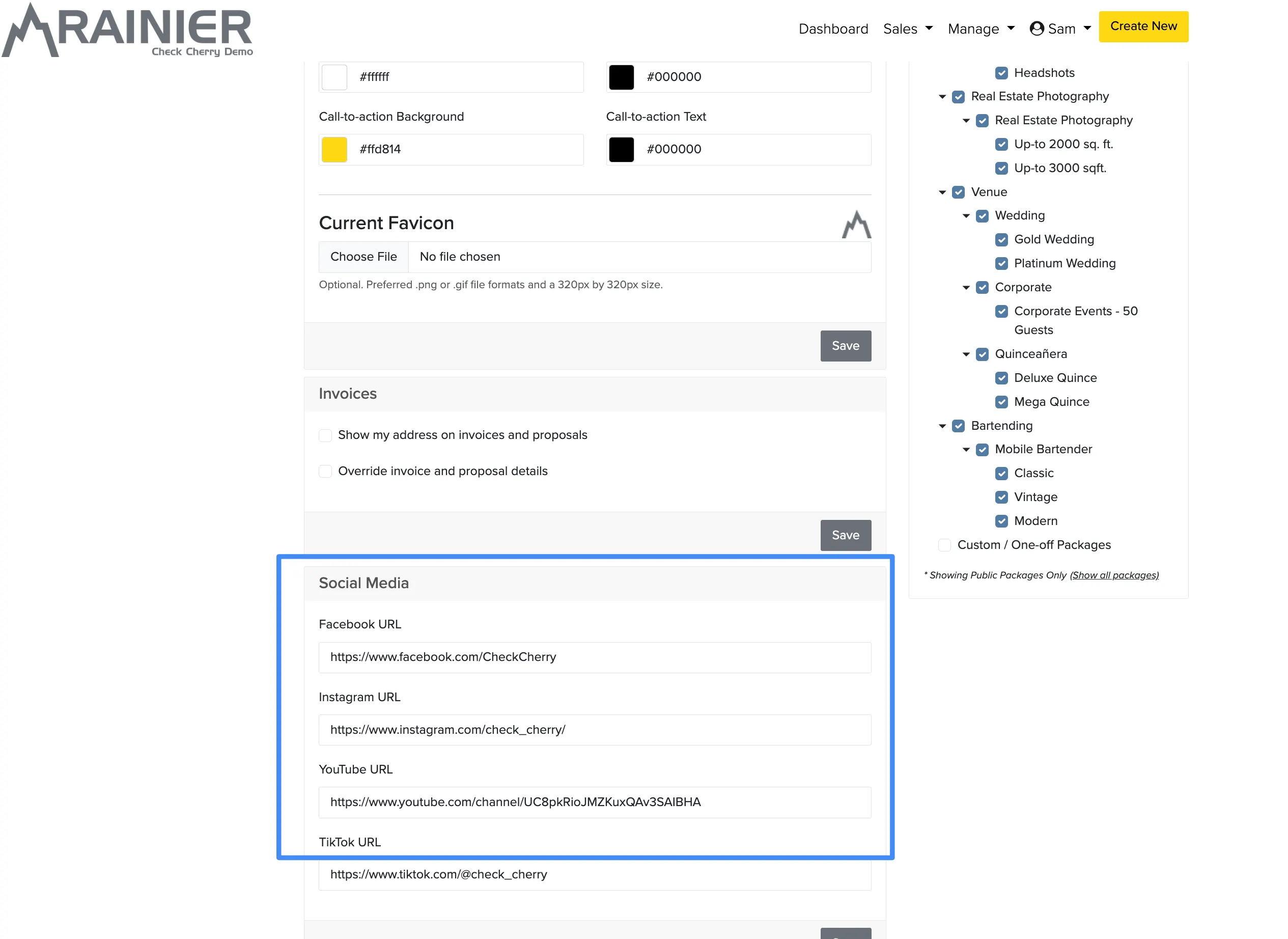
You can also link your social media channels by adding their URLs in the branding section. These appear on your booking page and proposals.
Multiple Brands
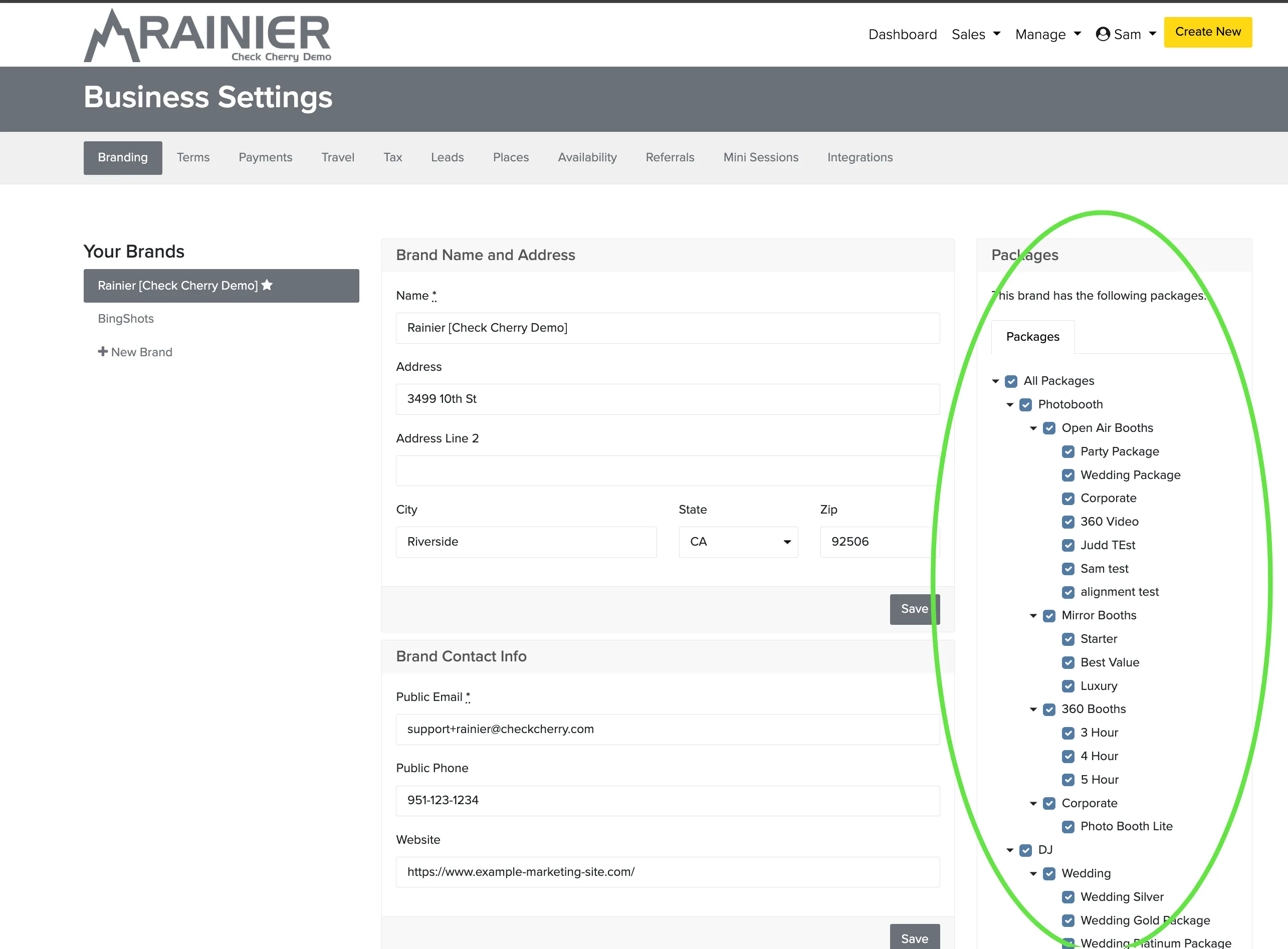
Each Check Cherry account can have multiple brands — useful if you run separate services or want different looks for different types of events.
In Business Settings, click Add Another Brand.
Set up the new brand's logo, colors, and details.
Click the Packages button to assign specific packages to each brand.
Save your changes.
Multiple brands share the same Check Cherry account and bank payout destination, but each can have its own statement descriptor (what clients see on their credit card statement).
Social Media Links
Add your social media URLs in the branding section to display them on your booking page and proposals. This helps build trust and lets clients see more of your work.
For a complete walkthrough of all branding options, see Business Settings.