Push notifications keep you updated on your business while you're away from your computer. Get instant alerts when someone books, signs a contract, or fills out a lead form.
Enabling Push Notifications
When you first log into the Check Cherry app for iOS or Android, you'll be prompted to enable push notifications. Tap Allow.
Managing Notification Settings
After enabling notifications, you can control which types you receive. Open the menu in the top right and tap Settings.
The notification options available depend on your user role and permissions.
Admin Notifications
Admins can turn on any of the types below. Booking, proposal, and lead alerts go to every admin on the account, so you and a business partner will both get the same alerts.
- Booking: Questionnaire Marked Complete
- Booking: Customer Signed
- Booking: Payment Recorded
- Booking: Design Selected
- Booking: Design Approved
- Booking: Design Revision Requested
- Booking: Cancellation
- Proposal: Request Generated
- Proposal: First Viewed
- Lead: Form Submitted
- Lead: Online Booking
- Appointment: Scheduled
- Appointment: Cancellation
Two of these are easy to misread. Lead: Online Booking fires when someone starts an online booking, leaves their contact details, and then goes quiet without finishing, which is your cue to follow up while they are still deciding. Appointment: Scheduled and Appointment: Cancellation cover appointments assigned to you, not every appointment on the calendar.
Staff Notifications
Staff members are notified about the work assigned to them, not about activity across the account.
- Staff: Assigned to Booking
- Appointment: Scheduled
- Appointment: Cancellation
Sales Notifications
Staff members who have Sales: Manage Leads & Proposals turned on also get the lead and proposal alerts, so whoever is chasing new business hears about an inquiry at the same time you do. See Staff user roles and permissions for how to turn that on.
- Proposal: Request Generated
- Proposal: First Viewed
- Lead: Form Submitted
- Lead: Online Booking
Roles stack. A staff member with sales permissions sees one combined list in Settings rather than separate sections.
Troubleshooting
The notification toggle is grayed out
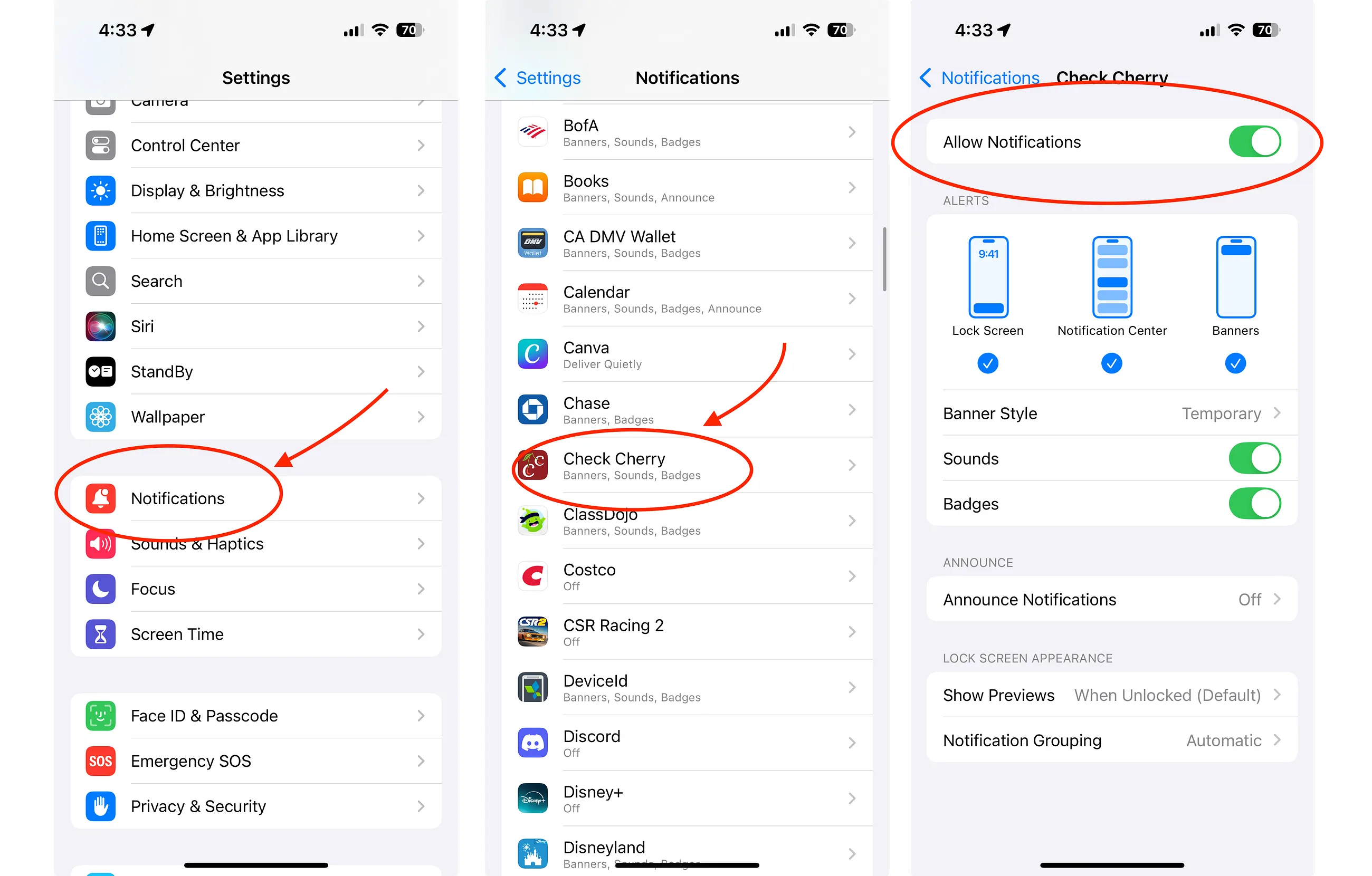
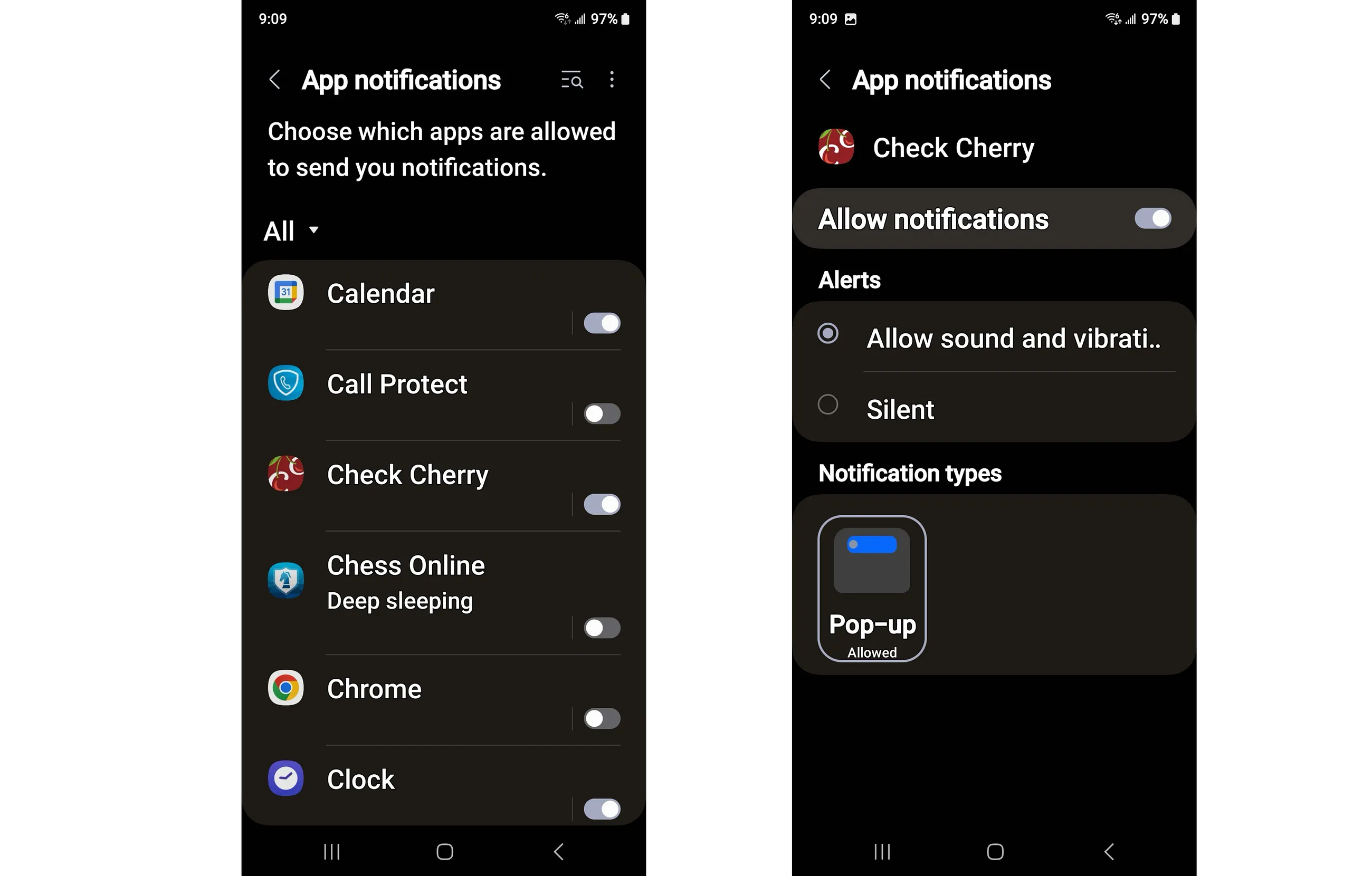
If you can see the push notification option but it's grayed out, Check Cherry doesn't have permission to send notifications on your device. You'll need to enable it in your phone's settings.
iOS:
Open the Settings app, go to Notifications, find Check Cherry in the list, and make sure "Allow Notifications" is enabled.
Android:
Open Settings, then Notifications > App Notifications. Find Check Cherry and make sure the toggle is enabled.
I don't see the notification option at all
Push notifications require Check Cherry app version 1.6.0 or later. Visit the App Store or Google Play to make sure you have the latest version installed.
Do Not Disturb is blocking notifications
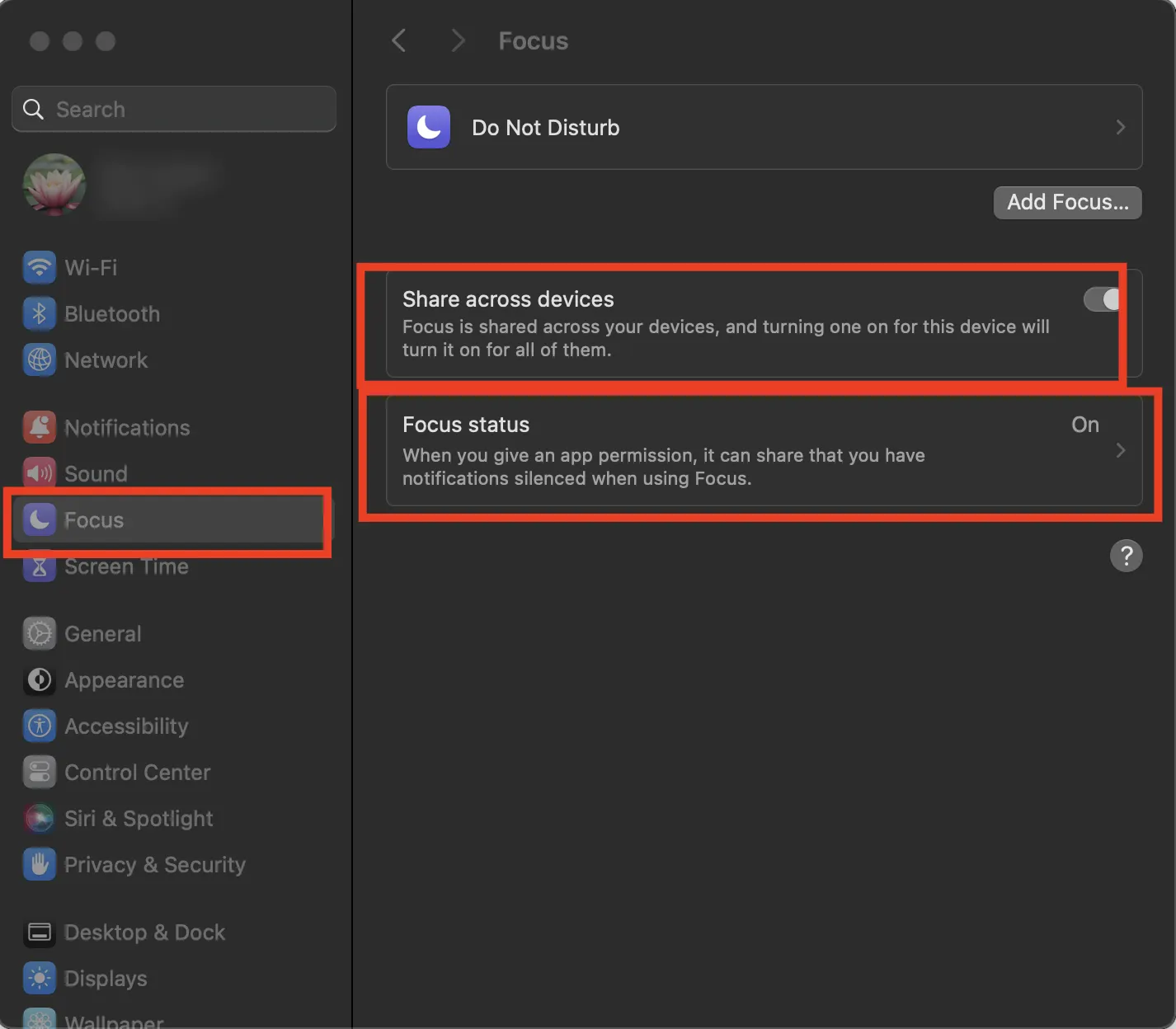
Both iOS and Android have Do Not Disturb features that can prevent Check Cherry from sending notifications, even when the app is configured correctly.
iOS:
Go to Settings > Focus and check if "Share Across Devices" is enabled. If it is, Do Not Disturb on one Apple device will silence notifications on all your devices.
Android:
Android's Do Not Disturb feature may be listed as Modes and Routines. Click on the Settings menu, then select Modes and Routines (sometimes called Do Not Disturb), then check the routines you have active to ensure that none of those are actively suppressing your notifications. Review any active routines to make sure they're not suppressing notifications.
