The Check Cherry app for iOS and Android gives you your business at a glance — recent activity, quick tools, and fast access to everything you need on the go.
Activity Overview
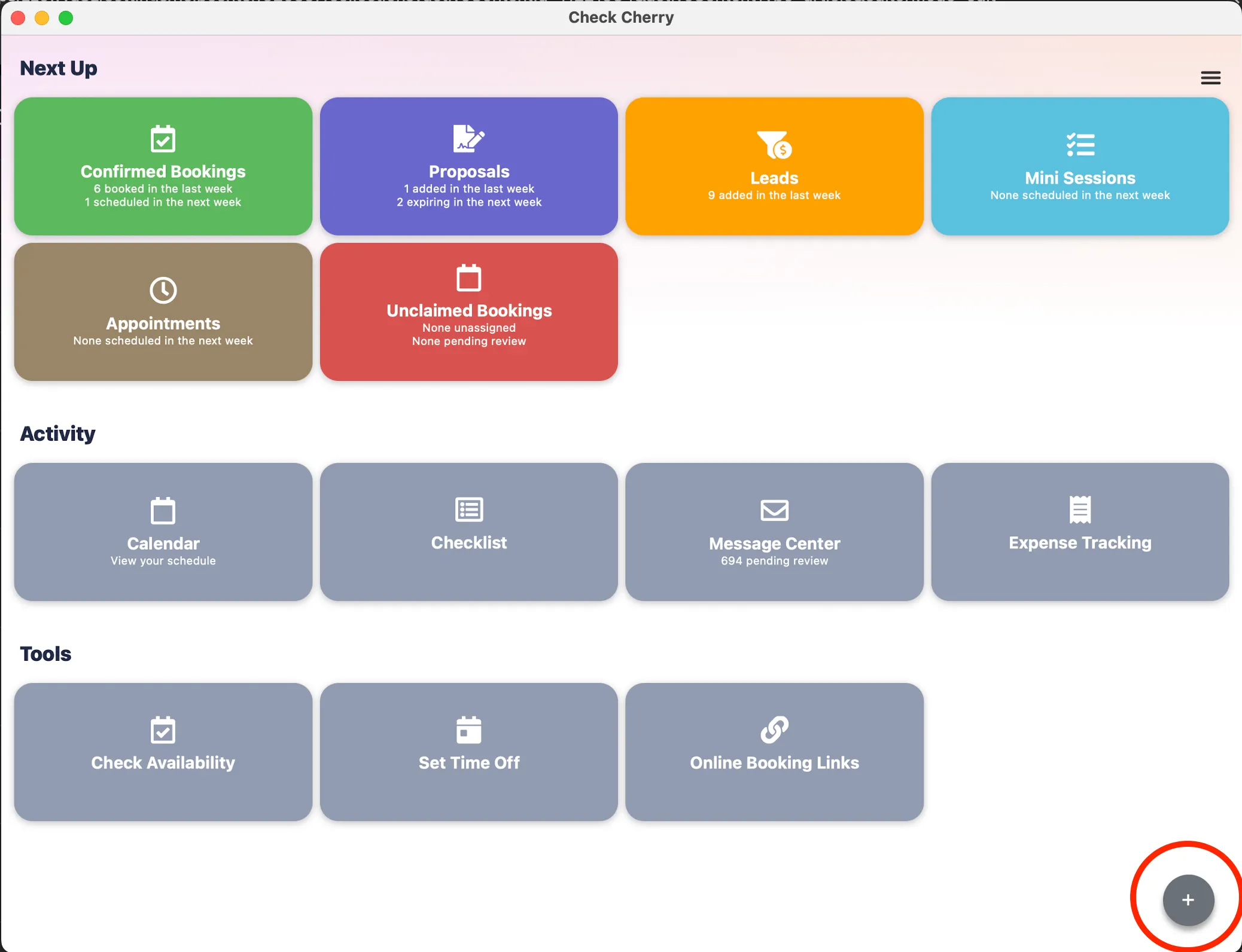
The top of your dashboard shows recent activity and what's coming up:
- Bookings: How many were booked in the last week and how many are scheduled in the next week
- Proposals: How many were added in the last week and how many are expiring in the next week
- Leads: How many were added in the last week
- Sessions: How many are scheduled in the next week
- Appointments: How many are scheduled in the next week
- Unclaimed Bookings: How many confirmed bookings don't have staff assigned or are pending review
Quick Tools
Below the activity summary, you'll find shortcuts to common tasks:
- Calendar: View your bookings, proposals, and leads in calendar format
- Checklist: View and check off tasks from your checklists
- Message Center: Go directly to your messages to review and reply
- Expense Tracking: See all your expenses in a list with details
- Check Availability: Quickly check your availability for a date, time and package
- Set Time Off: A place for staff to set their availability
Add Item Button
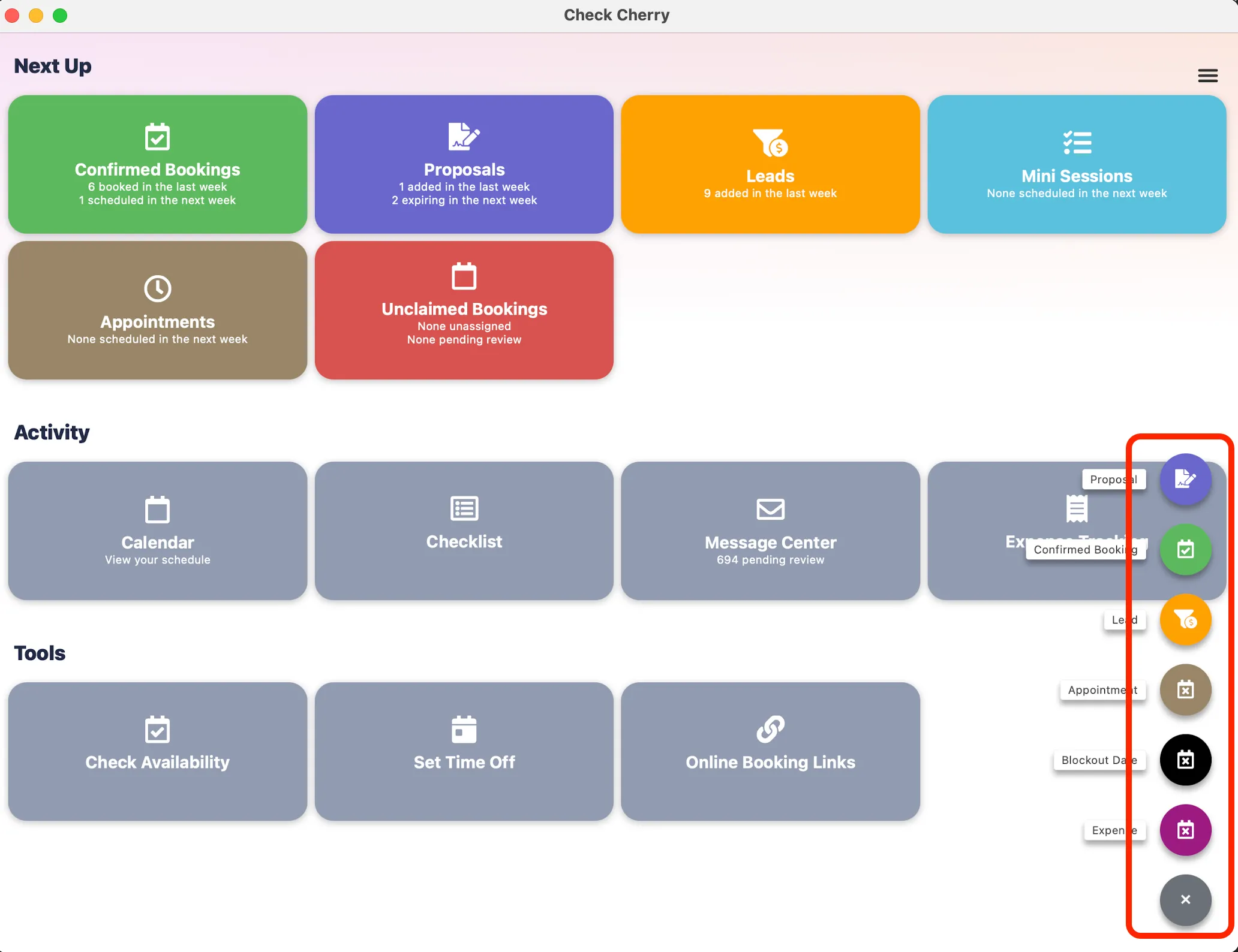
The Add Item button in the lower right gives you access to quick actions for creating new items.
From this menu you can create new proposals, bookings, leads, appointments, blockout dates, and expenses.
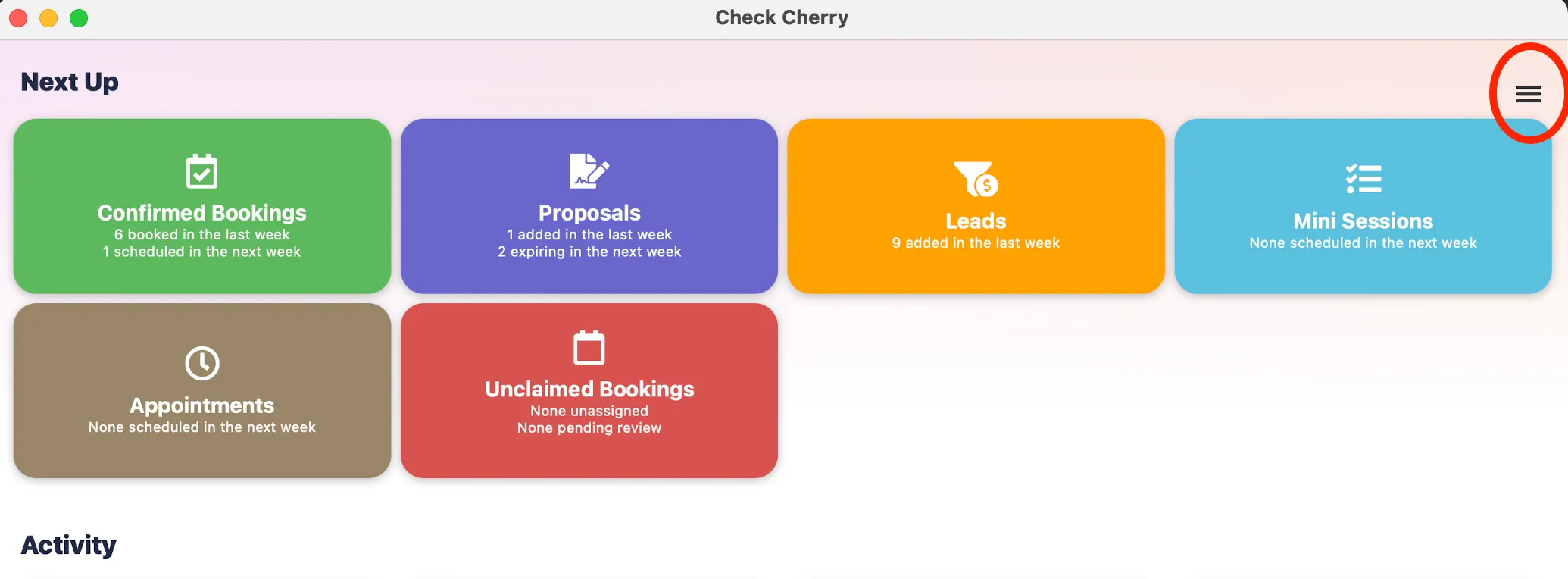
Main Menu
The menu in the upper right corner gives you access to all the main sections of your Check Cherry account:
- Dashboard
- Bookings
- Proposals
- Leads
- Calendar
- Settings
- Logout
Staff vs Admin Dashboard
Staff users see a simplified dashboard focused on their assigned bookings and tasks. Admins see the full business overview including all activity metrics and revenue data.