End of the quarter and your accountant wants a breakdown of every booking? The bookings report is your most flexible export — filter by date, package, staff, or status and download exactly what you need.
The bookings report shows all your confirmed events in one place. You can customize what information appears and filter the results to focus on specific data. Use the buttons across the top to configure columns, apply filters, download as CSV, or save the report for future use.

Customizing Your Report
Click Columns to select what data appears in your report — booking date, client name, package, total amount, staff member, and more. Click Filter to narrow the results by date range, booking status, specific packages, or assigned staff.
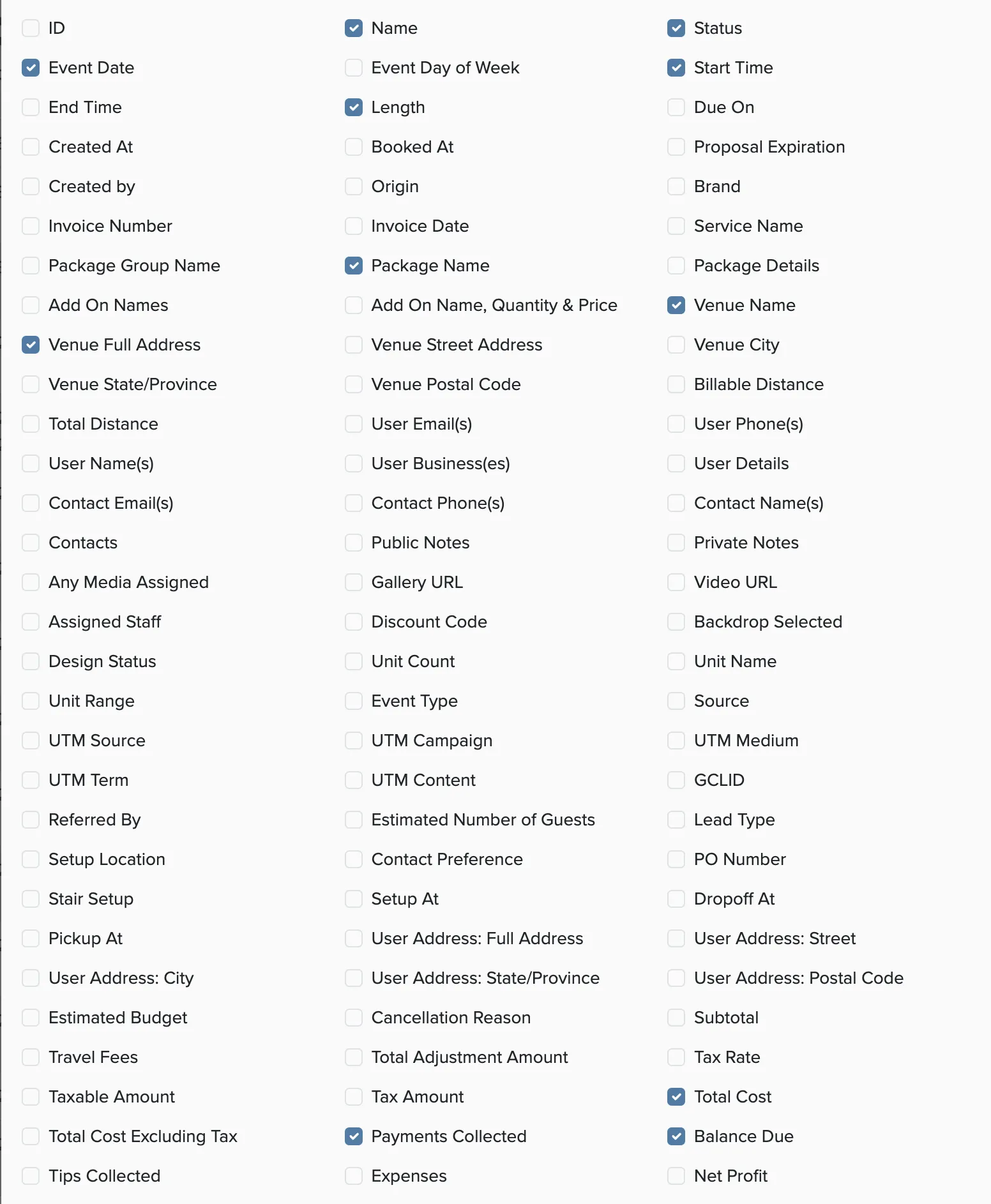
Once you have the data configured how you want it, click Export to download a CSV file that opens in Excel or Google Sheets.
Scheduling Automatic Reports
You can save a report configuration and have it emailed to you automatically on a daily, weekly, or monthly schedule. Click Save Report in the upper right, enter a name and description, then set the schedule and recipient email addresses.