If you offer recurring consultations, tastings, or discovery calls, duplicating an appointment saves you from rebuilding the same setup from scratch every time. It copies all the details — date, time, type, and settings — so you can adjust just what needs to change.
How to duplicate an appointment
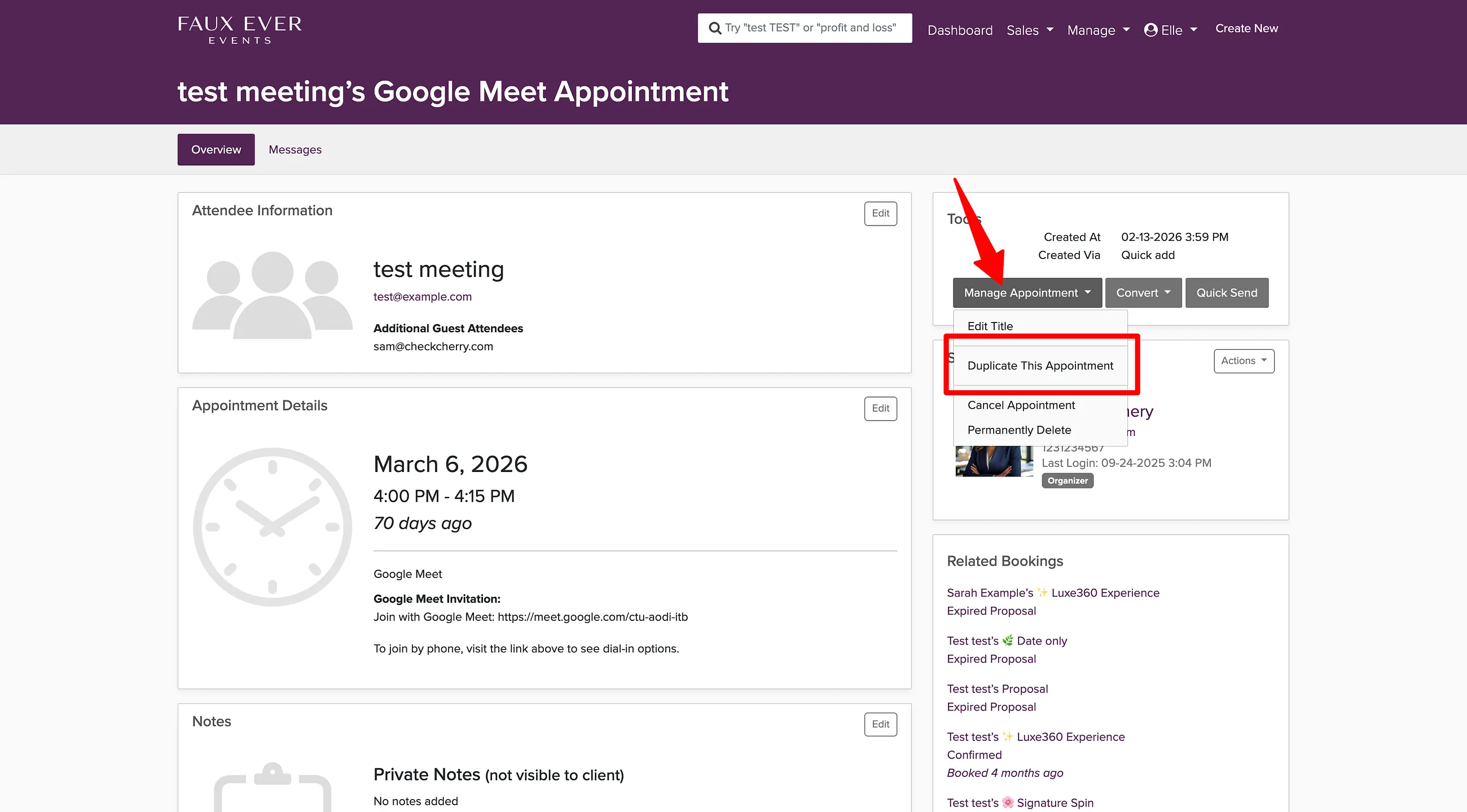
Appointments → Select an appointment
Go to Appointments and open the appointment you want to copy.
Click Manage Appointment.
Select Duplicate.
Update the date, time, or any other details for the new appointment.
Save the appointment.
Duplicating is especially handy when you run the same type of appointment repeatedly — like weekly phone consultations or recurring tastings. Set one up the way you like it, then duplicate as needed.