The account owner can use appointments by default. Everyone else needs Enhanced Appointment Scheduling turned on before they can create their own appointment calendars and share scheduling links with clients.
Cost
Enhanced Appointment Scheduling is $5/month per user, added to your Check Cherry bill. The account owner gets it at no charge.
Because it adds to the bill, only the account owner can turn it on for another user. Other admins see a message asking them to check with the account owner. It's available to users with a staff or admin role.
Enabling appointments for staff
Once enabled, the user's card in User Accounts shows Enhanced Scheduling. They can open their appointment calendar by clicking their name in the upper right corner and selecting Appointment Scheduling. A default calendar is created for them automatically.
How appointment scheduling works
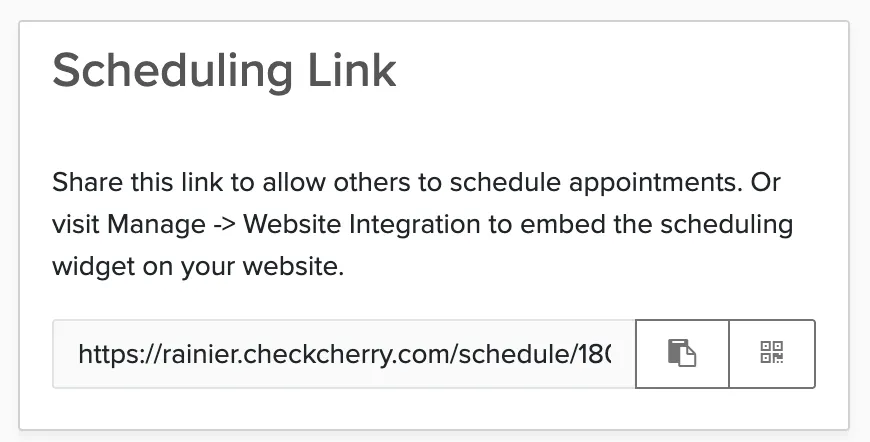
Each staff member configures their own meeting calendars, then shares the scheduling link with clients. The link shows open time slots based on their settings, and clients book directly without the back-and-forth emails.
To configure a meeting calendar, click Edit on the existing calendar or create a New Scheduling Calendar.
Calendar settings
Each calendar can be customized with these options:
- Title: name of the calendar
- Appointment length: 15 minutes to 12 hours
- Buffer time: 15 minutes to 1 hour between appointments
- Minimum notice: how much advance notice is required
- Booking window: how many days in advance appointments can be scheduled
- Conflict prevention: block times during assigned bookings or all bookings
- Meeting format: in person, Zoom (requires integration), phone, or other
- Custom messages: invitation and confirmation text
- Weekly availability: use booking availability or set custom hours for each day
Turning it off
The charge comes off your next monthly bill. Archiving the user removes the charge too. If you remove both the staff and admin roles from a user, Enhanced Scheduling turns off automatically.