A client hands you a check at the venue, pays through Venmo, or uses another method outside of Check Cherry. The money is in your account but Check Cherry doesn't know about it yet, so the booking still shows an outstanding balance. Recording the payment keeps your books accurate and stops payment reminders from going out for money you've already received.
Recording the Payment
Bookings → Select a booking → Invoice tab
Open the booking that needs a payment recorded.
Go to the Invoice tab.
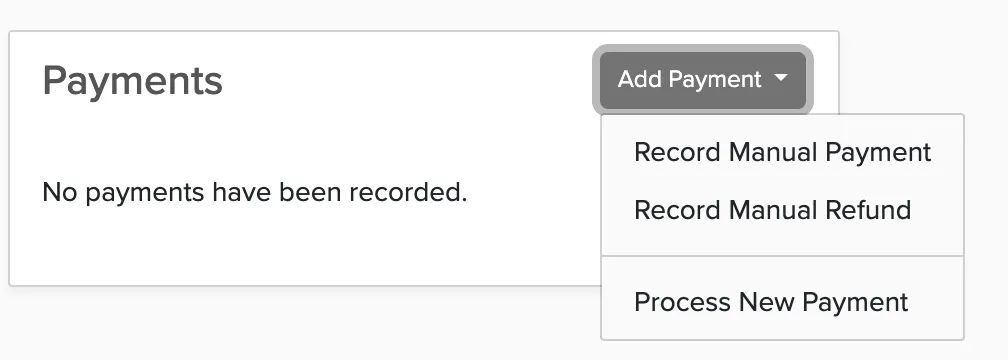
Click Add Payment.
Select the payment method (cash, check, Venmo, Zelle, other).
Enter the amount and the date the payment was received.
Click Save.
The booking balance updates immediately. If the payment covers the full amount, the booking shows as paid in full. By default, any automated messages you have set up for payments will be sent when you record the payment.
Good to Know
- Manual payments are for record-keeping only — no money is processed through Check Cherry.
- The payment shows up in your Payment History report alongside credit card payments, so you have a complete picture of what you've collected.
- If you need to undo a manual payment, you can delete it from the Invoice tab.
- Most businesses find it easier to encourage online payment, but manual recording works well for last-minute cash payments at events.
If you accept cash or check regularly, set them up as payment methods in Payment Settings so clients see them as an option during checkout.