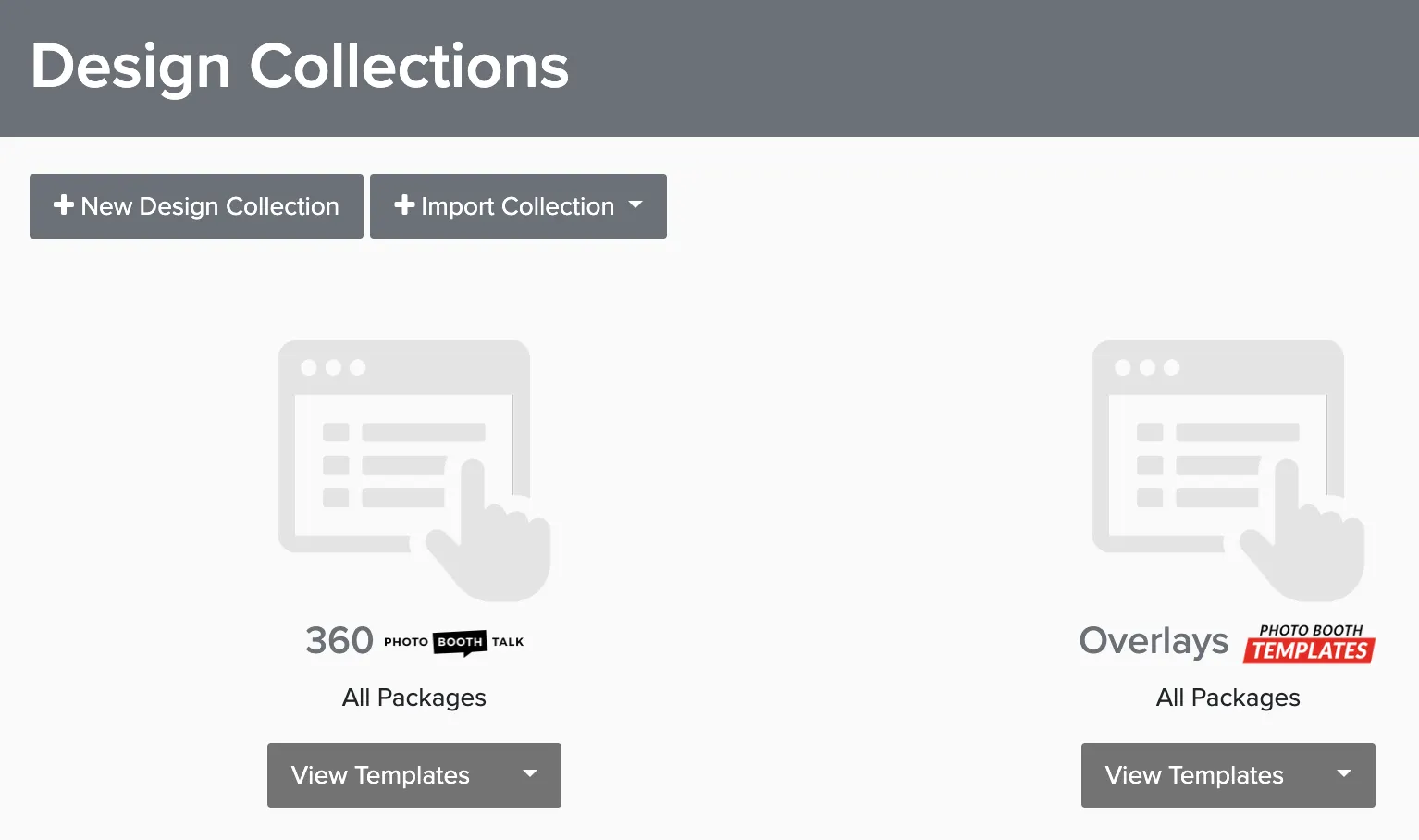
Design collections let your clients browse and choose artwork templates for their event, like photo booth overlays, print layouts, or backdrop designs. You set up the templates, assign them to packages, and clients pick the one they want when they log in to their booking.
Creating a Design Collection
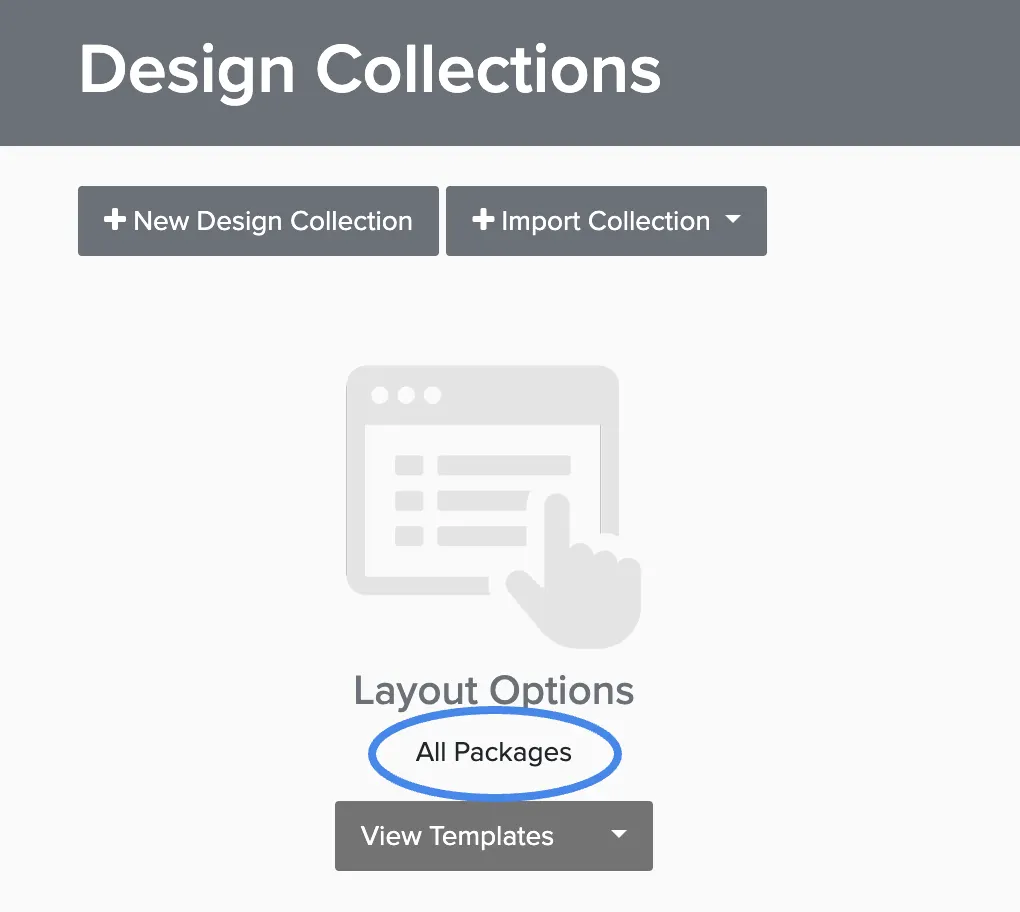
Assigning to Packages
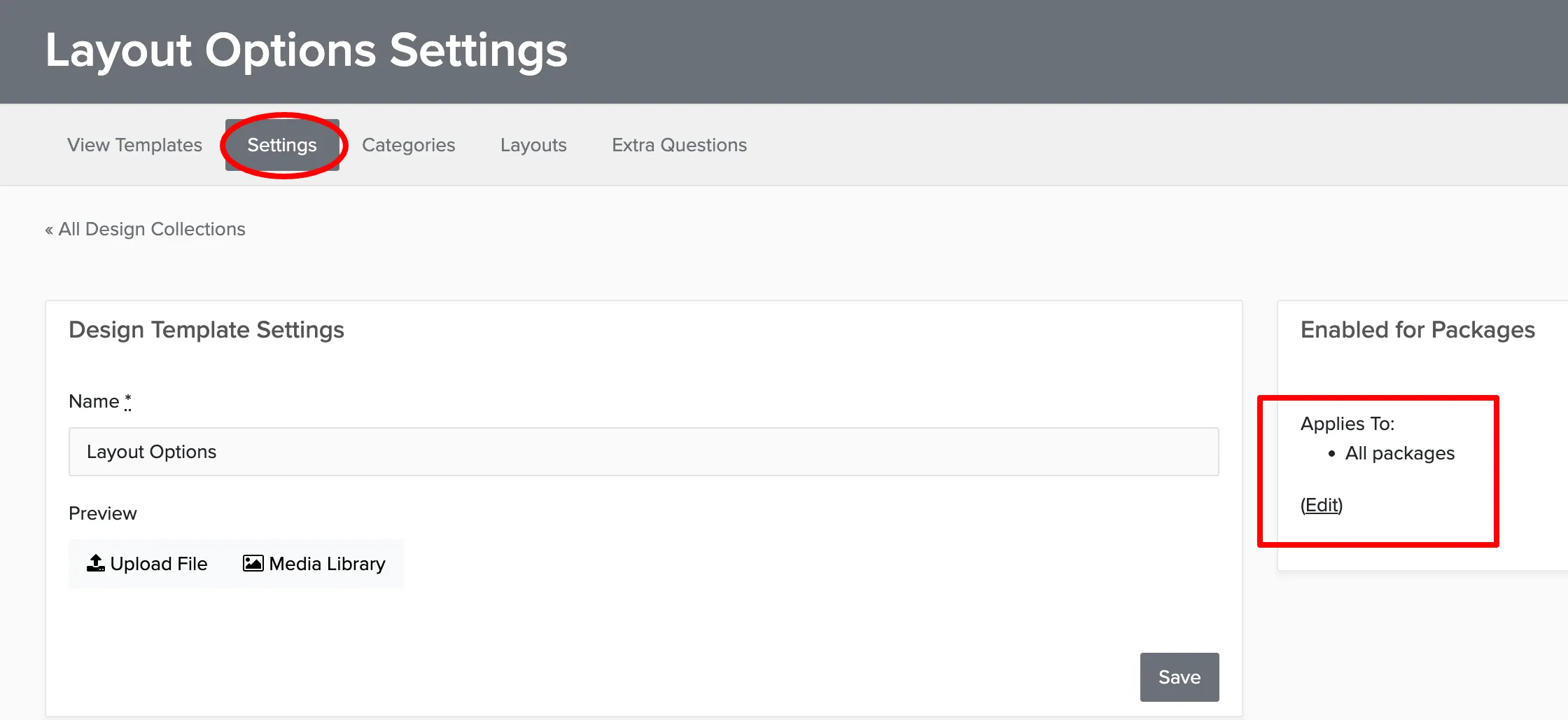
Each design collection needs to be assigned to the packages it should appear on.
Organizing with Categories
Create categories to help clients find templates faster. Think themes like Spring, Birthday, or Holiday.
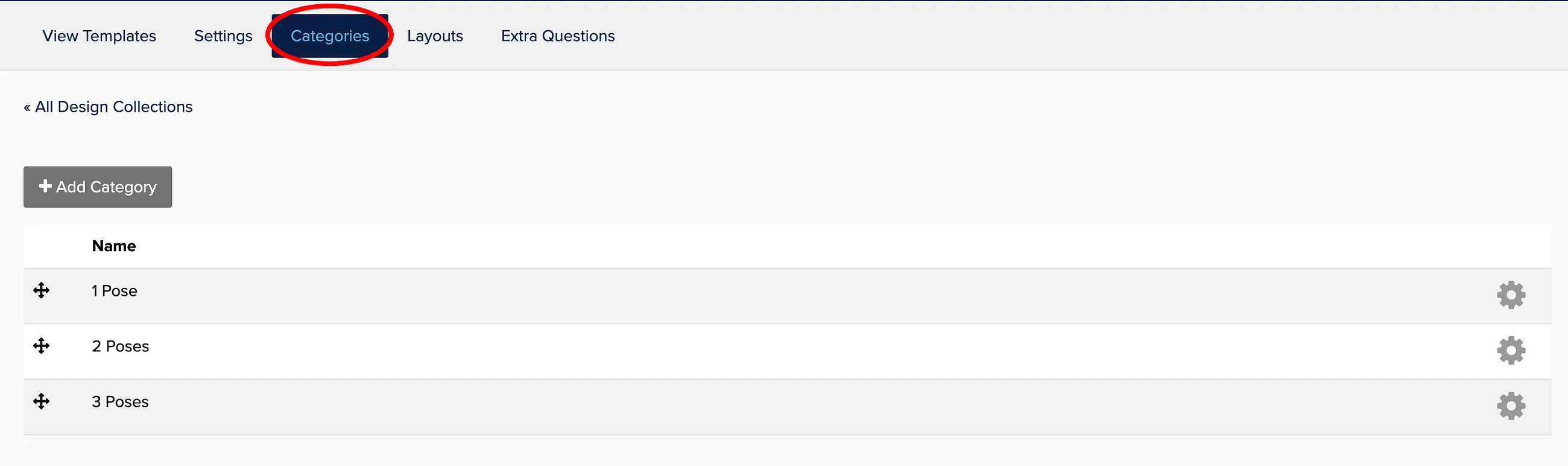
Once categories are defined:
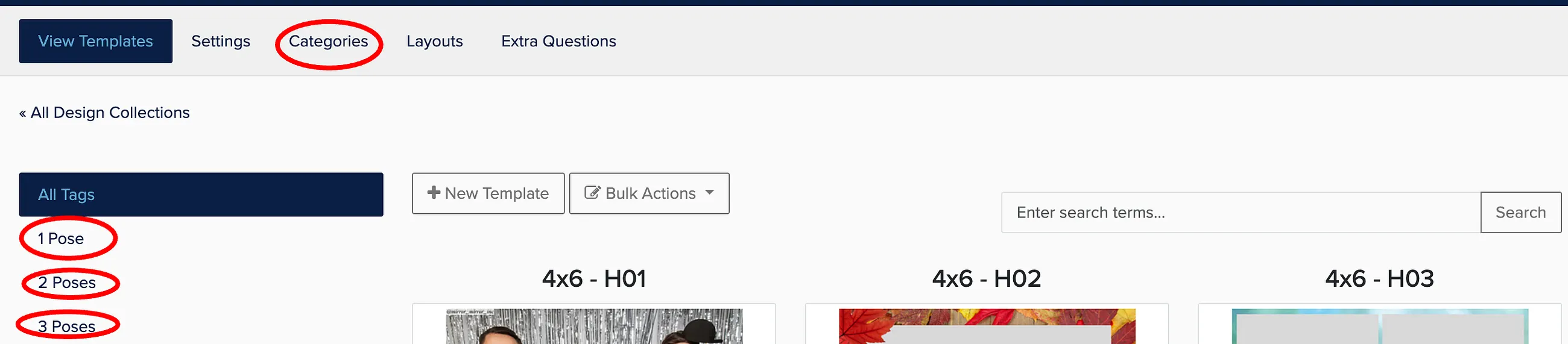
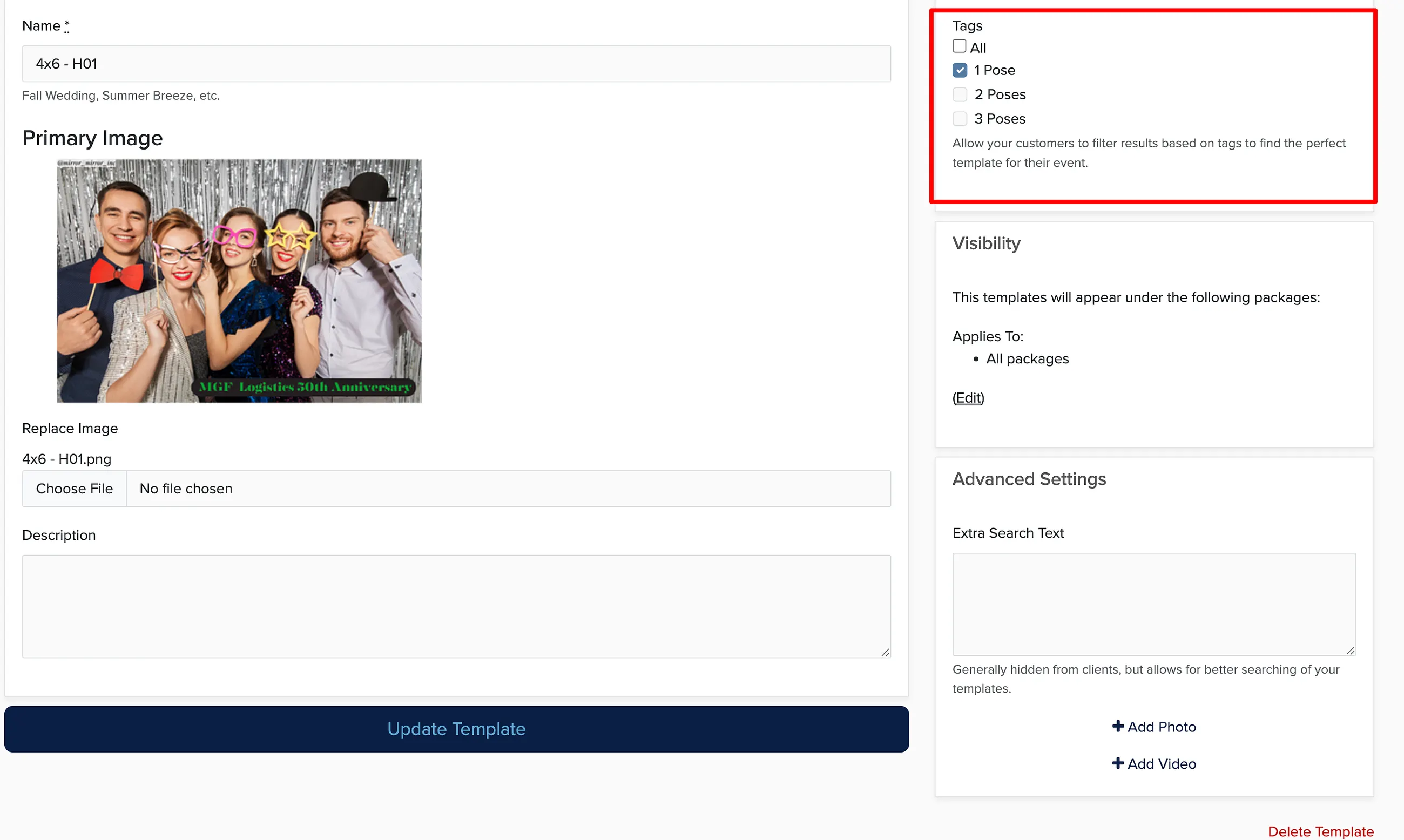
You can add tags to each design template to assign it to the category of your choice, which makes it easier for customers to find what they're looking for.
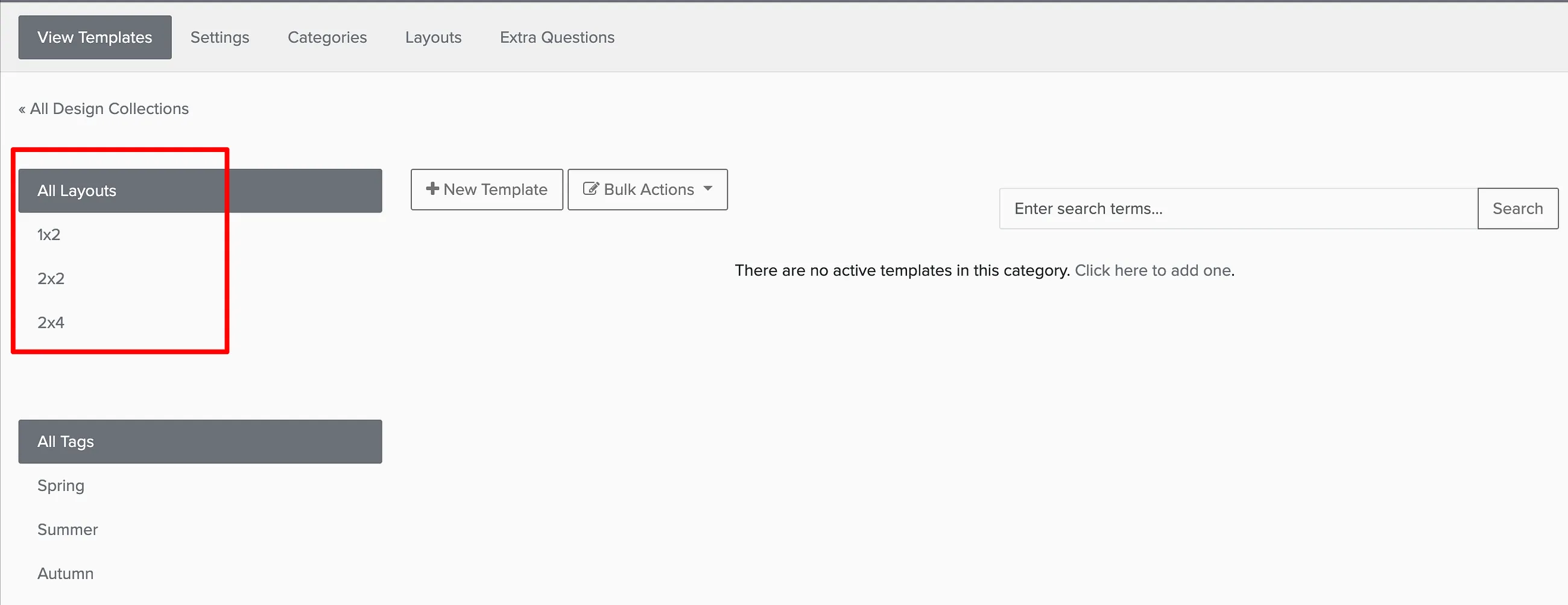
Creating Layouts
Layout categories help organize designs based on their format (2x6 strip, 4x6 print, etc.).
Adding Custom Questions
Extra questions let clients provide customization details like text for overlays or color preferences.
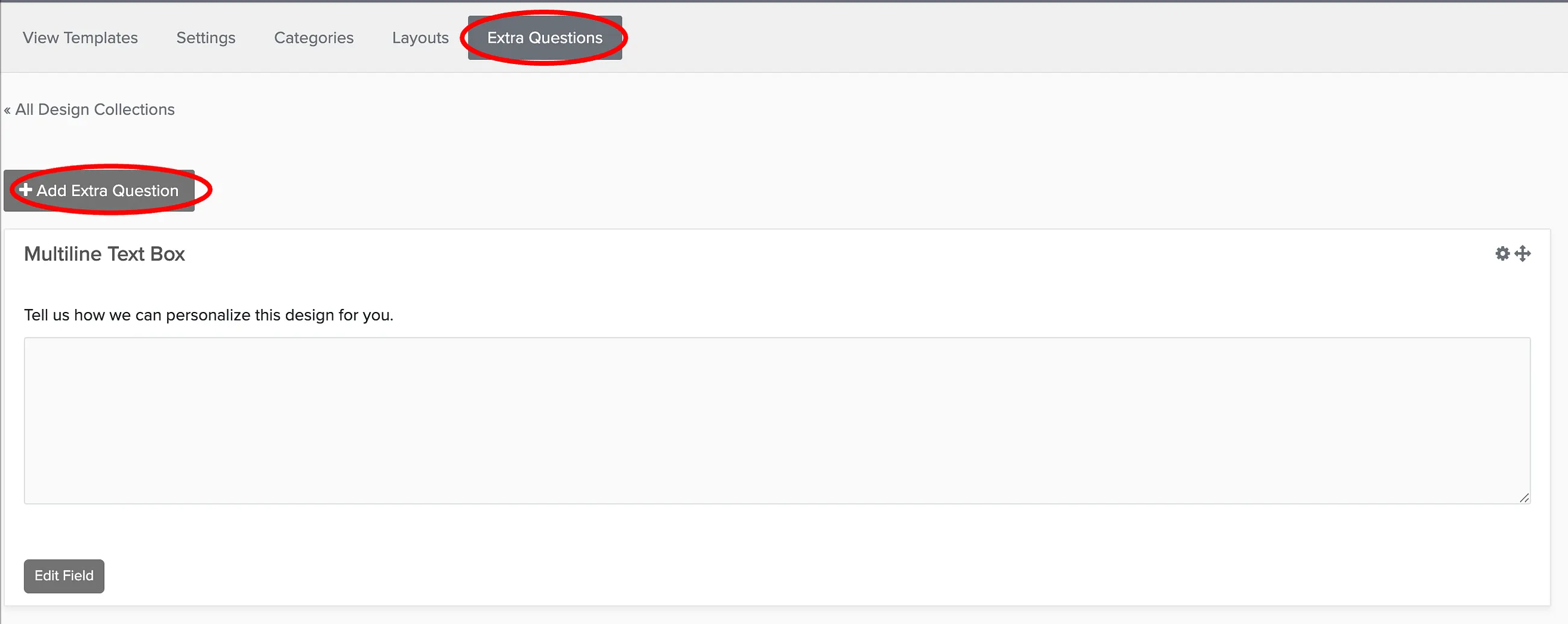
You can include different field types for the extra questions, as well as make the question required or not.
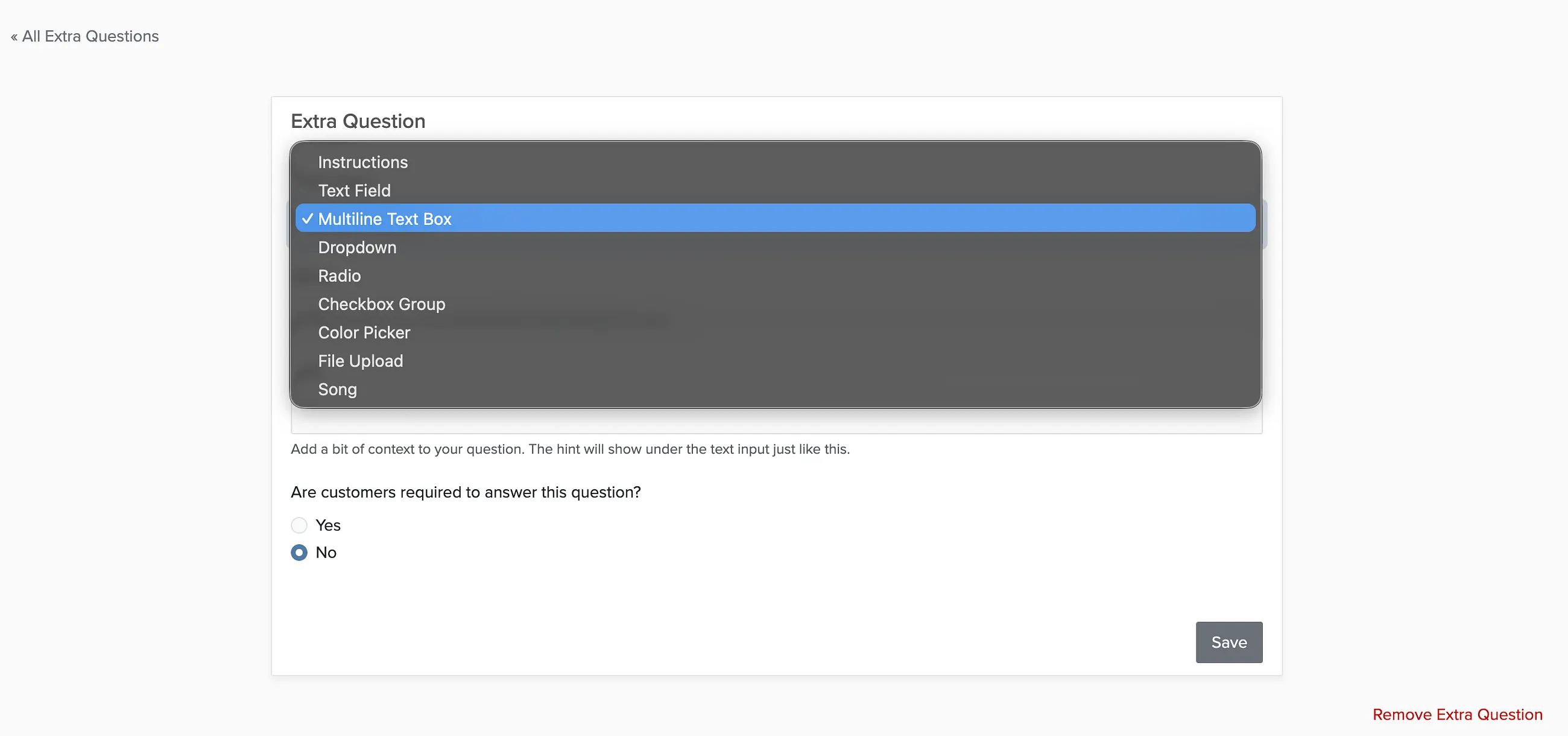
You can also add more questions, or delete them using the link in the lower right corner.
How Clients Choose Designs
Clients can choose one template from each design collection assigned to their package. After selecting, they can customize colors, text, and add notes before confirming their choice.
Changes and Existing Bookings
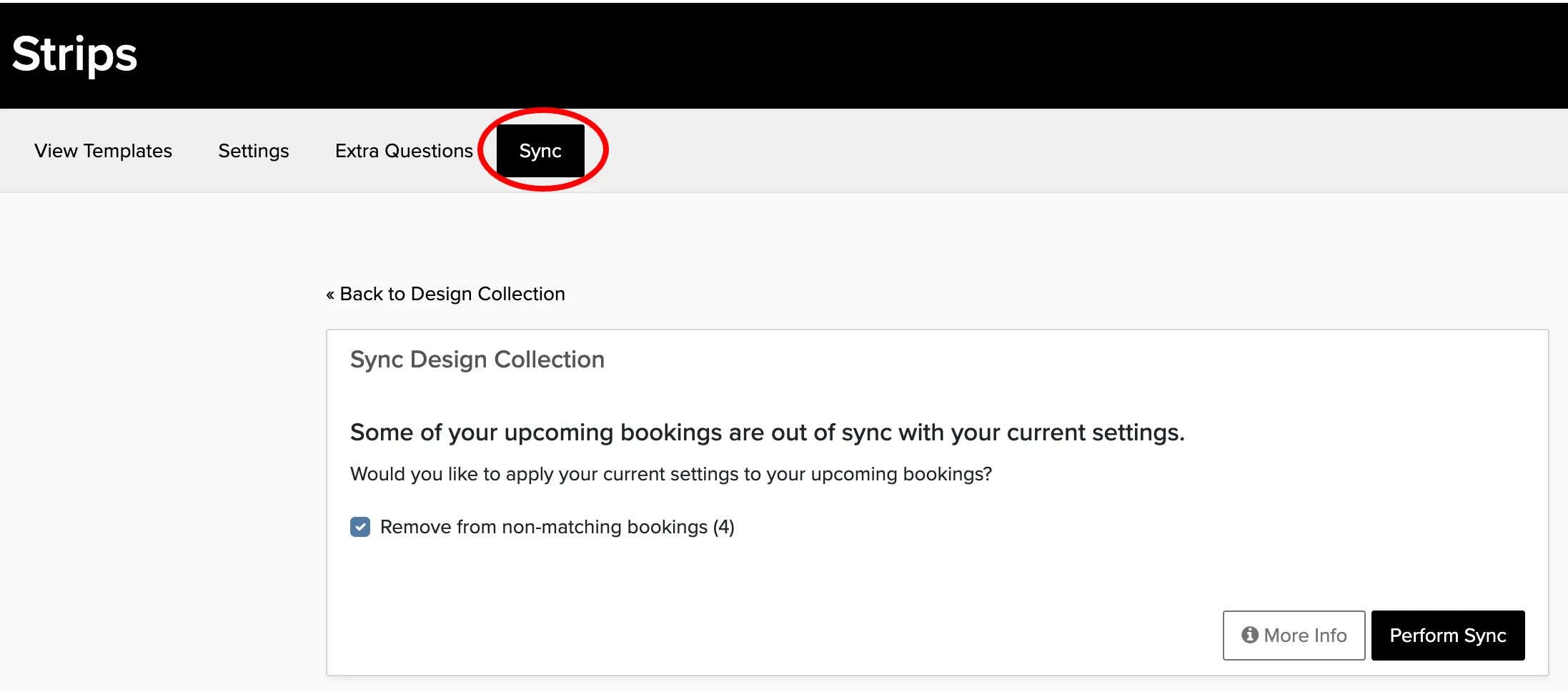
Any changes you make to design collections will have no effect on existing bookings. If you have made changes and wish to apply those changes to your existing bookings, click on the Sync tab to apply the changes to your existing bookings.