When clients book a photo booth or photography session, they often want a say in how their prints look. Design collections let you offer print layout templates, overlays, or design options as part of any package or add-on. Once a collection is attached to a booking, clients can browse the designs, make a selection, request revisions, and give final approval — all inside Check Cherry, without back-and-forth emails.
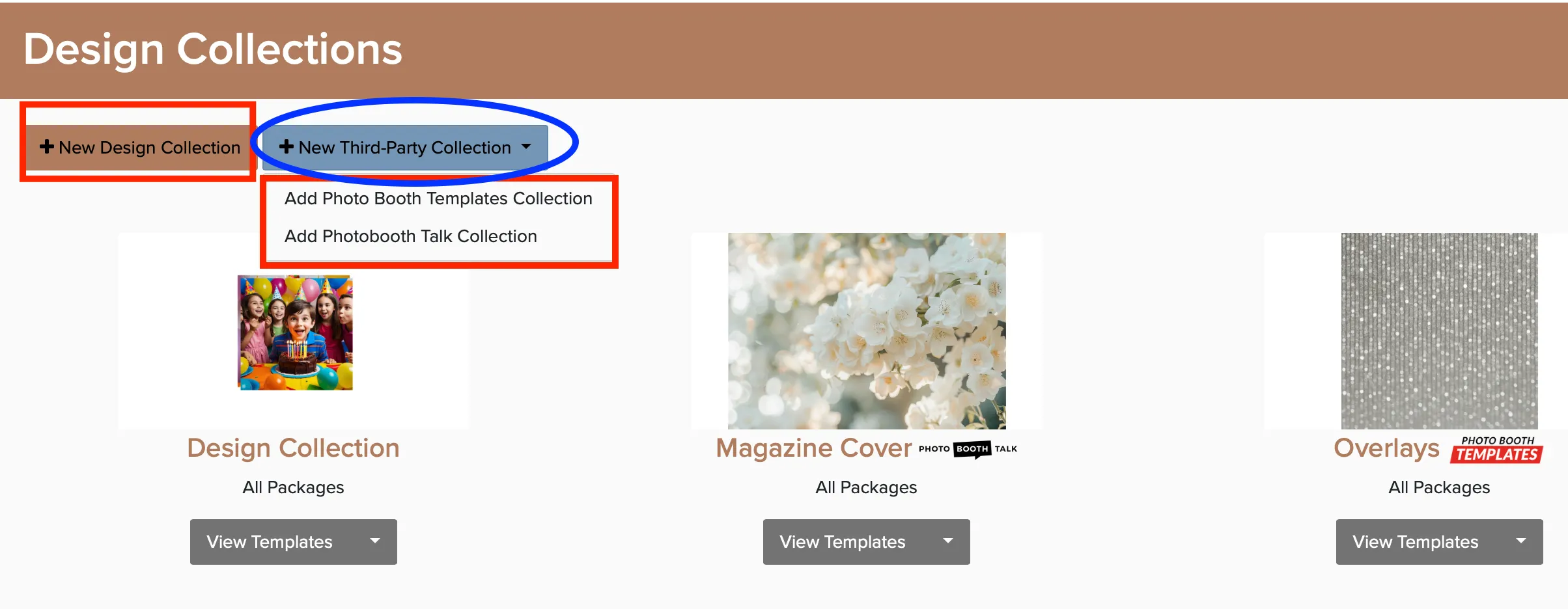
Create a design collection
A design collection is a named set of templates you can attach to packages or add-ons. You can create your own, edit the included sample collection, or connect a third-party design integration.
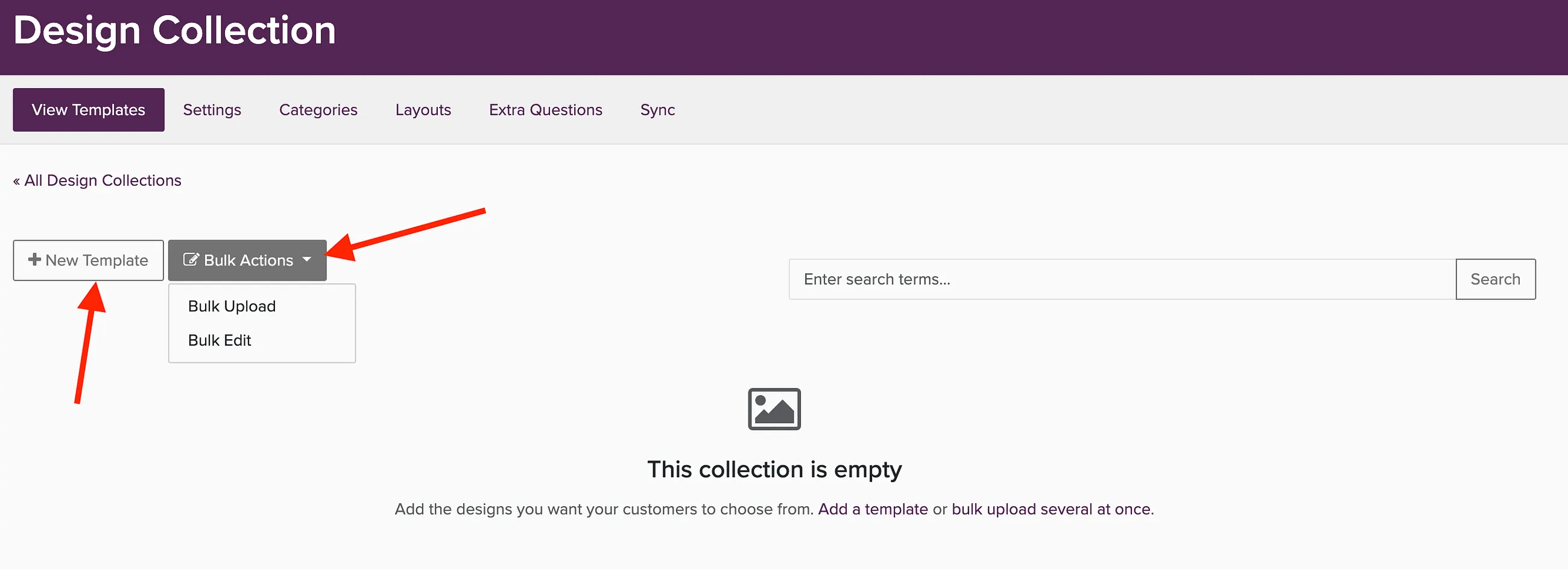
Upload templates to the collection
With your collection open, use New Template to add images one at a time, or use Bulk Actions to upload or edit multiple templates at once.
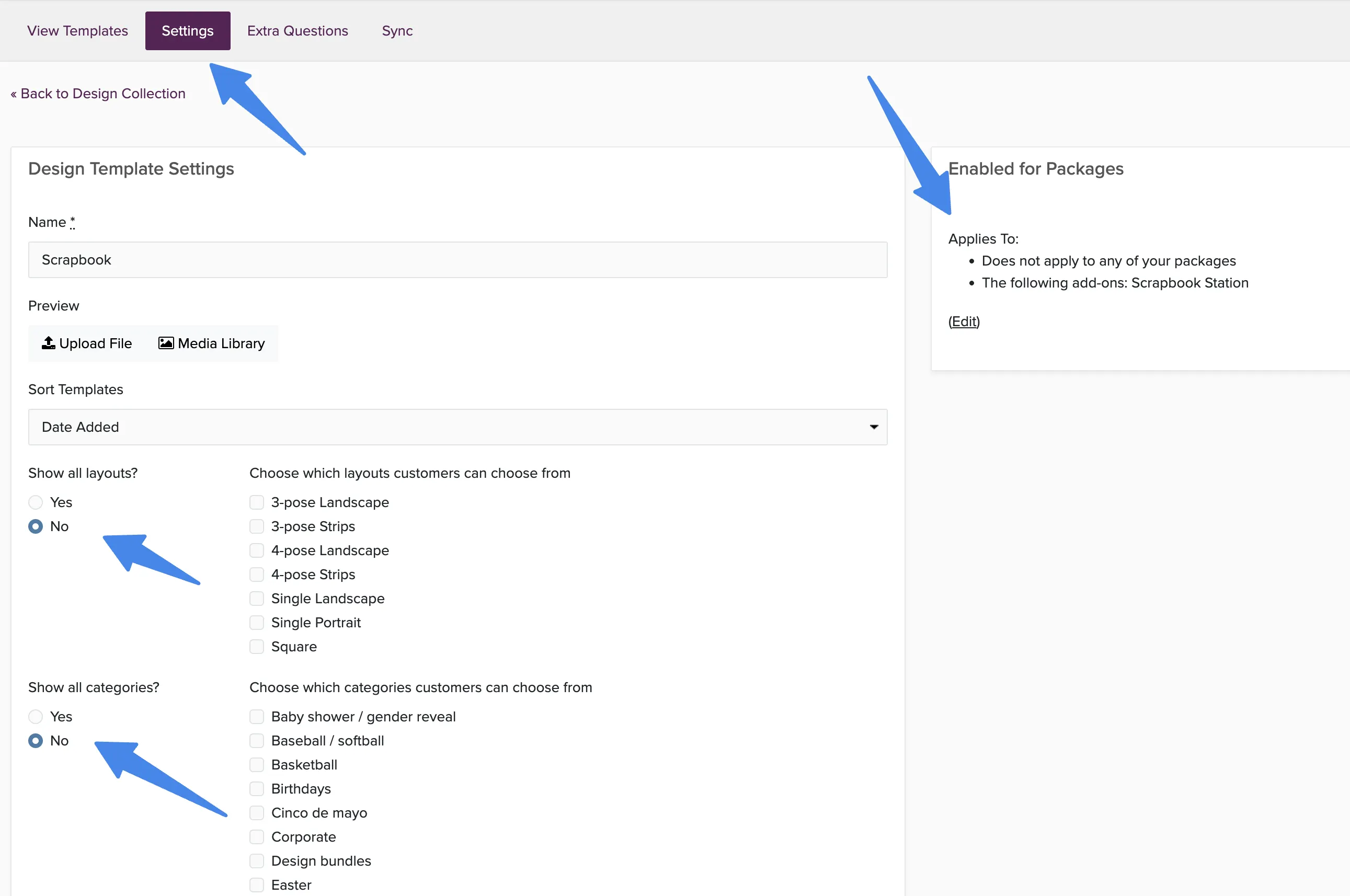
Assign templates to packages or add-ons
Once your templates are uploaded, click the Settings tab inside the collection. From here you can:
- Choose which packages or add-ons this design collection is available for
- Select which individual templates are displayed to clients in this collection
- Choose which layouts are available
- Select which categories of templates are available
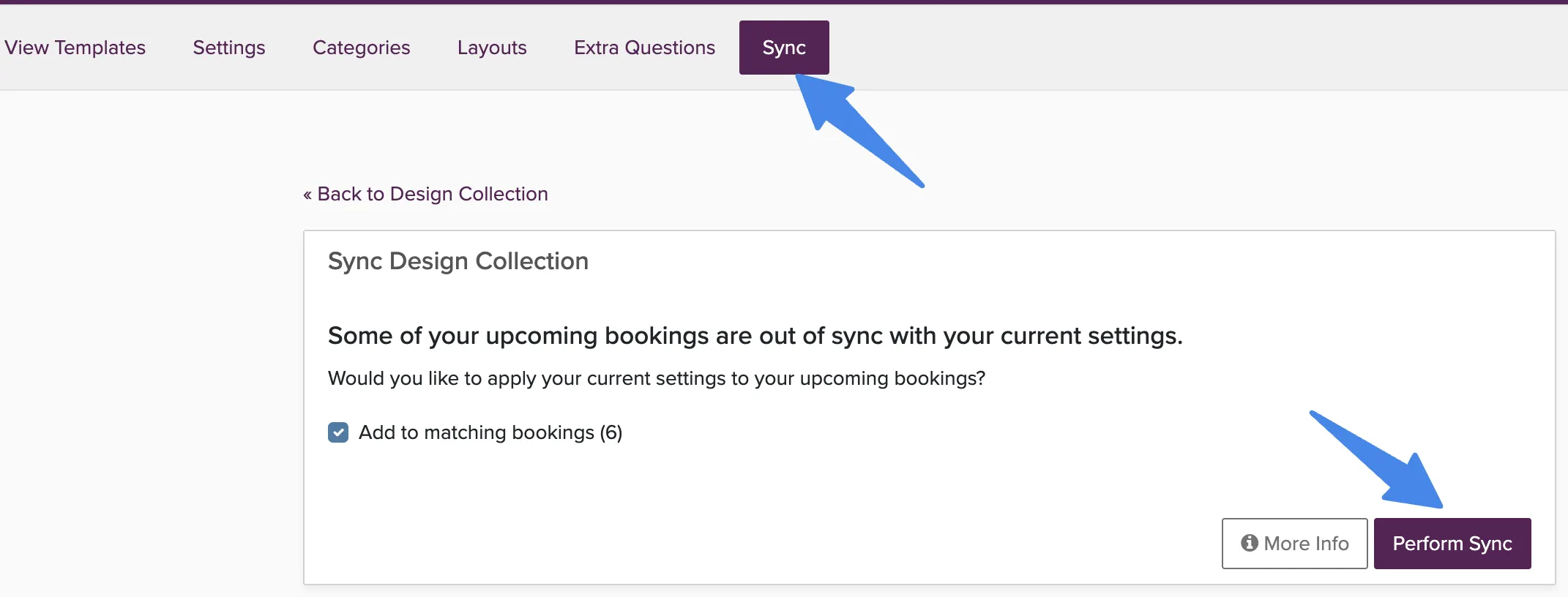
Sync changes to existing bookings
If you update a design collection after bookings are already in place, use the Sync button to push your changes out to existing bookings automatically.