In Check Cherry, a design is one piece of artwork the client signs off on before their event: a photo booth overlay, a welcome screen, a print layout, a 360 intro or outro, a monogram, a corporate logo lockup, a step-and-repeat backdrop, custom signage. A booking can have several designs, and the client approves each one on its own.
Where a design starts
Every design begins one of two ways, and you can mix both on the same booking.
- From a Design Collection — you build a library of starting-point templates and the client picks one. This is the way to go when you want to present a lot of polished options. Template services like Photo Booth Talk plug in here so your collections look professional right out of the gate.
- As a custom upload — you skip the library and upload artwork straight to the booking. Best when you have already talked through the look with the client, or the final art was created somewhere else. See Upload custom artwork directly to a booking.
How a design gets approved
However it starts, every design moves through the same review loop:
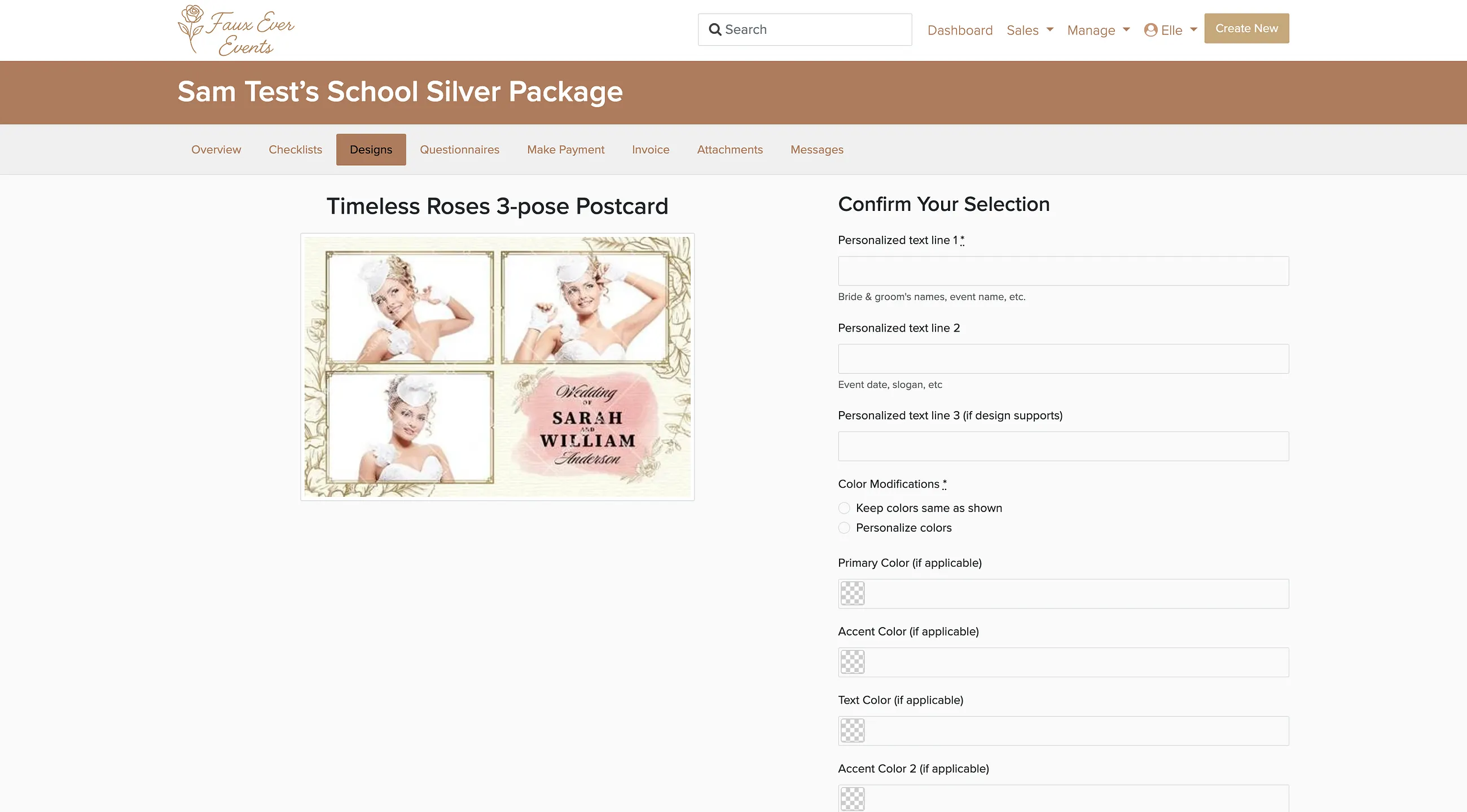
Each step triggers its own email: a design revision request when the client asks for changes, and a design approval request when you upload finished artwork. Both are customizable. Because each design is approved independently, a client can sign off on the welcome screen today and the overlay next week without holding up either one.
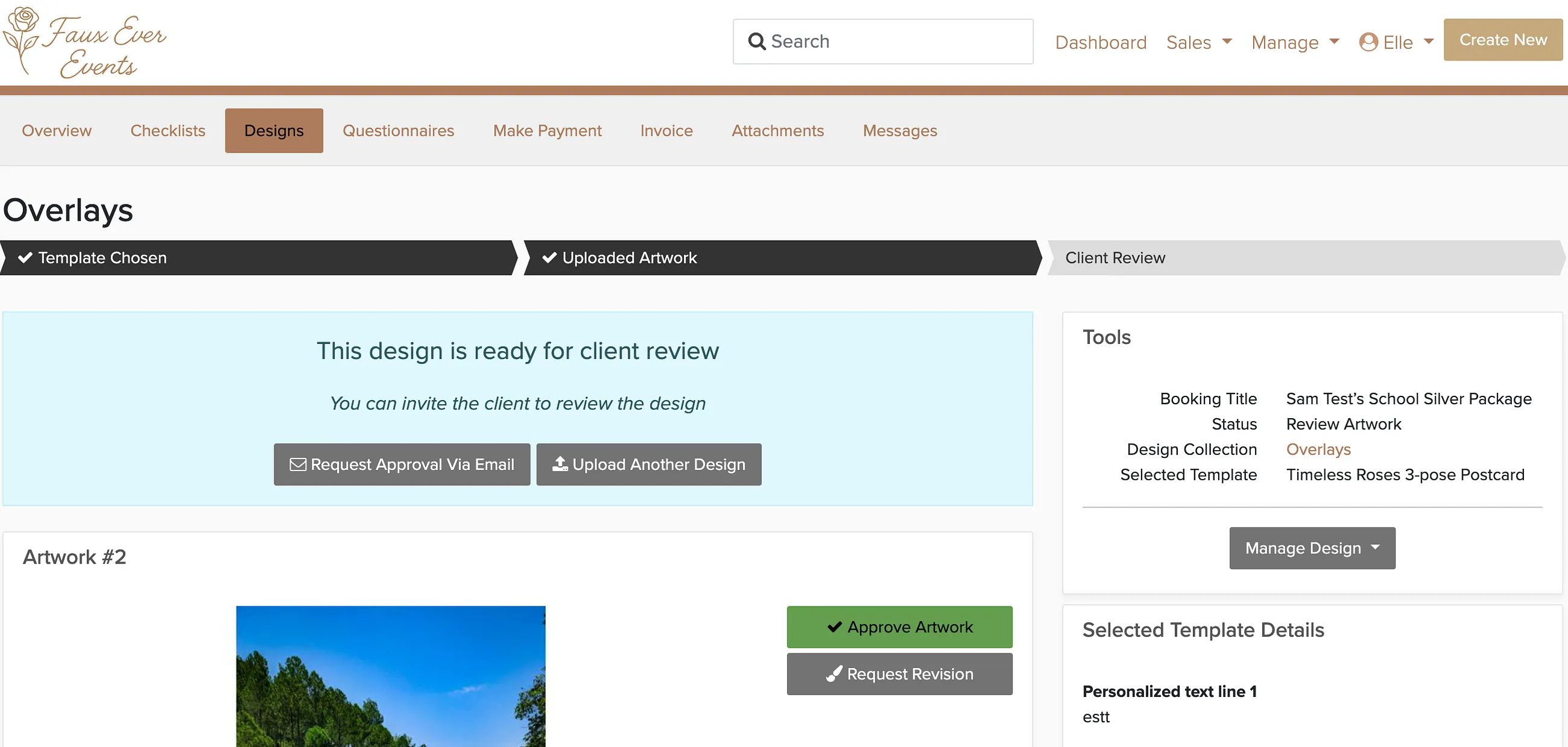
Offering the client a choice
A common goal is to give the client a few looks for one piece of artwork and let them pick their favorite, so they end up with a single final design. There are two ways to do it:
- A collection of templates — put several templates in one Design Collection and the client picks one as a starting point. Best when you want a deep, reusable, polished set of options, for example a library imported from Photo Booth Talk.
- A few custom versions — skip the collection and upload several artwork versions straight to the booking, then the client approves the one they like. Best for one-offs you have already talked through with the client. See Upload custom artwork directly to a booking.
Create a design collection
A Design Collection is a library of starting-point templates you present to clients. Build one when you want to offer a set of looks to choose from.
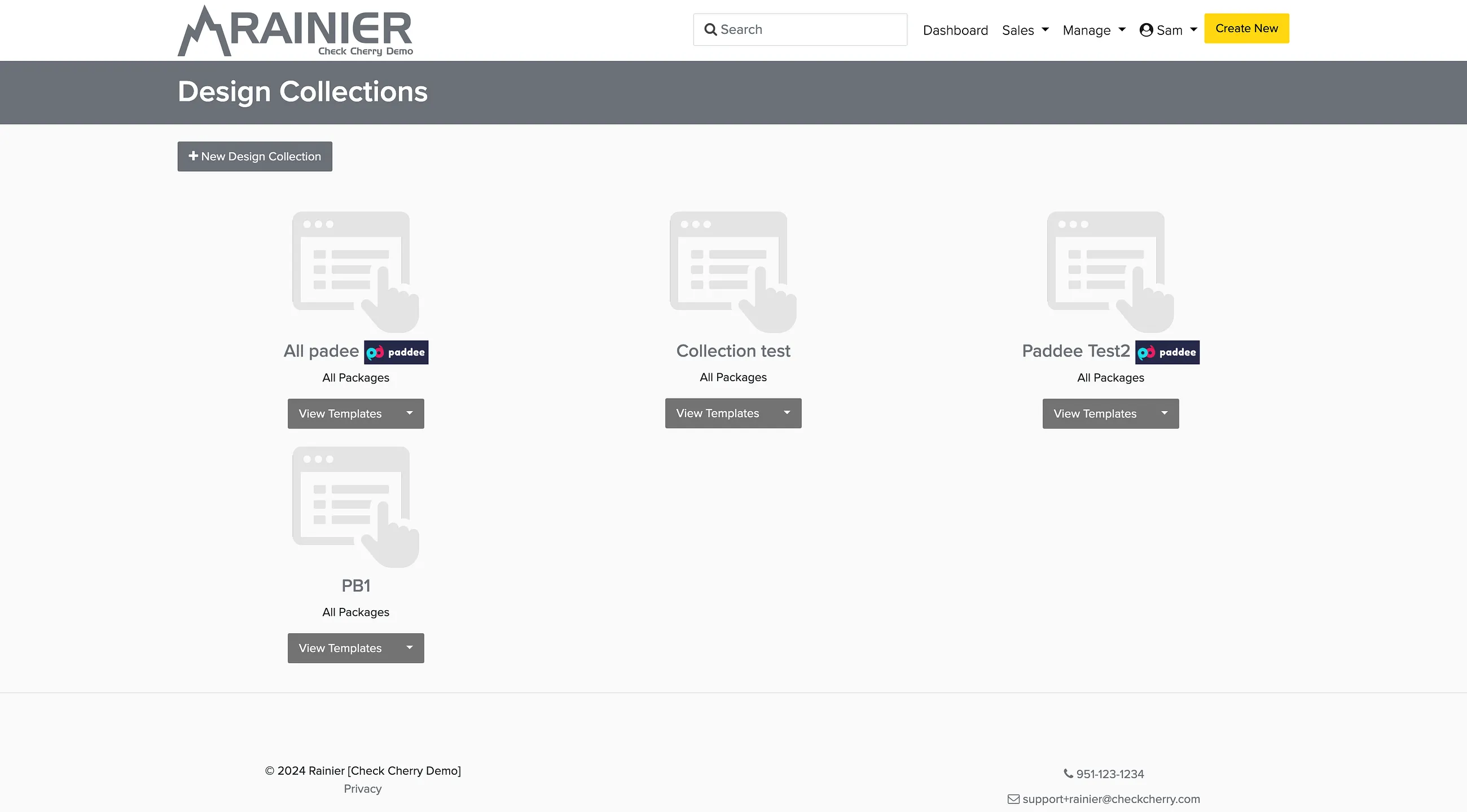
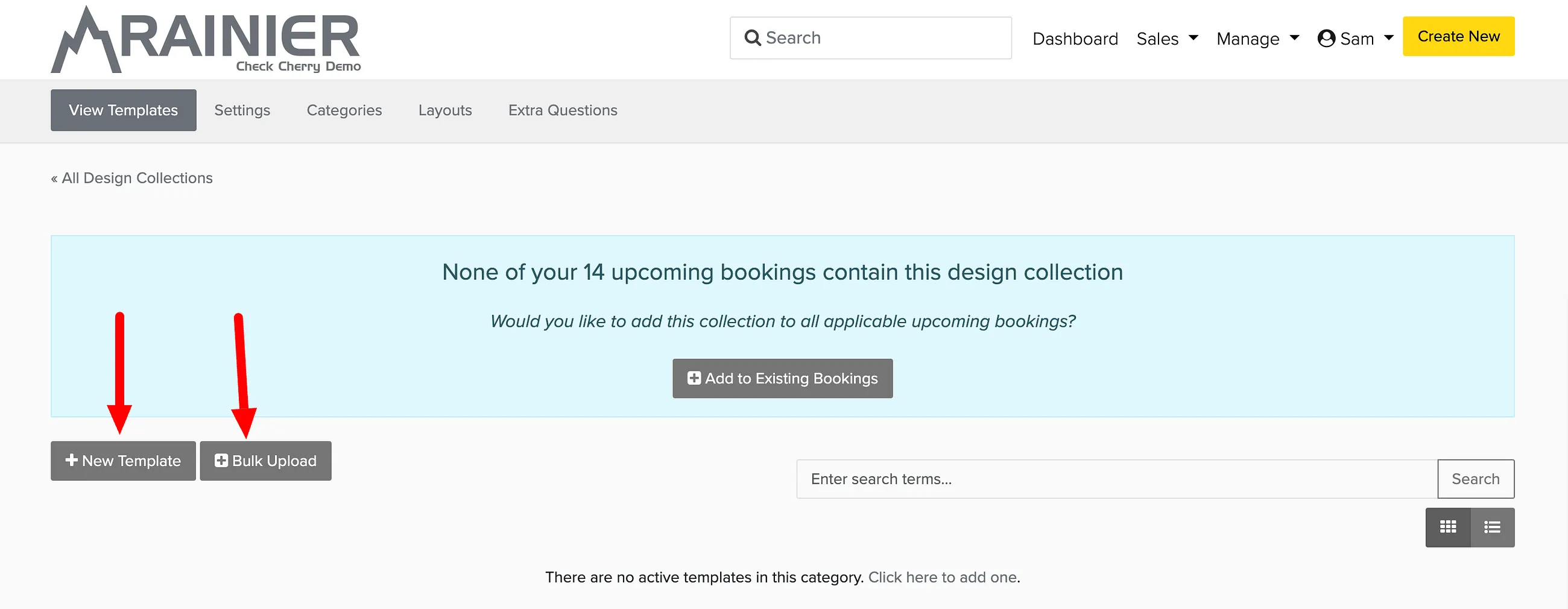
Import templates from third-party providers
Rather than upload everything yourself, you can pull in a ready-made library. Check Cherry integrates with several design template providers, including Photo Booth Talk.
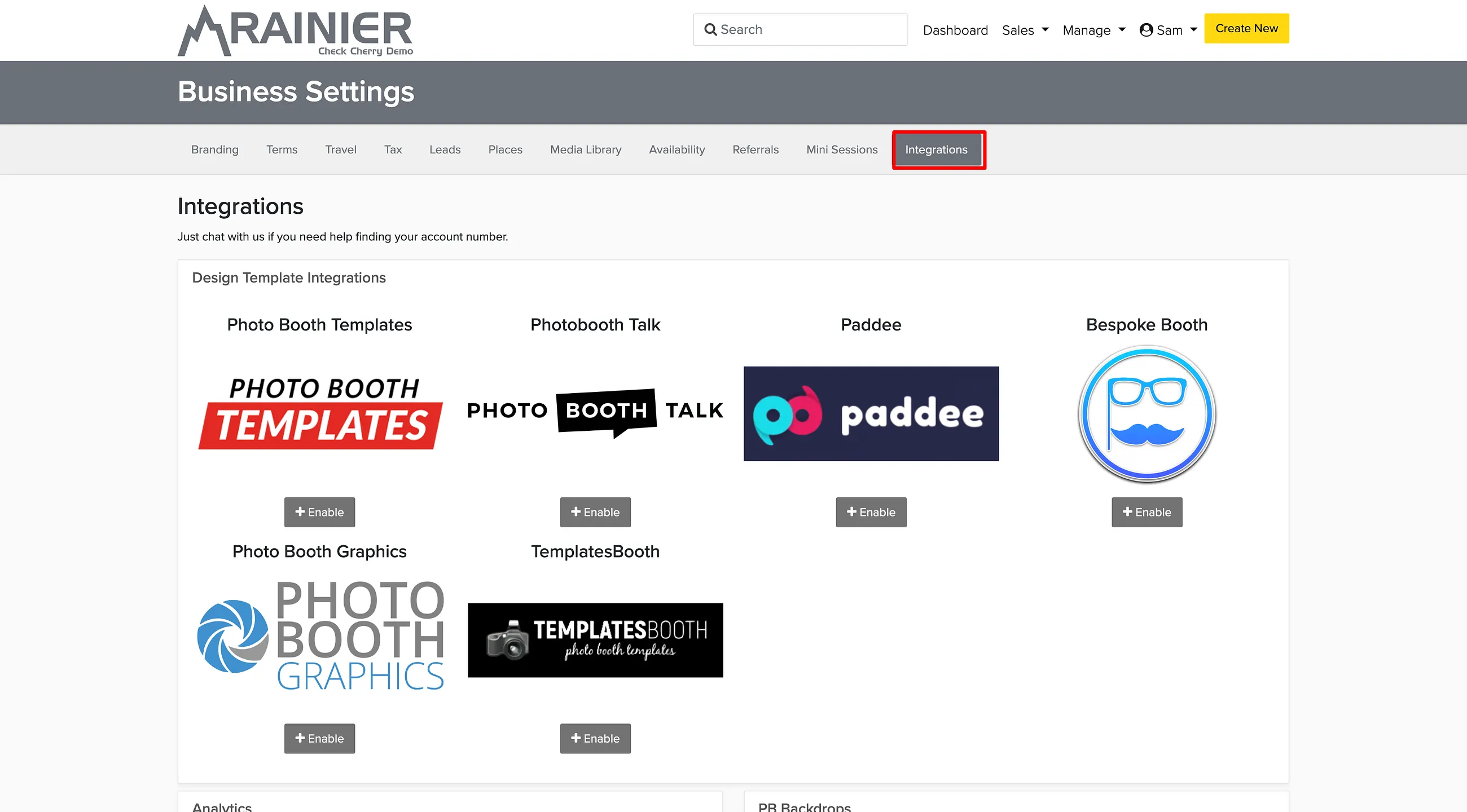
Once a provider is enabled, return to Design Collections. You will see a new import button for each connected provider:

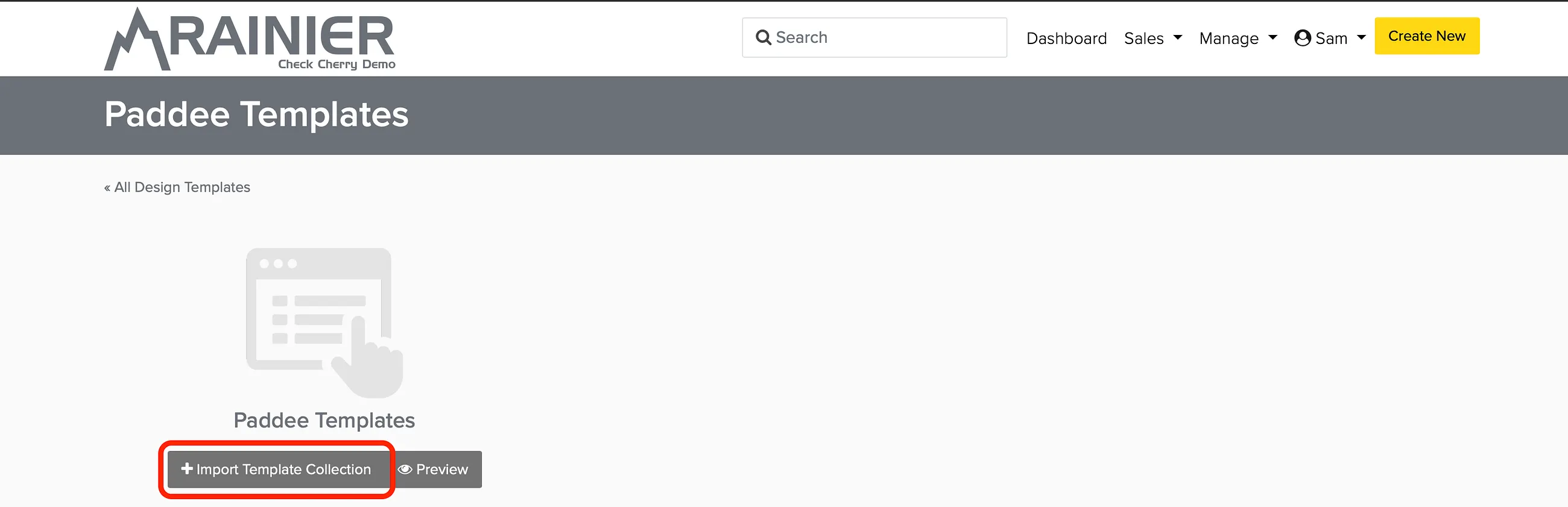
Click the button for the provider you want, then click Import Template Collection and make your selection:
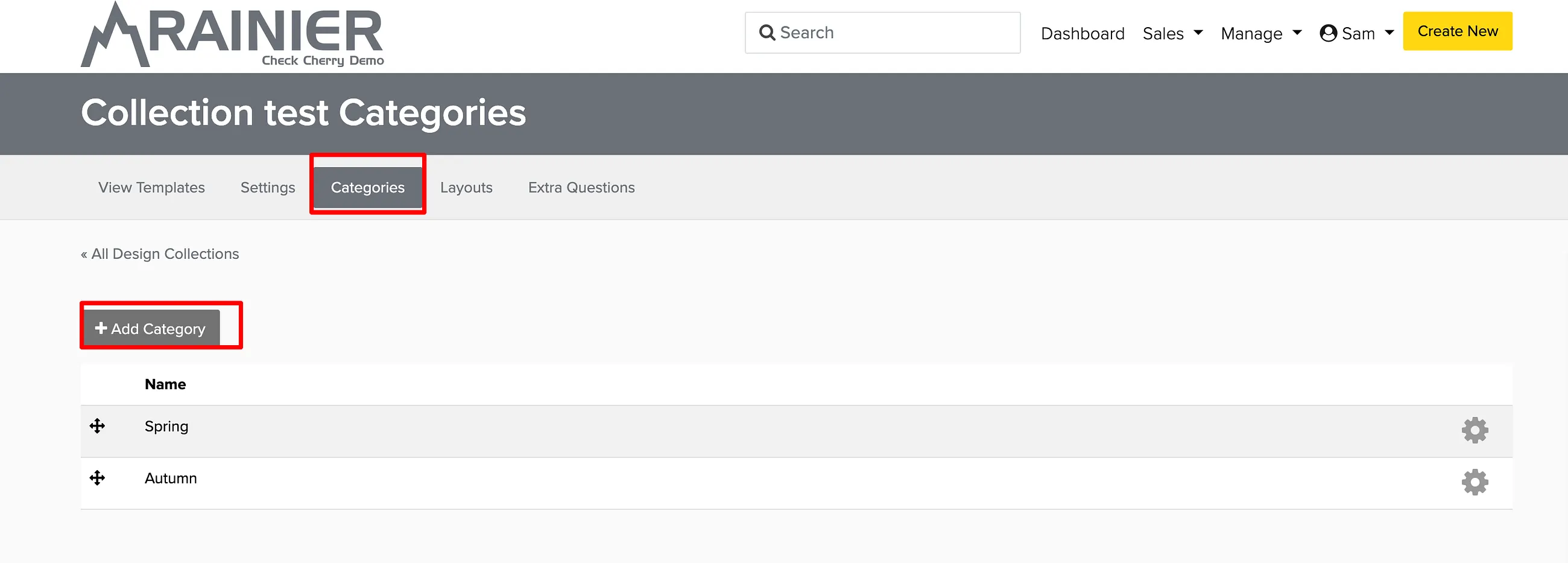
Organize templates with categories and layouts
Within a collection, categories (Spring, Birthday, Holiday) and layouts (2x6 strip, 4x6 print) help clients filter down to what they want faster.
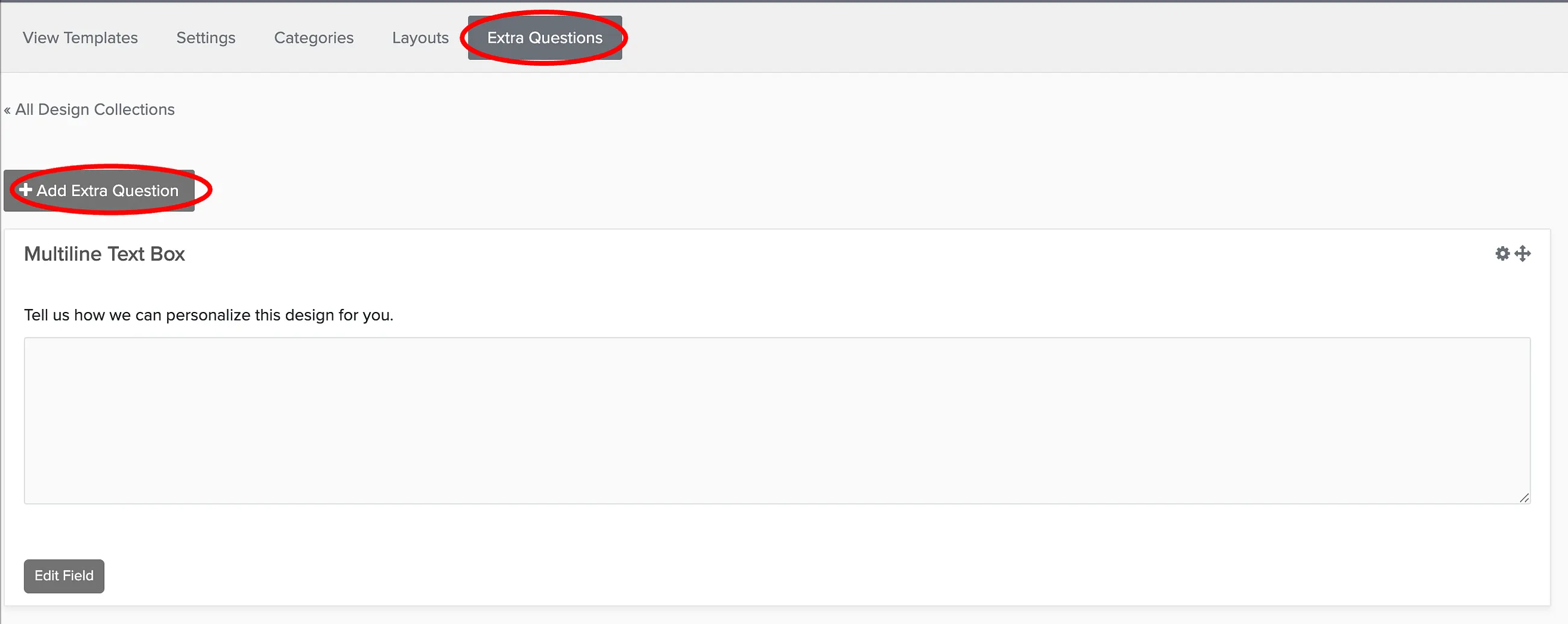
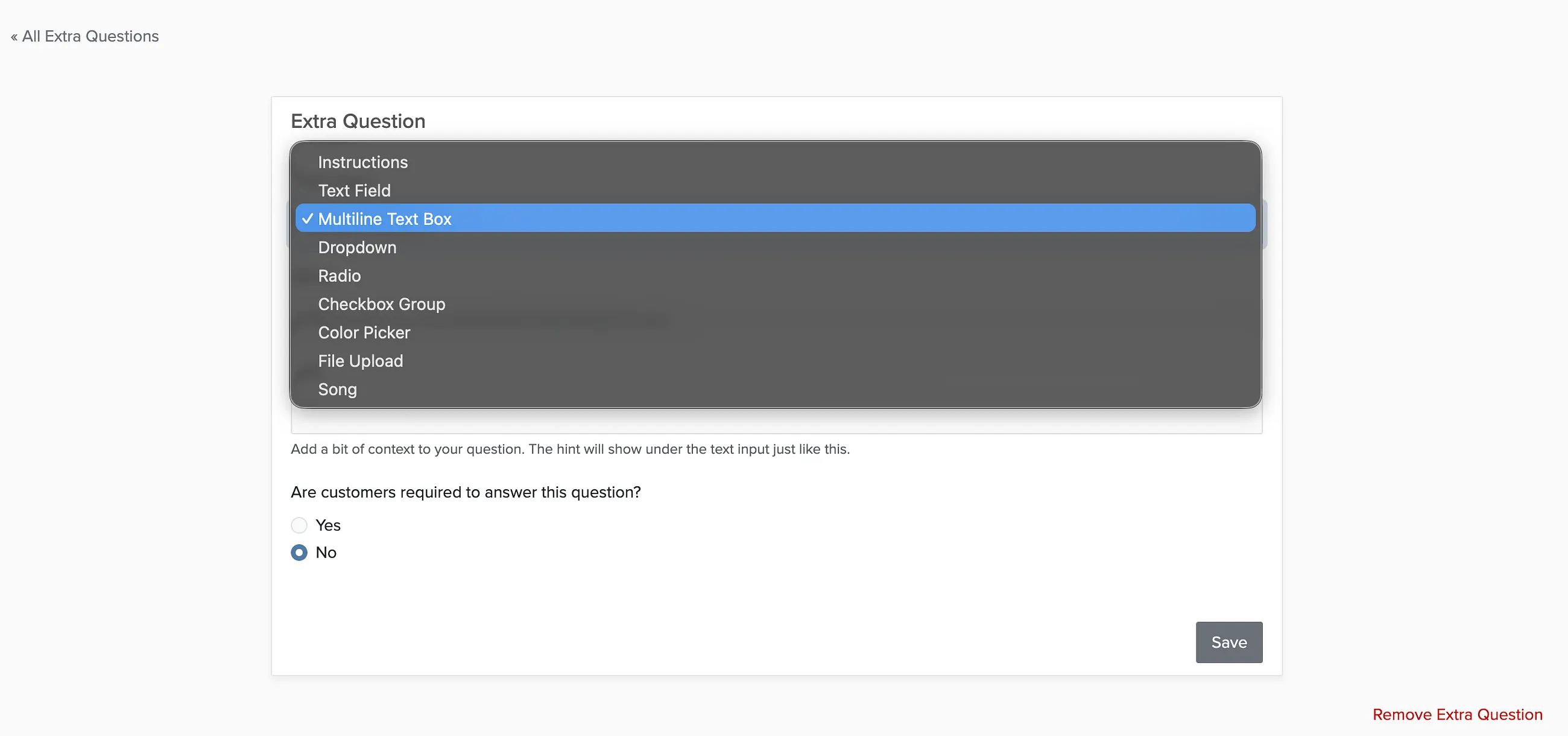
Collect details with Extra Questions
Extra Questions let you gather the customization details you need alongside the design choice: text for an overlay, a couple's names, a hashtag, color preferences. They show up to the client right where they pick their template, so the answers stay attached to the design.
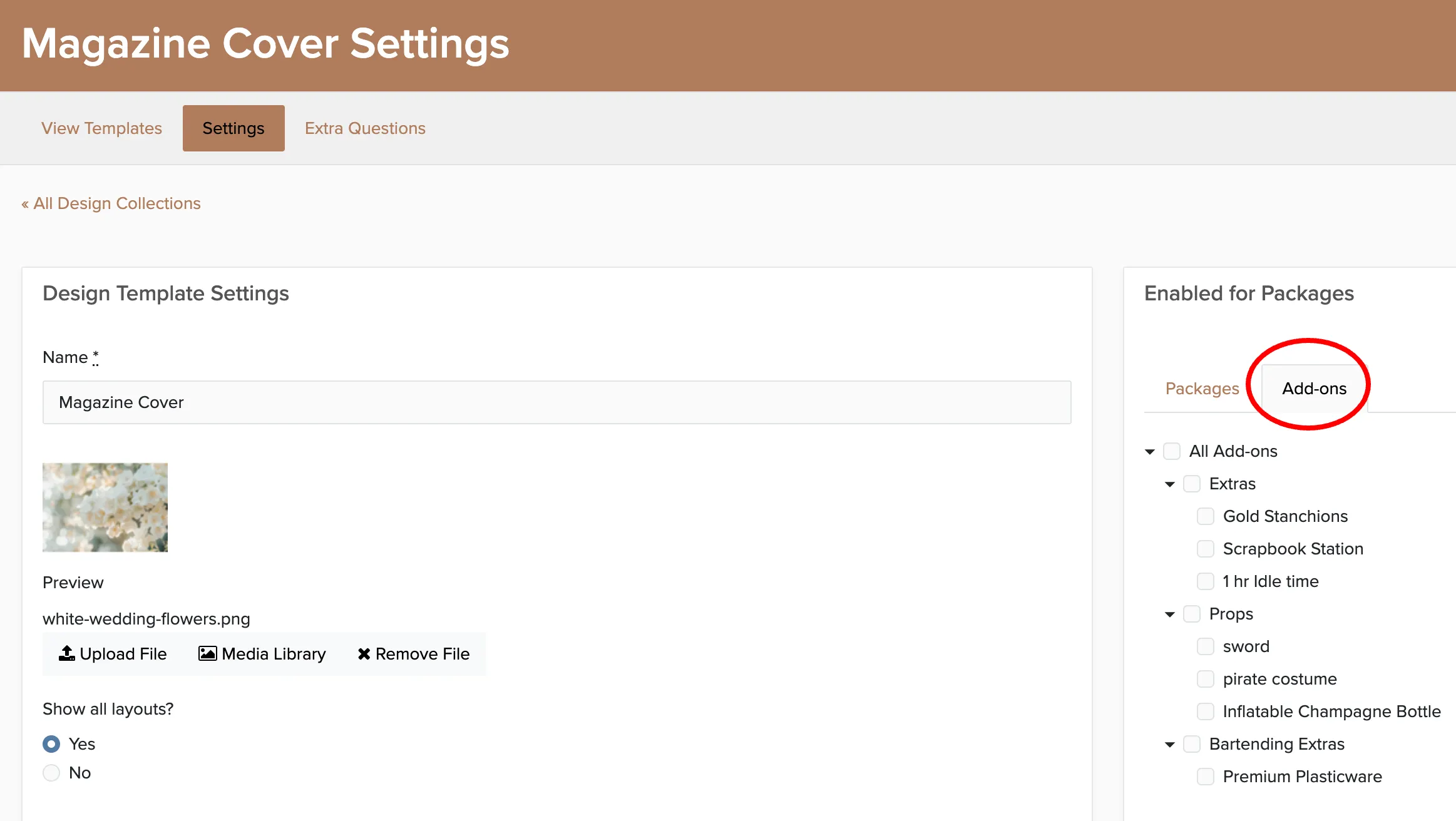
Assign collections to packages and add-ons
A collection only appears to the client once you assign it to the packages or add-ons it belongs with. When a booking is created on a matching package, the collection is added automatically and becomes a design the client can choose a template for.
Apply changes to existing bookings
By default, edits you make to a collection only affect future bookings. Bookings that already exist keep what they had, so a client mid-planning does not see their designs shift. To push changes onto current bookings, use the Sync tab.
Common needs
Most questions about designs come down to one of these. Pick the one that matches what you are trying to do:
- You want the client to approve several different designs on one booking (a welcome screen, an overlay, and a print template, or a 360 intro, outro, and audio track). See Have a client approve several designs on one booking.
- You want the client to pick just one design from a few options you offer (one overlay look out of three). See Offering the client a choice above.
- You want to skip the library and upload artwork straight to one booking (you already discussed the look, or the art was made elsewhere). See Upload custom artwork directly to a booking.