Surcharges automatically add fees to bookings based on rules you set. Use them for peak season pricing, weekend events, last-minute bookings, or any situation where you need to charge extra.
How to add a surcharge
Manage → Flex Pricing
Go to Flex Pricing.
Click New Surcharge.
Enter a Name — this will show up on the customer's invoice.
Add a Description to give the customer more information about the charge.
Set your surcharge amount and rules (details below).
Save the surcharge.
Surcharge Amount
Choose how to calculate the surcharge:
- Flat rate — a fixed dollar amount
- Percent — a percentage of the item or booking total
Is this surcharge taxable? Y/N (will only show up if you have enabled a Tax Zone)
How the surcharge applies
- Each Specific Item: Applies to every matching package, add-on, and backdrop individually. If there are multiple matching items, the surcharge repeats for each one.
- Entire Package & Add-Ons/Backdrops: Applies once per matching package, including all its associated add-ons and backdrops. Multiple packages get charged separately.
- Complete booking: Applies a single surcharge to the entire booking, regardless of how many items it contains. Creates one line on the invoice.
Rules
Set conditions for when the surcharge applies:
- Require a certain book date? Yes or No
- Require bookings to start on certain dates?
(E.g. offer a 20% surcharge when the booking is held on New Years Eve.) - Require booking to start on certain days of the week? Yes or No
- Apply if the booking date is a certain number of days away? Yes or No
- Apply if the total of the booking is a certain amount? Yes or No
- Apply based on the venue location? Yes or No
(E.g., charge extra for bookings within a certain city.) - Apply based on end time?
(E.g., charge extra for bookings that end after 1am) - Apply based on the user account?
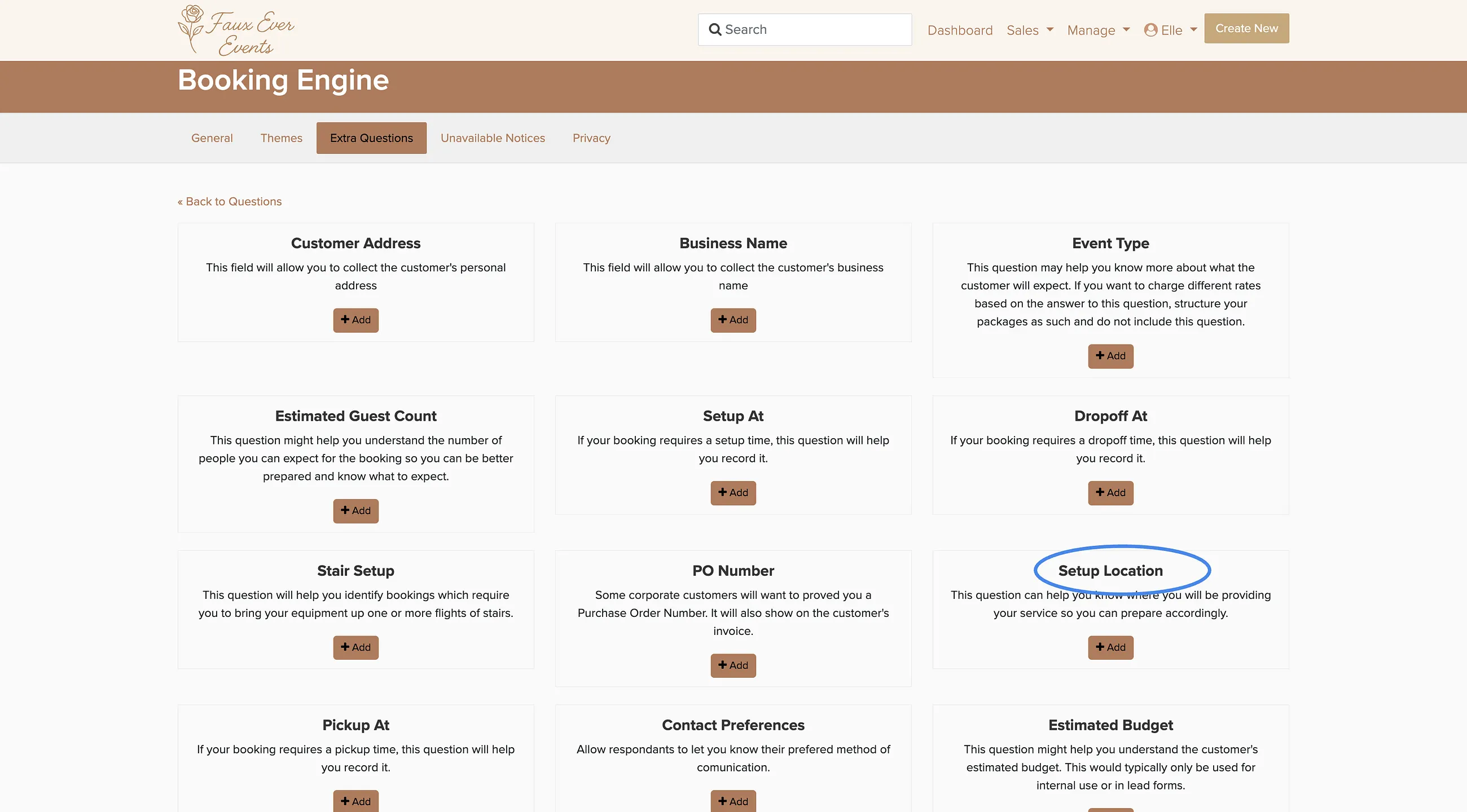
(Great for repeat customers) - Apply based on the setup location? Indoor/Outdoor only
(Based on Extra Question Setup Location)
For all Flex Pricing rules, the default is to apply to all packages. Click Edit to assign the pricing rule only to specific packages.