Your Minis live with your bookings. Each one has its own page for slots, bookings, staff, and messages.
Finding your Minis
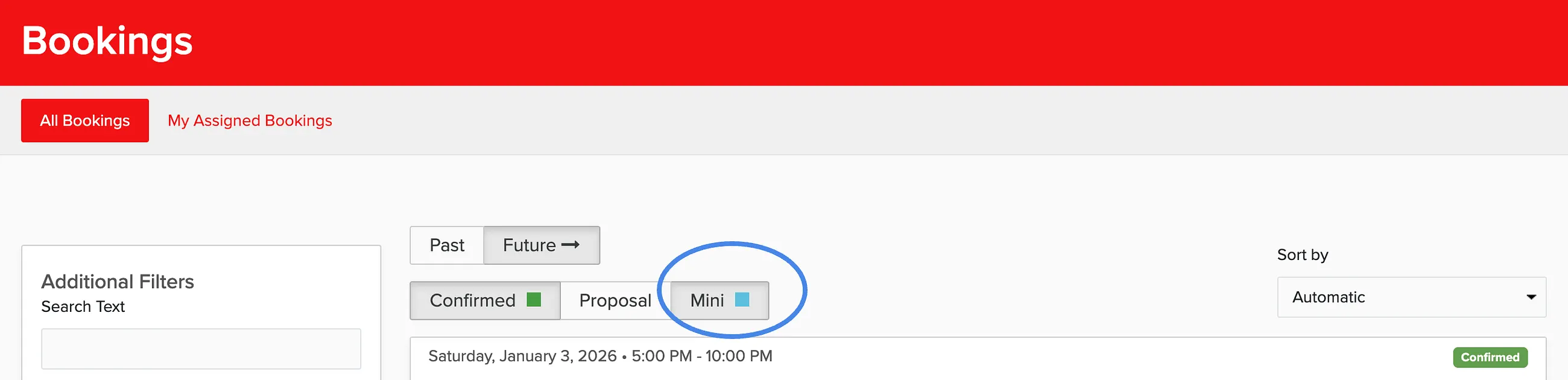
Go to Sales > Bookings and use the Mini filter. The filter shows up once you've created your first Mini. To create one, see How do I create a Mini?
Overview
The Overview is where you run the day:
- Copy the link to share, or preview the page clients see
- Add slots, or regenerate them from your settings
- Open any booked slot to see the booking, reschedule it, or take payments and refunds from the invoice
- Assign staff, or change who's assigned
The Manage Mini menu has the rest: Edit Settings, Change Cover Photo/Theme, Edit Terms, Duplicate Mini, and Sharable Link.
Settings
Change the name, description, status, date and times, slot length, bookings per slot, price, deposit, and location. Status is Public (shown on your booking pages), Private (bookable by link only), or Disabled (not bookable).
Cover & Theme
Pick the cover photo and look of the booking page.
Messages
Email the clients booked into this Mini, from scratch or from one of your templates. Good for reminders and day-of details.