Sessions let you create a single event day with multiple bookable time slots. Photographers use them for mini sessions at a park, and photo booth operators use them for things like Santa photos. Clients book individual slots at a more affordable rate than a full booking.
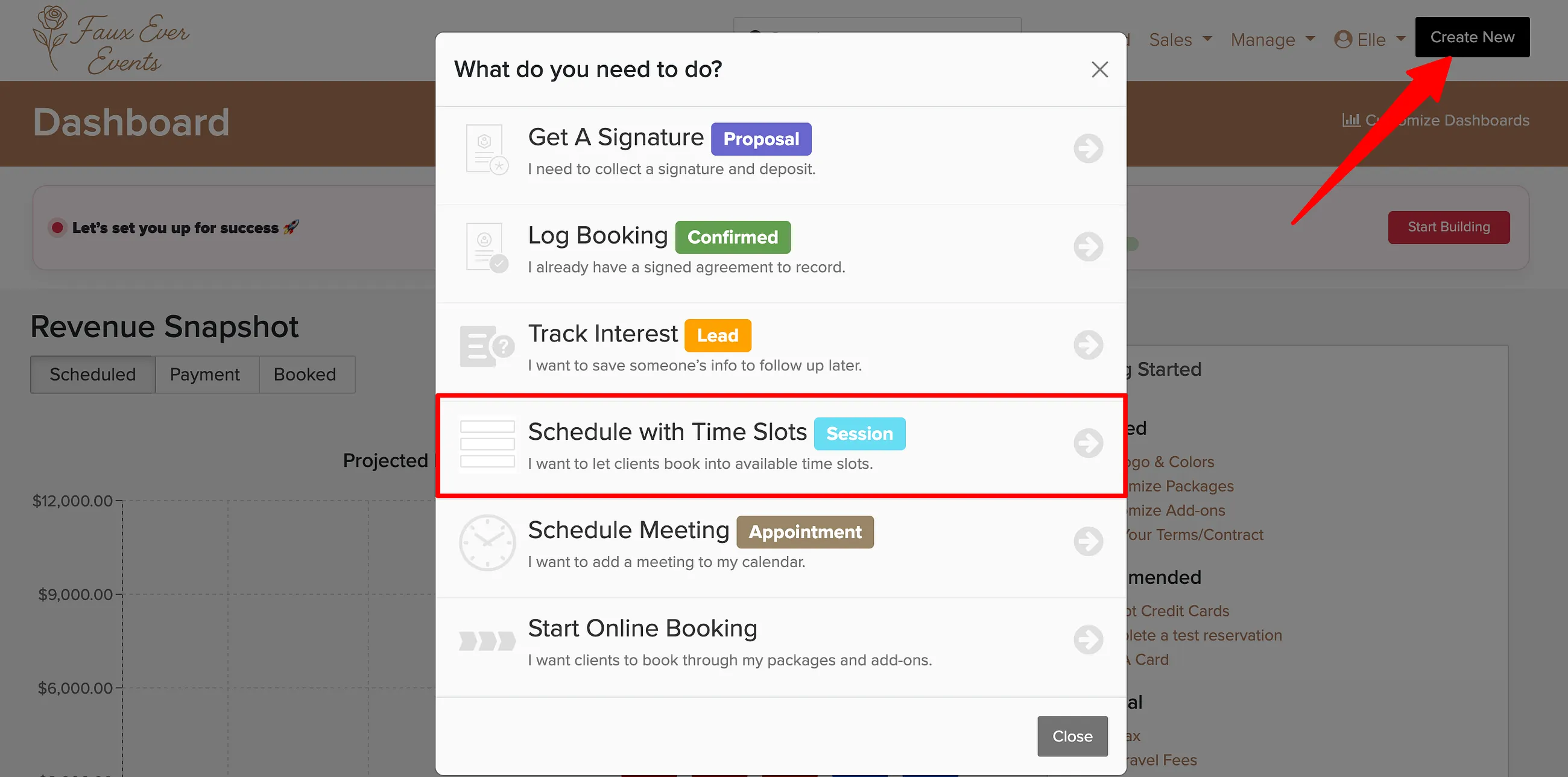
Creating a Session
Managing Sessions
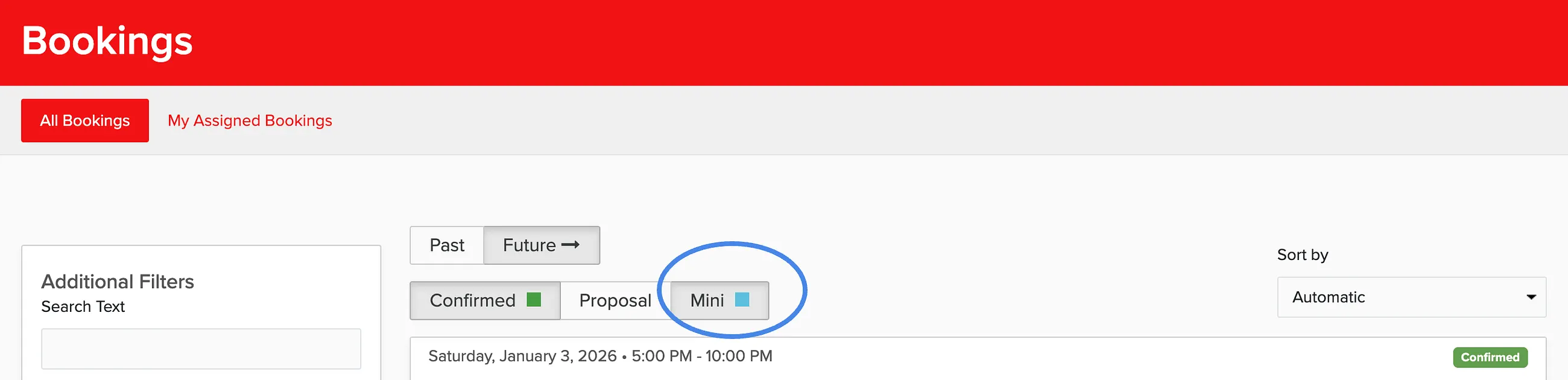
Once you have your session created, managing it is easy. Just go to Sales - Bookings and select the filter for Mini Sessions.
Overview Tab
From the overview page, you can manage all the key details of your session:
- Title and description of the session
- Status (Public, Private, or Disabled)
- Date and location
- Number of bookings per slot
- Full price and deposit amount
- Tax settings (if enabled)
- Background image for the booking page
- Brand assignment (if you have multiple brands)
You can also perform these actions from the overview:
- Add or remove time slots
- Edit slot times and capacity
- Add bookings manually
- Duplicate the session for future dates
- Add, edit, or remove staff assignments
Terms Tab
Override the default contract terms for all slots in this specific session. This is useful when you need different terms for special events or locations.
Messages Tab
Send emails to individual session clients, either from scratch or using your pre-created message templates. This is handy for sending reminders or updates about the session.
Booking Page
Preview what clients see when they visit your session booking page. This opens in a new tab and shows available slots as they appear to clients. Share this link for clients to book their slot.