Sessions let you sell individual time slots within a single day or event. Think mini photo sessions at a park, Santa photos over a weekend, or consultation appointments. Clients book and pay for their specific slot at a lower price point than your full packages.
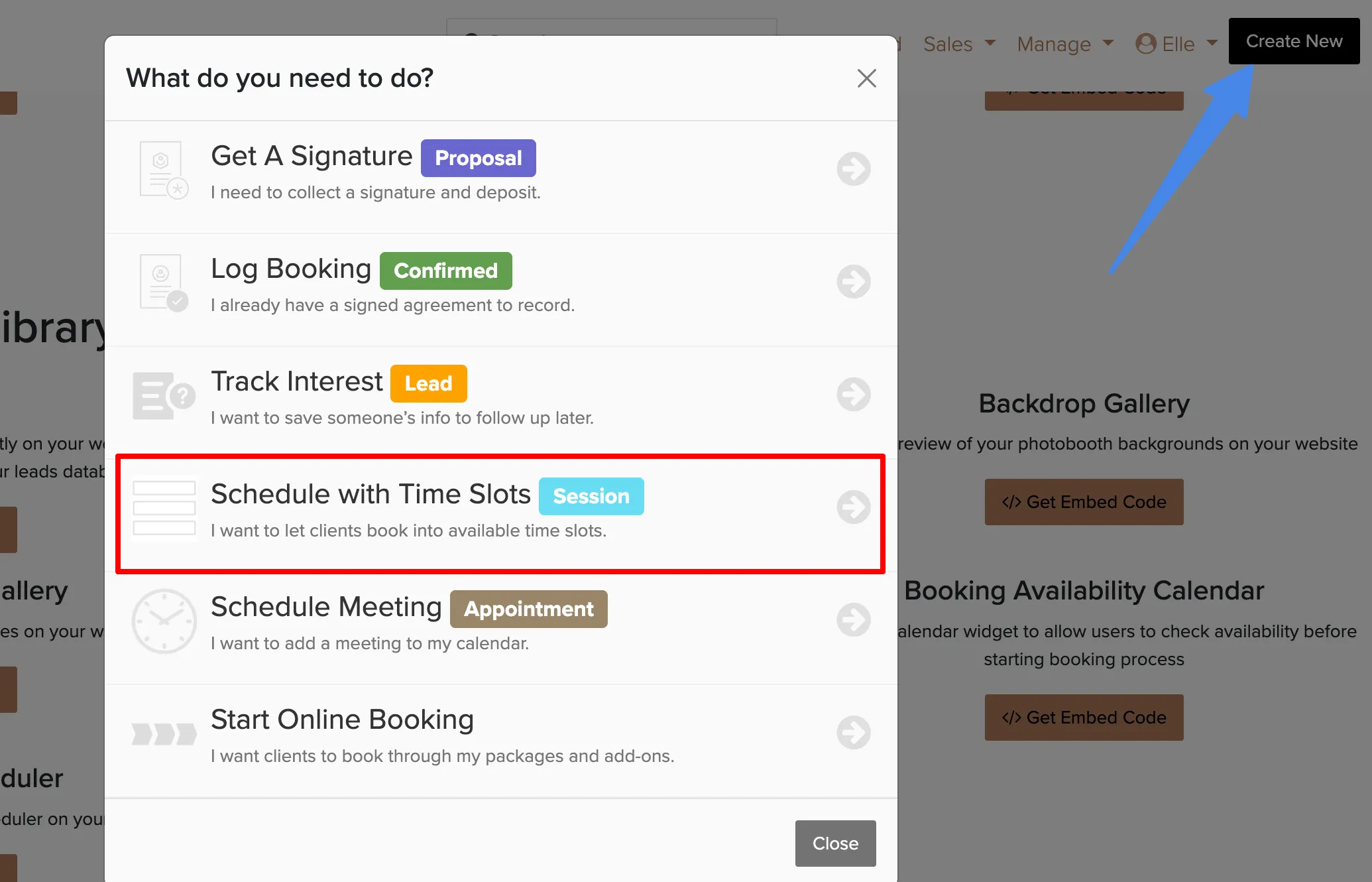
Creating a Session
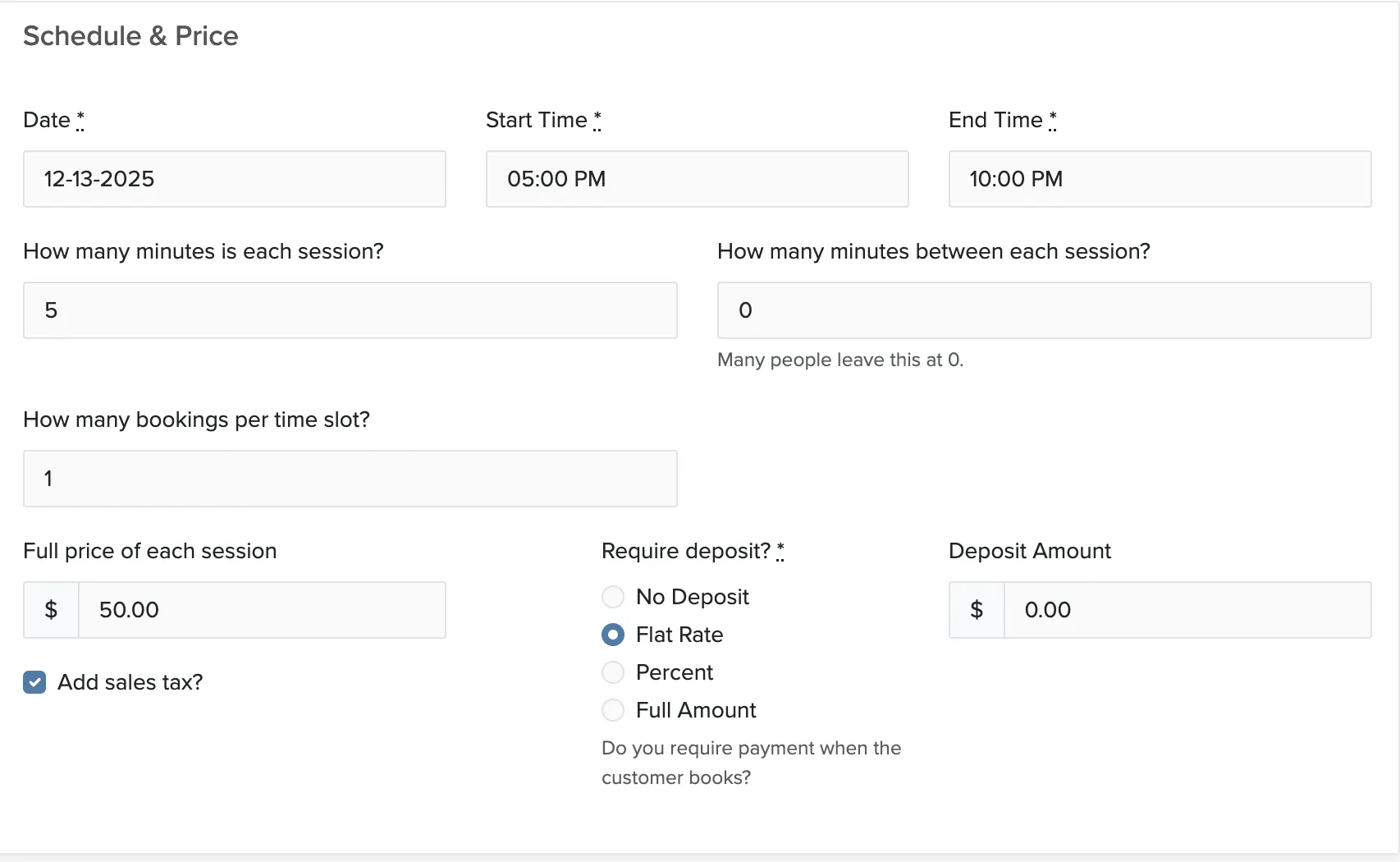
The slots will auto-populate based on your settings. The number of available slots depends on the total session length, how long each slot runs, and the buffer time between slots.
Allowing Multiple People to Book the Same Slot
By default, each slot accepts one booking. But some use cases call for multiple clients booking the same time slot — for example, five families each signing up for the same 15-minute Santa photo slot, or a dozen people registering for the same two-hour mixology class. You can set "How many bookings per slot" to more than one so the slot stays open until it fills up, then closes automatically when booked out.
To set a per-slot capacity, open the session and edit the slot settings. There you can specify how many bookings are allowed before a slot is marked as full.
Editing the Contract
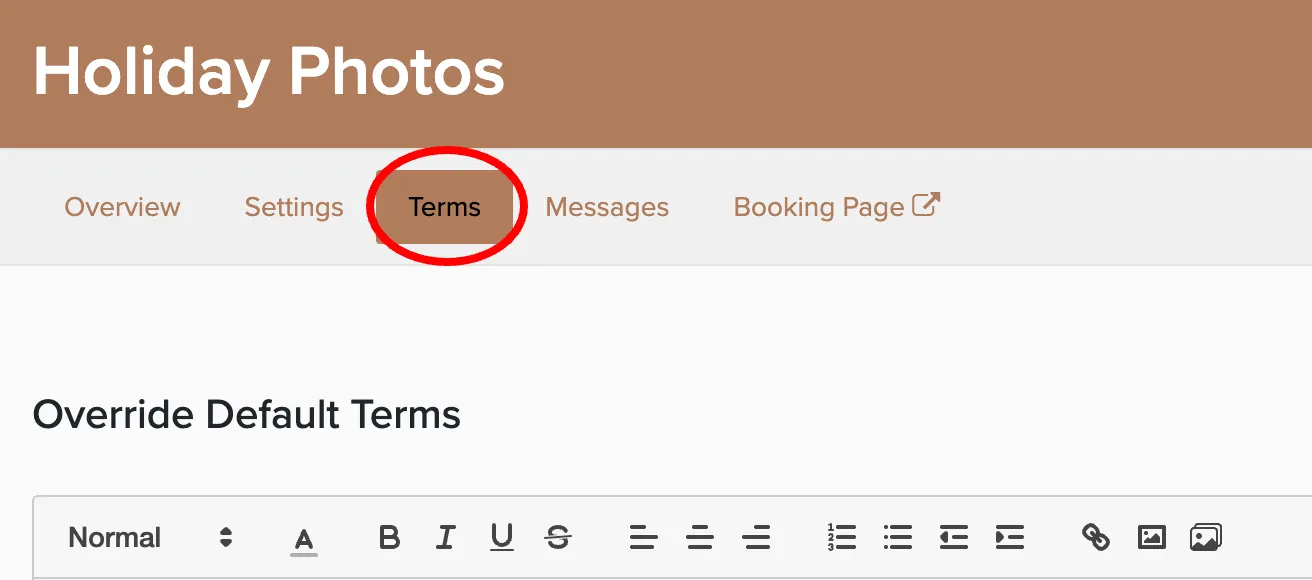
Sessions use your default contract terms. You can customize the contract for a specific session by going to that session and clicking the Terms tab.
Publishing Your Session
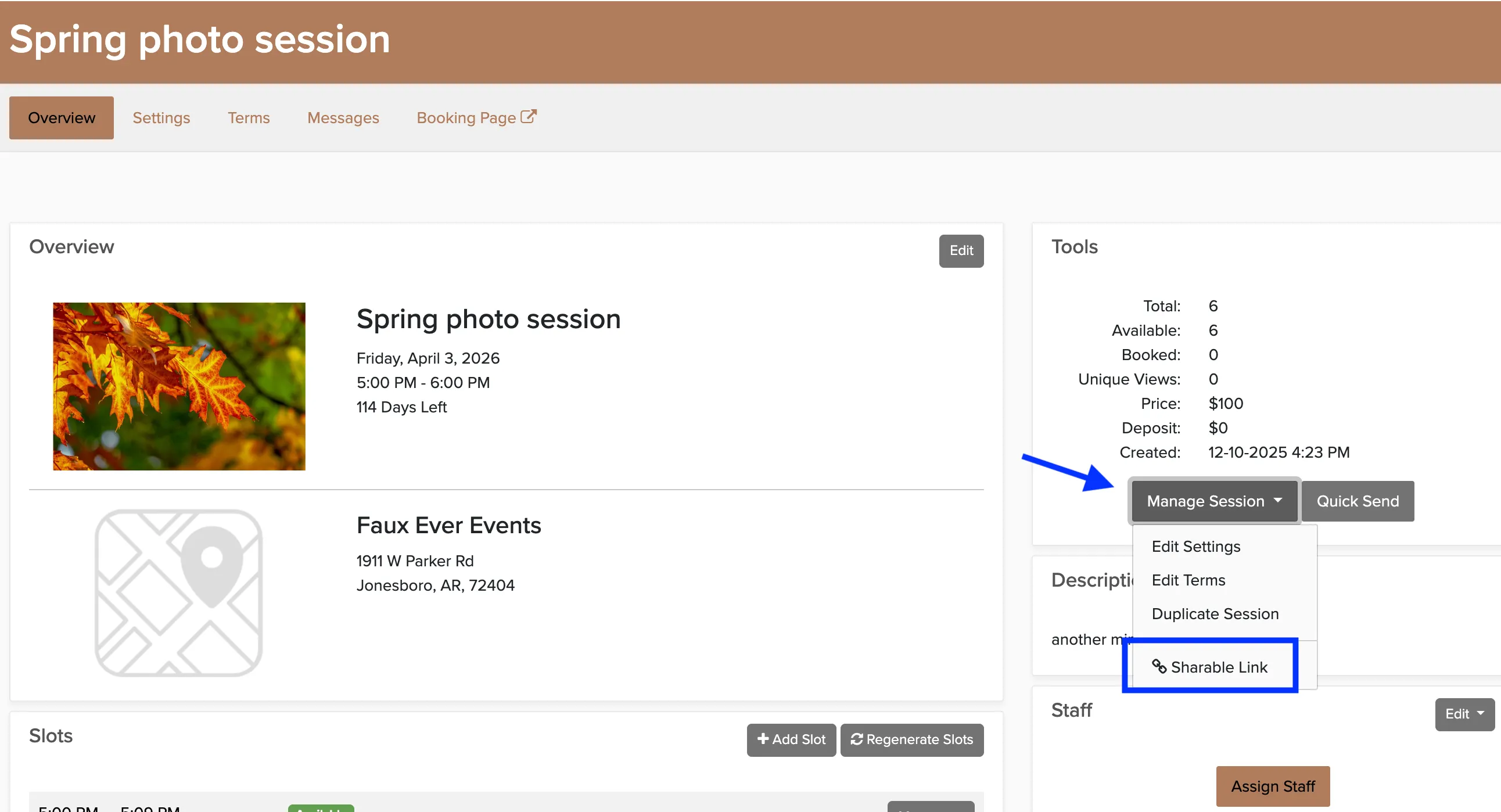
Once your session is set up, make it bookable by clicking Manage Booking from the overview page and copying the shareable link. Share this link on social media, your website, or directly with clients.