Some photo booth companies like to display backdrops on their website. Check Cherry allows you to manage your backdrops in one place and display them in many.
Getting the Embed Code
Configuration Options
Customize how your backdrop gallery appears on your website:
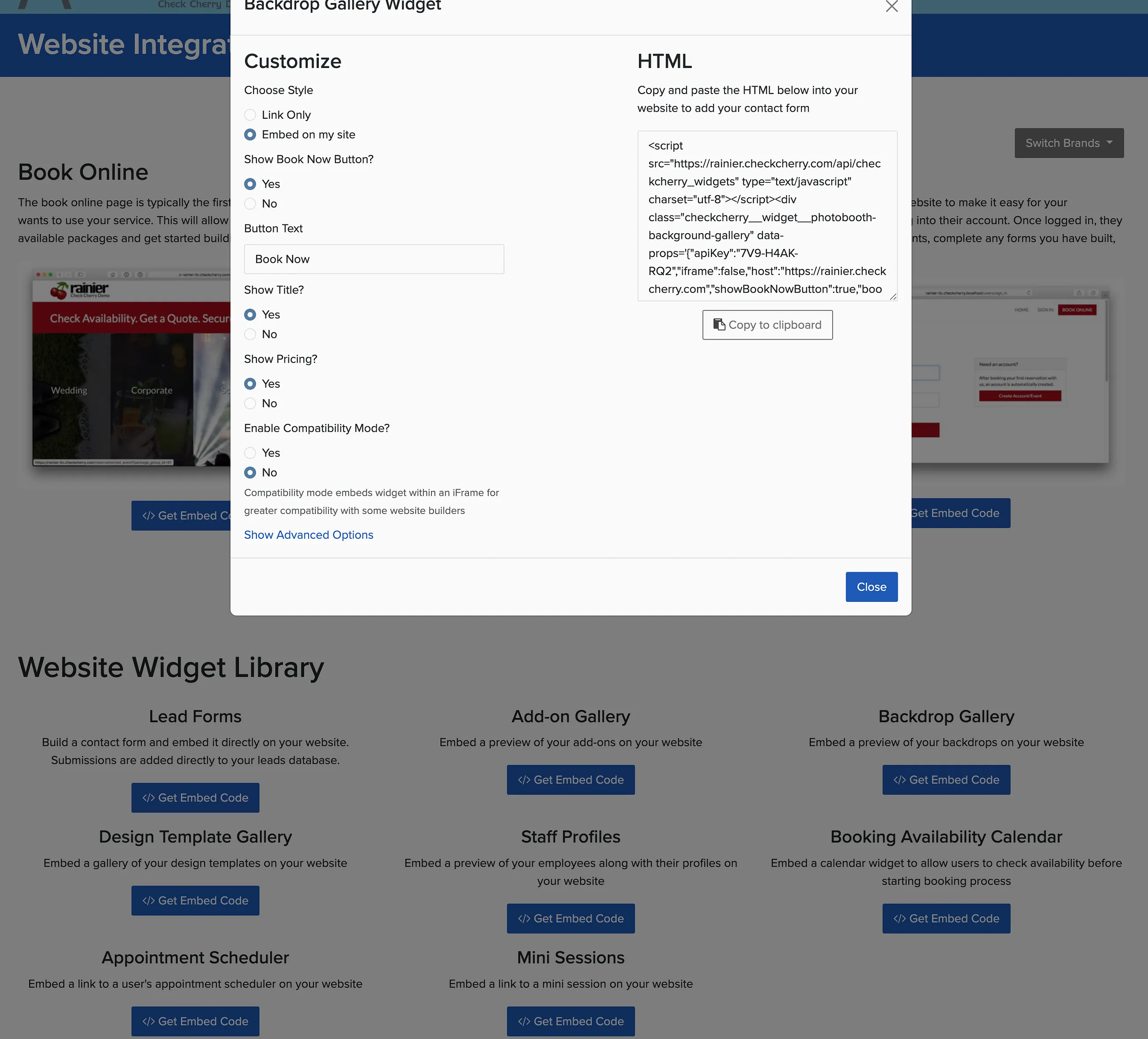
Display Style
- Link Only: Creates a text link that opens your gallery in a new tab
- Embed on my site: Shows the gallery directly on your webpage
Book Now Button
Choose whether to include a button that takes clients to your booking page. Most businesses include this to capture interest while clients are browsing.
Display Options
- Show Title: Display backdrop names below each image
- Show Pricing: Include pricing information for each backdrop
Technical Settings
Compatibility Mode wraps the widget in an iframe for greater compatibility with some website builders. Enable this if your regular embed doesn't display properly.
Advanced Customization
Match your website's look with these styling options:
- Override text color
- Override font family
- Override button background color
- Override button text color
- Set maximum backdrops per page
Adding to Your Website
Once you've configured your settings, copy the provided embed code and paste it into your website where you want the gallery to appear. The code works with most website builders and content management systems.