A client adds your premium backdrop upgrade, and suddenly they need to pick an overlay design that matches. Assign design collections to specific add-ons so the right templates show up automatically.
Assigning Design Collections to Add-Ons
Manage → Design Collections
Go to Design Collections
Choose the design collection you want to edit.
Click the Settings tab.
In the Applies to section, click Add-ons and select which add-ons should trigger this collection.
Click Save.
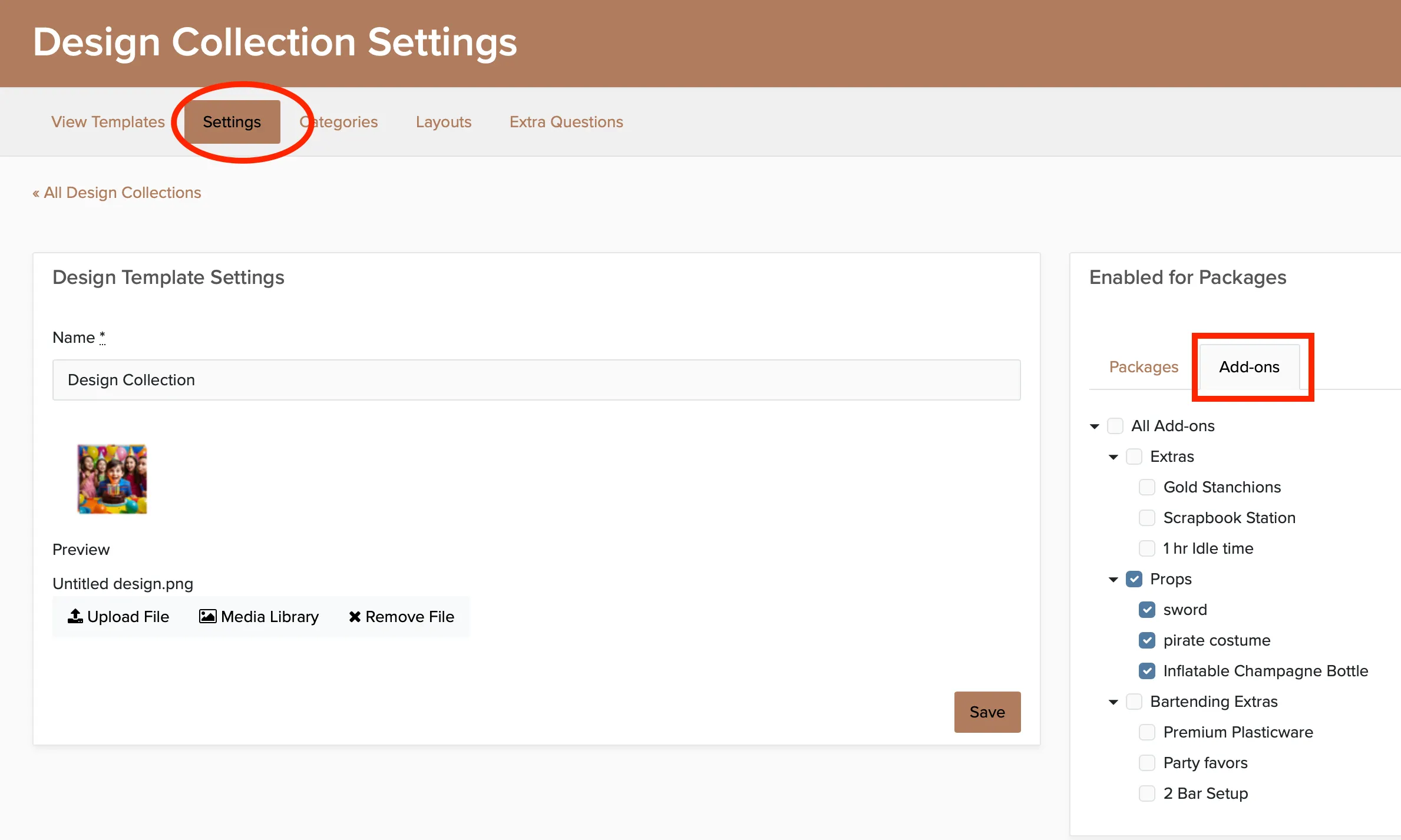
When a booking includes one of the selected add-ons, the client will see templates from this collection during checkout.