Not every package belongs on your public booking page. Maybe you have a custom package you only offer to certain clients, or a premium service you prefer to sell through a conversation rather than self-service checkout.
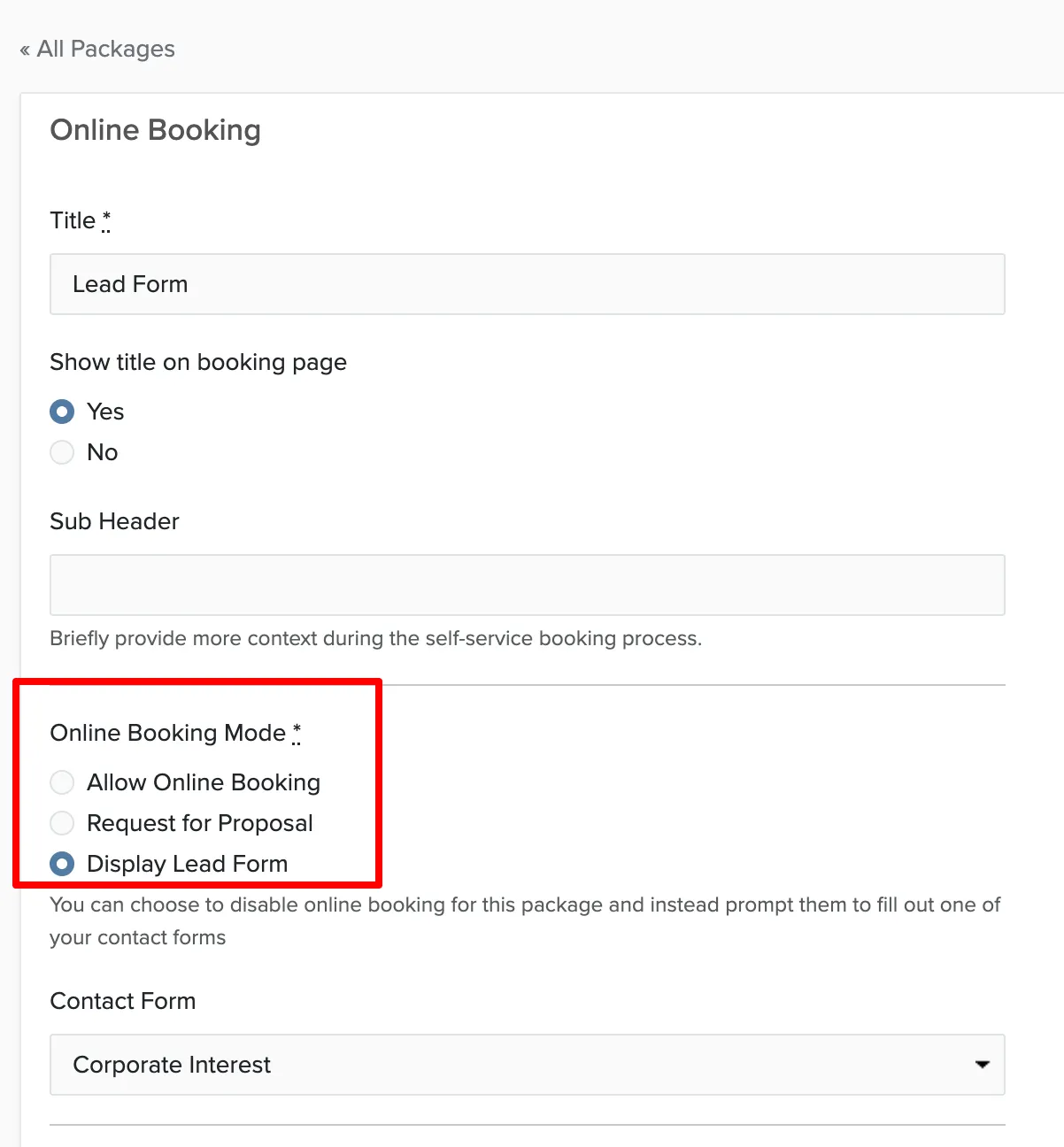
Online Booking Options
When someone clicks on a package on your booking page, you can control what happens next:
- Allow Online Booking: The full self-service checkout experience. Clients choose options, sign the contract, and pay — all without you involved.
- Request for Proposal: Creates a lead and auto-generates a proposal for you to customize and send. Good for packages that need personalization.
- Display Lead Form: Shows a contact form specific to that package. The client fills it out and you follow up however you prefer.
When to Use Each Option
Allow Online Booking works best for standardized packages where the client can make good decisions on their own. Think basic packages with clear add-on choices.
Request for Proposal is good for premium or complex packages where you want to customize the pitch. The system creates the proposal automatically based on the package, but you review and edit it before sending.
Display Lead Form gives you the most control. The client sees the package details and pricing, but has to contact you to move forward. You can ask package-specific questions on the lead form.