Every package in Check Cherry has its own set of options that control pricing, scheduling, availability, and online booking behavior. This article walks through each setting in the package editor so you know what everything does.
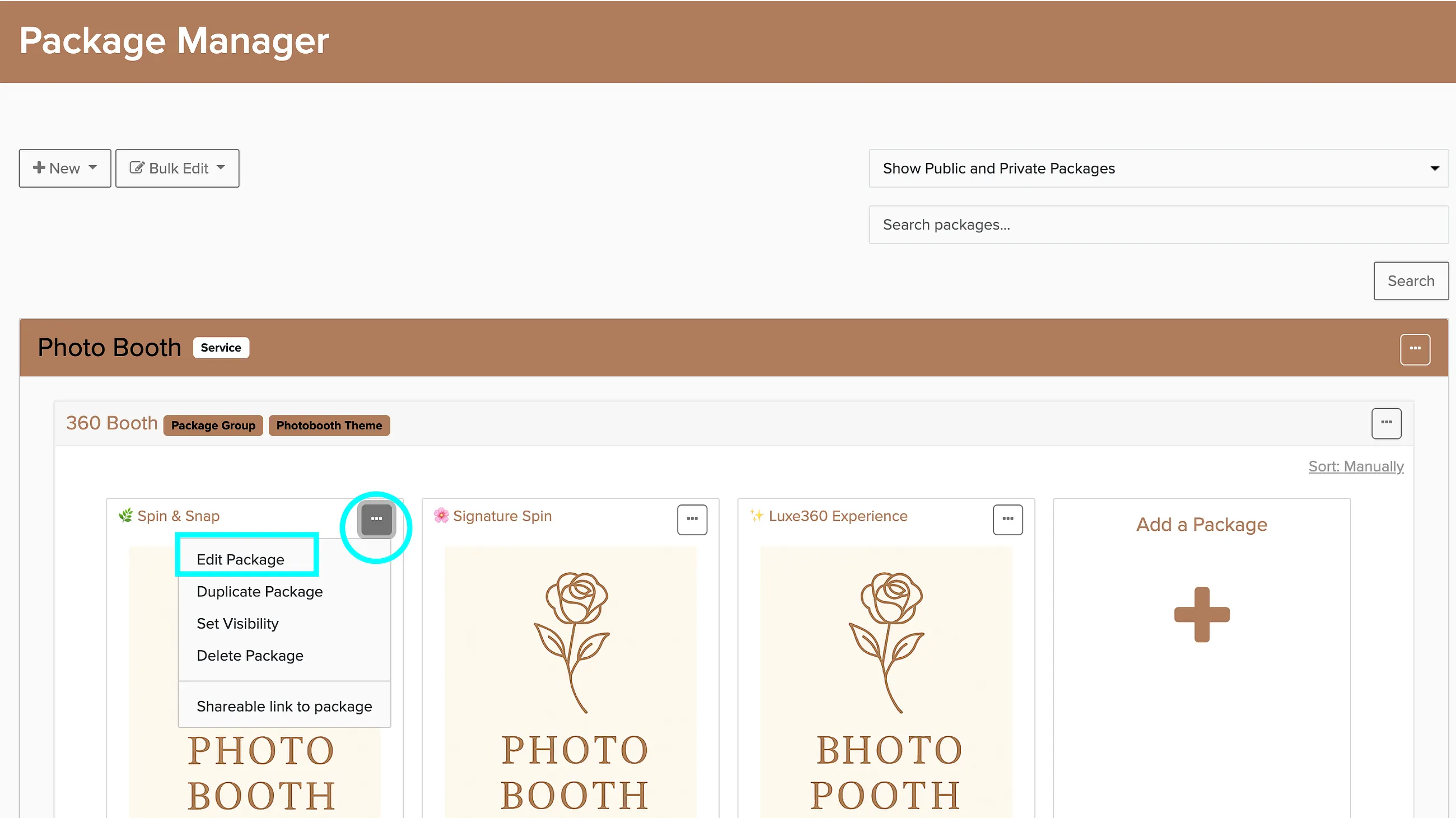
To access settings for a specific package, click the menu button in the upper right corner of the package card in the Package Manager.
General Settings
Title
The name of the package as it appears on invoices, bookings, and proposals. This is what your clients see when they receive a proposal or review their booking details.
Description
A detailed breakdown of what's included in the package. Use this space to list equipment, services, and anything else the client should know about what they're getting.
Status
Controls where and how the package appears in your account.
- Public: visible on your booking pages and available for online booking.
- Private: not visible on booking pages, but you can send a direct link to clients.
- Disabled: hidden from the Package Manager and online booking entirely.
Package Group
Groups let you organize related packages together. For example, you might group all 360 booth packages separately from mirror booth packages. Groups show as tabs in the booking engine and help clients browse your offerings.
Primary Image
The image displayed for this package in the booking engine. Choose something that represents the experience your clients can expect.
Pricing and Scheduling
Scheduling Mode
Scheduling mode determines how clients select dates and times when booking. There are two main modes, each with its own sub-options.
Date and Time
Use this for services that last less than 24 hours, which covers most event bookings. There are three sub-modes.
Minimal: The most common option for event professionals. Clients pick a date and enter their start time directly. If your clients already know when their event is and are unlikely to change the date based on your availability, this keeps things simple.
Automatic Slots: Check Cherry generates available time slots based on your schedule and displays them for the client to choose from. This works well when both sides have flexibility, like a family photographer offering sessions throughout the day.
Predefined Slots: The most restrictive mode. You define specific time slots and clients choose from only those options. A venue might use this to offer a cheaper morning slot and a more expensive evening slot.
Date Only
Use this for rentals or services that span 24 hours or more, typically unattended equipment rentals.
Calendar Picker: Clients select a date range from a calendar. Common for equipment rentals lasting more than 8 hours, like drop-off photo booth rentals.
Starting Rate
The base price for the package. This is the minimum amount a client will be charged before any extra hours, add-ons, or unit-based pricing.
Number of Hours Included
The amount of time included in the starting rate. This is also the preselected duration when a client starts the online booking process.
Taxable
When enabled, sales tax will be calculated on this package based on the venue location and your configured tax zones. You can have some packages that are taxable and others that are not, depending on what you're offering.
Charge for Extra Hours
Enable this if you want clients to be able to add time beyond the included hours.
Hourly Rate: The per-hour charge for any time beyond the included hours.
Booking Increment: The smallest unit of extra time a client can add. Typically set to one hour, but you can allow smaller increments. For example, if a package includes 4 hours and the increment is 15 minutes, clients could book 4h 15m, 4h 30m, 4h 45m, and so on.
Minimum Length
The shortest duration a client can book this package for. If the minimum is less than the hours included, the client is still charged the full starting rate.
Maximum Length
The longest duration a client can book this package for.
Charge by Unit
In addition to time-based pricing, you can charge based on a unit quantity like guests, square footage, or any other measurable unit.
Charge Per Unit
Multiplies the number of units by a per-unit price and adds that to the booking total.
For example, a mobile bartender might charge an hourly rate for the event plus a per-guest fee to cover supplies. If the per-guest rate is $5 and there are 100 guests, $500 is added to the booking.
Charge by Unit Range
Instead of a flat per-unit price, you can set tiered pricing based on ranges. Each range has its own flat rate.
For example, a real estate photographer might charge $200 for homes under 2,000 sq ft, $350 for 2,000-4,000 sq ft, and $500 for anything over 4,000 sq ft.
Unit Settings
- Unit Name: The label your clients see. Choose wording that makes sense for your service (guests, square feet, tables, etc.).
- Minimum: The minimum number of units that can be booked.
- Maximum: The maximum number of units that can be booked.
- Price Per Unit: The price charged for each unit (when using per-unit pricing).
Deposit Settings
Controls whether a deposit is required when the booking is created.
- Flat Rate: A fixed dollar amount is collected as the deposit.
- Percentage: The deposit is calculated as a percentage of the total booking amount.
- None: No deposit is required.
Availability
Controls which days and times this package can be booked.
Yes (available every day): The package is available 7 days a week with no time restrictions beyond your business-wide availability settings.
Yes, with limited hours: Available every day, but only within a specific time window.
- Earliest Start: The earliest time a booking can begin each day.
- Latest Start: The latest time a booking can begin each day.
No (specific days only): Lets you choose which days of the week the package is available, with individual time windows for each day.
- Earliest Start: The earliest time a booking can begin on the selected days.
- Latest Start: The latest time a booking can begin on the selected days.
Advanced Settings
Online Booking Title
By default, the booking engine uses your package title. You can override it here if you want a different name to appear on booking pages.
Show Title on Booking Page
- Yes: The package title is displayed on the booking page.
- No: The title is hidden on the booking page.
Sub Header
Additional text that appears below the package title on the booking page. Use it for a tagline, brief description, or pricing summary.
Online Booking Mode
Determines what happens when a client selects this package in the booking engine.
- Allow Online Booking: The client can complete the booking online, including payment.
- Request for Proposal: A proposal is created for the selected package, but you need to review and send it manually.
- Display Lead Form: Instead of booking, a lead form is shown. If the prospect fills it out, a new lead is created that you can convert to a proposal and send.
Backdrops
If your service involves backdrops (common for photo booths), you can require clients to choose one during booking.
Does this package require the user to choose a backdrop?
- Yes: The client must choose from your available backdrops.
- No: No backdrop selection is shown.
Allow customers to skip this step?
- Yes: The client can skip backdrop selection and choose one later.
- No: The client must select a backdrop before the booking can be completed.