Double-sided backdrops are two backdrops attached back-to-back, so when one side is booked, the other side can't be used that day. Availability rules prevent clients from booking both sides for the same event.
Setting Up Availability Rules
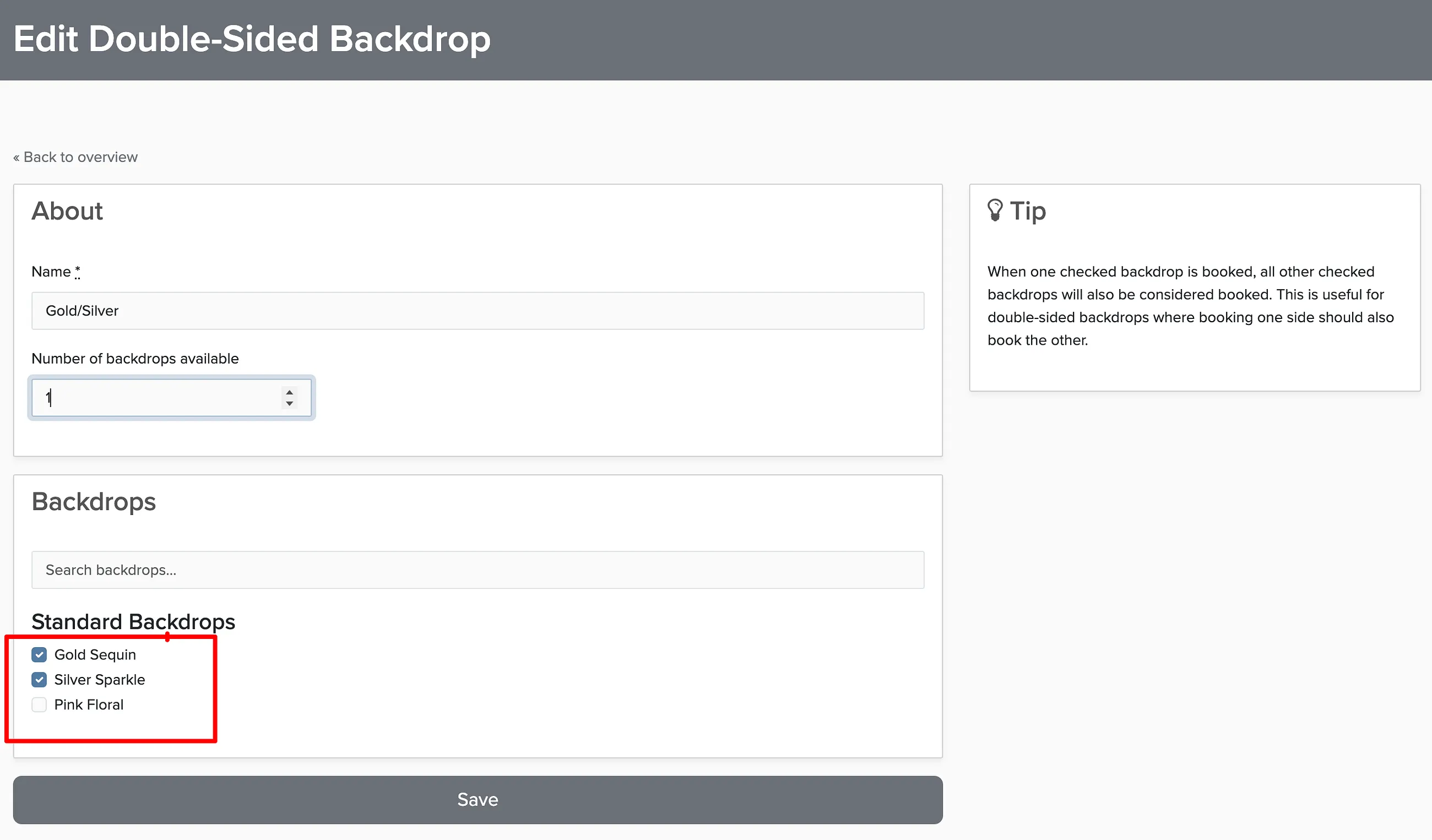
The availability rule links the two backdrops so when one is booked, the other is automatically made unavailable for that date.
Multiple Copies of the Same Backdrop
If you have multiple copies of one backdrop and use them in different double-sided combinations, you need to create separate backdrop entries for each copy.
For example: You have 2 double-sided backdrops — red/white and blue/white. You have 1 red, 1 blue, and 2 white backdrops. Set up 2 separate white backdrop entries (like "White 1" and "White 2"). Then create one availability rule linking Red with White 1, and another rule linking Blue with White 2.
This way, clients can book the red/white backdrop and blue/white backdrop for the same event without conflicts.