The client calls back wanting a second setup for the after-party, or decides to skip the guestbook. Every change happens on the proposal's Overview tab, and totals recalculate as you go. The proposal link always shows the current version, so there is nothing to resend unless you want to let the client know.
Adding a package
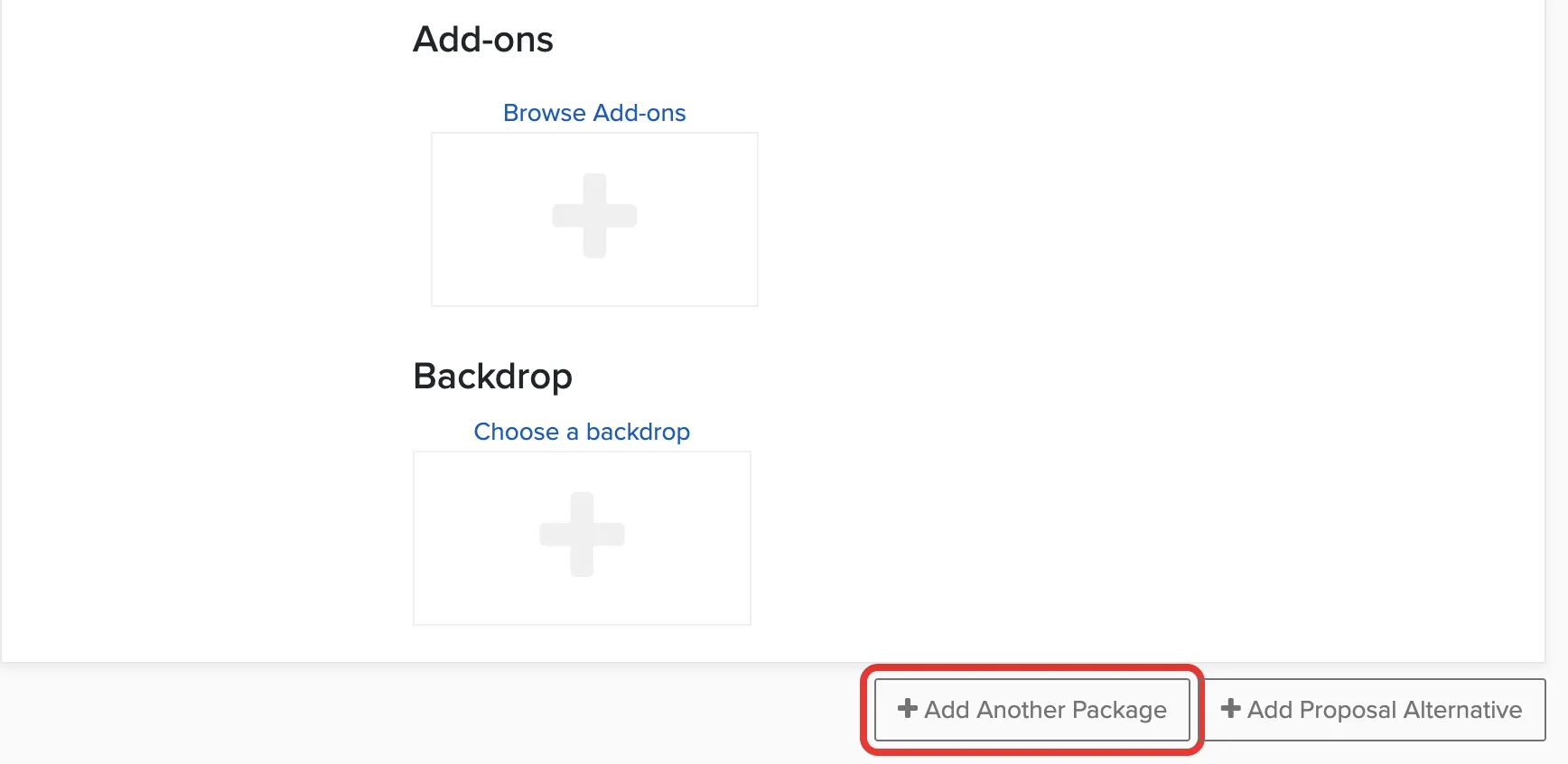
If the new package is close to one already on the proposal, open that package's Edit menu and choose Make Copy of Package instead, then adjust the copy. If the proposal has alternatives, each one has its own Add Another Package button, so the package lands in the option you are looking at.
Swapping or editing a package
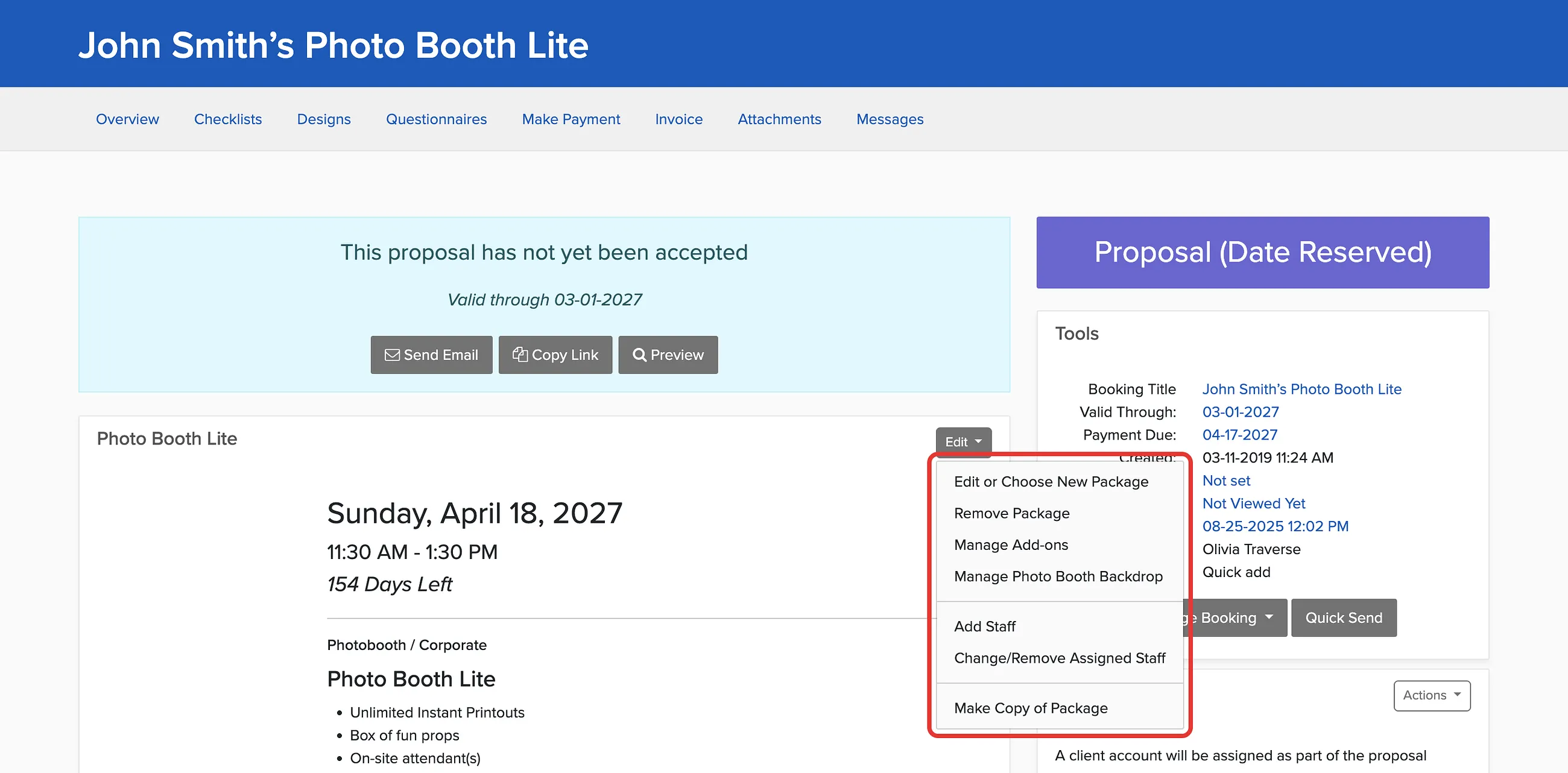
Each package has an Edit menu at its top right. Choose Edit or Choose New Package to swap it for a different package or change it for this proposal only:
- Choose a different package
- Rename it and edit the description
- Change the date, start time, and billed hours
- Override the price or the end time
- Mark it taxable or non-taxable
- Change its image
Removing a package
Removing a package also removes its add-ons and staff assignments, plus any Flex Pricing, questionnaires, and designs that only applied to it. If it was the last package in a proposal alternative, that alternative is removed too.
Adding add-ons
Add-ons belong to a specific package, so you add them package by package. If you have renamed add-ons in your account (to Extras or Upgrades, for example), the buttons and menus use your name.
The list only shows add-ons that fit this package and are free on the proposal's date. Anything already booked or inside its lead time is left out, so you can't double book your inventory by accident. Need a new add-on in the list? See How do I create add-ons?.
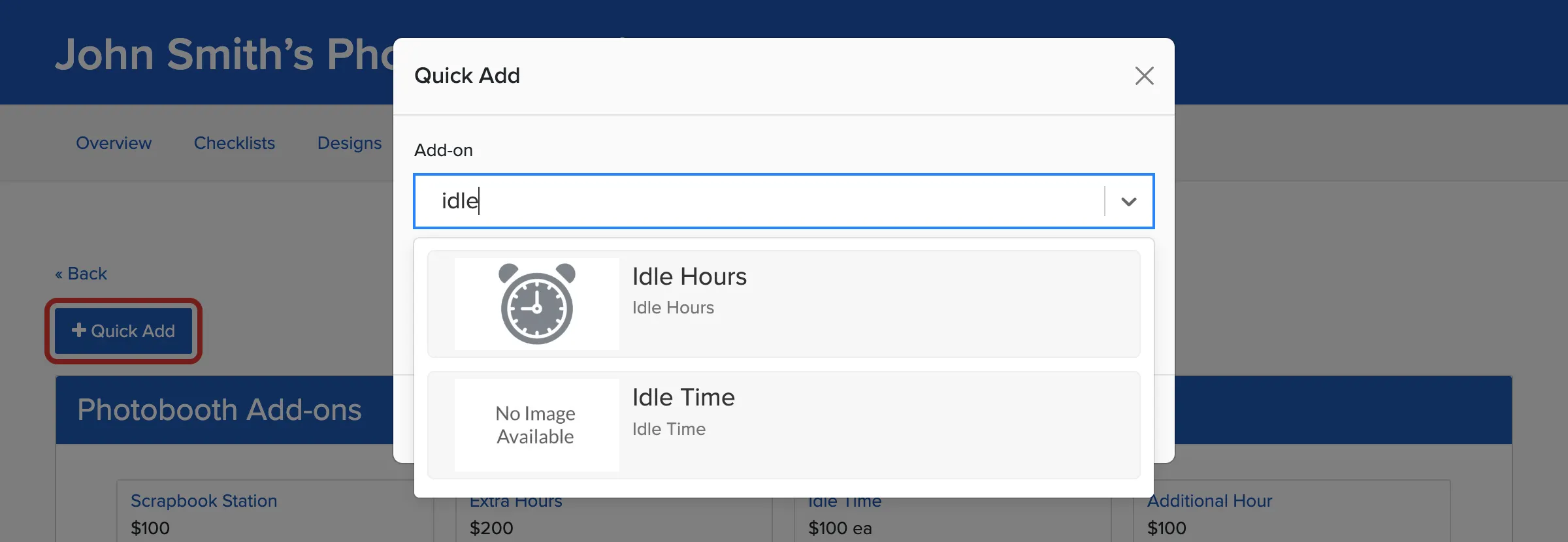
Quick Add, at the top of the add-ons page, lets you search by name and set a quantity in one step. It is faster than scrolling a long list, and it follows the same availability rules.
Adding an add-on that isn't available
Sometimes you know something the calendar doesn't, like a unit coming back from repair. At the bottom of the add-ons page, click Click here to show all add-ons. The page then includes add-ons from your other packages and a Conflicts with availability group, and anything you add from this view skips the availability check.
Admin users always skip the check, and no one is checked on a proposal whose date has passed. Quick Add and the show-all view are available to Admins and staff with extended permissions.
Changing or removing an add-on
Open the package's add-ons page the same way you added it. Everything already on the package is listed under Currently Selected Add-ons.
- To change the quantity, edit Qty and click Save.
- To change the price, name, or description on this proposal only, click the pencil icon.
- To remove it, click the trash icon and confirm.
This works for add-ons that came included with the package too. Removing an add-on also clears any Flex Pricing, questionnaires, and designs that came with it.
Letting clients change add-ons
Clients can add and remove add-ons themselves before accepting a proposal unless you turn that off. To lock a proposal to exactly what you quoted, see How do I prevent clients from adding add-ons to a proposal?.
For the rest of the proposal page, from status to the Manage Booking menu, see How do I manage a proposal?