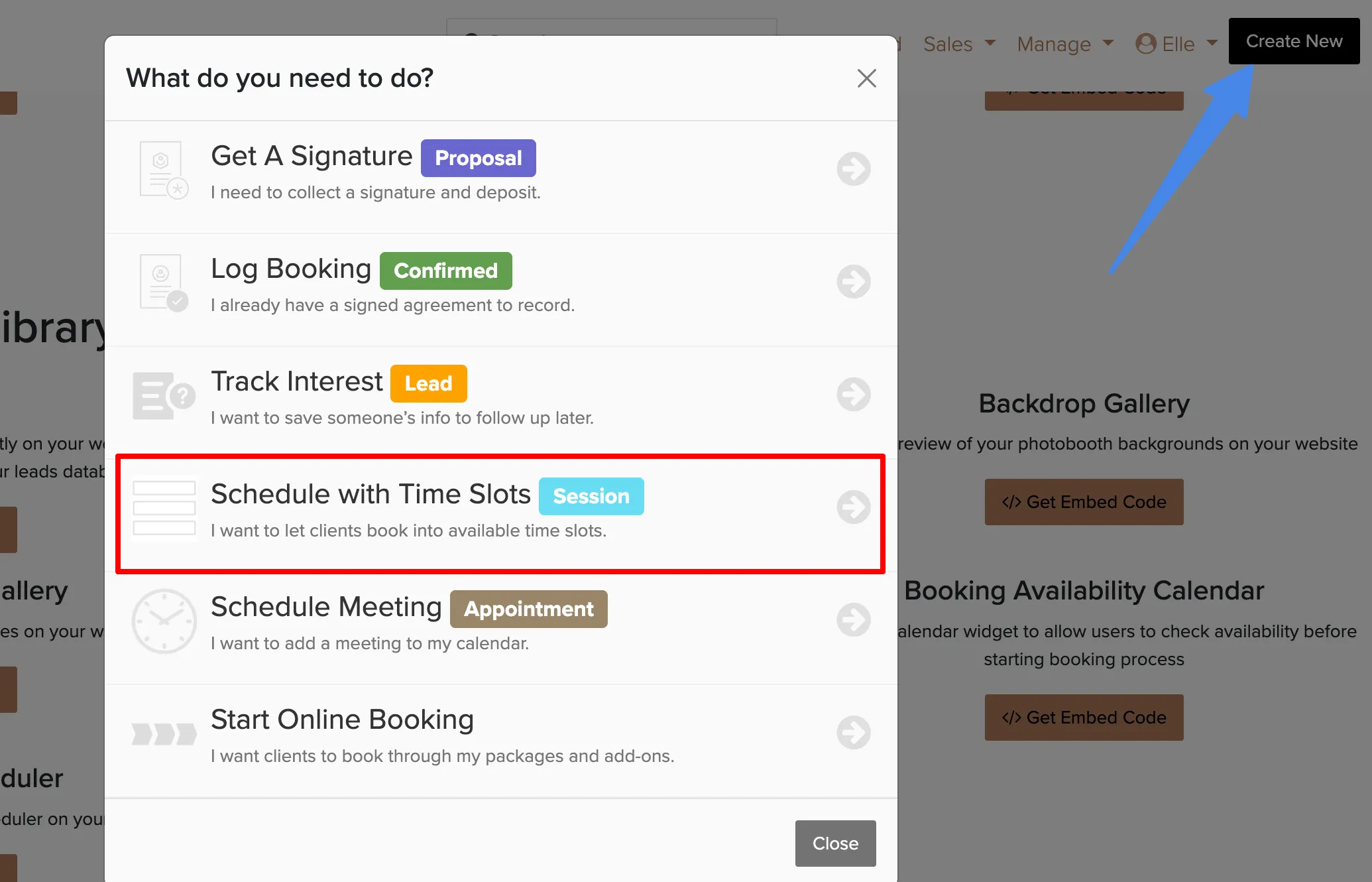
A Mini is one date, one location, and a page of time slots that clients book and pay for on their own. Use it for mini sessions at a park, Santa photos, headshot days, or a class.
Creating a Mini
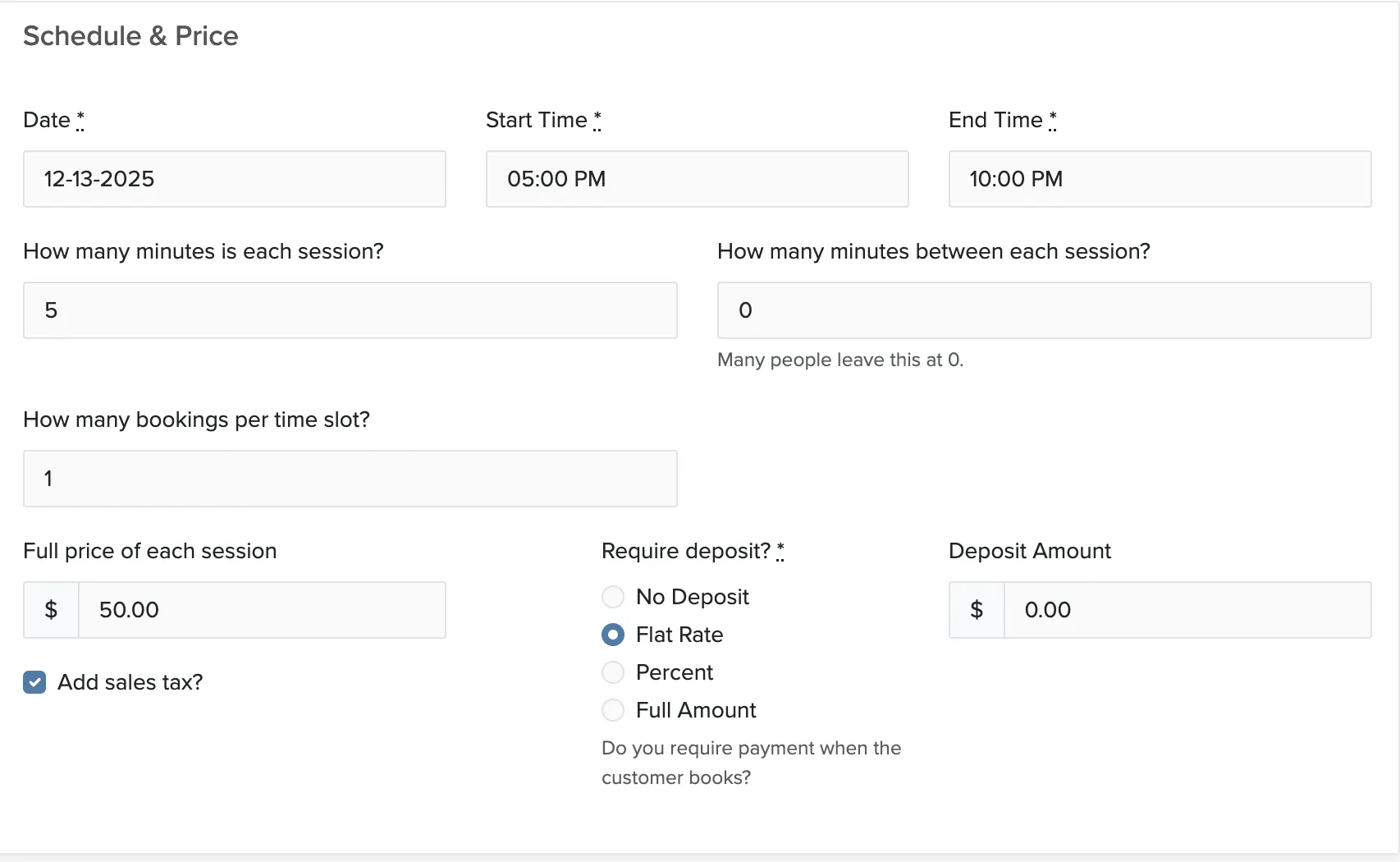
The slots fill in from your settings. How many you get depends on the total time, how long each slot runs, and the gap between slots.
Letting several clients book the same slot
Each slot takes one booking by default. Set How many bookings per time slot? higher and the slot stays open until it fills, then closes on its own. Five families can share a 15-minute Santa slot, or a dozen people can sign up for the same class.
Editing the contract
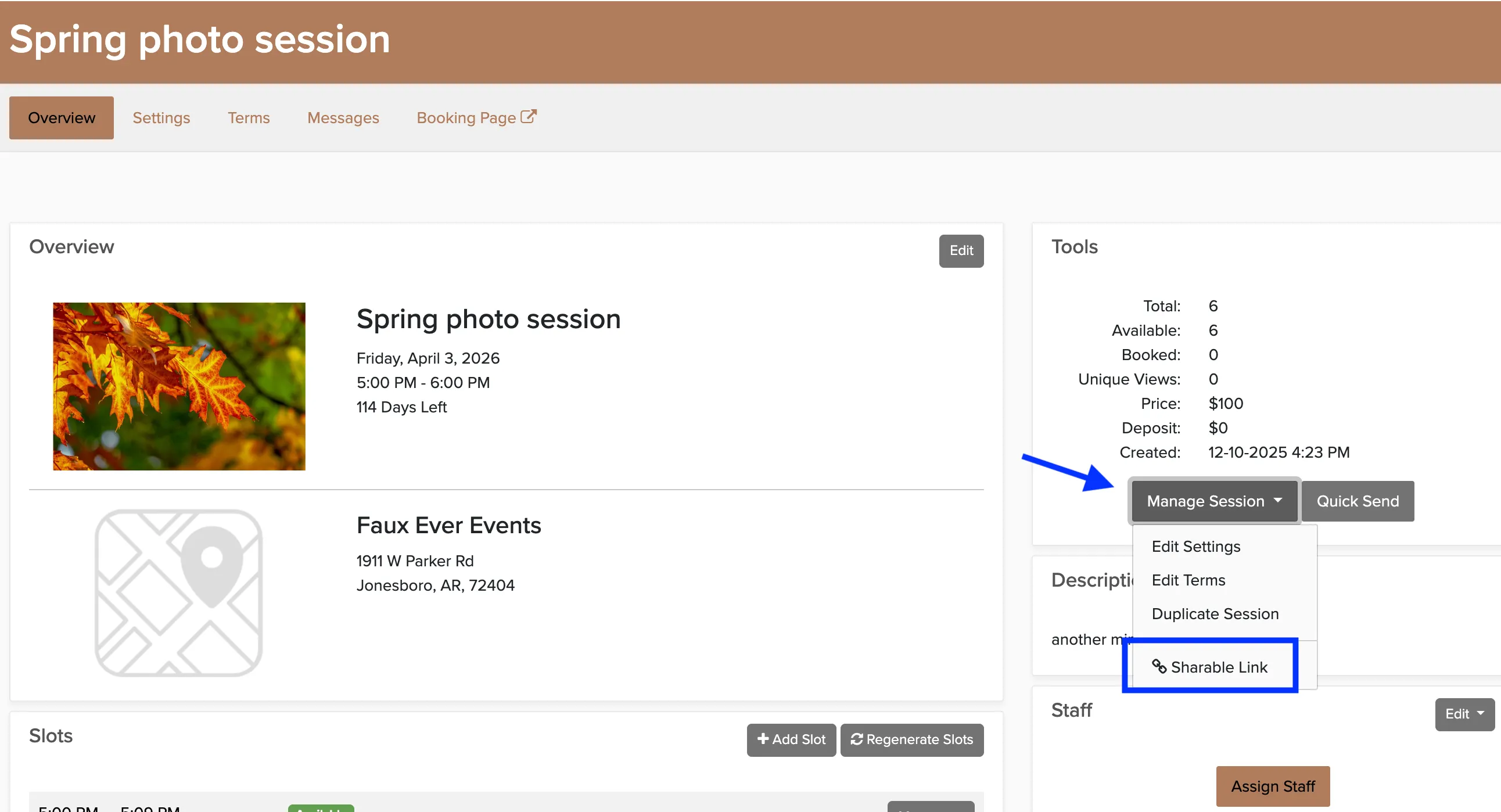
Minis use your default contract terms. To change them for one Mini, open it, click Manage Mini, then Edit Terms.
Sharing your Mini
Open the Mini and click Copy Link at the top of the Overview. Share it on social media, your website, or with clients directly. Preview shows the page your clients see.