Proposals let you send a client your pricing and package options so they can review, accept, and pay online. You can optionally reserve the date so no one else books it while they decide.
Creating a Proposal
Click Create New in the top nav and select Proposal.
Choose a package (or select Custom/One-Off for a custom quote).
Set the event date and time.
Check Reserve Date if you want to hold the date while the client decides.
Enter the client's contact info.
Click Create Proposal.
Sending the Proposal
Once the proposal is created, send it to the client:
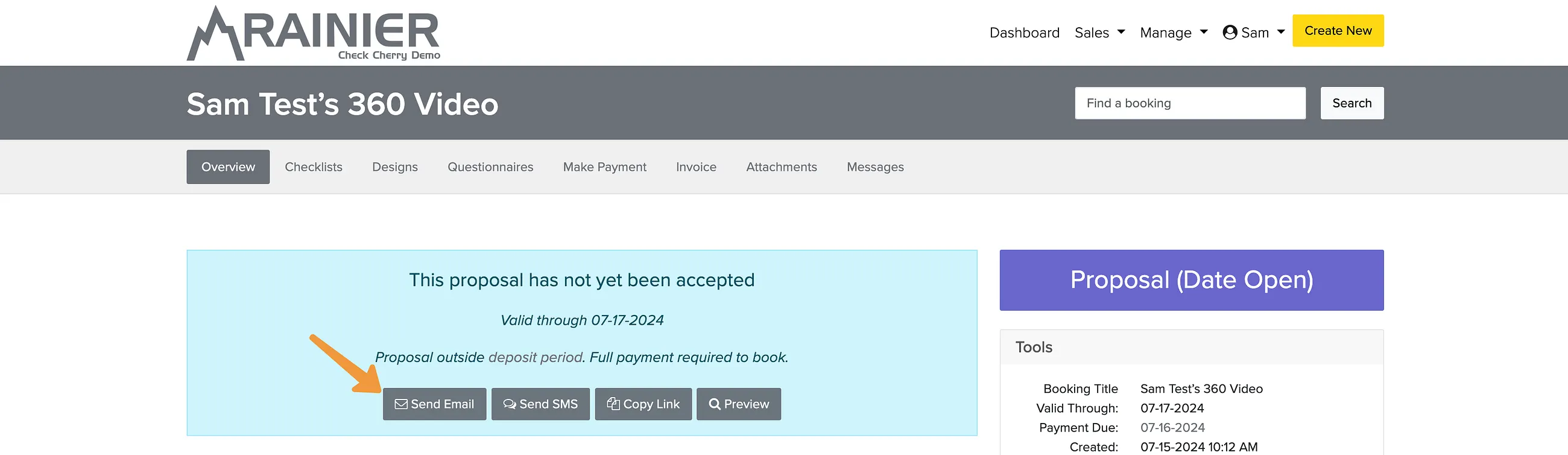
- Email: Click the Send Proposal button at the top of the proposal. You can customize the email before sending.
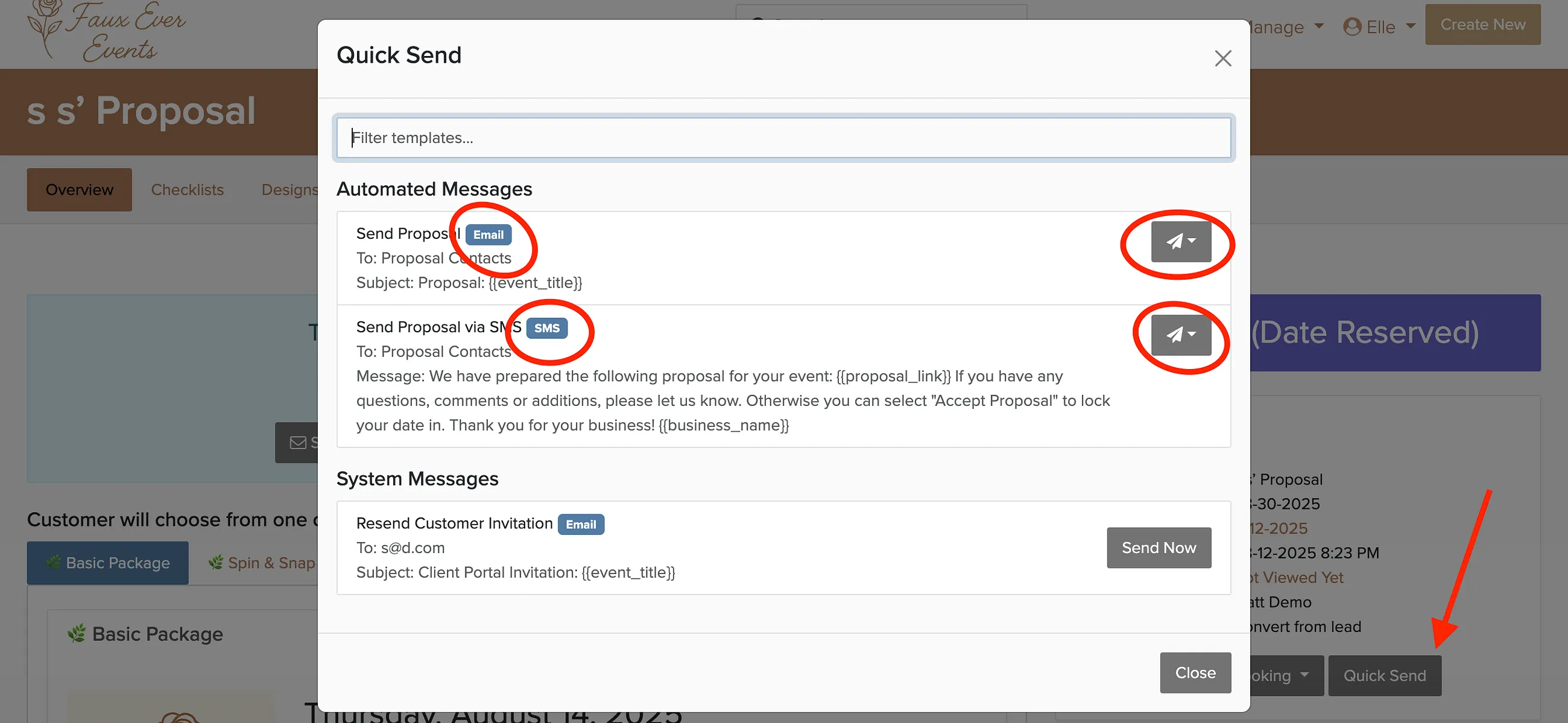
- Text/SMS: Use the Quick Send button if you have Twilio or Quo connected.
- Share link: Copy the proposal link and send it however you like.
You can schedule the email to send later. Useful if you want to follow up at a specific time.
Date Open vs Date Reserved
- Date Open: The date is not held. Other clients can still book it. Use this when you're sending multiple quotes and don't want to block dates.
- Date Reserved: The date is held for this client. No one else can book it until the proposal expires or is declined.
What the Client Sees
Clients get a professional proposal page showing your packages, pricing, and terms. They can review everything, accept, sign the contract, and pay the deposit in one flow.